
Product Overview
The TP-Link Tapo H100 Smart IoT Hub with Chime is a central component for your Tapo smart home ecosystem. It facilitates reliable long-range connections for various smart devices, operates on a low-power wireless protocol for extended battery life of connected devices, and includes a built-in chime for smart alarm and doorbell functionalities.
Key features include:
- Reliable Long-Range Connections: Operates on a lower frequency broadband, reducing signal interference and ensuring stable connectivity up to 30 meters.
- Low-Power Wireless Protocol: Links smart sensors, switches, and buttons, extending battery life of devices by up to 10 times compared to Wi-Fi protocol.
- Smart Alarm: Coordinates with Tapo smart sensors (motion, door/window) to activate a high-decibel siren (up to 90 dB) for security.
- Smart Doorbell: Can be paired with a Tapo Smart Button to create a smart doorbell system with 19 selectable ringtones.
- Tapo Ecology: Connects up to 64 Tapo smart devices for a comprehensive smart home experience.

Figure 1: Front view of the Tapo H100 Smart IoT Hub.
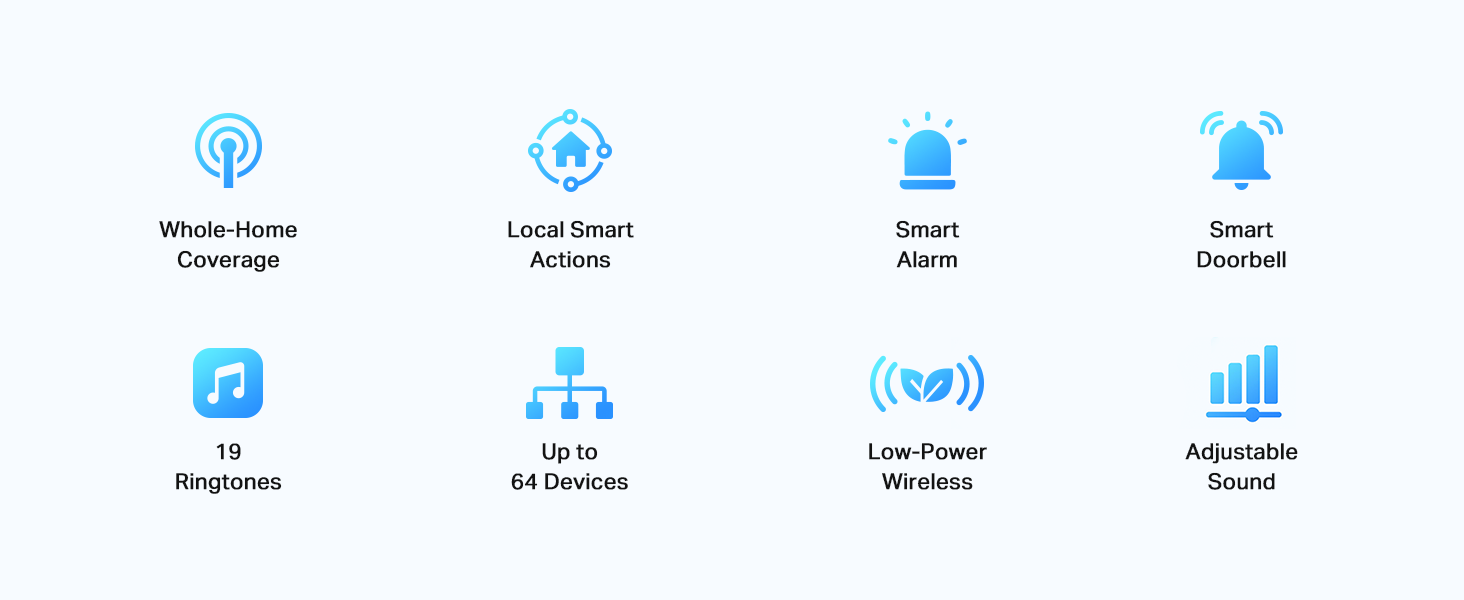
Figure 2: Diagram illustrating key features of the Tapo H100 Hub, including whole-home coverage, local smart actions, smart alarm, smart doorbell, 19 ringtones, adjustable sound, support for up to 64 devices, and low-power wireless.
Setup Guide
Setting up your Tapo H100 Hub is a straightforward process. Ensure you have the Tapo app installed on your smartphone (available for iOS and Android).
- Plug In the Hub: Insert the Tapo H100 Hub directly into a standard wall outlet.
- Observe the LED Indicator: Once plugged in, the LED indicator on the front of the hub will begin to flash. This indicates it is ready for pairing.
- Open the Tapo App: Launch the Tapo app on your smartphone.
- Add Device: In the app, tap the "+" icon or navigate to the "Add Device" option. Select "Hubs" and then choose "Tapo H100".
- Follow In-App Instructions: The app will guide you through the remaining steps, which typically involve confirming the flashing LED and allowing the app to discover and connect to the hub.
- Pairing Accessories: Once the hub is connected, you can pair compatible Tapo smart sensors (motion, door/window), switches, and buttons through the app. Note that the Tapo H100 is required for these Sub-1G protocol devices to function.

Figure 3: The Tapo H100 Hub plugged into a wall outlet.
The hub acts as the central communication point for these low-power devices, enabling them to interact and perform smart actions.
Operating Instructions
The Tapo H100 Hub enables various smart home functionalities once connected to your devices:
- Smart Actions: Create automated routines (Smart Actions) within the Tapo app. For example, a motion sensor detecting movement can trigger the hub's alarm or turn on connected smart lights.
- Doorbell Functionality: Pair a Tapo Smart Button (sold separately) with the hub to create a smart doorbell. You can select from 19 different ringtones via the Tapo app.
- Security Monitoring: Utilize the hub with Tapo motion sensors and door/window sensors to monitor your home. If a sensor is triggered, the hub can sound its 90 dB siren to alert occupants or deter intruders.
- Device Management: Manage all connected Tapo devices through the app. You can view device status, create schedules, and adjust settings for individual devices.
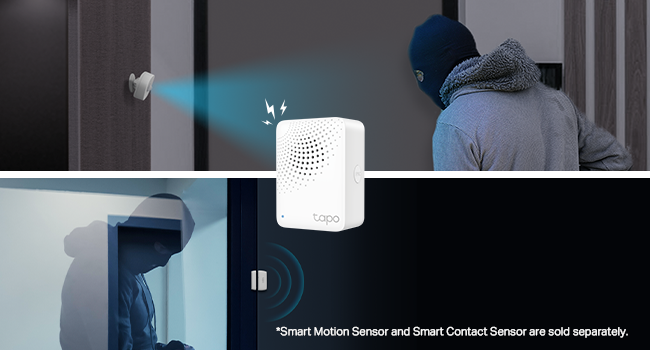
Figure 4: The Tapo H100 Hub can trigger a smart alarm when integrated with a motion sensor or contact sensor.
Maintenance
To ensure optimal performance and longevity of your Tapo H100 Hub:
- Keep Clean: Regularly wipe the hub with a soft, dry cloth to remove dust. Do not use liquid cleaners or abrasive materials.
- Firmware Updates: Keep the hub's firmware updated through the Tapo app. Firmware updates often include performance improvements, new features, and security enhancements.
- Optimal Placement: Ensure the hub is placed in a central location within your home to maximize coverage for all connected devices. Avoid placing it near large metal objects or other sources of interference.
Troubleshooting
If you encounter issues with your Tapo H100 Hub, consider the following:
- Hub Not Connecting:
- Ensure the hub is properly plugged into a working power outlet.
- Check the LED indicator. If it's not flashing as expected, try unplugging and re-plugging the hub.
- Verify your smartphone's Bluetooth is enabled during the initial setup process.
- Move the hub closer to your Wi-Fi router during setup, then relocate it to a central position.
- Devices Not Pairing with Hub:
- Ensure the accessory device is within range of the hub (up to 30 meters).
- Check the battery level of the accessory device.
- Follow the specific pairing instructions for each accessory device within the Tapo app.
- Alarm Not Sounding/Chime Issues:
- Verify the volume settings for the chime in the Tapo app.
- Ensure the smart action or doorbell trigger is correctly configured.
For further assistance, refer to the official Tapo support resources.
Specifications
| Property | Value |
|---|---|
| Brand | Tapo |
| Model Number | Tapo H100 |
| Color | White |
| Power Source | Battery Powered (for connected devices, hub is plug-in) |
| Item Weight | 0.09 Kilograms (3.2 ounces) |
| Maximum Range | 30 Meters |
| Product Dimensions | 2.83 x 2 x 2.24 inches (72*51*56.8 mm) |
| Compatible Devices | Tapo Smart Sensors, Tapo Switches, Tapo Buttons |
| Frequency | Sub-1G (for connected devices) |
| Included Components | 1 x Tapo H100, 1 x Quick Start Guide |
Warranty and Support
Warranty: The Tapo H100 Smart IoT Hub comes with a 1-year manufacturer's warranty.
Support: For technical support, troubleshooting, or warranty claims, please contact TP-Link support. Contact information can typically be found on the official TP-Link/Tapo website or within the Tapo app's help section.


