
1. Introduction
Thank you for choosing the Rapoo V16RGB Optical Gaming Wired Mouse. This high-performance gaming mouse is designed for precision and comfort, featuring an ergonomic design, onboard memory, 6 programmable buttons, and up to 12800 DPI for a customizable gaming experience. Its braided cable ensures durability and a hassle-free connection.
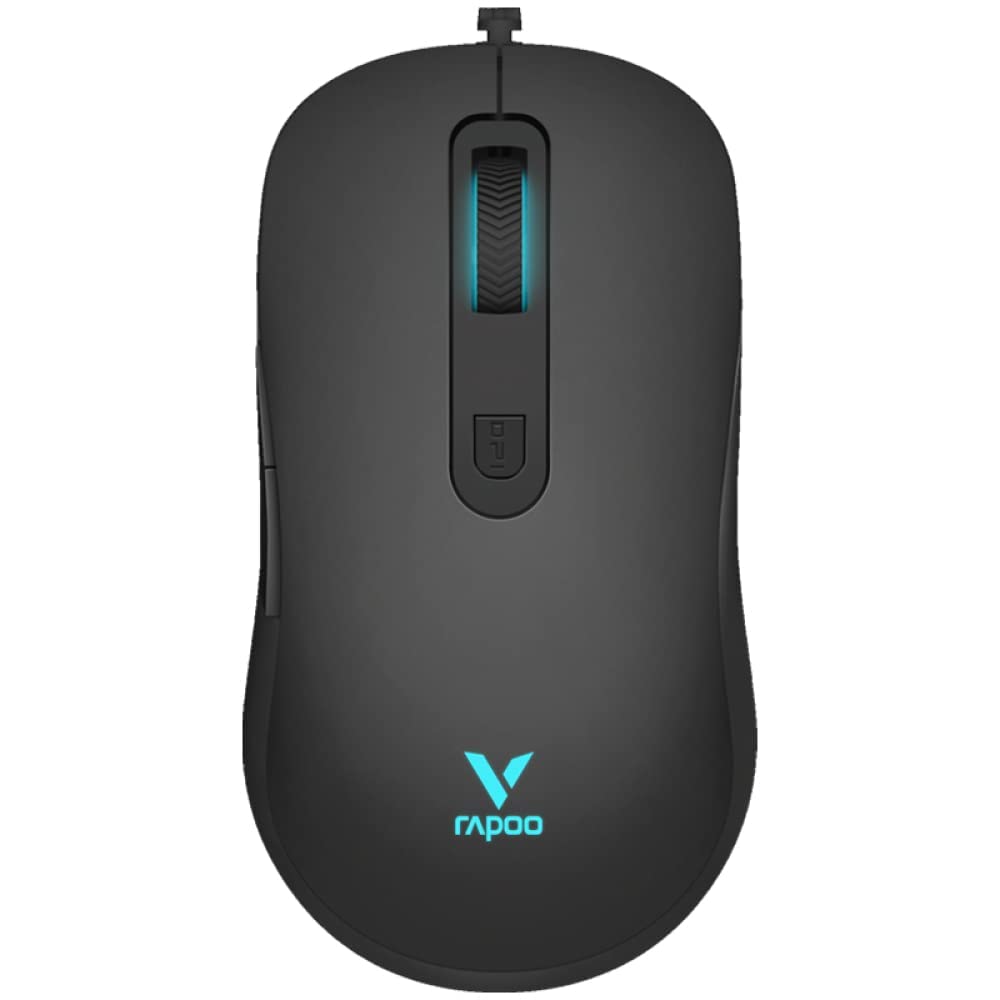
Figure 1: Top view of the Rapoo V16RGB Optical Gaming Wired Mouse, showcasing its sleek black design and illuminated scroll wheel and logo.

Figure 2: Illustration highlighting the ergonomic design of the Rapoo V16RGB mouse, showing its comfortable contour for extended use.
2. Setup
2.1 Package Contents
- Rapoo V16RGB Optical Gaming Wired Mouse
- User Manual (this document)
2.2 Connecting Your Mouse
- Locate an available USB port on your computer.
- Plug the USB connector of the Rapoo V16RGB mouse into the USB port.
- The mouse is plug-and-play and should be automatically recognized by your operating system (Windows 8, Windows XP, Laptop, Personal Computer).
- For advanced customization, download the official Rapoo V16RGB driver software from the Rapoo website.
3. Operating Your Mouse
3.1 Button Functions
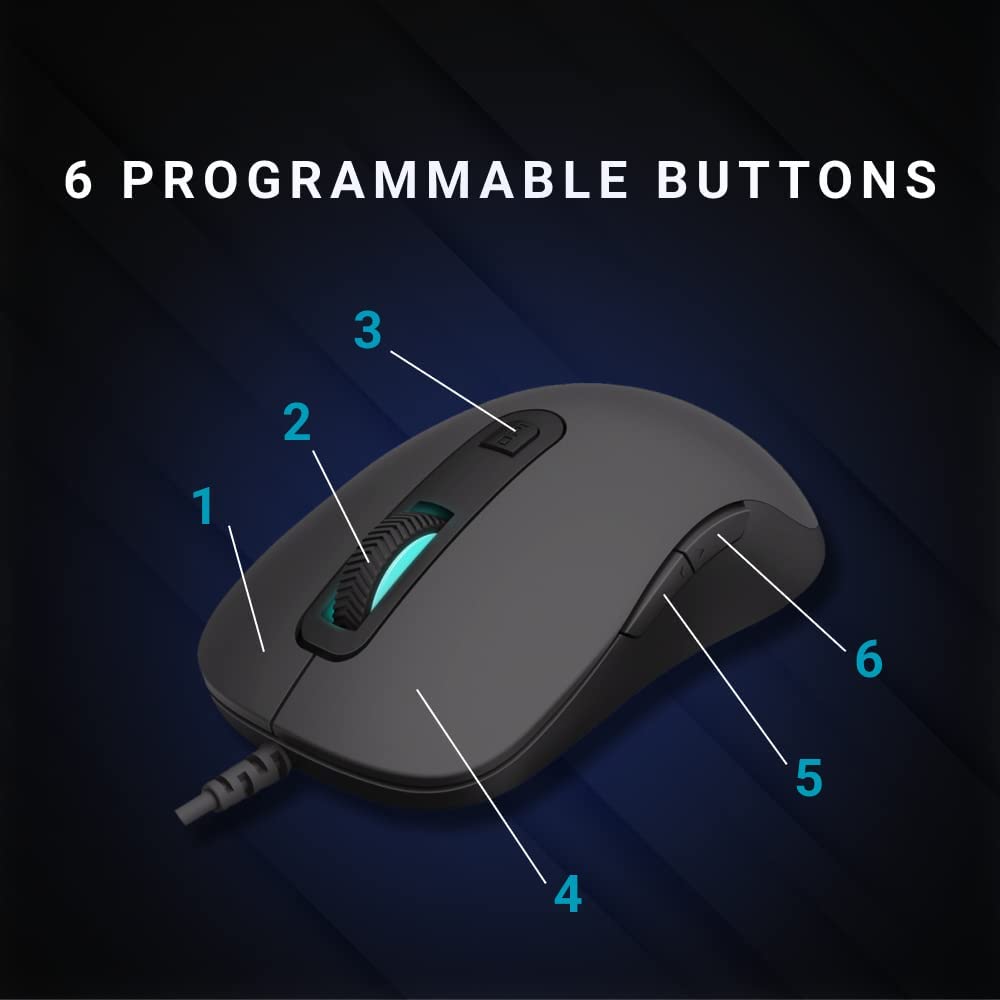
Figure 3: Diagram illustrating the 6 programmable buttons on the Rapoo V16RGB mouse. Buttons are numbered 1 through 6 for easy identification.
- Left Click (1): Standard primary button.
- Right Click (4): Standard secondary button.
- Scroll Wheel (2): For scrolling up and down. Can also be pressed for a middle-click function.
- DPI Button (3): Adjusts the mouse sensitivity (DPI) in real-time.
- Forward Button (5): Navigates forward in web browsers or file explorers.
- Backward Button (6): Navigates backward in web browsers or file explorers.
3.2 Adjusting DPI Sensitivity
The Rapoo V16RGB features an adjustable real-time DPI button, allowing you to switch between different sensitivity modes on the fly.
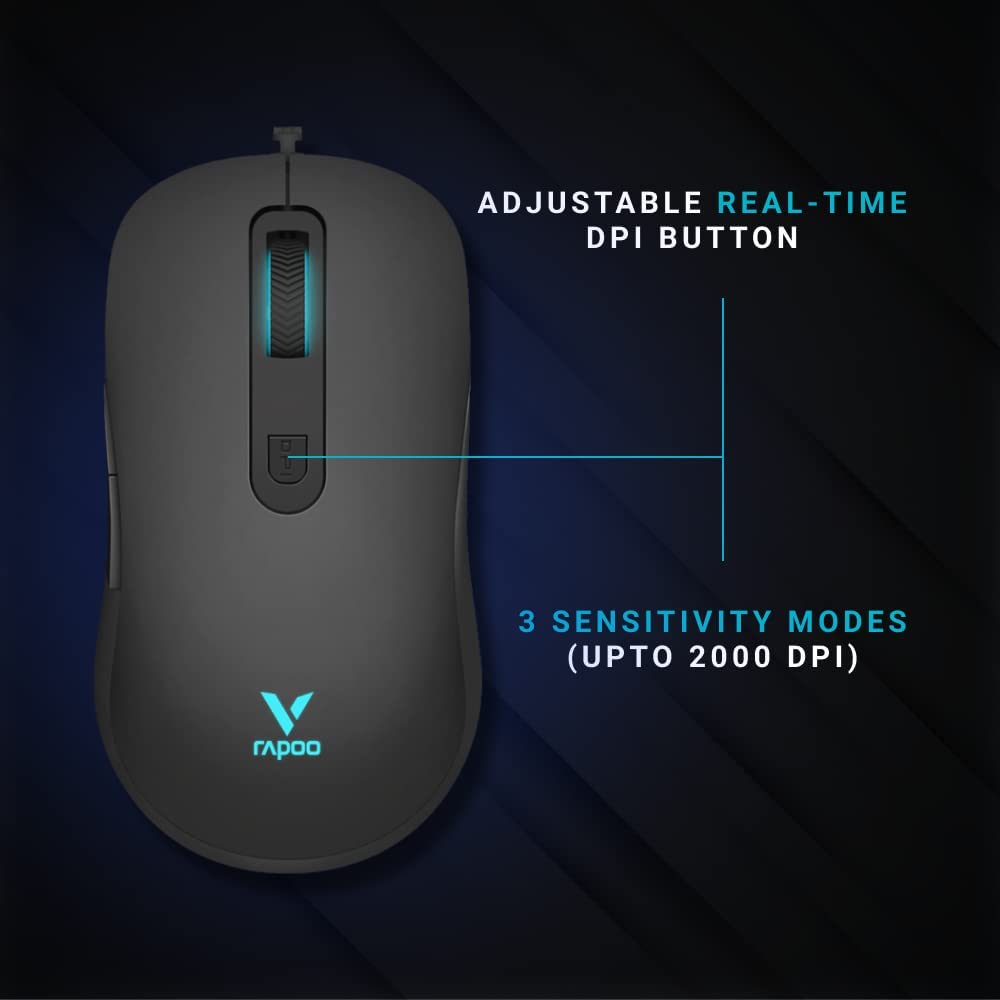
Figure 4: Close-up of the Rapoo V16RGB mouse highlighting the adjustable real-time DPI button and indicating 3 sensitivity modes up to 2000 DPI.
- Press the DPI button (3) to cycle through the available DPI settings.
- The mouse supports up to 12800 DPI, with multiple sensitivity modes.
- The current DPI setting may be indicated by the LED lighting on the mouse.
3.3 Customizing Buttons and Settings
For full customization of the 6 programmable buttons, RGB lighting, and advanced DPI settings, please install the official Rapoo V16RGB driver software. This software allows you to:
- Assign macros and functions to each button.
- Adjust DPI levels and create custom profiles.
- Control the single RGB lighting breathing modes.
- Utilize the onboard memory to save your settings directly to the mouse.
4. Maintenance
4.1 Cleaning Your Mouse
- Disconnect the mouse from your computer before cleaning.
- Use a soft, lint-free cloth lightly dampened with water or a mild cleaning solution to wipe the surface of the mouse.
- Do not use harsh chemicals, abrasives, or solvents.
- Use a soft brush or compressed air to clean dust and debris from around the scroll wheel and sensor.
4.2 Cable Care
The Rapoo V16RGB features a durable braided cable. To prolong its lifespan:
- Avoid sharp bends or kinks in the cable.
- Do not pull the cable forcefully when disconnecting the mouse.
- Store the cable neatly when not in use to prevent tangling.
5. Troubleshooting
5.1 Mouse Not Responding
- Ensure the USB cable is securely plugged into a working USB port on your computer.
- Try plugging the mouse into a different USB port.
- Restart your computer.
- Test the mouse on another computer to determine if the issue is with the mouse or your system.
5.2 Cursor Movement is Erratic or Jumpy
- Clean the optical sensor on the bottom of the mouse.
- Ensure you are using the mouse on a clean, non-reflective, and uniform surface (e.g., a mouse pad).
- Adjust the DPI settings using the DPI button or software.
5.3 Programmable Buttons Not Working
- Ensure the Rapoo V16RGB driver software is installed and running.
- Check the button assignments within the software to ensure they are configured correctly.
- Restart the software or your computer.
6. Specifications
| Feature | Detail |
|---|---|
| Brand | Rapoo |
| Model | V16-RGB |
| Connectivity Technology | Wired (USB) |
| Movement Detection Technology | Optical |
| DPI Sensitivity | Up to 12800 DPI (Adjustable) |
| Programmable Buttons | 6 |
| Ergonomic Design | Yes |
| Onboard Memory | Yes |
| Cable Type | Braided |
| Lighting | Single RGB lighting (breathing modes) |
| Color | Black |
| Item Weight | 50 g |
| Product Dimensions (Approx. LxWxH) | 125.3 x 68.2 x 38.6 mm (from image) |
| Compatible Operating Systems | Windows 8, Windows XP, Laptop, Personal Computer |
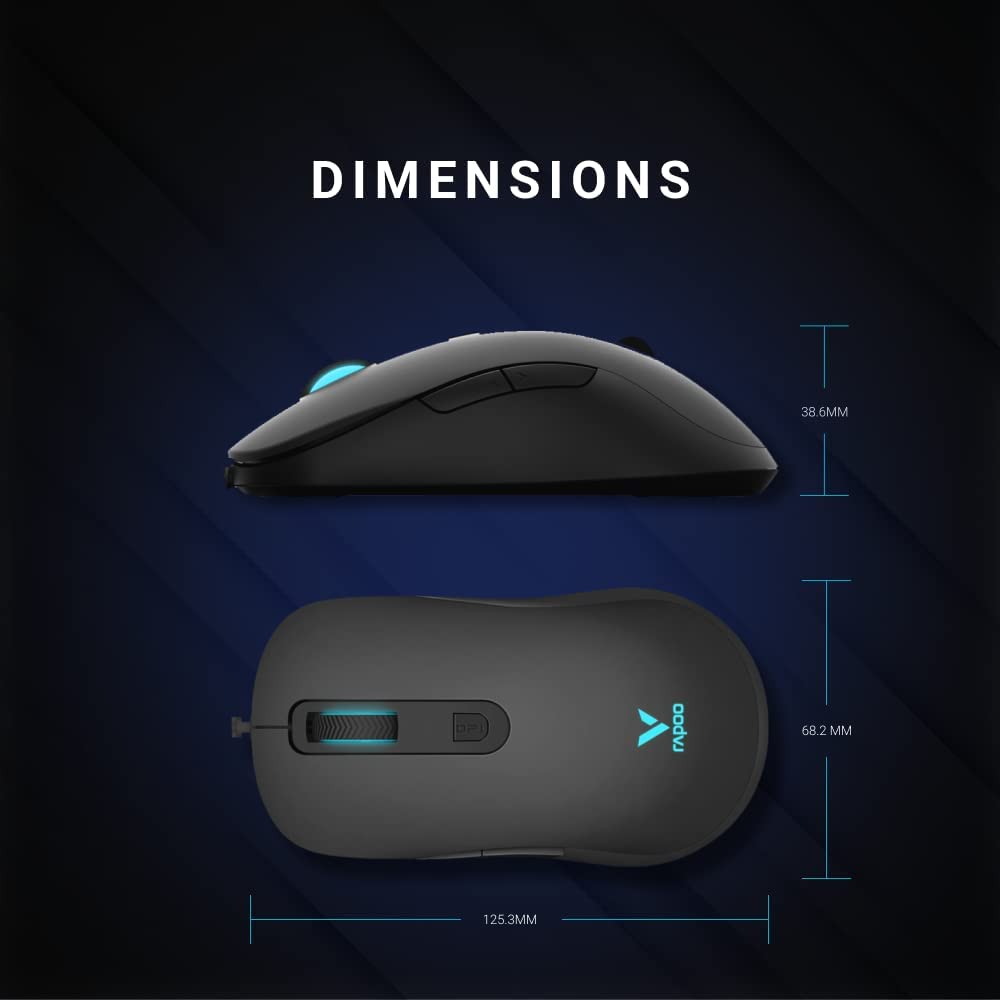
Figure 5: Detailed dimensions of the Rapoo V16RGB mouse, showing length (125.3mm), width (68.2mm), and height (38.6mm).
7. Warranty and Support
7.1 Warranty Information
Rapoo products are manufactured to the highest quality standards. For specific warranty terms and conditions applicable to your region, please refer to the warranty card included with your product or visit the official Rapoo website. Keep your purchase receipt as proof of purchase for warranty claims.
7.2 Technical Support
If you encounter any issues or have questions regarding your Rapoo V16RGB mouse, please visit the official Rapoo support website for FAQs, driver downloads, and contact information for technical assistance.
- Official Rapoo Website: www.rapoo.com
- Driver Downloads: Check the support section of the Rapoo website for the latest V16RGB driver software.


