
1. Introduction
Thank you for choosing the EasyAcc Bluetooth Keyboard Case. This product is designed to enhance your tablet experience by providing a protective case and a versatile wireless keyboard. This manual will guide you through the setup, operation, and maintenance of your new keyboard case.

Image: The EasyAcc Keyboard Case with a Samsung Galaxy Tab S7 FE tablet, illustrating the product's design and functionality.
2. Compatibility
This EasyAcc Bluetooth Keyboard Case is specifically designed to be compatible with the following Samsung Galaxy Tab models:
- Samsung Galaxy Tab S7 FE 12.4 (2021) - Models: SM-T730, SM-T736B
- Samsung Galaxy Tab S8+ Plus 5G 12.4 (2022) - Models: SM-X800, SM-X806
- Samsung Galaxy Tab S7+ Plus 12.4 (2020)

Image: A visual guide to compatible Samsung Galaxy Tab models, ensuring correct fit.
3. Key Features
- Detachable Magnetic Keyboard: The wireless Bluetooth keyboard can be easily attached or detached from the case, allowing you to switch between a lightweight laptop and a tablet experience.
- 360-Degree Protection: The case provides comprehensive protection for your tablet against scratches, bumps, and drops, thanks to its elegant design, high-quality PU leather, and soft TPU shell.
- Adjustable Viewing Angles: The case features a built-in stand that allows for multiple adjustable viewing angles, optimizing your comfort for typing, viewing, or drawing.
- Long Battery Life: Equipped with a high-efficiency integrated battery, the keyboard offers an estimated 100 hours of continuous working time on a single charge (4-5 hours charging time).
- 10-Meter Bluetooth Range: Connects wirelessly to your Samsung Galaxy Tab and other Android devices with Bluetooth functionality, offering a stable connection up to 10 meters.
- Slim and Lightweight Design: The keyboard and case are designed to be super slim and lightweight, making them easy to carry anywhere.
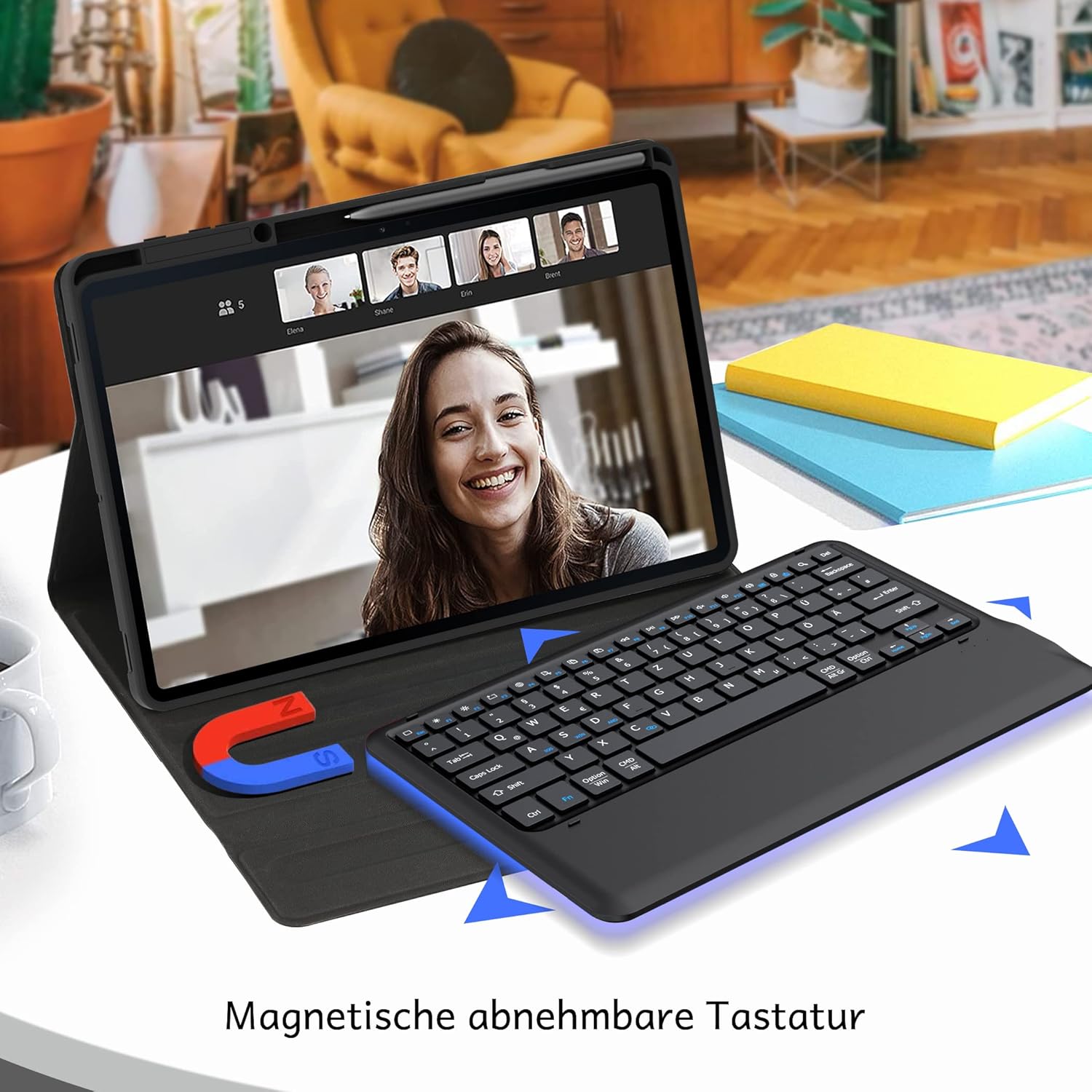
Image: The magnetic detachable keyboard offers flexible usage.

Image: The case's construction provides all-around protection.

Image: Multiple viewing angles for enhanced usability.
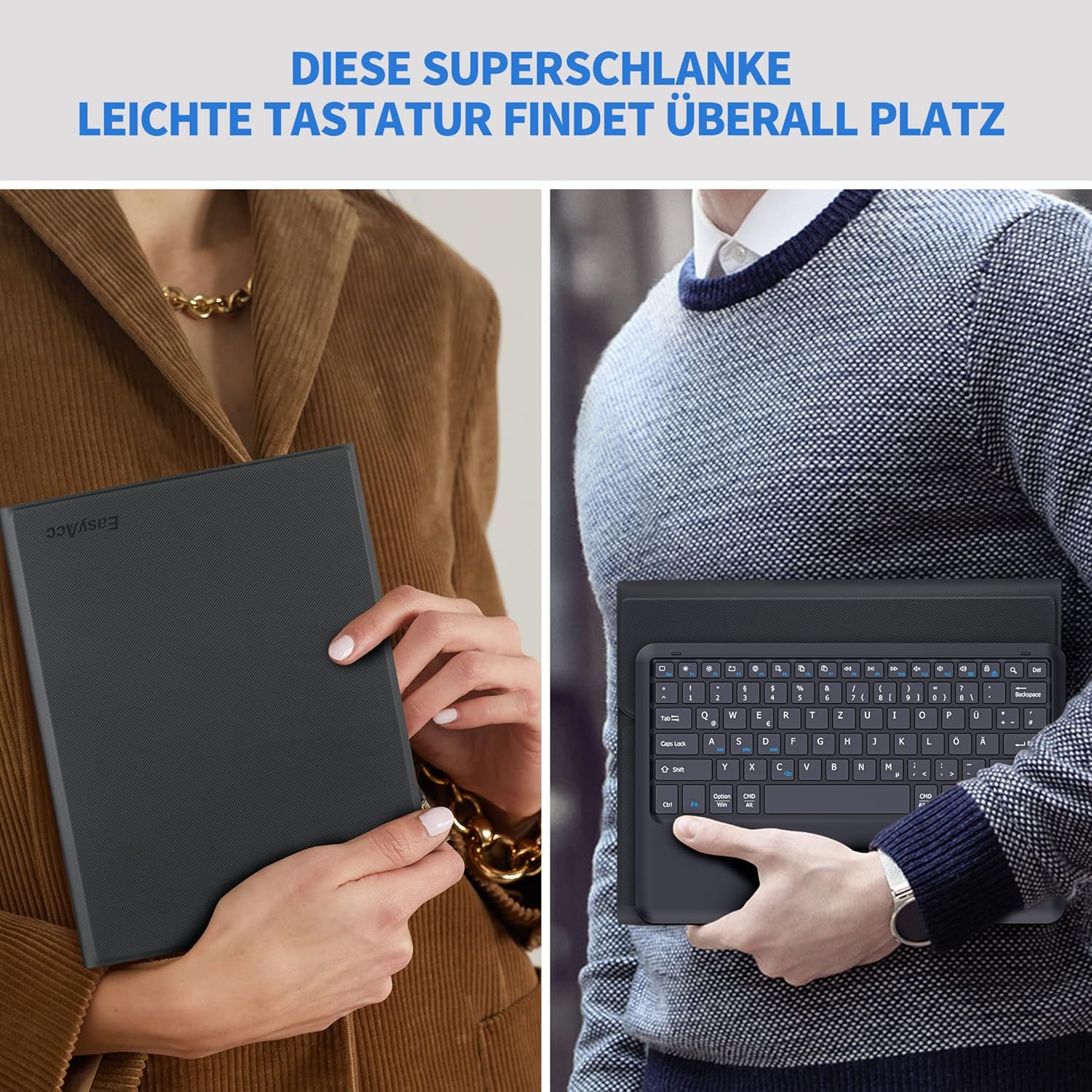
Image: The slim and lightweight design ensures portability.
4. Setup Instructions
4.1. Charging the Keyboard
Before first use, fully charge the keyboard. Use the included USB cable to connect the keyboard to a power source (e.g., computer USB port, USB wall adapter).
- Charging time: Approximately 4-5 hours.
- The charging indicator light will typically turn off or change color when fully charged.

Image: Connect the USB cable to the charging port for power.
4.2. Bluetooth Pairing
- Ensure the keyboard is charged and turned on. The power switch is usually located on the side or top edge of the keyboard.
- On your Samsung Galaxy Tab, go to Settings > Connected devices > Bluetooth and turn Bluetooth ON.
- On the keyboard, press the Connect button (often labeled with a Bluetooth icon or 'Pair'). The Bluetooth indicator light on the keyboard will start blinking, indicating it's in pairing mode.
- On your tablet, look for "EasyAcc Keyboard" or a similar name in the list of available Bluetooth devices and tap on it to connect.
- Once connected, the Bluetooth indicator light on the keyboard will stop blinking and remain solid or turn off, indicating a successful connection.
5. Operating Instructions
5.1. Keyboard Layout (QWERTZ)
Your EasyAcc keyboard features a QWERTZ layout, commonly used in German-speaking regions. Familiarize yourself with the key positions, especially for special characters and symbols.

Image: The QWERTZ keyboard layout for efficient typing.
5.2. Switching Operating Modes
The keyboard supports different operating systems. To optimize key functions for your device, switch to the appropriate mode:
- Android Mode: The keyboard is set to Android mode by default. For Android users, it should work immediately upon connection.
- iOS Mode: Press Fn + Q to switch to iOS mode. The Bluetooth indicator will flash three times.
- Windows Mode: Press Fn + W to switch to Windows mode. The Bluetooth indicator will flash three times.

Image: Instructions for switching keyboard operating modes.
5.3. Special Function Keys
The top row of keys often includes function keys (F1-F12) that can be used for media control, volume adjustment, and other shortcuts when pressed in combination with the Fn key. Refer to the keyboard's printed legends for specific functions.
6. Maintenance
To ensure the longevity and optimal performance of your EasyAcc Keyboard Case, follow these maintenance guidelines:
- Cleaning: Use a soft, dry, lint-free cloth to clean the keyboard and case. For stubborn dirt, slightly dampen the cloth with water. Avoid using harsh chemicals or abrasive cleaners.
- Storage: When not in use for extended periods, store the keyboard case in a cool, dry place. Ensure the keyboard is turned off to conserve battery life.
- Avoid Liquids: Keep the keyboard and case away from liquids to prevent damage to electronic components.
- Handle with Care: While the case offers protection, avoid dropping or subjecting the product to strong impacts.
7. Troubleshooting
If you encounter issues with your EasyAcc Keyboard Case, try the following solutions:
| Problem | Solution |
|---|---|
| Keyboard not connecting via Bluetooth. |
|
| Keys are not responding or typing incorrectly. |
|
| Short battery life. |
|
8. Specifications
| Feature | Detail |
|---|---|
| Brand | EasyAcc |
| Connectivity Technology | Bluetooth |
| Keyboard Description | Wireless, Detachable |
| Power Source | Battery Powered |
| Battery Life (Continuous Working) | Approx. 100 hours |
| Charging Time | Approx. 4-5 hours |
| Bluetooth Range | Up to 10 meters (33 feet) |
| Material | Acrylonitrile Butadiene Styrene (ABS), PU Leather, TPU |
| Included Components | USB Cable |
| Compatible Devices | Samsung Galaxy Tab S7 FE 12.4, S8+ Plus 12.4, S7+ Plus 12.4 |
9. Warranty and Support
EasyAcc products are manufactured to high quality standards. For specific warranty information and support, please refer to the warranty card included with your product or visit the official EasyAcc website. If you encounter any issues not covered in this manual, please contact EasyAcc customer service for assistance.