
DAREU EM901X-PK
DAREU Sakura Pink Wireless Gaming Mouse User Manual
Model: EM901X-PK
Introduction
Thank you for purchasing the DAREU Sakura Pink Wireless Gaming Mouse. This high-precision gaming mouse, featuring a 12K DPI sensor, 7 programmable buttons, and a rechargeable RGB charging dock, is designed to enhance your gaming and productivity experience. This manual provides detailed instructions on setup, operation, maintenance, and troubleshooting to ensure optimal performance.
Package Contents
Please verify that all items are present in your package:
- DAREU Sakura Pink Wireless Gaming Mouse
- Charging Dock
- USB Receiver (2.4G)
- USB-A to Type-C Cable
- English Manual

Image: Package contents of the DAREU Sakura Pink Wireless Gaming Mouse.
Setup Guide
1. Initial Charging
Before first use, it is recommended to fully charge the mouse. Connect the USB-A to Type-C cable to the charging dock and then to a USB port on your computer or a USB power adapter. Place the mouse onto the charging dock. The strong magnetic design will ensure a secure connection. The RGB lighting on the dock will indicate charging status.

Image: The DAREU mouse placed on its RGB charging dock for recharging.
2. Connecting the Mouse
The DAREU Sakura Pink mouse supports dual-mode connectivity: 2.4G wireless via USB receiver or wired via Type-C cable.
2.1. 2.4G Wireless Connection
- Locate the USB receiver. It may be stored in a compartment on the underside of the mouse or within the charging dock.
- Plug the USB receiver into an available USB port on your computer.
- Ensure the mouse is powered on. The mouse should automatically connect to the receiver.
2.2. Wired Connection
Connect the USB-A to Type-C cable directly from your computer's USB port to the Type-C port on the front of the mouse. The mouse will function as a wired mouse and charge simultaneously.

Image: Illustration of the mouse's dual-mode connection options: wired via Type-C and wireless via 2.4G receiver.
Operating Instructions
1. Mouse Buttons and Functions
The DAREU Sakura Pink mouse features 7 programmable buttons for versatile control:
- Left Click: Standard primary click.
- Right Click: Standard secondary click.
- Scroll Wheel: Scrolls up/down, and acts as a middle click button.
- DPI Button: Cycles through DPI settings (located behind the scroll wheel).
- Side Buttons (2): Typically used for 'Forward' and 'Backward' navigation in browsers or can be programmed.
- Bottom Button: (Specific function may vary, often for power or profile switching).
2. Adjusting DPI (Sensitivity)
Press the DPI button located behind the scroll wheel to cycle through different sensitivity levels. The mouse features a 12,000 DPI sensor with multiple adjustable steps (e.g., 400, 800, 1600, 3200, 12000 DPI) to suit various tasks and gaming preferences.

Image: Visual representation of the mouse's adjustable DPI settings.
3. RGB Lighting Control
The mouse features customizable RGB lighting. Specific lighting patterns and colors can be adjusted using the DAREU software. The charging dock also features RGB lighting.
4. Software Customization
For advanced customization, including button remapping, macro creation, and detailed RGB lighting effects, download the official DAREU software from the DAREU website. The software allows you to fine-tune the mouse to your specific needs.
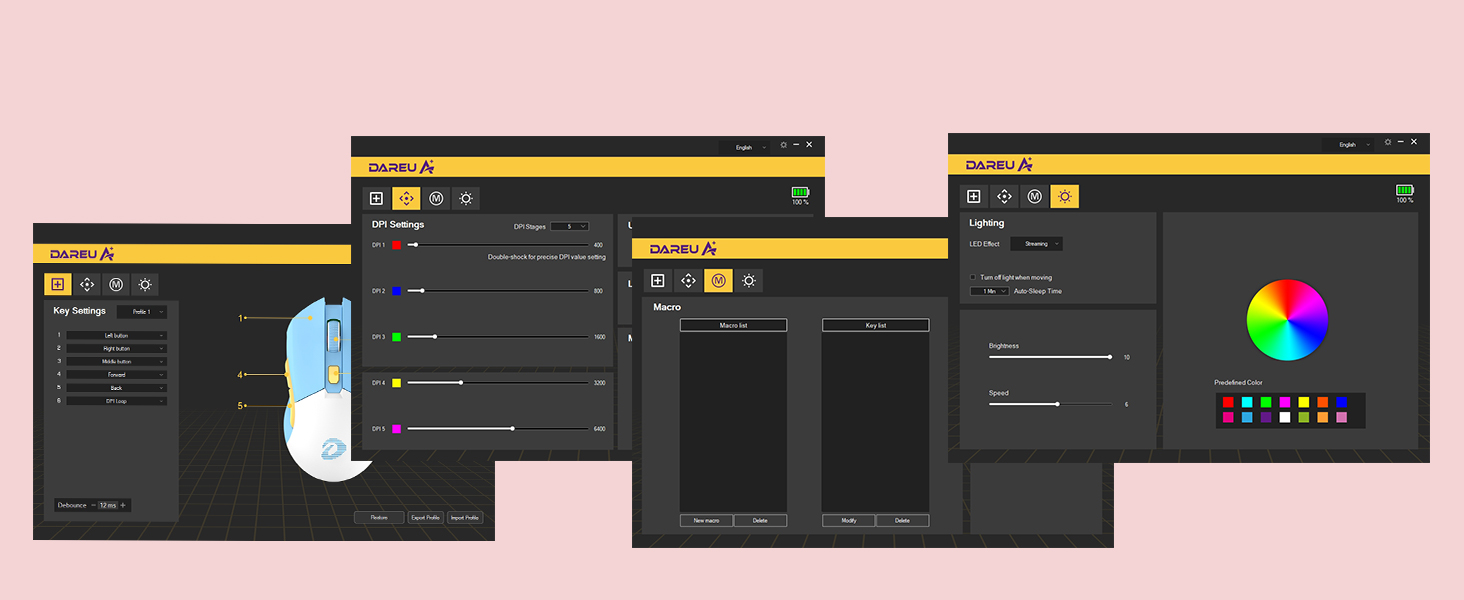
Image: Interface of the DAREU customization software for mouse settings.
Maintenance
1. Cleaning
To maintain optimal performance and appearance, regularly clean your mouse and charging dock. Use a soft, dry, lint-free cloth. For stubborn dirt, slightly dampen the cloth with water or a mild cleaning solution. Avoid using harsh chemicals, abrasive materials, or excessive moisture.
2. Battery Care
The mouse is equipped with a built-in 930mAh lithium battery. To prolong battery life:
- Avoid completely draining the battery frequently.
- Charge the mouse regularly using the provided charging dock or USB-C cable.
- Store the mouse in a cool, dry place if not used for extended periods.
A full charge can provide up to 10 days of continuous use in 2.4G wireless mode.

Image: The mouse's 930mAh battery capacity, providing extended usage.
Troubleshooting
| Problem | Possible Cause | Solution |
|---|---|---|
| Mouse not responding (Wireless) | Low battery; USB receiver not connected; Mouse not paired. | Charge the mouse. Ensure USB receiver is securely plugged in. Re-pair the mouse if necessary (refer to software instructions). |
| Mouse not responding (Wired) | Cable not connected properly; Faulty USB port. | Ensure Type-C cable is securely connected to both mouse and computer. Try a different USB port. |
| DPI adjustment not working | DPI button malfunction; Software conflict. | Ensure the DPI button is not physically stuck. Check DAREU software for any conflicting settings or updates. |
| RGB lighting not working/incorrect | Software settings; Power issue. | Check RGB settings in the DAREU software. Ensure mouse has sufficient power. |
| Magnetic connection to dock is weak | Debris on contacts; Misalignment. | Clean the charging contacts on both the mouse and the dock with a dry cloth. Ensure proper alignment when placing the mouse on the dock. |
Specifications
| Feature | Detail |
|---|---|
| Model Number | EM901X-PK |
| Connectivity | 2.4G Wireless (USB Receiver), Wired (USB Type-C) |
| Sensor Type | Optical (AIM-WL exclusive sensor) |
| DPI Range | Up to 12,000 DPI (Adjustable) |
| Tracking Speed | 300 IPS |
| Polling Rate | 1000 Hz (1ms wireless transmission) |
| Buttons | 7 Programmable Buttons |
| Micro Switches | 50 Million Clicks Lifespan |
| Battery Type | Built-in Lithium Ion |
| Battery Capacity | 930mAh |
| Battery Life | Up to 10 days (2.4G wireless mode) |
| Weight | 85g (approx. 3 ounces) |
| Dimensions (L x W x H) | 5.12 x 2.76 x 3.35 inches (130 x 70 x 85 mm) |
| Special Features | Strong Magnetic Charging Dock, RGB Lighting, Ergonomic Design |

Image: Dimensions of the DAREU Sakura Pink Wireless Gaming Mouse.
Warranty and Support
DAREU products are manufactured to the highest quality standards. For warranty information, technical support, or customer service inquiries, please visit the official DAREU website or contact your local distributor. Keep your purchase receipt as proof of purchase for warranty claims.
Official DAREU Website: www.dareu.com
Related documentsEM901X-PK

Ask a question about this manual
Ask about setup, troubleshooting, compatibility, parts, safety, or missing instructions. Manuals+ will review the question and use this page’s manual context to help answer it.