
QGOO 6B16-D-blue-02
QGOO USB WiFi Adapter AC1200 User Manual
Model: 6B16-D-blue-02
1. Product Overview
The QGOO USB WiFi Adapter AC1200 is designed to provide high-speed wireless connectivity for your PC. Featuring dual 5dBi antennas and USB 3.0 interface, it supports 802.11ac/a/b/g/n standards across dual bands (2.4GHz at 300Mbps and 5GHz at 867Mbps), making it ideal for streaming, gaming, and general internet use on Windows 11/10 systems.
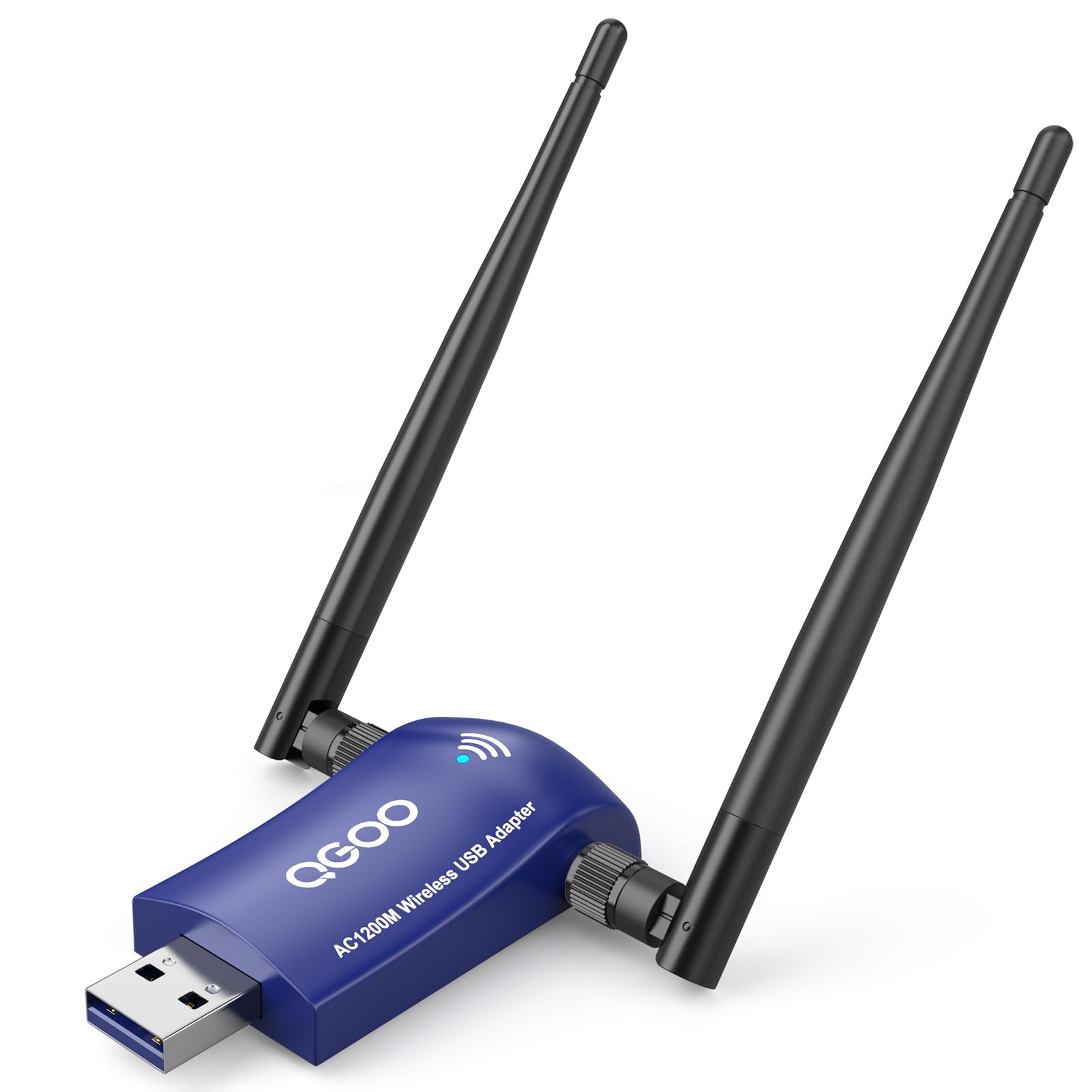
Image 1.1: The QGOO USB WiFi Adapter, showcasing its compact blue body, USB connector, and two adjustable black antennas. A small blue LED indicator is visible on the top surface.
Package Contents:
- QGOO USB WiFi Adapter AC1200
- Driver CD (if included, otherwise drivers are online)
- Quick Installation Guide
2. Setup and Driver Installation
2.1 System Requirements
- Operating System: Windows 11, Windows 10
- Available USB 3.0 or USB 2.0 port
- CD-ROM drive (for driver CD, if applicable) or internet access for driver download
2.2 Driver Installation
Before connecting the adapter to your computer, it is recommended to install the necessary drivers. This ensures proper functionality and optimal performance.
- Using the Driver CD:
- Insert the provided driver CD into your computer's CD-ROM drive.
- Locate and run the setup file (e.g., "setup.exe" or "autorun.exe").
- Follow the on-screen instructions to complete the driver installation.
- Downloading Drivers Online:
- If your computer does not have a CD-ROM drive or if you prefer, visit the official QGOO support website.
- Navigate to the support or download section and search for drivers for model "6B16-D-blue-02" or "AC1200 USB WiFi Adapter".
- Download the latest compatible driver for your Windows operating system.
- Run the downloaded installer and follow the prompts.
2.3 Physical Connection
Once the drivers are installed, connect the adapter:
- Carefully insert the QGOO USB WiFi Adapter into an available USB 3.0 port on your PC. For optimal performance, a USB 3.0 port is recommended, but it is also compatible with USB 2.0 ports.
- Ensure the adapter is firmly seated in the port.
- Adjust the antennas for optimal signal reception. Generally, positioning them vertically or at a slight angle can improve performance.
- The LED indicator on the adapter should light up, indicating it is powered on and functioning. A blinking LED usually signifies data transmission.
3. Operating the WiFi Adapter
3.1 Connecting to a Wireless Network
After successful driver installation and physical connection, your computer should recognize the QGOO USB WiFi Adapter as a wireless network device.
- Click on the Network icon (usually a Wi-Fi symbol or globe) in the system tray on your Windows taskbar.
- A list of available wireless networks will appear.
- Select your desired Wi-Fi network (SSID) from the list. The adapter supports both 2.4GHz and 5GHz bands, so you may see two networks from the same router (e.g., "MyWiFi" and "MyWiFi_5G").
- Click Connect.
- If prompted, enter the network security key (Wi-Fi password) and click Next or OK.
- Your computer should now be connected to the wireless network. The network icon in the system tray will change to indicate a successful connection.
3.2 LED Indicator Status
- Solid Blue Light: The adapter is powered on and ready for use, but not actively transmitting or receiving data.
- Blinking Blue Light: The adapter is actively transmitting or receiving data, indicating a live network connection.
- No Light: The adapter is not powered on, not properly connected, or there is a driver issue.
4. Maintenance
Proper maintenance helps extend the lifespan and ensure optimal performance of your QGOO USB WiFi Adapter.
- Cleaning: Use a soft, dry cloth to gently wipe the exterior of the adapter. Do not use liquid cleaners or solvents. Ensure no dust accumulates in the USB connector.
- Storage: When not in use for extended periods, disconnect the adapter from your PC and store it in a cool, dry place away from direct sunlight and extreme temperatures.
- Handling: Avoid dropping the adapter or subjecting it to strong impacts. Do not force the USB connector into the port.
- Antennas: Handle the antennas carefully. While adjustable, excessive force can damage the swivel mechanism.
5. Troubleshooting
If you encounter issues with your QGOO USB WiFi Adapter, refer to the following common troubleshooting steps:
| Problem | Possible Cause | Solution |
|---|---|---|
| Adapter not detected / No LED light |
|
|
| Cannot connect to Wi-Fi network |
|
|
| Slow connection speed / Frequent disconnections |
|
|
6. Specifications
| Model Number | 6B16-D-blue-02 |
| Wireless Standards | IEEE 802.11ac, IEEE 802.11a, IEEE 802.11b, IEEE 802.11g, IEEE 802.11n |
| Frequency Bands | 2.4GHz (up to 300Mbps), 5GHz (up to 867Mbps) |
| Interface | USB 3.0 (backward compatible with USB 2.0) |
| Antennas | Dual 5dBi High Gain Antennas |
| Operating System Support | Windows 11, Windows 10 |
| Product Dimensions | 7.68 x 4.92 x 0.59 inches |
| Item Weight | 2.39 ounces |
| Manufacturer | QGOO |
7. Warranty and Support
For warranty information and technical support, please refer to the documentation included with your product or visit the official QGOO website. You can typically find support contact details, FAQs, and driver downloads on the manufacturer's support page.
For the most up-to-date information and assistance, please visit: QGOO Official Store on Amazon
Related documents6B16-D-blue-02

Ask a question about this manual
Ask about setup, troubleshooting, compatibility, parts, safety, or missing instructions. Manuals+ will review the question and use this page’s manual context to help answer it.