
Szsinocam 4G LTE Caméra Surveillance
Szsinocam 4G LTE 2.5K Outdoor Surveillance Camera User Manual
Model: 4G LTE Caméra Surveillance
1. Introduction
This manual provides comprehensive instructions for the installation, operation, and maintenance of your Szsinocam 4G LTE 2.5K Outdoor Surveillance Camera. Please read this manual carefully before using the product to ensure proper functionality and safety. Keep this manual for future reference.
2. Product Overview
2.1. Components
- Szsinocam 4G LTE 2.5K Camera Unit
- 5W Solar Panel
- Mounting Bracket and Screws
- Antennas
- USB Charging Cable
2.2. Key Features
- 3G/4G LTE Connectivity: Operates without Wi-Fi, ideal for remote locations. Supports Ethernet cable connection.
- 2.5K HD Video: Provides 4MP (2304x1296p) clear images and videos.
- 360° PTZ & 6x Digital Zoom: 355° horizontal rotation and 90° vertical rotation for comprehensive coverage.
- PIR Human Motion Detection & Auto-Tracking: Reduces false alarms and automatically tracks human movement.
- Color Night Vision: Offers clear, full-color images even in low-light conditions up to 65 feet.
- Two-Way Audio: Built-in microphone and speaker for communication.
- 20,000mAh Battery & Solar Power: Long-lasting battery with continuous charging via the included 5W solar panel.
- IP66 Waterproof: Designed to withstand various weather conditions (rain, shine, cold, hot).
- Cloud & TF Card Storage: Supports local storage via TF card and optional cloud storage.
2.3. Product Images
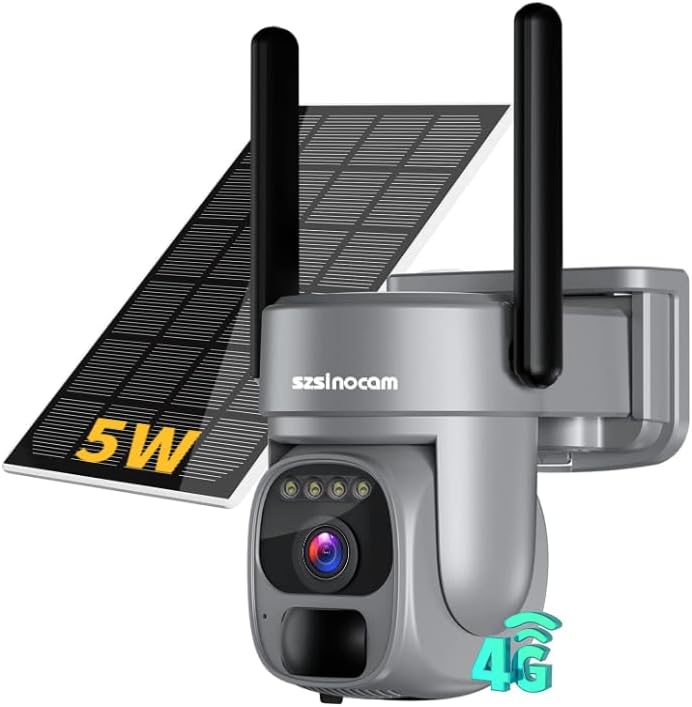
The Szsinocam 4G LTE 2.5K Outdoor Surveillance Camera with its 5W solar panel and dual antennas.

The camera is designed for use in diverse outdoor settings such as countryside, farms, warehouses, and campsites, requiring no Wi-Fi connection.

The camera automatically connects to the strongest 4G cellular network, supporting various providers (SIM card not included).

Comparison showing clear 2.5K HD color night vision versus infrared night vision, highlighting enhanced detail in darkness.
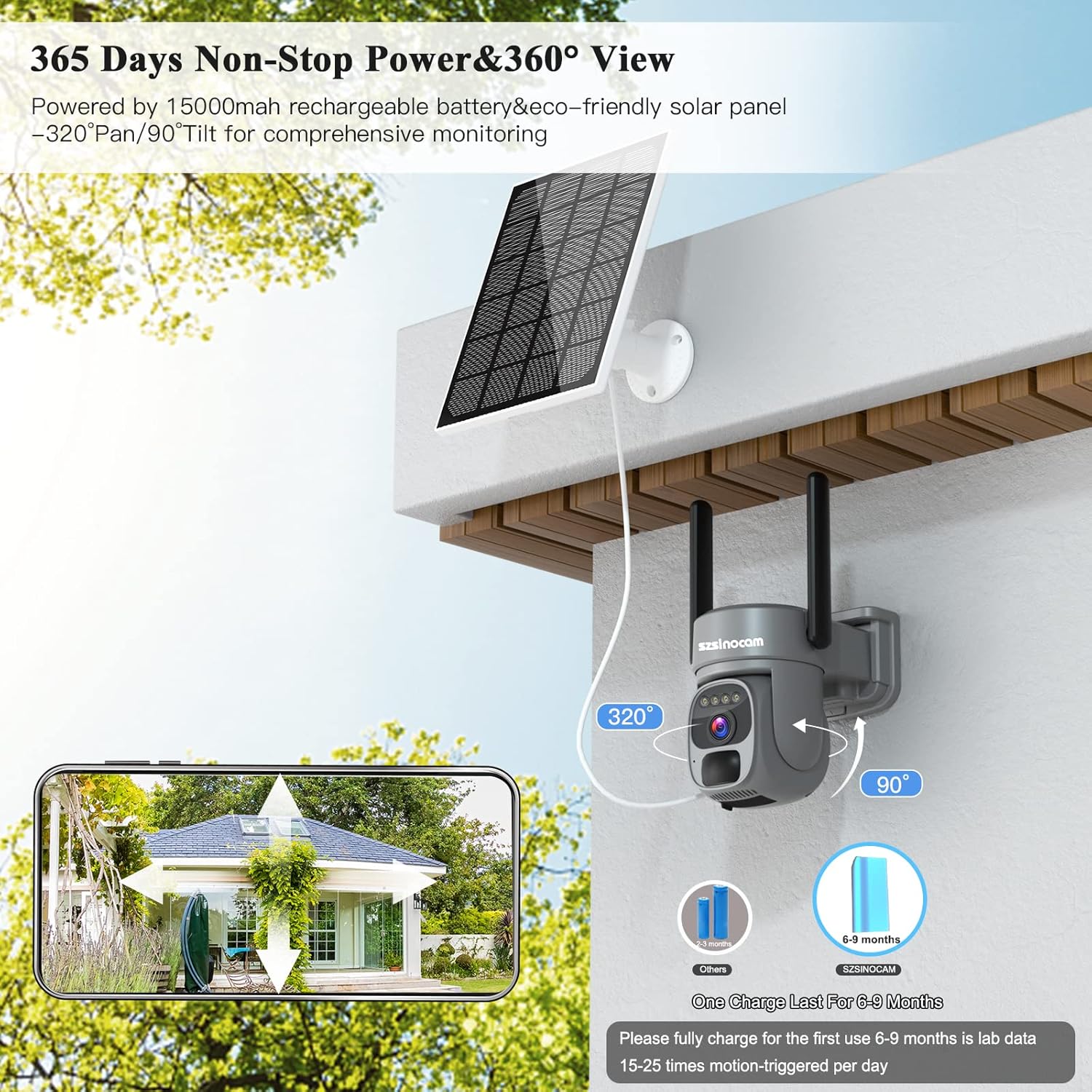
The camera is powered by a 15000mAh rechargeable battery and an eco-friendly solar panel, offering 320° pan and 90° tilt for comprehensive monitoring.

The camera features PIR human motion detection with smart alerts, minimizing false alarms and sending instant notifications.

The camera boasts an IP66 waterproof rating, ensuring reliable operation in extreme weather conditions, from cold to hot, rain or shine.

The camera supports two-way audio communication and allows multiple users to view the live feed simultaneously.
3. Setup Guide
3.1. Initial Charging
Before first use, fully charge the camera's internal battery for 24 hours using the provided USB cable or by exposing the solar panel to direct sunlight. Ensure the indicator light shows a full charge.
3.2. SIM Card and SD Card Installation
- Locate the SIM card and TF (micro SD) card slots on the camera unit.
- Insert a compatible 3G/4G LTE SIM card (not included) into the designated slot. Ensure it is correctly oriented.
- Insert a micro SD card (up to 128GB, not included) into the TF card slot for local video storage.
- Securely close the protective cover to maintain the IP66 waterproof rating.
3.3. App Installation and Pairing
- Download the 'O-KAM' application from your smartphone's app store (iOS or Android).
- Register an account and log in.
- Power on the camera. A voice prompt will confirm SD card detection and network connection.
- In the O-KAM app, tap the '+' icon to add a new camera.
- Scan the QR code located on the camera unit.
- Follow the on-screen prompts to complete the pairing process. The camera should connect to your smartphone within a few minutes.
3.4. Mounting the Camera
Choose a suitable outdoor location with good 4G signal reception and ample sunlight exposure for the solar panel. Use the provided mounting bracket and screws to securely attach the camera to a wall or pole. Adjust the angle of the solar panel to maximize sun exposure.
This video demonstrates the initial setup and connection process of the Szsinocam 4G LTE camera, including SIM card insertion and app pairing.
This video provides an overview of the camera's features and its robust design, highlighting its suitability for outdoor surveillance and ease of installation.
4. Operating Instructions
4.1. Live View and PTZ Control
- Open the O-KAM app and select your camera from the device list.
- Tap on the live view to access the real-time feed.
- Use the on-screen joystick or swipe gestures to control the camera's pan (355°) and tilt (90°) movements.
- Pinch to zoom in or out (6x digital zoom).
4.2. Motion Detection and Alerts
- Navigate to the camera settings in the app.
- Enable 'Human Detection' and adjust sensitivity levels as needed.
- Define specific detection zones (1-4 areas) to focus on critical areas and reduce false alarms.
- Configure instant notification alerts to receive push messages on your phone when motion is detected.
- The camera supports automatic tracking of detected human movement.
4.3. Night Vision Modes
The camera offers three night vision modes:
- Infrared Night Vision: Standard black and white view in complete darkness.
- Color Night Vision: Utilizes built-in lights to provide full-color images at night.
- Smart Night Vision: Automatically switches between infrared and color mode based on detected activity.
Select your preferred mode in the app settings.
4.4. Two-Way Audio
From the live view, tap the microphone icon to speak through the camera's speaker. Tap the speaker icon to listen to audio from the camera's microphone.
4.5. Recording and Storage
- Recordings are triggered by motion detection or can be initiated manually via the app.
- Videos are saved to the inserted TF card. Ensure the card has sufficient space.
- The camera also offers a free 3-day cloud storage trial, with subscription options for extended cloud storage.
5. Maintenance
- Cleaning: Regularly wipe the camera lens and solar panel with a soft, damp cloth to ensure clear images and efficient charging. Do not use harsh chemicals.
- Battery Care: Ensure the solar panel receives adequate sunlight daily to maintain battery charge. In prolonged periods of low sunlight, consider manually charging the camera via USB.
- Firmware Updates: Check the O-KAM app periodically for available firmware updates to ensure optimal performance and security.
6. Troubleshooting
- Camera not connecting to 4G:
- Ensure the SIM card is correctly inserted and activated with a data plan.
- Check 4G signal strength in the camera's location.
- Try restarting the camera. - Battery draining quickly:
- Ensure the solar panel is clean and receiving direct sunlight for several hours daily.
- Reduce the frequency of motion detection alerts or live viewing if not critical.
- Check if the camera is in an area with very low 4G signal, which can increase power consumption. - Camera not starting/unresponsive:
- Ensure the battery is charged. Connect to a power source via USB.
- Perform a hard reset if available (refer to product diagram for reset button location). - Poor image quality at night:
- Ensure the camera lens is clean.
- Check for obstructions blocking the night vision lights.
- Switch between night vision modes in the app to see if performance improves. - False motion alerts:
- Adjust motion detection sensitivity in the app.
- Define specific detection zones to exclude areas with frequent irrelevant movement (e.g., trees swaying).
7. Specifications
| Feature | Specification |
|---|---|
| Video Recording Resolution | 4 MP (2304 x 1296p) |
| Wireless Communication Technology | 4G |
| Form Factor | Bullet |
| Effective Video Resolution | 1080 Pixels |
| Viewing Angle | 355 degrees (Pan) |
| Material | Metal |
| Power | 20 Watts |
| Manufacturer | szsinocam |
| Package Dimensions | 22.7 x 17.5 x 15.5 cm; 1.06 kilograms |
| Battery(ies) | 2 AAA batteries required (for remote, if applicable, though camera is solar) |
| Reference / Model Number | 4G LTE Caméra Surveillance |
| Quantity of Items | 1 |
| Special Features | Portable |
| Usage | Outdoor; Professional, Indoor; Professional |
| Power Source | Solar Powered |
| Connectivity Protocol | Mobile |
| Mounting Type | Wall Mount |
8. Warranty and Support
For any technical assistance, troubleshooting beyond this manual, or warranty inquiries, please contact Szsinocam customer support. Refer to the product packaging or the official Szsinocam website for contact details.
Related documents4G LTE Caméra Surveillance


Ask a question about this manual
Ask about setup, troubleshooting, compatibility, parts, safety, or missing instructions. Manuals+ will review the question and use this page’s manual context to help answer it.