
Introduction
This manual provides essential information for setting up, operating, maintaining, and troubleshooting your Dell Latitude 3330 Laptop PC. Please read these instructions carefully to ensure proper use and longevity of your device.
What's in the Box
Upon unpacking your Dell Latitude 3330 Laptop PC, verify that the following items are included:
- Dell Latitude 3330 Laptop PC
- AC Adapter
If any items are missing or damaged, contact your vendor for assistance.
Product Overview
The Dell Latitude 3330 is a 13.3-inch FHD laptop designed for productivity. It features an Intel Core i3-1125G4 processor, 8GB DDR4 RAM, and a 256GB NVMe SSD. The laptop includes various ports for connectivity and a built-in webcam.
Key Features
- Processor: Intel Core 11th Generation i3-1125G4 (Quad Core, up to 3.70GHz, 8MB Cache)
- Display: 13.3-inch FHD (1920 x 1080) Non-Touch display
- Memory: 8GB DDR4 RAM
- Storage: 256GB NVMe Solid State Drive (SSD)
- Graphics: Intel Iris Xe Graphics
- Operating System: Windows 11 Professional
- Connectivity: Wi-Fi, Bluetooth 5.0
- Ports: Type-C, HDMI, USB Ports
- Camera: Built-in Web Camera
External Views and Ports
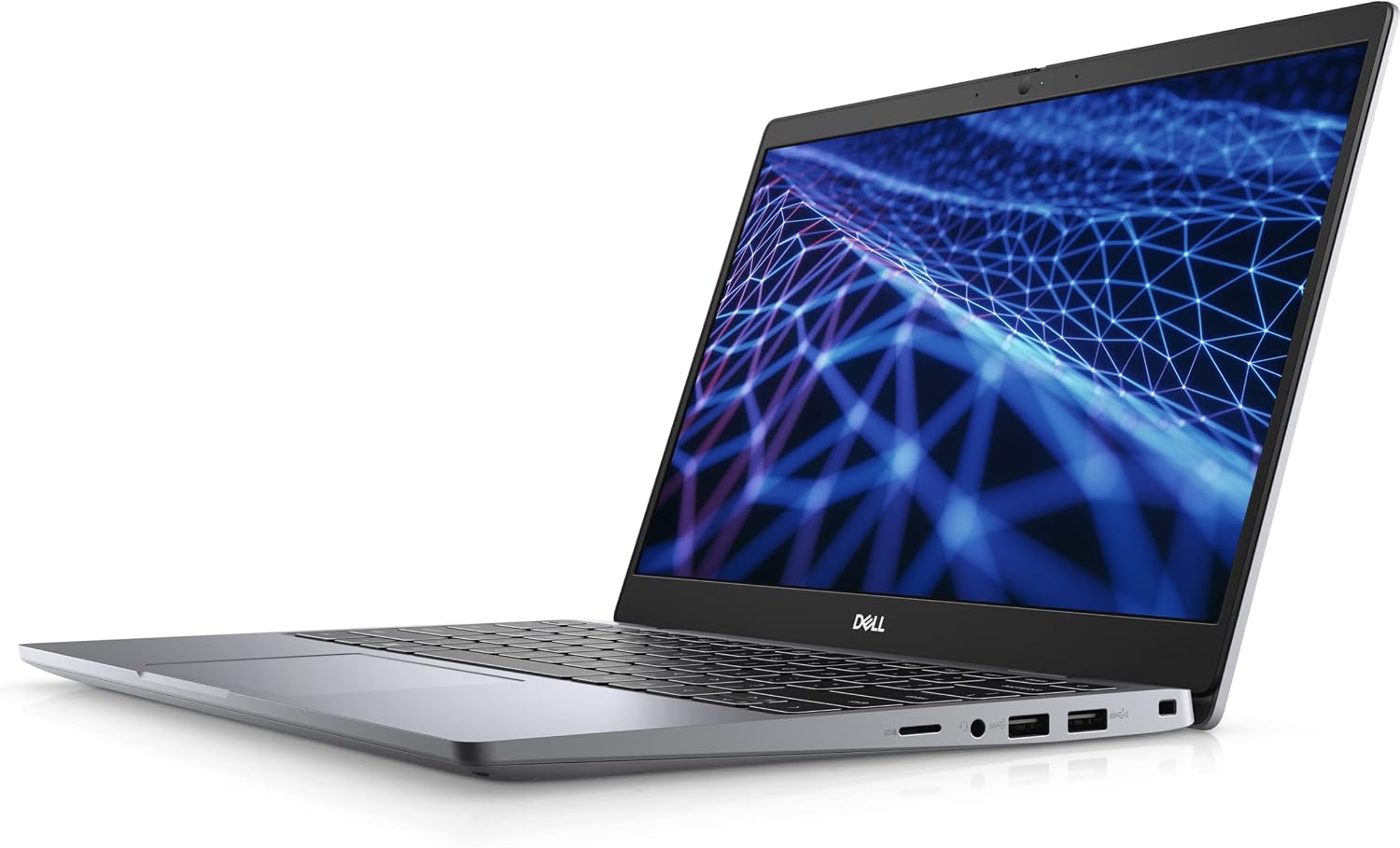
Figure 1: Angled view of the Dell Latitude 3330, highlighting the right side ports including USB-A and Type-C.

Figure 2: Front view of the Dell Latitude 3330 with the display active, showing the webcam at the top center.

Figure 3: Top-down view of the Dell Latitude 3330 keyboard and touchpad layout.

Figure 4: Angled view of the Dell Latitude 3330, highlighting the left side ports including HDMI and power input.

Figure 5: Detailed right side view of the Dell Latitude 3330, showing the SD card slot, audio jack, two USB-A ports, and a Type-C port.

Figure 6: Detailed left side view of the Dell Latitude 3330, showing the power input, HDMI port, and one USB-A port.
Setup
1. Initial Power On
- Connect the AC Adapter: Plug the provided AC adapter into the power port on the laptop and then into a wall outlet.
- Open the Laptop: Carefully open the laptop lid.
- Power On: Press the power button, typically located on the top-right of the keyboard, to turn on the laptop.
- Follow On-Screen Instructions: The laptop will guide you through the initial Windows 11 Professional setup process, including language selection, network connection, and user account creation.
2. Network Connection
- Wi-Fi: During the Windows setup, you will be prompted to connect to a Wi-Fi network. Select your network from the list and enter the password.
- Bluetooth: To connect Bluetooth devices, go to Settings > Bluetooth & devices in Windows 11. Ensure Bluetooth is enabled and pair your device.
Operating Instructions
Using the Keyboard and Touchpad
- The laptop features a standard US QWERTY keyboard layout.
- The integrated touchpad supports multi-touch gestures for navigation. Refer to Windows settings for customization options.
Connecting External Devices
- USB Devices: Connect USB peripherals such as mice, keyboards, or external storage drives to the available USB-A ports.
- USB Type-C Devices: Use the Type-C port for compatible devices or for charging if supported by the accessory.
- HDMI Display: Connect an external monitor or projector using an HDMI cable to the HDMI port. Press Windows key + P to manage display modes.
- Audio Devices: Plug headphones or external speakers into the 3.5mm audio jack.
Using the Webcam
The built-in webcam is located at the top center of the display. It can be used for video conferencing, online meetings, and capturing photos or videos through compatible applications.
Maintenance
General Care
- Keep the laptop clean by gently wiping surfaces with a soft, lint-free cloth. Avoid abrasive cleaners.
- Ensure ventilation openings are clear to prevent overheating.
- Avoid exposing the laptop to extreme temperatures, direct sunlight, or high humidity.
Battery Care
- To maximize battery life, avoid fully discharging the battery frequently.
- Store the laptop in a cool, dry place if not used for extended periods.
- The typical battery life is approximately 4 hours, depending on usage.
Software Updates
Regularly check for and install Windows updates to ensure system stability, security, and optimal performance. Go to Settings > Windows Update to manage updates.
Troubleshooting
If you encounter issues with your Dell Latitude 3330, refer to the following common troubleshooting steps:
| Problem | Possible Solution |
|---|---|
| Laptop does not power on. | Ensure the AC adapter is securely connected to both the laptop and a working power outlet. Try a different outlet. |
| No display on screen. | Check if the laptop is powered on. Connect an external monitor via HDMI to verify if the issue is with the laptop's display or graphics output. |
| Wi-Fi connection issues. | Verify Wi-Fi is enabled in Windows settings. Restart your router and the laptop. Ensure correct Wi-Fi password is entered. |
| Peripheral device not recognized. | Try connecting the device to a different USB or Type-C port. Ensure necessary drivers are installed (Windows usually handles this automatically). |
| System is slow or unresponsive. | Close unnecessary applications. Check Task Manager for high resource usage. Restart the laptop. Ensure Windows is up to date. |
For more complex issues, refer to Dell's official support resources or contact customer service.
Specifications
Detailed technical specifications for the Dell Latitude 3330 Laptop PC:
| Feature | Detail |
|---|---|
| Brand | Dell |
| Model Name | Dell Latitude 3330 |
| Screen Size | 13.3 Inches |
| Display Resolution | 1920 x 1080 Pixels (FHD) |
| Processor | Intel Core i3-1125G4 (11th Gen, Quad Core, 2 GHz, up to 3.7 GHz) |
| RAM Memory | 8 GB DDR4 (Max 32 GB) |
| Storage | 256 GB NVMe SSD |
| Graphics Coprocessor | Intel Iris Xe Graphics (Integrated) |
| Operating System | Windows 11 Pro |
| Connectivity | Wi-Fi 6 (802.11ax), Bluetooth 5.0 |
| Ports | USB Type-C, HDMI, USB-A (multiple), Audio Jack, SD Card Slot |
| Webcam | Yes (Front) |
| Battery Life (Approx.) | 4 Hours |
| Dimensions (L x W x Th) | 12"L x 0.5"W x 8.3"Th |
| Color | Silver |
| UPC | 810104866736 |
Warranty and Support
This Dell Latitude 3330 Laptop PC is a renewed product and comes with a limited warranty.
- Warranty Period: 90 days from the date of purchase.
- Coverage: The warranty covers functional defects and issues not related to cosmetic damage.
- Technical Support: 90 days of technical support is provided for renewed computers.
- Returns: A 90-day return/replacement policy is typically offered.
For warranty claims, technical assistance, or further support, please contact the seller or refer to the Amazon Renewed program guidelines.


