
Roinvou 2+64G CarPlay
Contents
Roinvou 2+64G CarPlay Car Radio User Manual
Model: 2+64G CarPlay
For Ford F-150 F150 (2009-2012)
1. Introduction and Compatibility
This manual provides detailed instructions for the installation, operation, and maintenance of your Roinvou 2+64G CarPlay Car Radio. This upgraded in-dash head unit is specifically designed for Ford F-150 models manufactured between 2009 and 2012.
Important Compatibility Notes:
- Compatible with the original amplifier system.
- Not compatible with original cars equipped with a large screen.
- Before purchasing and installation, verify that the power cable port on the product detail page matches your original car's wiring.

Figure 1.1: Compatibility overview for Ford F-150 dashboards. Ensure your vehicle's dashboard matches the 'Can Install' configurations shown.
2. Package Contents
Upon opening your Roinvou Car Radio package, please ensure all the following components are present:
- Roinvou Car Stereo for Ford F-150 F150
- Power Cable
- CANBUS Box
- Radio Antenna Adaptor
- Dual RCA Harness
- GPS Antenna
- AHD Backup Camera
- External Microphone
- Rear Camera Input Cable
- Dual USB Cable
- Installation Tool & Accessories

Figure 2.1: Comprehensive list of items included in your product package.
3. Installation Guide
Installation of the Roinvou Car Radio involves replacing your existing head unit and connecting the provided wiring harness and accessories. Professional installation is recommended if you are unfamiliar with car audio systems.
3.1 Wiring Connections
Carefully follow the wiring diagram to connect the main power cable, CANBUS box, radio antenna, GPS antenna, and other accessories. Ensure all connections are secure to prevent malfunctions.

Figure 3.1: Main connection points on the back of the head unit and corresponding wiring harnesses.

Figure 3.2: Detailed wiring for the CANBUS system and backup camera input. Pay close attention to the CANBUS connections to avoid electrical issues.
3.2 Steering Wheel Control (SWC) Setup
The unit supports steering wheel controls for convenience. The setup method depends on whether your vehicle uses a CANBUS decoder.
- Without CANBUS Decoder: Connect the plugs or steering wheel control wires (Key1/Key2) in the power cable to the corresponding port or wire of your original car. Then, go to the "Steering Wheel Key" manual match setting to activate the button functions.
- With CANBUS Decoder: Connect the CANBUS box before powering on the machine. Then, navigate to Apps > Settings > Factory Settings (1234) > CAN Settings. Select the brand of the CANBUS decoder and then the matching model and year according to your actual vehicle situation to ensure SWC works properly.

Figure 3.3: Steering Wheel Control configuration options.
4. Operating Instructions
Your Roinvou Car Radio features an Android system with a 9-inch HD capacitive touch screen, offering a rich user experience.
4.1 User Interface and Display
The unit comes with 28 customizable UI themes, allowing you to personalize the look and feel of your car radio. The HD capacitive touch screen provides a clear and vibrant visual experience with a resolution of 1024x600.

Figure 4.1: Explore 28 distinct UI themes to match your preference.

Figure 4.2: High-definition display with anti-scratch surface for enhanced durability and clarity.
4.2 Wireless/Wired CarPlay & Android Auto
Connect your smartphone to the car radio via Bluetooth (wireless) or the original USB data cable (wired) to access CarPlay or Android Auto. This allows for seamless integration of phone calls, music playback, GPS navigation, and voice control via Siri or Google Assistant.
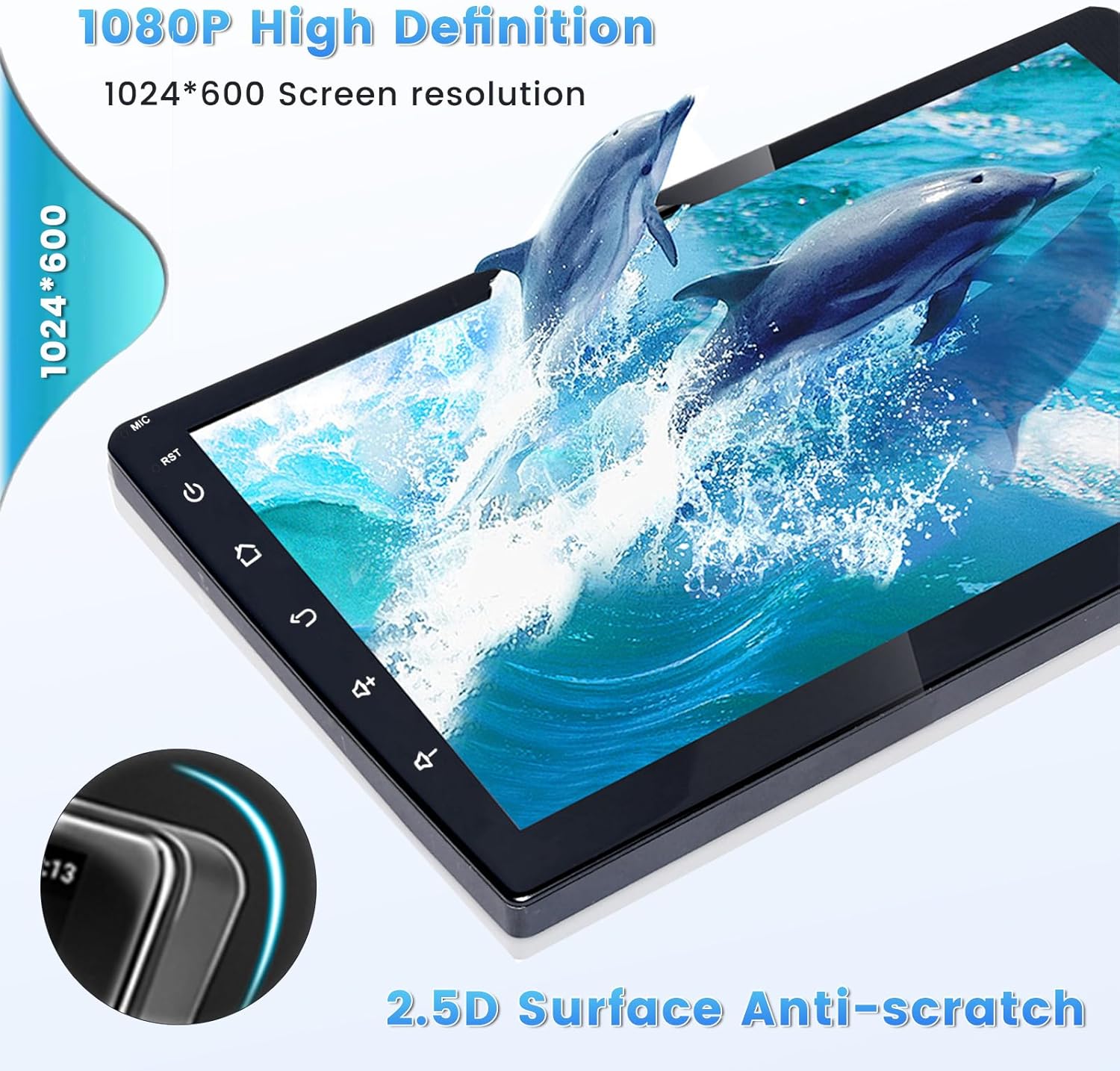
Figure 4.3: Wireless and wired connectivity options for CarPlay and Android Auto.
4.3 Bluetooth Functionality
The built-in Bluetooth module supports hands-free calling, phone book synchronization, and audio streaming. Easily make and receive calls or play music directly from your paired device.

Figure 4.4: Bluetooth features for communication and entertainment.
4.4 Mirror Link
Synchronize your Android or iOS smartphone screen with the car stereo display. This feature allows you to view and interact with your phone's multimedia content on the larger screen.
4.5 WiFi & GPS Navigation
Connect to a WiFi network to download various applications from the Play Store, stream online music, and watch videos. The built-in GPS navigation allows for both online and offline map usage. Download offline maps directly from the Play Store for navigation without an internet connection.

Figure 4.5: WiFi functionality for app downloads and online content.

Figure 4.6: Online and offline navigation capabilities.
4.6 FM/RDS Radio
Enjoy high-quality audio with the integrated FM/RDS radio. The unit supports various popular sound effects with adjustable EQ settings for an optimized listening experience.

Figure 4.7: FM/RDS Radio interface.
4.7 Backup Camera
The system automatically switches to the reverse image display when the vehicle is put into reverse, providing a clear view for safe parking and maneuvering. The included AHD backup camera offers high definition, waterproof design, wide-angle view, and night vision capabilities.

Figure 4.8: Backup camera functionality and features.
5. Maintenance
To ensure the longevity and optimal performance of your Roinvou Car Radio, follow these general maintenance guidelines:
- Screen Cleaning: Use a soft, lint-free cloth specifically designed for electronics to clean the touchscreen. Do not use abrasive cleaners or solvents.
- Software Updates: Periodically check for available software updates through the unit's settings or the manufacturer's website to ensure you have the latest features and bug fixes.
- Environmental Conditions: Avoid exposing the unit to extreme temperatures, direct sunlight for prolonged periods, or excessive moisture.
- Cable Inspection: Periodically inspect all connected cables for any signs of wear or damage.
6. Troubleshooting
If you encounter issues with your Roinvou Car Radio, refer to the following common problems and solutions:
| Problem | Possible Cause / Solution |
|---|---|
| Unit does not power on or loses settings. | Check the vehicle's fuse box (e.g., fuse #19 for radio power). A blown fuse may indicate incorrect wiring during installation. Ensure the CANBUS box is correctly connected as per the wiring diagram. |
| Backup camera displays a chopped image or no display. | Verify all camera wiring connections, especially the reversing light positive and ground wires. Ensure the camera itself is not damaged. |
| Wireless CarPlay/Android Auto connection is unstable or slow. | Ensure your phone's Bluetooth and Wi-Fi are enabled. Try forgetting the device on both the phone and the car radio, then re-pairing. Ensure no other devices are interfering with the connection. |
| Radio presets are lost after turning off the vehicle. | This often indicates an issue with the constant power (B+) connection. Ensure the yellow wire (usually for constant power) is correctly wired to a constant 12V source in your vehicle. |
| System reboots randomly or crashes. | Try performing a system reset using the reset button (often a small pinhole on the screen bezel). Ensure the unit has adequate ventilation and is not overheating. If issues persist, contact customer support. |
| Steering wheel controls do not work. | Review the SWC setup instructions in Section 3.2. Ensure the CANBUS box is correctly configured or the Key1/Key2 wires are properly connected and mapped in the settings. |
For issues not covered here, or if troubleshooting steps do not resolve the problem, please contact Roinvou customer support.
7. Specifications
| Feature | Detail |
|---|---|
| Model | 2+64G CarPlay |
| Operating System | Android |
| Screen Size | 9 Inches (23 cm visible diagonal) |
| Resolution | 1024 x 600 |
| Product Dimensions | 9.96 x 1.57 x 14.96 inches |
| Item Weight | 3.94 pounds |
| Connectivity Technology | Bluetooth, Wi-Fi, USB |
| Special Features | CarPlay, Android Auto, Bluetooth, Touchscreen, FM RDS Radio, Mirror Link, GPS Navigation, DSP, Wi-Fi, SWC, 28 Desktop Themes |
| Audio Output Mode | Stereo |
| Mounting Type | Dashboard Mount |
| Vehicle Service Type | Car (Ford F-150 F150 2009-2012) |
8. Support & Warranty
Roinvou is committed to providing excellent customer service. If you have any questions, require assistance with installation, or encounter any issues, please do not hesitate to contact us.
8.1 Contacting Support
You can reach Roinvou customer support through the following methods:
- Email: roinvouservices@163.com
- Amazon Seller Page: Visit the Roinvou Store on Amazon and click 'Ask a question' to send a message directly to the seller.

Figure 8.1: Methods to contact Roinvou customer support.
8.2 Warranty Information
Your Roinvou Car Radio comes with a One Year Warranty. This warranty covers manufacturing defects and ensures product quality. For specific details regarding warranty claims and returns, please refer to the terms provided at the time of purchase or contact customer support.
8.3 Additional Resources
A comprehensive User Guide in PDF format is also available for download:
Documents and downloads
Ask a question about this manual
Ask about setup, troubleshooting, compatibility, parts, safety, or missing instructions. Manuals+ will review the question and use this page’s manual context to help answer it.