
UHURU WM-02
UHURU Wireless Gaming Mouse User Manual
Model: WM-02 (B0BY8R1T1R)
Introduction
This manual provides comprehensive instructions for the setup, operation, maintenance, and troubleshooting of your UHURU Wireless Gaming Mouse. Please read this manual thoroughly before using the product to ensure optimal performance and longevity.

Figure 1: The UHURU Wireless Gaming Mouse in blue, showcasing its ergonomic design and LED lighting.
Package Contents
Verify that all items are present in the package:
- UHURU Wireless Gaming Mouse (Model: WM-02)
- 2.4GHz USB Dongle
- USB Charging Cable
- User Manual (this document)
Product Features
- Adjustable DPI: 5 levels (800/1600/3000/5000/10000 DPI) for precise control.
- 7-Color Changeable Backlight: Automatic cycling LED lighting for ambient illumination.
- 6 Programmable Buttons: Customizable buttons via driver software (Windows only).
- Rechargeable Battery: Built-in battery with extended usage time and auto-sleep function.
- Ergonomic Design: Comfortable grip for various hand sizes and grip styles.
Setup Guide
- Charge the Mouse: Before first use, connect the USB charging cable to the mouse and a power source (e.g., computer USB port, USB wall adapter). The mouse features a built-in rechargeable battery.
- Insert USB Dongle: Locate the 2.4GHz USB dongle (receiver) stored in the mouse's bottom compartment. Insert the dongle into an available USB port on your computer.
Figure 2: The 2.4GHz USB dongle, which is essential for wireless connectivity.
- Power On the Mouse: Flip the power switch located on the bottom of the mouse to the "ON" position. The LED backlight will illuminate, indicating the mouse is active.
- Driver Installation (Optional for Programmable Buttons): For full functionality, including programmable buttons, download and install the driver software from the official UHURU website. Refer to the product packaging or the included user manual for the website address.
- Note: The gaming driver software is compatible with Windows operating systems only.
Operating Instructions
DPI Adjustment
The mouse features 5 adjustable DPI levels, allowing you to control cursor speed and sensitivity. Press the DPI button located below the scroll wheel to cycle through the settings:
- 800 DPI
- 1600 DPI
- 3000 DPI
- 5000 DPI
- 10000 DPI
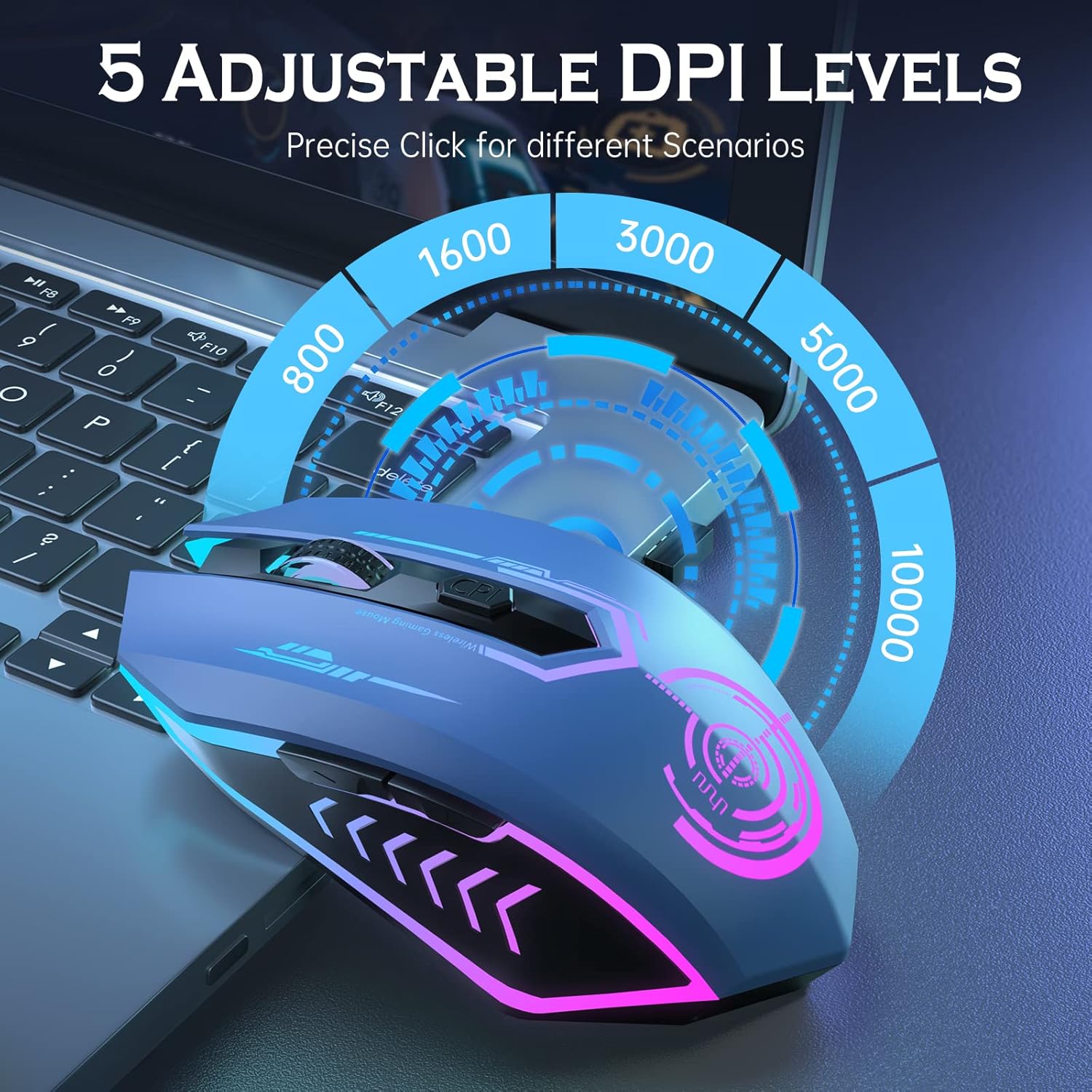
Figure 3: Visual representation of the 5 adjustable DPI levels and the DPI button location.
LED Backlight
The mouse features a dynamic 7-color LED backlight that cycles automatically. This provides ambient lighting during use.
- Note: The LED colors change automatically and cannot be programmed to stay on a single color.
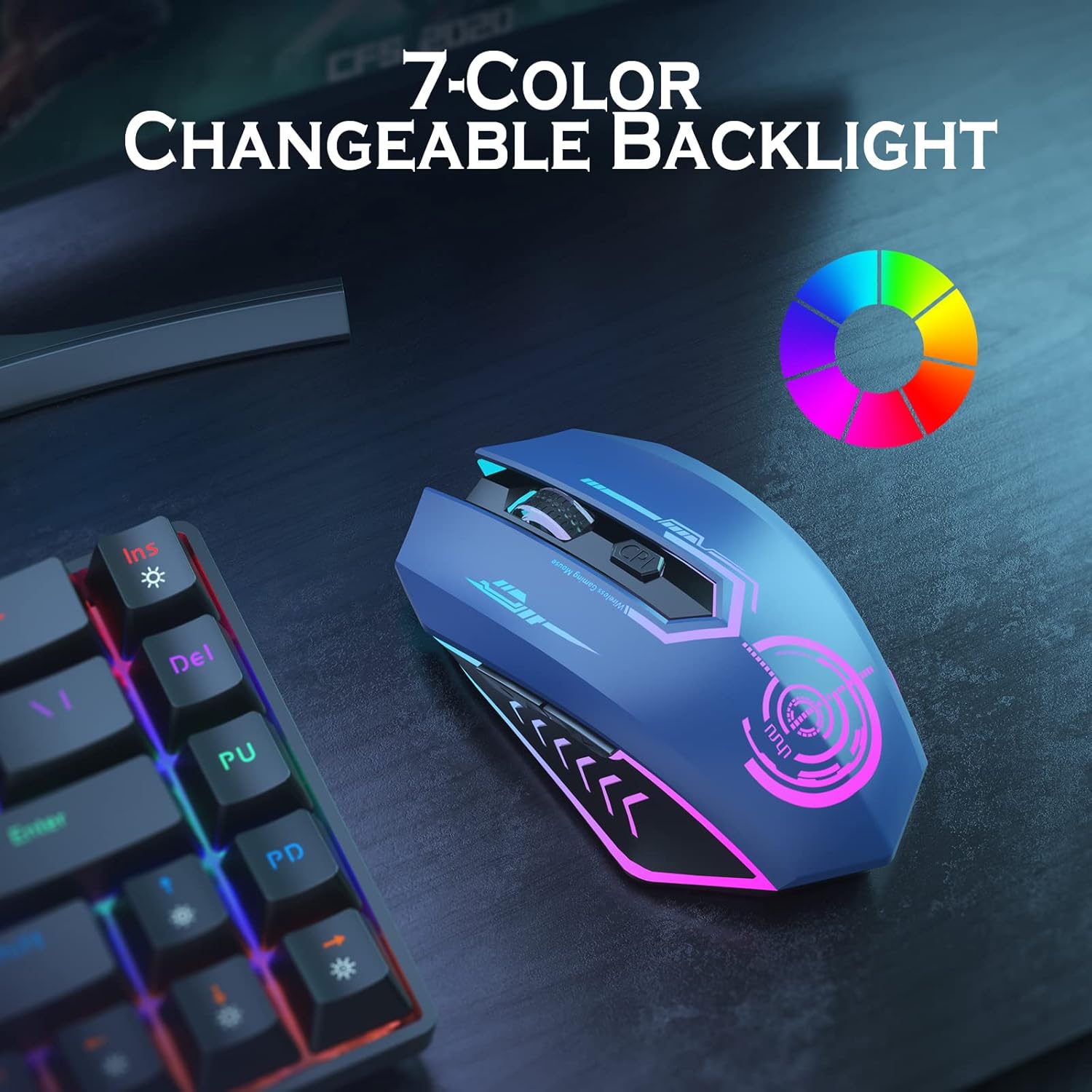
Figure 4: The mouse displaying its vibrant 7-color changeable backlight feature.
Programmable Buttons
The UHURU Wireless Gaming Mouse is equipped with 6 programmable buttons. These buttons can be customized for specific functions, macros, or commands, enhancing your gaming or work efficiency.

Figure 5: An annotated diagram highlighting the 6 programmable buttons: Left Button, Right Button, Scroll Wheel, Backward, Forward, and DPI button.
To program the buttons:
- Ensure the driver software is installed on your Windows PC.
- Launch the driver software.
- Follow the on-screen instructions to assign functions to each of the 6 programmable buttons.
Battery and Charging
The mouse features a built-in rechargeable lithium polymer battery. When the battery is low, the mouse's performance may be affected, or the LED lights might dim/turn off.
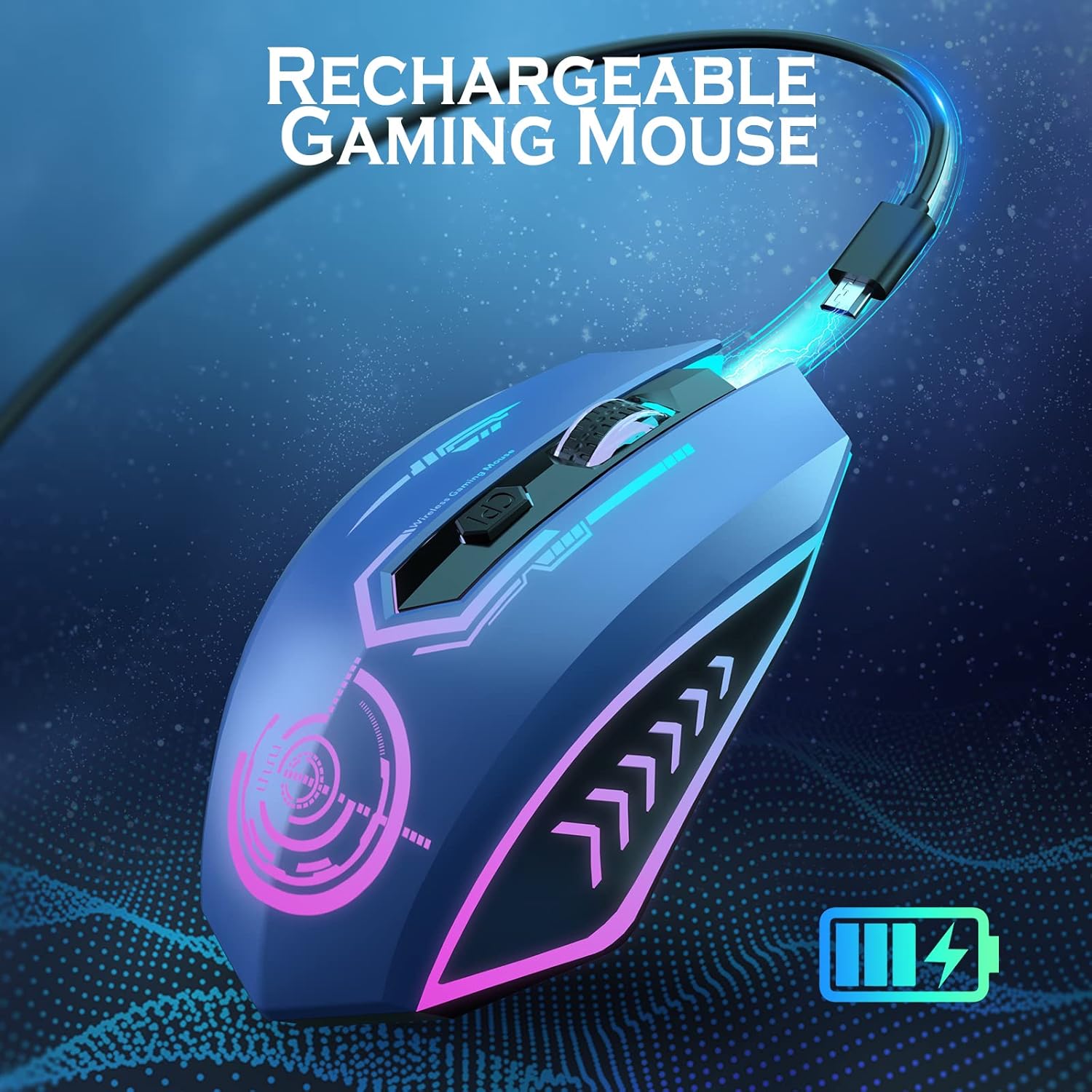
Figure 6: The UHURU Wireless Gaming Mouse being charged via its USB cable, indicating its rechargeable capability.
Charging Process:
- Connect the provided USB charging cable to the charging port on the front of the mouse.
- Connect the other end of the cable to a USB power source (e.g., computer, USB adapter).
- The mouse can be used while charging.
- A full charge typically provides 7-10 days of average use (approx. 1.5 hours/day).
Power Saving Mode:
To conserve battery life, the mouse will automatically enter a sleep mode after 1 minute of inactivity. To wake the mouse, simply move it or click any button.
Maintenance and Care
- Cleaning: Use a soft, dry cloth to clean the mouse. Avoid using harsh chemicals or abrasive materials.
- Storage: Store the mouse in a cool, dry place away from direct sunlight and extreme temperatures.
- Battery Longevity: To maximize battery life, avoid fully discharging the mouse frequently. Charge it when the low battery indicator appears.
- USB Dongle: When not in use, store the USB dongle in its designated slot on the bottom of the mouse to prevent loss.
Troubleshooting
| Problem | Possible Cause | Solution |
|---|---|---|
| Mouse not responding. | Low battery; USB dongle not connected; mouse not powered on. | Charge the mouse; ensure USB dongle is securely inserted; turn on the mouse. |
| Cursor movement is erratic or slow. | Low DPI setting; dirty optical sensor; surface issues. | Increase DPI using the DPI button; clean the optical sensor; use on a clean, non-reflective mouse pad. |
| Programmable buttons not working. | Driver not installed or corrupted; incorrect settings. | Install/reinstall the driver software; configure button settings in the driver application. |
| LED backlight is off. | Mouse is in sleep mode; battery is critically low. | Move or click the mouse to wake it; charge the mouse. |
Specifications
- Model: WM-02
- Connectivity: 2.4GHz Wireless (USB Dongle)
- DPI Levels: 800 / 1600 / 3000 / 5000 / 10000
- Buttons: 6 (Programmable)
- Backlight: 7-Color Automatic Cycle LED
- Battery: Built-in Rechargeable Lithium Polymer
- Item Weight: 7.1 ounces
- Dimensions: 5.2 x 4.61 x 2.05 inches (Package)
- Compatibility: PC, Laptop (Windows for full driver features)
Warranty and Support
UHURU provides a 12-month warranty for this product, as indicated by customer reviews. For technical support, warranty claims, or further assistance, please contact UHURU customer service through the contact information provided on the product packaging or the official UHURU website.
Customer-centric approach: UHURU is committed to providing high-quality products and excellent customer experience.
Related documentsWM-02

Ask a question about this manual
Ask about setup, troubleshooting, compatibility, parts, safety, or missing instructions. Manuals+ will review the question and use this page’s manual context to help answer it.