
UHURU WM-02
UHURU WM-02 Wireless Gaming Mouse User Manual
Model: WM-02
1. Introduction
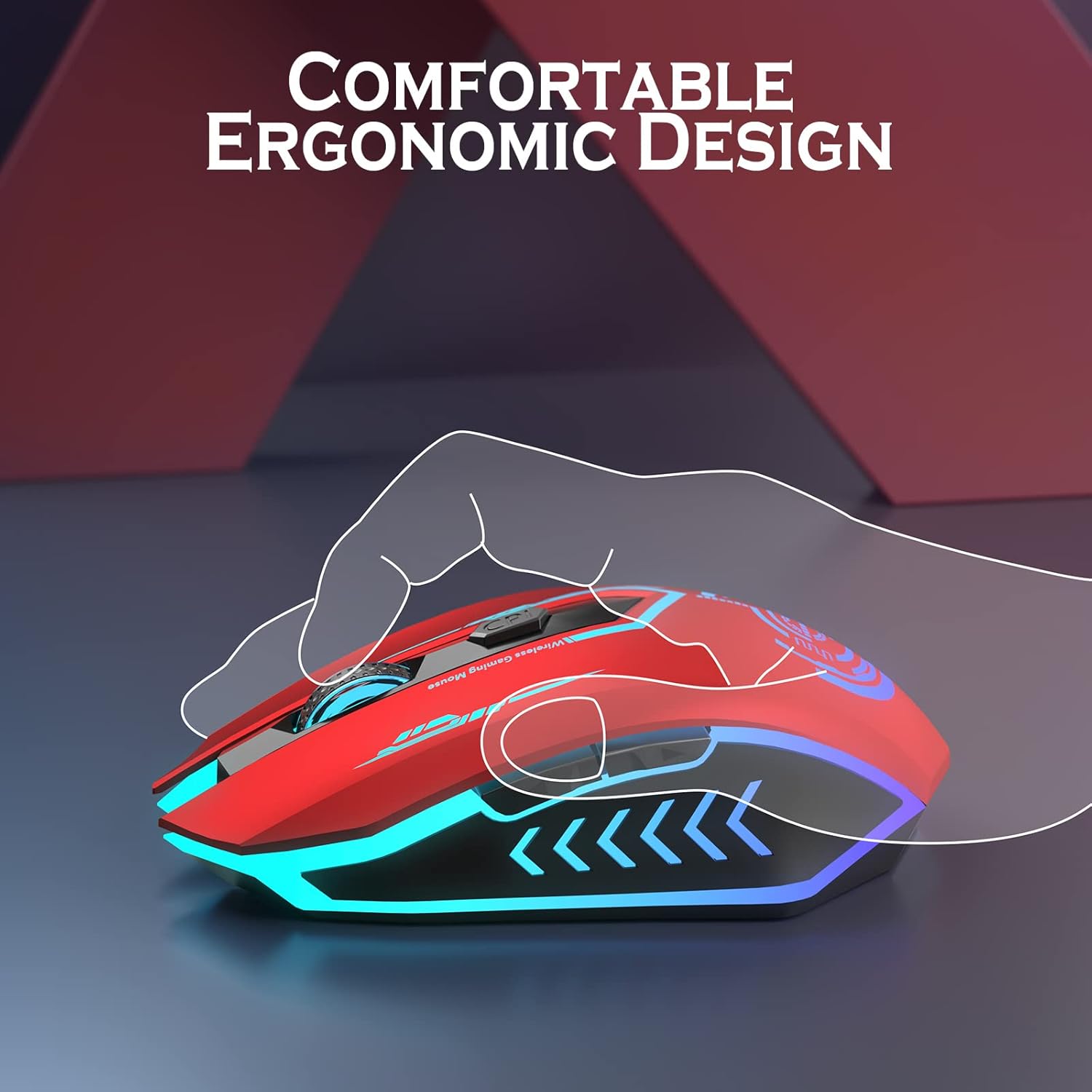
Thank you for choosing the UHURU WM-02 Wireless Gaming Mouse. This manual provides detailed instructions on how to set up, operate, and maintain your new gaming mouse. Designed for both gaming and office use, this mouse offers adjustable DPI, customizable buttons, and a comfortable ergonomic design with vibrant LED backlighting.
2. Package Contents
Please check the package contents to ensure all items are present:
- UHURU WM-02 Wireless Gaming Mouse x 1
- 2.4GHz USB Dongle x 1
- Charging Cable x 1
- User's Manual x 1
3. Product Overview
Familiarize yourself with the components and features of your UHURU WM-02 Wireless Gaming Mouse.
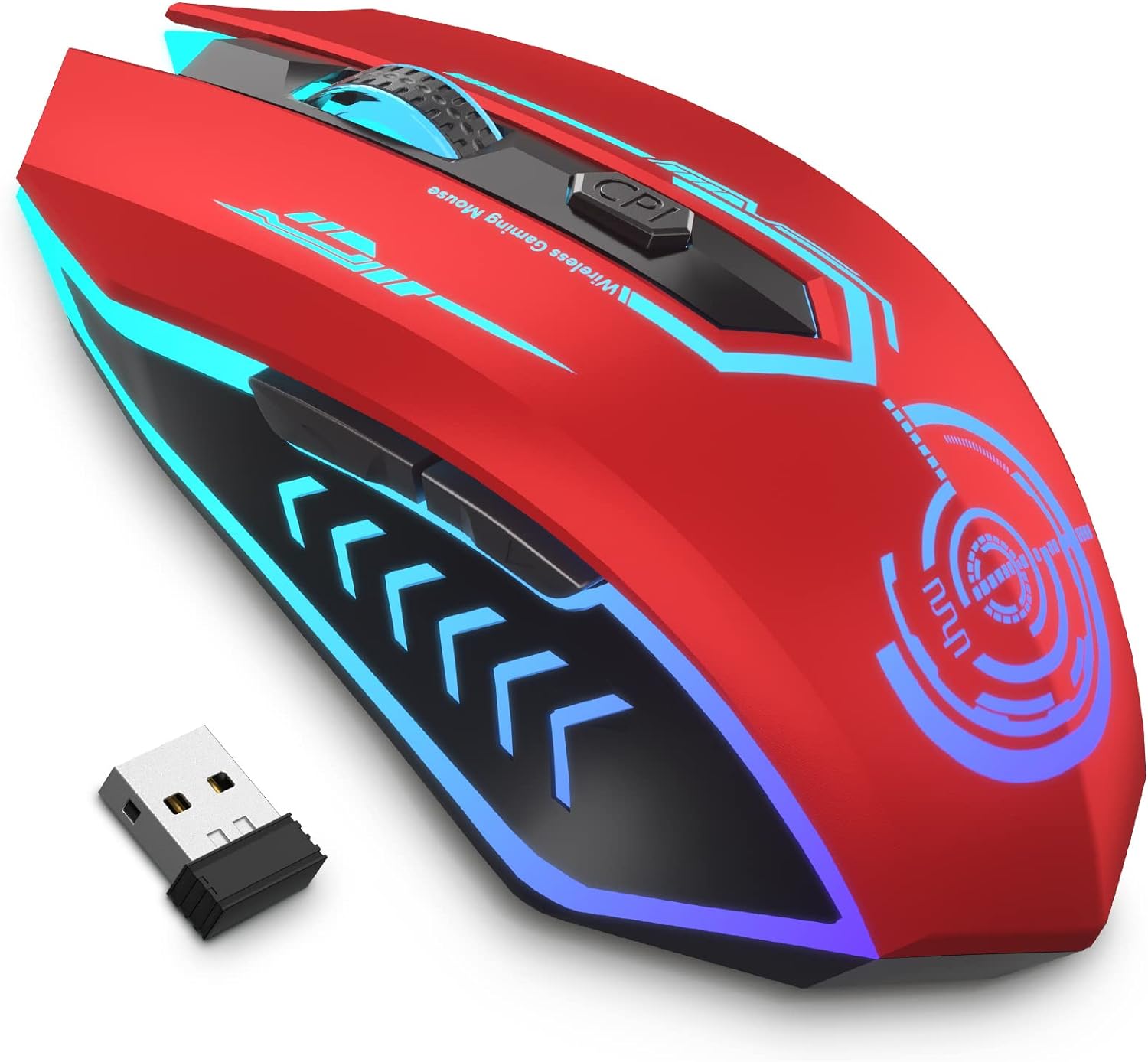
Main Product View: This image displays the UHURU WM-02 Wireless Gaming Mouse in its red color variant, highlighting its sleek design and vibrant blue LED accents. The compact USB dongle is also shown, which is used for wireless connectivity.

Button Layout: The mouse features 6 programmable buttons for enhanced control. These include the Left Button (1), Right Button (2), Scroll Wheel (3), Backward (4), Forward (5), and DPI button (6). These buttons can be customized via driver software for specific gaming or productivity needs.

Adjustable DPI Levels: The mouse offers 5 adjustable DPI (Dots Per Inch) levels: 800, 1600, 3000, 5000, and 10000. This allows users to easily switch sensitivity on the fly to match different tasks or game scenarios, from precise aiming to rapid movements.

7-Color Changeable Backlight: The mouse features a dynamic 7-color LED backlight that changes automatically, providing a soothing ambient lighting effect. Please note that the LED colors cannot be programmed to stay on a single color and will cycle through the spectrum.
4. Setup
4.1 Connecting the Mouse
- Locate the 2.4GHz USB dongle from the package. It is typically stored in a compartment on the underside of the mouse for safekeeping.
- Insert the USB dongle into an available USB port on your computer (PC or Laptop).
- The mouse should automatically connect to your computer. No additional drivers are typically needed for basic functionality.
4.2 Initial Charging
Before first use, it is recommended to fully charge the mouse.
Charging the Mouse: Connect the provided charging cable to the mouse's charging port and the other end to a USB power source (e.g., computer USB port, USB wall adapter). The mouse features a built-in rechargeable battery, eliminating the need for disposable batteries.
A full charge typically takes approximately 30 minutes from 0% battery. The mouse will enter an auto-sleep mode after 1 minute of inactivity to conserve power.
5. Operating Instructions
5.1 Adjusting DPI (Sensitivity)
To change the mouse's sensitivity (DPI), press the DPI button located below the scroll wheel. Each press will cycle through the available DPI levels:
- 800 DPI
- 1600 DPI
- 3000 DPI
- 5000 DPI
- 10000 DPI
Select the DPI level that best suits your current activity, whether it's precise graphic design work or fast-paced gaming.
5.2 LED Backlight
The mouse features an automatic 7-color changing LED backlight. This provides an aesthetic appeal during use. Please note that the LED colors are not programmable and will cycle through the spectrum automatically.
5.3 Battery Life and Charging
The built-in rechargeable battery provides approximately 7-10 days of use with an average of 1.5 hours of daily usage. When the battery is low, connect the charging cable as described in Section 4.2. The mouse will enter an auto-sleep mode after 1 minute of inactivity to conserve battery life.
6. Programmable Buttons
The UHURU WM-02 mouse features 6 programmable buttons. To customize these buttons, you will need to install the dedicated driver software. This software allows for macro editing and assigning specific functions to each button, enhancing your gaming or productivity experience.
- Driver Software Compatibility: The gaming driver software is compatible with Windows operating systems only.
- Download Location: Please refer to the information provided in the product packaging or the official UHURU website to download the latest driver software.
7. Maintenance
To ensure the longevity and optimal performance of your UHURU WM-02 Wireless Gaming Mouse, follow these maintenance guidelines:
- Cleaning: Use a soft, dry cloth to wipe the mouse surface. For stubborn dirt, slightly dampen the cloth with water. Avoid using harsh chemicals or abrasive cleaners.
- Sensor Care: Keep the optical sensor on the underside of the mouse clean and free from dust or debris to ensure accurate tracking.
- Storage: When not in use for extended periods, store the mouse in a cool, dry place.
- Battery Care: Avoid completely draining the battery frequently. Charge the mouse regularly to maintain battery health.
8. Troubleshooting
If you encounter any issues with your UHURU WM-02 Wireless Gaming Mouse, please refer to the following common troubleshooting steps:
| Problem | Possible Cause | Solution |
|---|---|---|
| Mouse not responding / No connection | Low battery; USB dongle not properly inserted; Dongle interference. | Charge the mouse. Ensure the USB dongle is fully inserted into a working USB port. Try a different USB port. Move the mouse closer to the dongle. |
| Lagging or erratic movement | Low battery; Dirty optical sensor; Surface issues; Wireless interference. | Charge the mouse. Clean the optical sensor. Use the mouse on a clean, non-reflective surface (e.g., mouse pad). Reduce interference from other wireless devices. |
| LED lights not working | Mouse is off; Battery is completely drained. | Ensure the mouse is turned on. Charge the mouse. |
| Programmable buttons not working | Driver software not installed or configured; Not compatible with macOS/Linux. | Install and configure the driver software (Windows only). Ensure you are using a Windows operating system for programmable features. |
9. Specifications
| Feature | Detail |
|---|---|
| Model Number | WM-02 |
| Connectivity Technology | 2.4GHz Wireless, USB |
| DPI Levels | 800 / 1600 / 3000 / 5000 / 10000 |
| Buttons | 6 (Programmable) |
| Backlight | 7-Color Changeable LED (Automatic) |
| Battery Type | Lithium Polymer (Included) |
| Item Weight | 7.4 ounces (approx. 210 grams) |
| Package Dimensions | 5.51 x 4.57 x 2.01 inches |
| Country of Origin | China |
10. Warranty and Support
UHURU is committed to providing high-quality products and excellent customer service.
- Warranty: This product comes with a 12-month warranty from the date of purchase.
- Replacement & Service: UHURU offers 365 days replacement and lifetime service for this product.
- Customer Support: For any questions, technical assistance, or warranty claims, please contact UHURU customer service. We provide 24/7 service for all our customers. Refer to the contact information provided in your product packaging or visit the official UHURU website for support details.
11. Official Product Videos
No official product video URLs were provided in the input data for embedding. Please refer to the product page on Amazon or the manufacturer's website for any available video demonstrations or guides.
Related documentsWM-02

Ask a question about this manual
Ask about setup, troubleshooting, compatibility, parts, safety, or missing instructions. Manuals+ will review the question and use this page’s manual context to help answer it.