
1. Introduction
Thank you for choosing the Havit MS1038 Programmable RGB Gaming Mouse. This manual provides essential information for setting up, operating, maintaining, and troubleshooting your new gaming mouse. Please read this guide thoroughly to ensure optimal performance and longevity of your device.
2. Product Overview
The Havit MS1038 is a high-performance wired gaming mouse designed for precision and customization. It features a high-precision optical sensor, adjustable DPI settings up to 8000, 7 programmable buttons, and dynamic RGB backlighting to enhance your gaming experience.
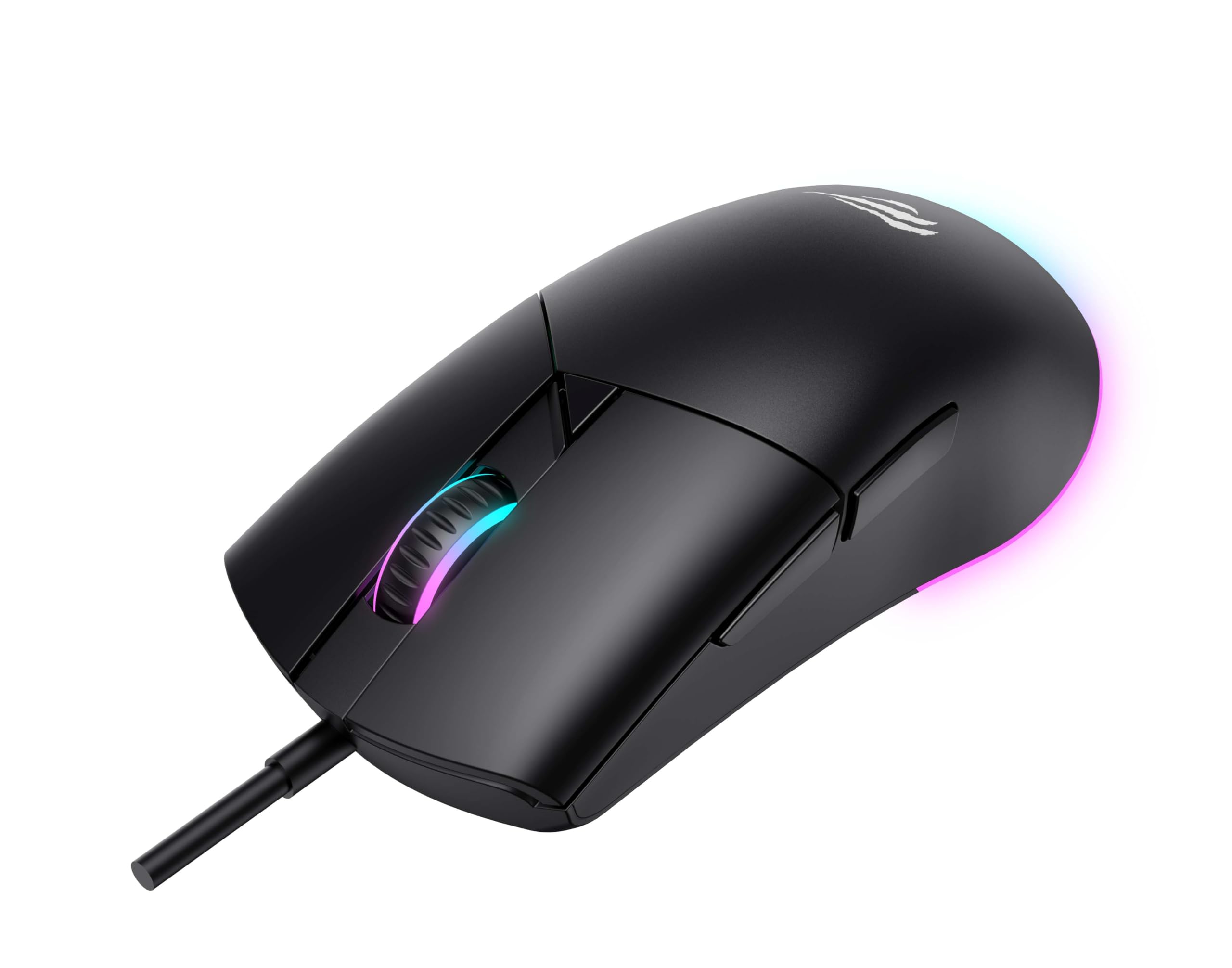
Figure 1: Front view of the Havit MS1038 Gaming Mouse, showcasing its ergonomic design and RGB lighting.
3. Specifications
| Feature | Detail |
|---|---|
| Brand | Havit |
| Model | MS1038 |
| Color | Black |
| Connectivity | USB (Wired) |
| Special Features | RGB Backlight, Programmable Buttons, High-Precision Optical Sensor |
| Compatible Devices | PC, Laptop, Tablet |
| Motion Detection | Optical |
| DPI Settings | 1200-2400-3200-4800-6400-8000 DPI |
| Number of Buttons | 7 |
| Key Lifespan | 3,000,000 clicks |
| Cable Length | 1.6 meters |
| Operating Voltage | 5V |
| Operating Current | 150mA |
| Chip | SPCP199C |
| Dimensions (L*W*H) | 121 x 64 x 42 mm |
| Product Weight | 82g |
| Batteries Required | No |
| Power Source | Corded |
| Compatible OS | Windows, Mac, Linux |
| Country of Origin | China |
4. Setup Guide
- Unpack the Mouse: Carefully remove the Havit MS1038 mouse from its packaging.
- Connect to Computer: Plug the USB connector of the mouse into an available USB port on your computer.
- Driver Installation: The mouse is typically plug-and-play. Your operating system (Windows, Mac, Linux) should automatically detect and install the necessary drivers. Allow a few moments for the installation to complete.
- Software Installation (Optional): For advanced customization of programmable buttons and RGB lighting, download the official Havit MS1038 software from the manufacturer's website. Follow the on-screen instructions for installation.
5. Operating Instructions
5.1 Basic Functions
- Left Click: Primary action.
- Right Click: Secondary action, typically opens context menus.
- Scroll Wheel: Scrolls content up or down. Pressing the scroll wheel often acts as a middle click.
5.2 DPI Adjustment
The Havit MS1038 features a dedicated DPI button (usually located behind the scroll wheel) to cycle through different sensitivity settings. Each press will switch to the next DPI level, indicated by a change in the RGB lighting color or pattern.
- Available DPI settings: 1200, 2400, 3200, 4800, 6400, 8000.
- Select the DPI that best suits your preference for gaming or general use.
5.3 Programmable Buttons
The mouse has 7 buttons, including the standard left/right click, scroll wheel, DPI button, and additional side buttons. These additional buttons can be customized using the Havit MS1038 software.

Figure 2: Side view of the Havit MS1038 Gaming Mouse, highlighting the additional programmable buttons.
6. Customization
To unlock the full potential of your Havit MS1038 mouse, utilize the dedicated software (available for download from the Havit official website). This software allows you to:
- Remap Buttons: Assign custom functions, macros, or keyboard shortcuts to any of the 7 programmable buttons.
- Adjust DPI Stages: Fine-tune the DPI levels and assign specific values to each stage.
- Control RGB Lighting: Choose from various lighting effects, colors, and brightness levels to personalize your mouse's appearance.
- Create Profiles: Save different configurations for various games or applications.
7. Maintenance
Proper care ensures the longevity and performance of your mouse.
- Cleaning: Use a soft, dry cloth to wipe the surface of the mouse. For stubborn dirt, slightly dampen the cloth with water or a mild cleaning solution. Avoid harsh chemicals.
- Sensor Care: Keep the optical sensor on the underside of the mouse clean and free from dust or debris. Use a cotton swab if necessary.
- Cable Management: Avoid sharp bends or excessive pulling on the USB cable to prevent damage.
- Storage: When not in use, store the mouse in a clean, dry environment away from extreme temperatures.
8. Troubleshooting
If you encounter issues with your Havit MS1038 mouse, refer to the following common solutions:
- Mouse Not Responding:
- Ensure the USB cable is securely plugged into a working USB port.
- Try plugging the mouse into a different USB port.
- Restart your computer.
- Erratic Cursor Movement:
- Clean the optical sensor on the bottom of the mouse.
- Ensure you are using the mouse on a clean, non-reflective surface or a mouse pad.
- Check for any software conflicts or outdated drivers.
- RGB Lighting Not Working:
- Verify that the mouse is properly connected.
- If using customization software, ensure lighting effects are enabled and configured correctly.
- Buttons Not Functioning:
- If programmable buttons are not working as expected, check the settings in the Havit MS1038 software.
- Ensure no other software is interfering with mouse button assignments.
9. Warranty and Support
The Havit MS1038 Programmable RGB Gaming Mouse comes with a 1-year warranty from the date of purchase. This warranty covers manufacturing defects under normal use.
For technical support, warranty claims, or further assistance, please contact Havit customer service through their official website or your local retailer. Please have your proof of purchase ready when contacting support.


