
1. Product Overview
The MOES Smart WiFi Curtain Switch is designed for controlling roller blinds and shutters, offering multiple control methods including manual touch, RF remote, voice commands via Amazon Alexa and Google Home, and intelligent control through the Tuya Smart or Smart Life mobile applications. This device supports flexible control configurations, such as 1-way, 2-way, or multi-control association, and group control for managing multiple switches simultaneously.

Image 1.1: Front view of the MOES Smart WiFi Curtain Switch, showcasing its sleek 2.5D arc glass touch panel with clearly marked 'open', 'stop', and 'close' icons.
2. Package Contents
Verify that all items are present in the package:
- 1x MOES Smart WiFi Curtain Switch
- 1x User Manual
- 2x Mounting Screws
Note: The curtain motor is not included and must be purchased separately.
3. Specifications
| Feature | Specification |
|---|---|
| Brand | MOES |
| Model | WRS-EUC-3D-WH |
| Wireless Protocol | Wi-Fi 2.4GHz |
| Working Voltage | 90-250V AC, (50/60 Hz) |
| Max. Current | 2.5A |
| Load Capacity | ≤600 W |
| Standby Power | ≤0.5W |
| Standby Consumption | 0.1 mA |
| Wireless Range | 30 meters (indoors) |
| Material | ABS Flame Retardant |
| Dimensions (L x W x H) | 23 x 15 x 1 cm |
| Item Weight | 100 g |

Image 3.1: Detailed dimensions of the MOES Smart WiFi Curtain Switch, showing its height, width, and depth, along with the labeled touch controls for 'open', 'stop', and 'close'.
4. Setup and Installation
4.1 Safety Precautions
- Ensure power is OFF at the circuit breaker before installation.
- Installation should be performed by a qualified electrician if you are unsure.
- Do not exceed the maximum load capacity of 600W.
- This device is for indoor use only.
4.2 Wiring Diagram
Connect the switch according to the following diagram. Ensure correct wiring to avoid damage to the device or curtain motor.
(Note: A specific wiring diagram image is not provided in the input. Please refer to the diagram in the physical user manual or consult a qualified electrician for wiring instructions.)
- L: Live Wire
- N: Neutral Wire
- L1: Motor Open Wire
- L2: Motor Close Wire
- Ground: Ground Wire
4.3 App Pairing (Tuya Smart / Smart Life)
- Download the "Tuya Smart" or "Smart Life" app from your smartphone's app store (available on iOS and Android).
- Register or log in to your account.
- Ensure your mobile device is connected to a 2.4GHz Wi-Fi network.
- Power on the curtain switch. The Wi-Fi indicator light on the switch should be blinking rapidly (if not, press and hold the 'stop' button for 5-10 seconds until it blinks).
- In the app, tap "+" to add a device. Select "Curtain Switch" or "Curtain Module" from the device list.
- Follow the on-screen instructions to connect the switch to your Wi-Fi network.
- Once successfully paired, you can rename the device and control it via the app.
5. Operating Instructions

Image 5.1: Overview of control methods for the MOES Smart WiFi Curtain Switch, including timer, voice control, manual touch control, and Tuya Smart APP control.
5.1 Manual Touch Control
The switch features a 2.5D arc glass touch panel for direct control:
- Up Arrow (∧): Touch to open the curtain/blind.
- Square (█): Touch to stop the curtain/blind at its current position.
- Down Arrow (∨): Touch to close the curtain/blind.
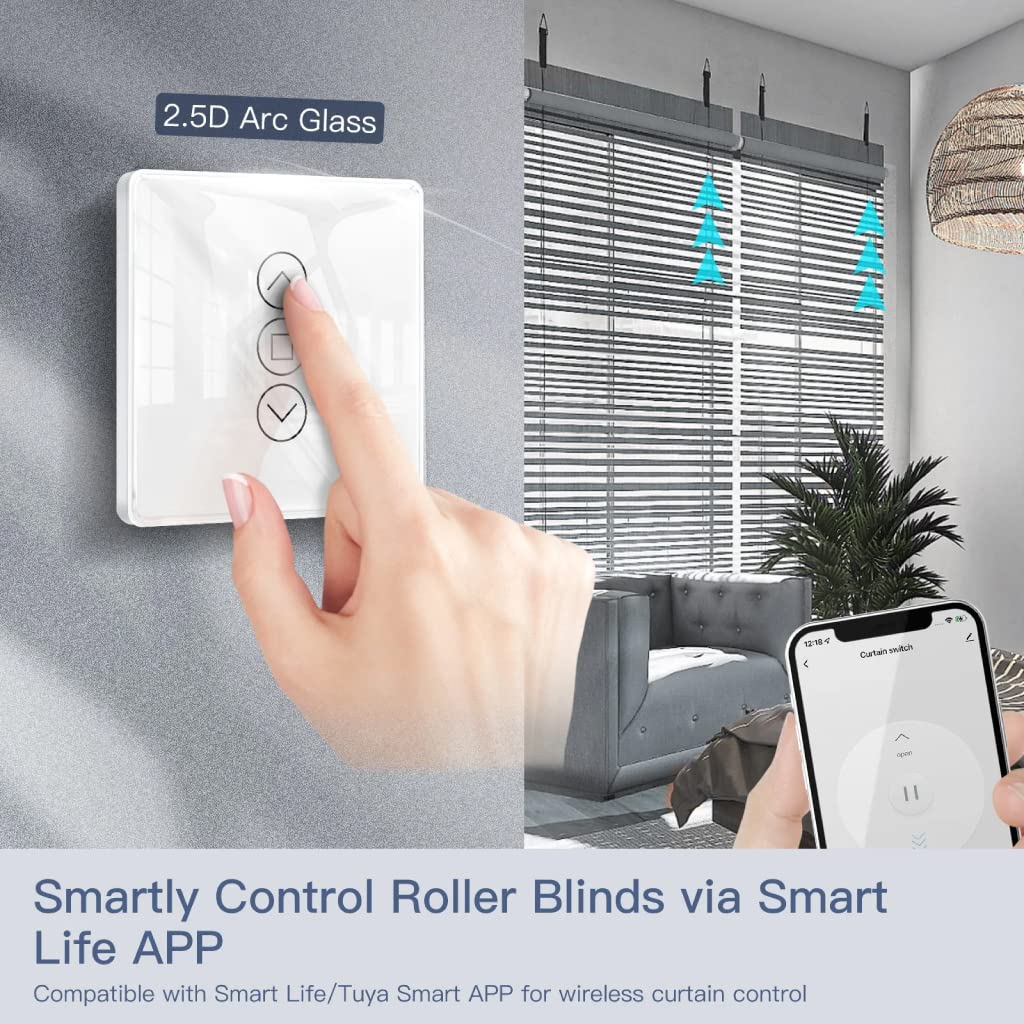
Image 5.2: A hand interacting with the 2.5D Arc Glass touch panel of the MOES Smart WiFi Curtain Switch, demonstrating manual control, alongside a smartphone displaying the Smart Life APP interface for remote control.
5.2 App Control (Tuya Smart / Smart Life)
Once paired, use the Tuya Smart or Smart Life app for comprehensive control:
- Open/Close/Stop: Use the virtual buttons in the app interface.
- Percentage Control: Adjust the curtain position to a specific percentage (e.g., 50% open).
- Scheduling: Set timers for automatic opening and closing at specific times.
- Backlight Control: Enable or disable the switch's backlight via the app for a better user experience.
- Group Control: Group multiple MOES curtain switches to control them simultaneously.
- Multi-Control Association: Link multiple switches to control a single curtain, allowing control from different locations.

Image 5.3: The MOES Smart WiFi Curtain Switch with its backlight illuminated, demonstrating the "Backlight Switch Enabled in the APP for Better Switch Experience" feature, with a smartphone showing the app interface for controlling the backlight.
5.3 Voice Control (Amazon Alexa / Google Home)
Integrate the MOES Smart WiFi Curtain Switch with your voice assistant for hands-free operation:
- Ensure your MOES switch is successfully paired with the Tuya Smart or Smart Life app.
- Open the Amazon Alexa or Google Home app.
- Enable the "Tuya Smart" or "Smart Life" skill/service.
- Link your Tuya/Smart Life account with your voice assistant account.
- Discover devices. Your MOES curtain switch should appear.
- Use voice commands such as:
- "Alexa, open the [Curtain Name]."
- "Hey Google, close the [Curtain Name]."
- "Alexa, stop the [Curtain Name]."
- "Hey Google, set [Curtain Name] to 50%."

Image 5.4: An illustration depicting a user relaxing while controlling curtains using voice commands through a smart speaker, highlighting the compatibility of the MOES Smart WiFi Curtain Switch with voice assistants like Amazon Alexa and Google Home.
5.4 RF433 Remote Control (Optional)
The switch supports RF433 frequency remote control for an additional layer of convenience. (Note: RF remote is sold separately and not included in this package.)
- To pair an RF433 remote, refer to the specific instructions provided with your RF remote. Typically, this involves a pairing mode on the switch and a button press on the remote.
- The switch supports 1527 Standard Code and 9 Channel RF remotes.
6. Maintenance
- Clean the glass panel with a soft, dry cloth. Avoid abrasive cleaners or solvents.
- Do not expose the switch to excessive moisture or extreme temperatures.
- Regularly check wiring connections for security, especially after initial installation.
7. Troubleshooting
| Problem | Possible Cause | Solution |
|---|---|---|
| Switch not responding to touch. | No power; incorrect wiring; switch malfunction. | Check circuit breaker. Verify wiring. Contact support if issue persists. |
| Cannot pair with Wi-Fi. | Incorrect Wi-Fi password; 5GHz Wi-Fi network; switch not in pairing mode; weak signal. | Ensure 2.4GHz Wi-Fi. Re-enter password. Reset switch to pairing mode (hold stop button). Move router closer. |
| Curtain motor not moving. | Motor not connected; motor malfunction; incorrect wiring to motor. | Check motor connections (L1/L2). Test motor independently. Ensure motor is compatible. |
| Voice control not working. | Not linked to Alexa/Google Home; incorrect device name; internet issue. | Verify skill/service is enabled and accounts are linked. Check device name in app. Ensure internet connection. |
8. Warranty and Support
MOES products come with a standard manufacturer's warranty. For detailed warranty information, please refer to the warranty card included with your product or visit the official MOES website.
For technical support, troubleshooting assistance, or any inquiries regarding your MOES Smart WiFi Curtain Switch, please contact MOES customer service through their official channels or the retailer from whom you purchased the product.
Official MOES Store on Amazon: Visit the MOES Store


