
1. Introduction
The SHREYANS SRS588 is a compact and lightweight 2-inch portable Bluetooth thermal printer designed for various mobile printing applications. This manual provides essential information for setting up, operating, maintaining, and troubleshooting your printer to ensure optimal performance.

Image 1.1: SHREYANS SRS588 Portable Bluetooth Printer in use.
2. What's in the Box
Upon unpacking your SHREYANS SRS588 printer, please verify that all the following items are included:
- SHREYANS SRS588 Portable Bluetooth Printer
- USB Charging Cable
- Power Adapter
- User Manual (this document)
- Leather Protective Case (may vary by version)
- Thermal Paper Roll (initial roll)
3. Product Overview
The SHREYANS SRS588 printer features a compact design with intuitive controls. It utilizes thermal printing technology, eliminating the need for ink cartridges or ribbons.

Image 3.1: Front view of the SHREYANS SRS588 printer, showing power and feed buttons.
Key features include wireless Bluetooth connectivity, fast printing, and a built-in rechargeable battery for portability.

Image 3.2: Visual representation of key features: Wireless Connection, Fast Printing, Small & Portable, Built-in Battery.
4. Setup
Follow these steps to prepare your SHREYANS SRS588 printer for first use:
4.1. Unboxing and Initial Charge
Carefully remove all components from the packaging. Connect the printer to the power adapter using the provided USB cable and charge it fully before initial use. The battery indicator lights will show charging status.
4.2. Battery Installation
If the battery is not pre-installed, open the battery compartment cover on the bottom of the printer. Insert the rechargeable battery, ensuring correct polarity. Close the cover securely.
4.3. Paper Roll Installation
- Open the printer's top cover by pressing the release button or lifting the latch.
- Insert a 58mm thermal paper roll into the compartment. Ensure the paper feeds out from the bottom of the roll and the leading edge is straight.
- Pull a small amount of paper out past the cutting edge.
- Close the top cover firmly until it clicks into place.

Image 4.1: Printer with the paper roll compartment open, showing proper paper insertion.
4.4. Bluetooth Pairing
The SHREYANS SRS588 printer supports Bluetooth connectivity with Android and iOS devices.
- Power on the printer by pressing and holding the power button until the indicator light illuminates.
- On your mobile device, go to Bluetooth settings and search for available devices.
- Select 'SHREYANS Printer' or a similar device name (e.g., 'SRS588') from the list.
- If prompted for a PIN, enter '0000' or '1234'.
- Once paired, the Bluetooth indicator on the printer will confirm the connection.

Image 4.2: Bluetooth pairing process with Android and iOS devices.
4.5. Video Guide: Unboxing, Setup & Printing
Video 4.1: This video demonstrates the unboxing, battery installation, paper roll loading, and a sample print operation of the SHREYANS SRS588 printer.
5. Operating Instructions
5.1. Power On/Off
- To Power On: Press and hold the power button for approximately 2-3 seconds until the indicator light turns on.
- To Power Off: Press and hold the power button for approximately 3-5 seconds until the indicator light turns off.
5.2. Printing from Mobile Devices
To print, you will need a compatible application on your smartphone or tablet. Many billing and POS applications support this printer. Examples include Vyapar, Loyverse, TabShop, Pozool, Expressprint, ireap, CashSale POS, O3POS, and others.
- Ensure the printer is powered on and successfully paired via Bluetooth with your device.
- Open your preferred printing application.
- Navigate to the print function within the application.
- Select the SHREYANS SRS588 printer from the list of available printers.
- Initiate the print command. The printer will automatically print and cut the receipt.
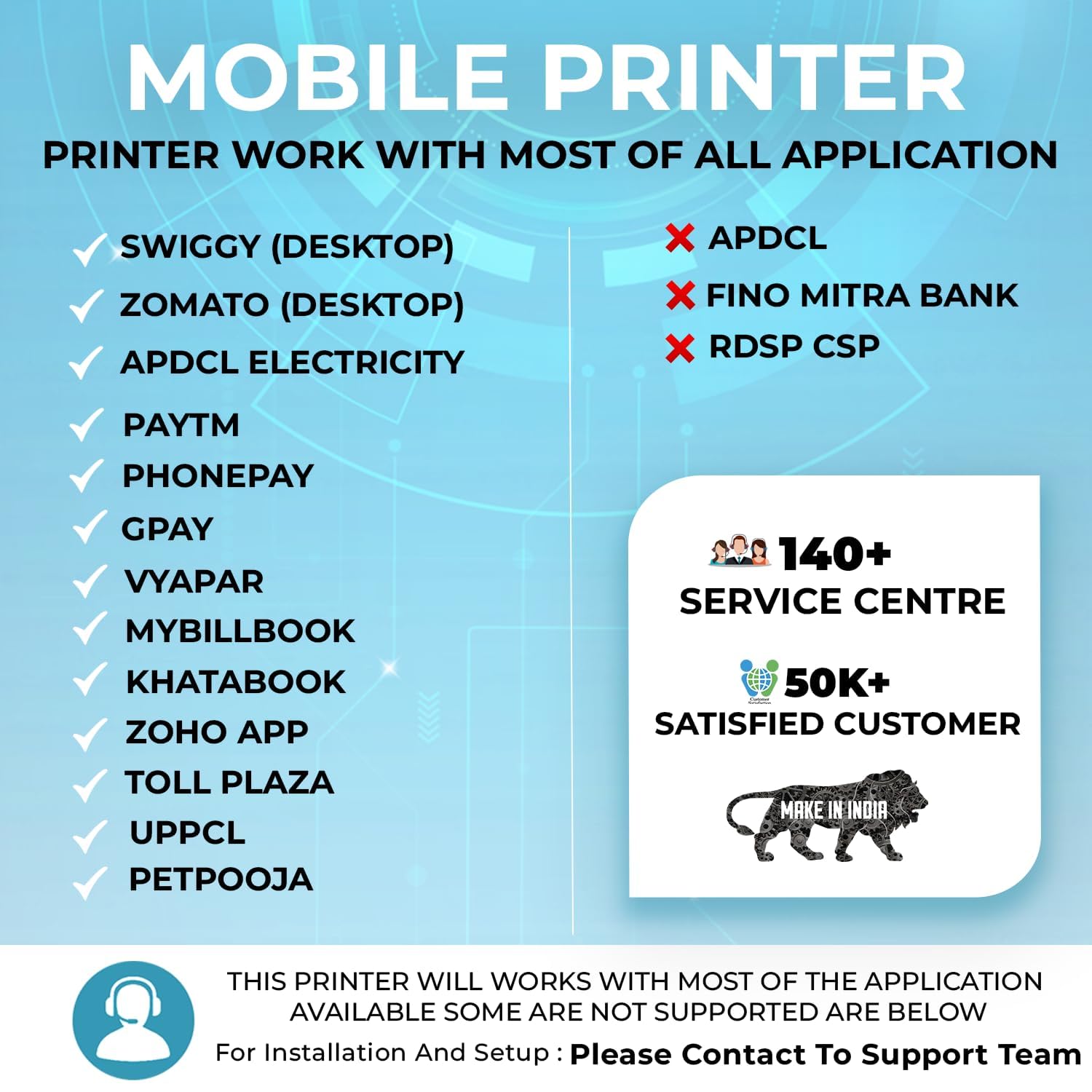
Image 5.1: Examples of compatible applications for the SHREYANS SRS588 printer.
5.3. Auto-Cutter Feature
The SRS588 features an automatic cutter that provides a clean and precise cut after each print job, enhancing efficiency and presentation.
6. Maintenance
Regular maintenance ensures the longevity and optimal performance of your printer.
6.1. Cleaning the Print Head
The thermal print head is a critical component. Clean it periodically to prevent print quality issues.
- Turn off the printer and disconnect it from power.
- Open the paper compartment.
- Gently wipe the print head (the dark strip) with a cotton swab lightly dampened with isopropyl alcohol.
- Allow the print head to dry completely before closing the cover and powering on the printer.
6.2. Battery Care
- Charge the battery fully before first use.
- Avoid completely discharging the battery frequently.
- If storing the printer for an extended period, charge the battery to about 50% and store it in a cool, dry place.
6.3. Paper Roll Storage
Store thermal paper rolls in a cool, dry place away from direct sunlight and heat to prevent premature fading of printouts.
7. Troubleshooting
If you encounter issues with your SHREYANS SRS588 printer, refer to the following common problems and solutions:
| Problem | Possible Cause | Solution |
|---|---|---|
| Printer does not power on | Low battery; Power button not pressed correctly | Charge the printer; Press and hold the power button for 2-3 seconds. |
| Cannot connect via Bluetooth | Printer not in pairing mode; Incorrect PIN; Device Bluetooth off | Ensure printer is on; Re-enter PIN (0000 or 1234); Enable Bluetooth on your device. |
| Poor print quality / Faded prints | Dirty print head; Low battery; Old thermal paper | Clean the print head (see Section 6.1); Charge the printer; Use fresh thermal paper. |
| Paper jam | Improper paper loading; Foreign object in paper path | Open cover, remove jammed paper, re-load correctly; Check for obstructions. |
| Printer not responding to print commands | Bluetooth disconnected; Application error; Printer in error state | Verify Bluetooth connection; Restart application/printer; Check printer indicator lights for error codes. |
If the problem persists after attempting these solutions, please contact SHREYANS customer support.
8. Specifications
Detailed technical specifications for the SHREYANS SRS588 Portable Bluetooth Printer:
- Brand: SHREYANS
- Model Name: SRS58201 (also referred to as SRS588)
- Connectivity Technology: Bluetooth, USB
- Printing Technology: Thermal
- Special Feature: Portable, Auto-Cutter
- Colour: White
- Printer Output: Monochrome
- Max Print Speed Monochrome: 30 ppm
- Item Weight: 340 Grams
- Item Dimensions (D x W x H): 4D x 8W x 11H Centimeters
- Controller Type: Android
- Printing Media Type: Paper (plain)
- Compatible Devices: Smartphones
- Ink Color: Black (Thermal, no ink required)
- Resolution: 2 inch (print width)
- Additional Printer Functions: Print Only
- Control Method: Touch
- Maximum Copy Resolution Black and White: 150 dpi
- Maximum Media Size: 58 mm
- Paper Size: 58 Millimeters
- Max Print Resolution Color: 200 dpi (for color images, though output is monochrome)
- Max Print Speed Black/White: 150 dpi
- Dual-sided printing: No
- Duplex: Manual
- Country of Origin: India
9. Warranty and Support
9.1. Warranty Information
The SHREYANS SRS588 Portable Bluetooth Printer comes with a 1 Year Warranty from the date of purchase. Please retain your purchase receipt as proof of warranty.
9.2. Customer Support
For any technical assistance, warranty claims, or further inquiries, please contact Shreyans Retail Solution. Refer to the contact information provided with your product packaging or visit the official SHREYANS website for support details.
