
1. Introduction
Thank you for choosing the EasyAcc F18 Portable Handheld Fan. This device is designed to provide personal cooling with its five-speed settings, a clear LED display for battery and speed indication, and a versatile 180° foldable design. It also functions as a power bank for charging other devices. Please read this manual thoroughly before use to ensure proper operation and maintenance.
2. Package Contents
- EasyAcc F18 Portable Handheld Fan
- USB-C Charging Cable
- Lanyard
- User Manual (this document)
3. Product Features
- 5 Adjustable Speeds: Customize airflow from a gentle breeze to a strong wind.
- LED Digital Display: Shows current fan speed (1-5) and battery percentage (1-100%).
- 180° Foldable Design: Allows use as a handheld fan, a desk fan, or for hanging.
- USB-C Rechargeable: Convenient and fast charging.
- Power Bank Function: Can charge other USB-powered devices via its USB-A output port.
- Detachable Front Cover: Facilitates easy cleaning of fan blades.
- Quiet Operation: Operates at a low noise level, approximately 18 decibels.

Figure 3.1: EasyAcc F18 fan in handheld and desk modes, demonstrating its ability to charge a smartphone.
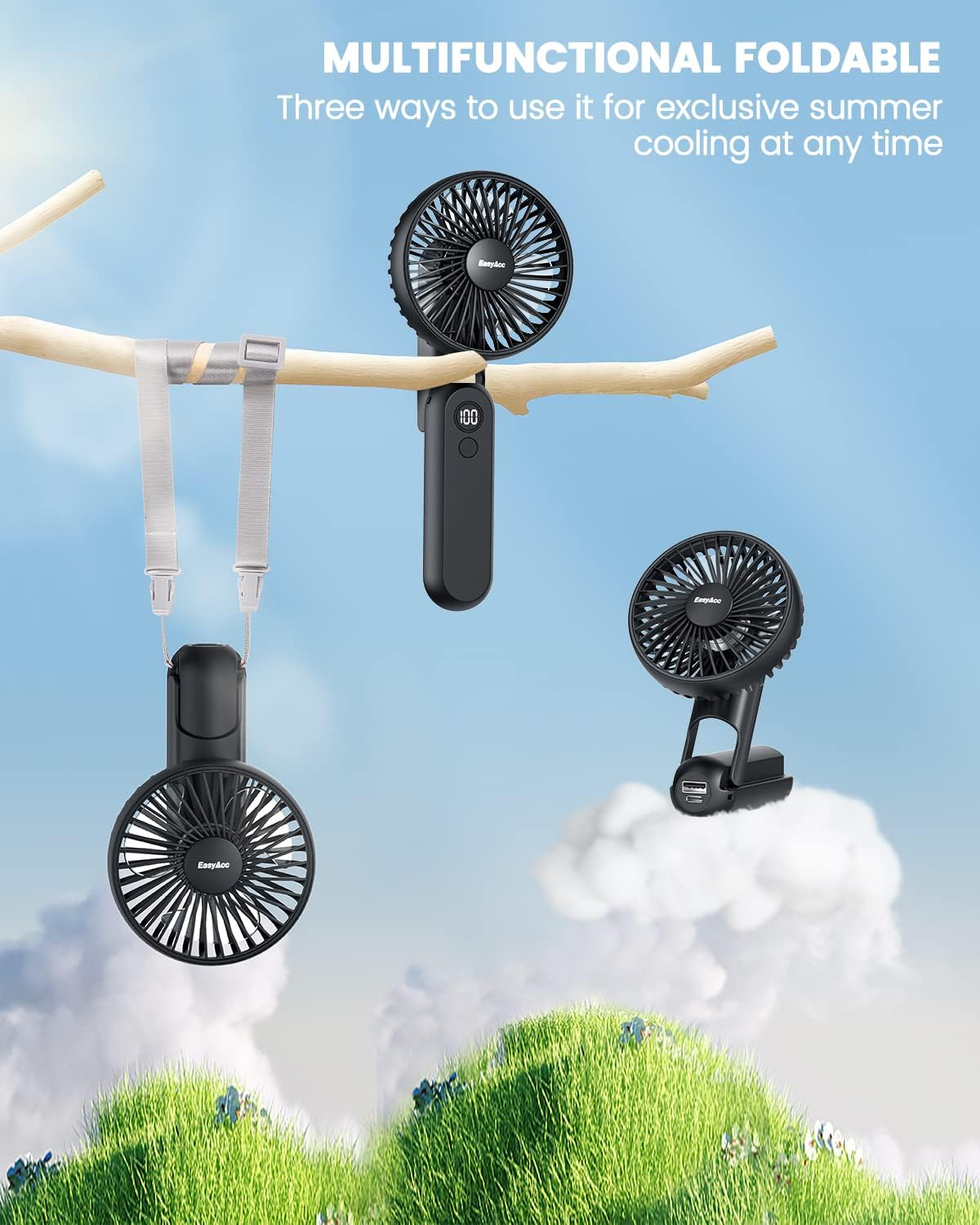
Figure 3.2: The fan's multifunctional foldable design allows for handheld, desk, or hanging use.
4. Specifications
| Feature | Specification |
|---|---|
| Brand | EasyAcc |
| Model Name | F18 |
| Battery Capacity | 2600 mAh Lithium Polymer |
| Input | USB-C, 5V/2A |
| Output | USB-A, 5V/2A (Power Bank Function) |
| Number of Speeds | 5 |
| Noise Level | 18 Decibels (approx.) |
| Dimensions | 20"D x 10"W x 5"H (approx.) |
| Item Weight | 160 Grams (5.6 ounces) |
| Certifications | CE, FCC, RoHS |
5. Setup
5.1 Initial Charging
Before first use, fully charge the fan using the provided USB-C cable and a compatible 5V/2A power adapter (not included). The LED display will show the battery percentage, indicating 100% when fully charged.
5.2 Lanyard Installation
To attach the lanyard for hands-free use:
- Separate the lanyard ports.
- Pass the thin wire loop of the lanyard through the designated hole on the fan's handle.
- Knot and straighten the lanyard.
- Snap on the buckle to secure the lanyard.

Figure 5.1: Visual instructions for attaching the lanyard to the fan.
6. Operating Instructions
6.1 Power On/Off and Speed Adjustment
The fan features a single power button for control:
- Power On: Press the power button once to turn on the fan at speed 1.
- Adjust Speed: Each subsequent press of the power button will cycle through speeds 1 to 5.
- Power Off: To turn off the fan, press and hold the power button for 3 seconds at any speed setting.
6.2 LED Display
The integrated LED display shows two types of information:
- Fan Speed: When adjusting the speed, the display will temporarily show the current speed level (1-5).
- Battery Percentage: After a few seconds, the display will switch to show the remaining battery charge as a percentage (1-100%).

Figure 6.1: The fan's LED display shows current speed and battery level, and it can charge a phone.
6.3 Power Bank Function
The EasyAcc F18 can act as a portable power bank:
- Connect your device's charging cable to the USB-A output port on the fan.
- The fan will begin charging your device.
- Note that using the power bank function will consume the fan's battery.
Video 6.1: A demonstration of the EasyAcc F18 fan's operation, including power on, speed adjustment, and LED display functionality.
7. Maintenance
7.1 Cleaning the Fan Blades
To ensure optimal performance and hygiene, regularly clean the fan blades:
- Ensure the fan is powered off.
- Gently twist the front cover counter-clockwise to detach it from the fan body. No tools are required.
- Wipe the fan blades and the inside of the cover with a soft, dry cloth. For stubborn dust, a slightly damp cloth can be used, followed by drying.
- Reattach the front cover by aligning it and twisting clockwise until secure.
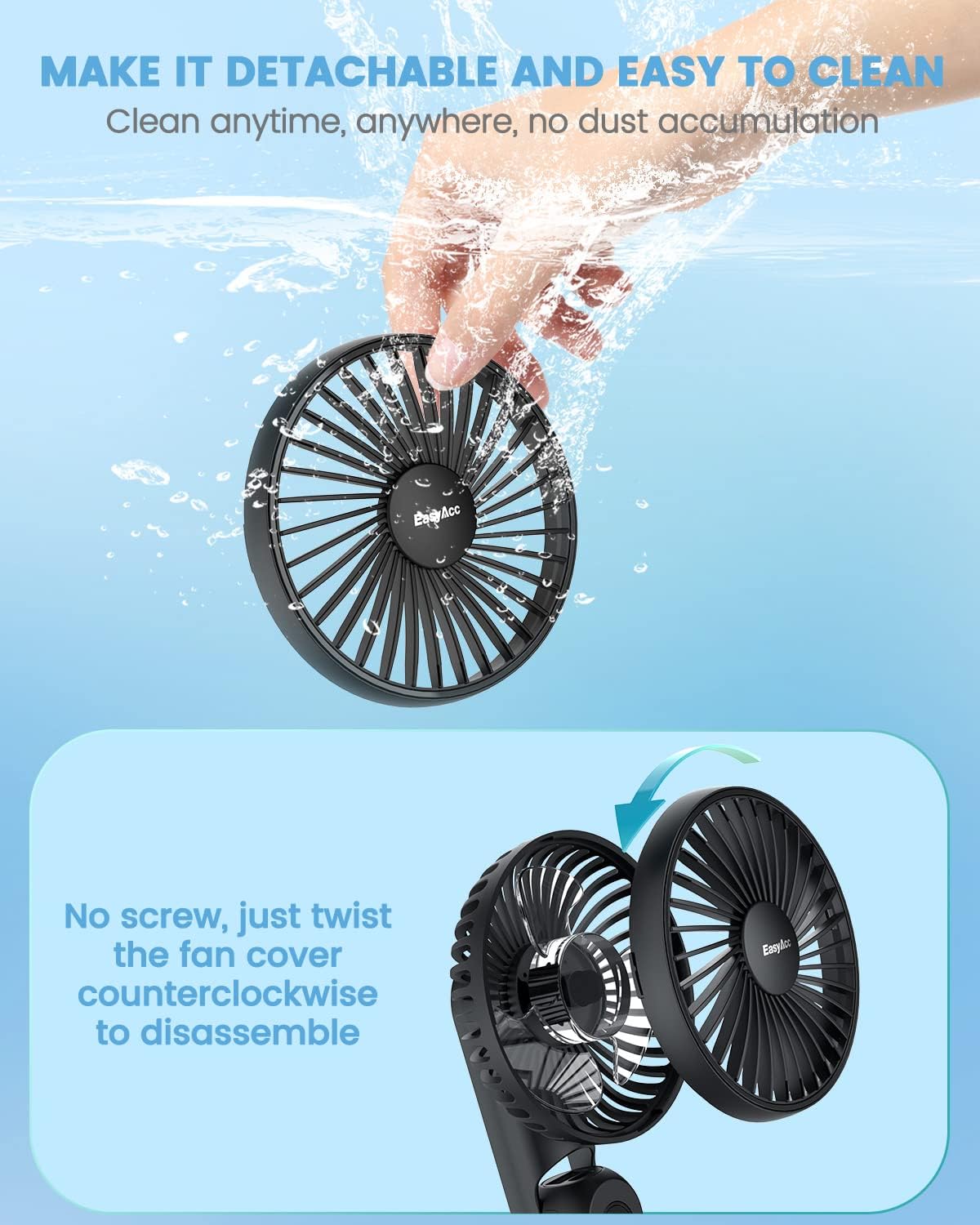
Figure 7.1: Instructions for detaching the fan cover for cleaning.
8. Safety Precautions
- Do not insert fingers or foreign objects into the fan grille.
- Keep the fan away from water and excessive humidity.
- Avoid dropping or subjecting the fan to strong impacts.
- Do not attempt to disassemble or repair the fan yourself, as this may void the warranty and pose safety risks.
- Use only the provided USB-C cable or a certified equivalent for charging.
- Charging Warning: This device may not have an internal charge controller to prevent overcharging. To prolong battery life and prevent potential damage, disconnect the fan from the charger once it is fully charged (LED display shows 100%). Avoid leaving it plugged in for extended periods after reaching full charge. Use lower wattage USB ports for charging if possible to prevent overheating.
- Store the fan in a cool, dry place when not in use.
9. Troubleshooting
- Fan does not turn on:
- Check if the battery is charged. Recharge the fan if the LED display shows a low percentage.
- Ensure the power button is pressed correctly (single press for on, long press for off).
- Fan stops working unexpectedly:
- The battery might be depleted. Recharge the fan.
- If the fan was recently charged, refer to the charging warning in Section 8.
- Weak airflow:
- Increase the fan speed using the power button.
- Clean the fan blades as described in Section 7.1 to remove any obstructions.
- LED display is not working:
- Ensure the fan is powered on.
- If the issue persists, contact customer support.
10. Warranty and Support
EasyAcc products are covered by a limited warranty. For detailed warranty information, product support, or to report any issues, please visit our official website or contact our customer service team.
Official Website: http://easyacc.com