
Groview t6
GROVIEW Projector T6 User Manual
Model: t6
Introduction
The GROVIEW T6 Projector is designed to provide a high-quality visual and audio experience for home entertainment, outdoor movie nights, gaming, and presentations. Featuring native 1080P resolution, high brightness, and versatile connectivity options, this portable projector offers a large display size and convenient features like Bluetooth audio and keystone correction.
What's in the Box
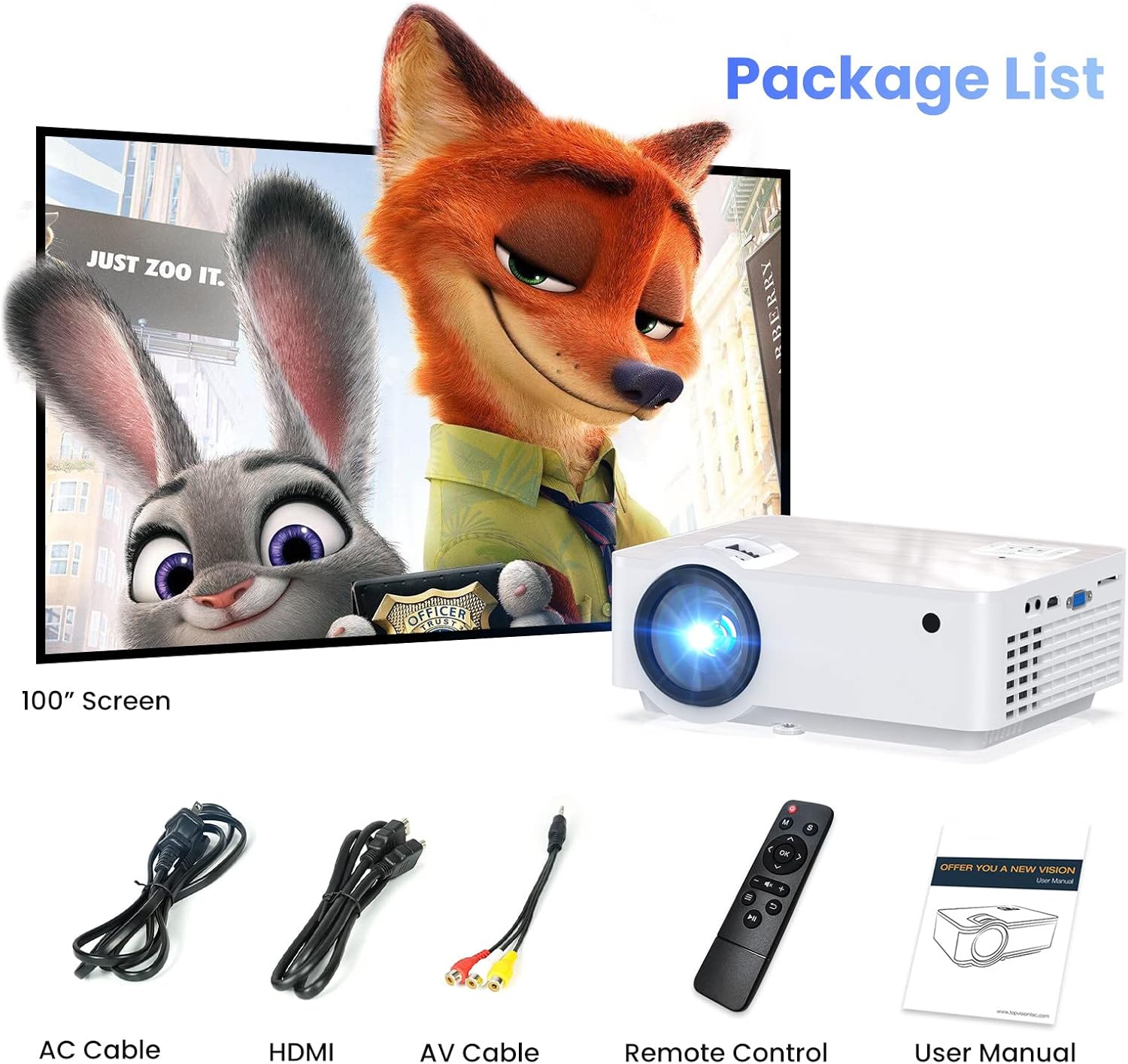
Image: Contents of the GROVIEW T6 Projector package.
- T6 1080P Bluetooth Projector
- 100" Projector Screen
- Remote control
- User Manual
- HDMI Cable
- AC Cable
- AV Cable
Setup
Initial Placement and Power
Place the projector on a stable, flat surface. Ensure proper ventilation around the device. Connect the AC power cable to the projector and a power outlet. The projector is designed for flexible placement, including front, rear, ceiling front, and ceiling rear projection modes.
Screen Setup
The projector comes with a 100" portable screen. This cloth screen can be mounted on a wall using the included wall support grommets (double-sided tape) to achieve your desired size and tension for optimal viewing.
Connecting Devices

Image: Multimedia device support and connection ports.
The GROVIEW T6 offers multiple input options:
- HDMI: Connect laptops, gaming consoles (PS5), TV sticks, and other HDMI-enabled devices using the included HDMI cable. The projector has two HDMI ports (HDMI 1, HDMI 2).
- USB: Insert USB flash drives to play movies, photos, music, or text files directly. This port can also power TV sticks.
- SD Card: Insert an SD card to play media files.
- VGA: Connect older computers or monitors using a VGA cable.
- AV: Use the included AV cable to connect legacy devices like VCRs.
- Smartphone Connectivity: For iOS devices, a Lightning to HDMI adapter or a Fire Stick is required (not included). For Android phones, a Micro USB/Type-C to HDMI adapter or a Fire Stick is required (not included). Please verify cable compatibility with your device before purchasing.
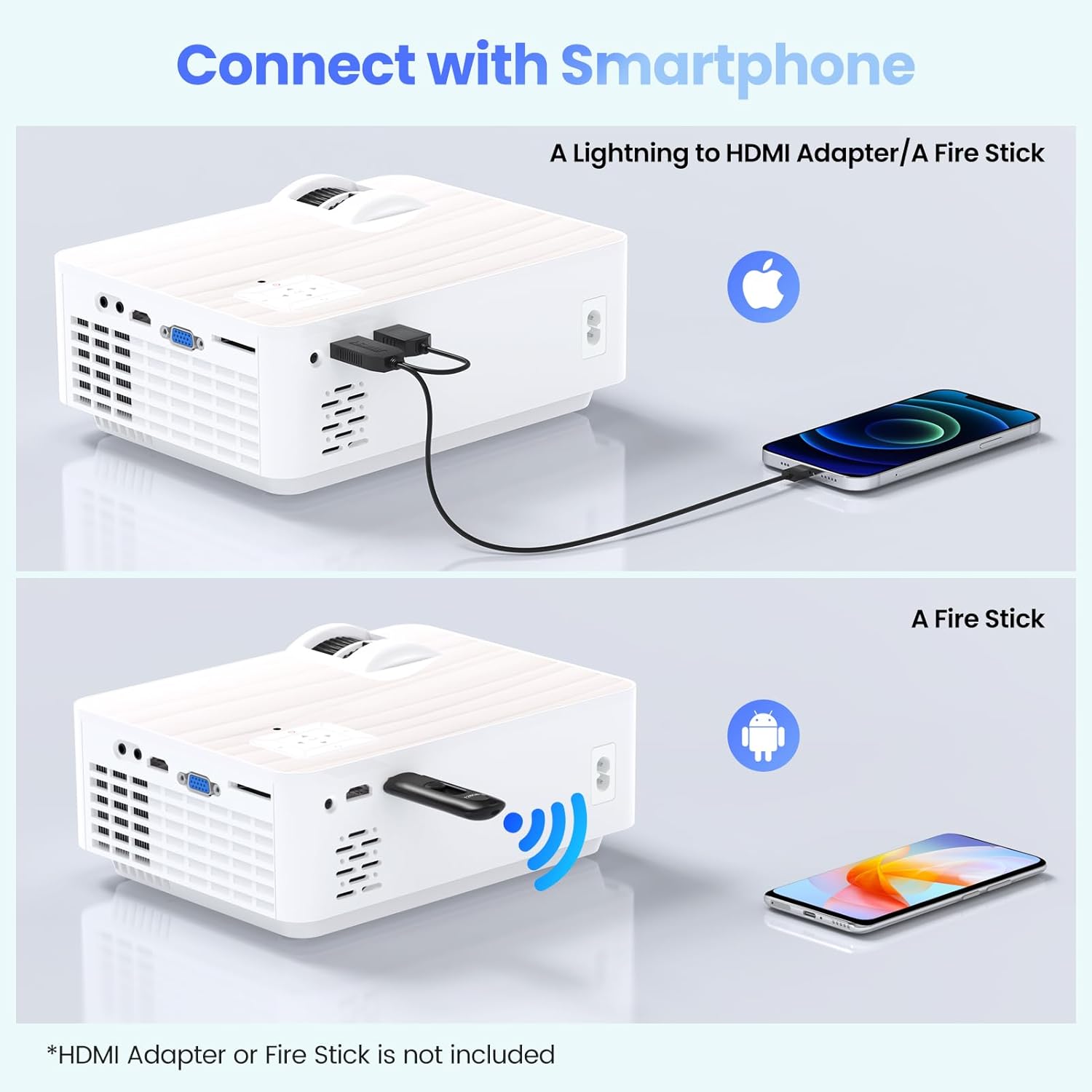
Image: Connecting smartphones to the projector.
Operating
Power On/Off
Press the power button on the projector or the remote control to turn the device on or off.
Focus and Keystone Correction
Adjust the focus ring near the lens to achieve a clear image. Use the keystone correction dial to correct distorted images (up to +/- 15 degrees) if the projector is not perfectly perpendicular to the screen.
Menu Navigation
Use the directional buttons on the projector or remote to navigate the on-screen menu. Select input sources (HDMI 1, HDMI 2, AV, PC RGB, USB) or access settings for picture, sound, and other options.
Picture Settings
Customize your viewing experience:
- Picture Mode: Choose from Standard, Dynamic, Mild, or User-defined modes.
- Color Temperature: Adjust to Cool, Medium, or Warm.
- Noise Reduction: Set to Middle or other available options.
- Projection Mode: Select Front, Ceiling Front, Rear, or Ceiling Rear based on your setup.
Sound Settings
Adjust audio output:
- Sound Mode: Choose from Standard, Movie, Music, Sports, or User-defined profiles.
- Balance: Adjust audio balance.
- Auto Volume: Enable or disable auto volume adjustment.
Bluetooth Functionality
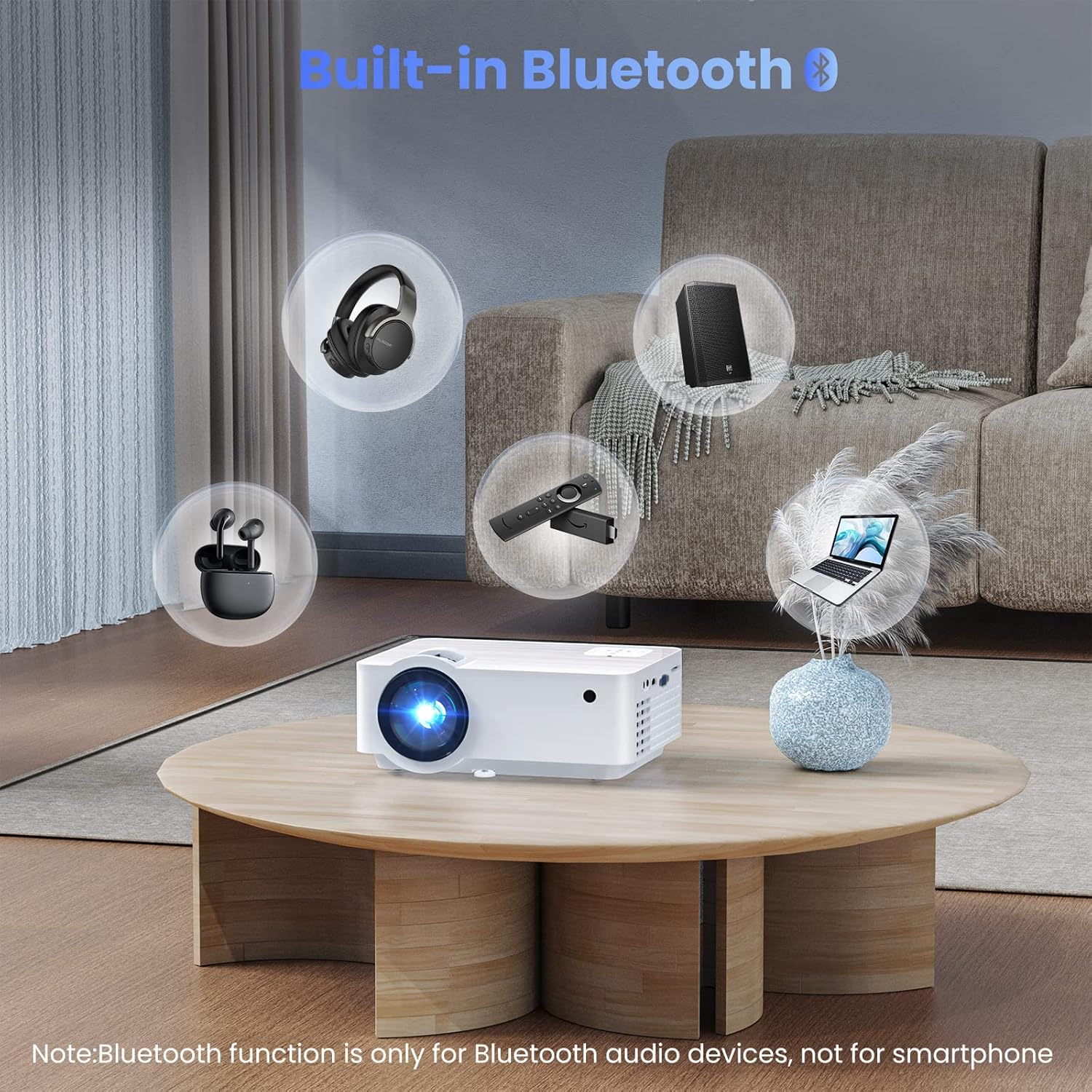
Image: Built-in Bluetooth for audio devices.
The projector features Bluetooth 5.1 for wireless audio. You can easily connect to Bluetooth speakers or headphones for an immersive sound experience without the need for cables. Access Bluetooth settings from the main menu to pair devices. Note: Bluetooth function is only for Bluetooth audio devices, not for smartphones.
Display Size and Zoom

Image: Enjoying giant display sizes from 40 to 200 inches.
The projector offers a giant display size from 40 to 200 inches at projection distances ranging from 5 to 18 feet. The convenient 50% zoom function (available only when using USB input) allows you to adjust the image size without physically moving the projector.
Picture Quality
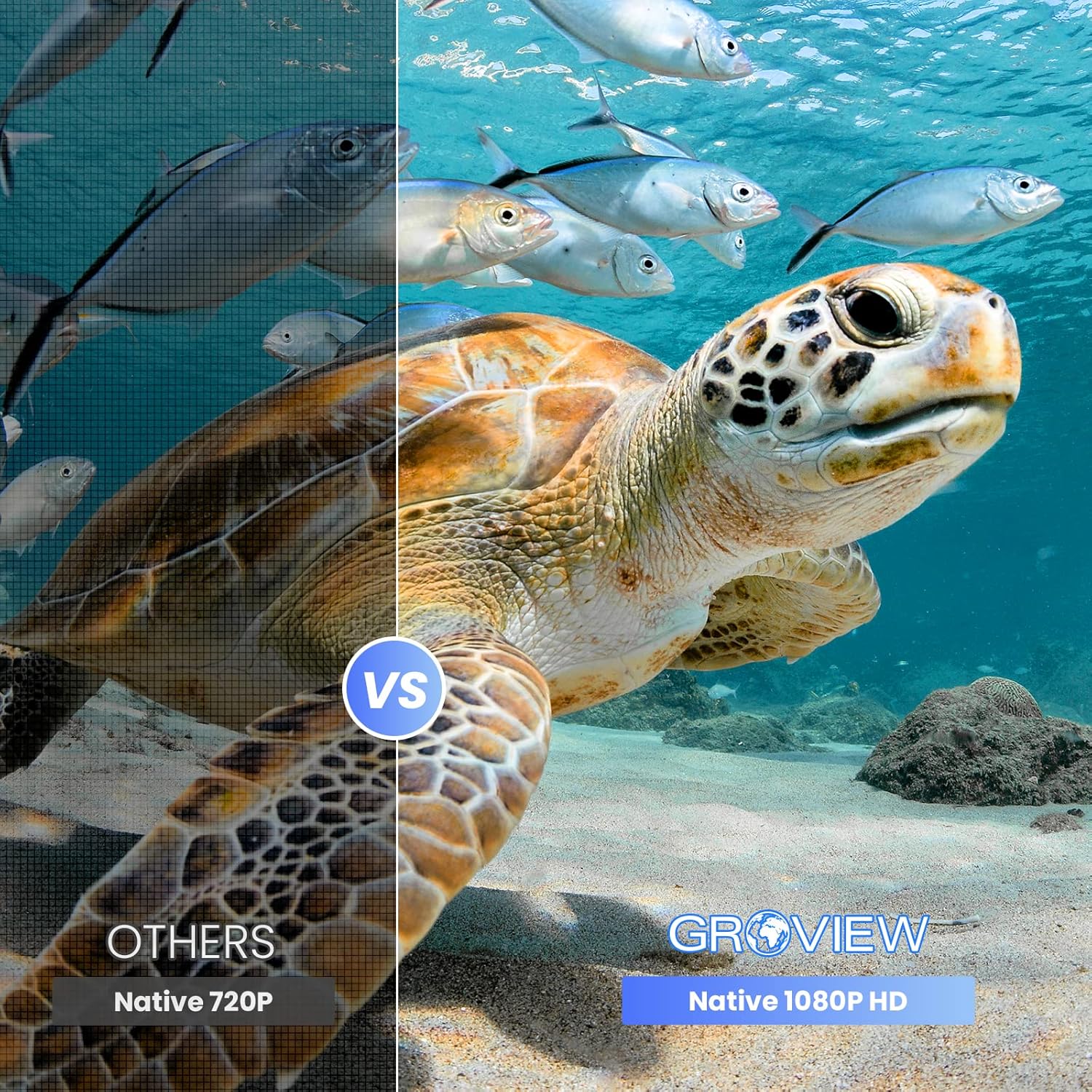
Image: Comparison of native 720P vs native 1080P HD resolution.
Experience a cinematic view with 1920x1080p native resolution, 9500 lux brightness, and a 10000:1 contrast ratio. The LCD display technology and LED light source produce clear, detailed, and vivid images.
Maintenance
- Keep the projector clean by wiping it with a soft, dry cloth.
- Ensure the ventilation vents are clear of obstructions to prevent overheating.
- Store the projector in a cool, dry place when not in use.
- Protect the lens with the included cap when storing or transporting.
Troubleshooting
No Image/Blurry Image
- Check power connections and ensure the projector is turned on.
- Adjust the focus ring and keystone correction.
- Verify the correct input source is selected.
- Ensure the projection distance is within the recommended range (5 to 18 feet).
No Sound/Low Sound
- Check the projector's volume level and ensure it's not muted.
- Verify the volume on the connected device is turned up.
- If using Bluetooth, ensure the speaker/headphone is properly paired and charged.
- Consider connecting external Bluetooth speakers for a more robust audio experience.
Connectivity Issues
- Ensure all cables (HDMI, AV, etc.) are securely connected to both the projector and the source device.
- For smartphone connections, confirm that the required adapters are compatible and functioning correctly.
Specifications
- Brand: Groview
- Model: t6
- Native Resolution: 1920 x 1080P (Full HD)
- Brightness: 9500 LUX
- Contrast Ratio: 10000:1
- Display Technology: LCD
- Light Source: LED
- Connectivity: HDMI (x2), USB, VGA, SD Card, AV, 3.5mm Audio Out
- Bluetooth: Version 5.1 (for audio devices)
- Projection Size: 40 - 200 inches
- Projection Distance: 5 - 18 feet
- Zoom Function: 50% (USB input only)
- Keystone Correction: Manual +/- 15 degrees
- Item Weight: 4.66 pounds
- Product Dimensions: 8.66 x 6.5 x 2.68 inches
- Country of Origin: China
Warranty and Support
GROVIEW offers 2 years of after-sale service for this product. For any concerns or support needs, please reach out to the manufacturer's customer service. Your satisfaction is important, and assistance is available to ensure peace of mind with your GROVIEW projector.
Official User Manual (PDF): Download Here
Related documentst6


Ask a question about this manual
Ask about setup, troubleshooting, compatibility, parts, safety, or missing instructions. Manuals+ will review the question and use this page’s manual context to help answer it.