
SOLIOM S40-4G
SOLIOM S40 3G/4G LTE Cellular Solar Security Camera
User Manual
1. Introduction
Thank you for choosing the SOLIOM S40 3G/4G LTE Cellular Solar Security Camera. This manual provides detailed instructions for the proper installation, operation, and maintenance of your camera. Please read this manual thoroughly before using the product to ensure correct usage and to prevent damage.
Important Safety Information:
- Ensure the camera is installed in a stable location to prevent falling.
- Do not expose the camera to extreme temperatures or corrosive environments.
- Use only the recommended power accessories.
- Keep out of reach of children.
2. Product Overview
2.1 Product Components
The SOLIOM S40 camera package typically includes the following items:
- SOLIOM S40 3G/4G LTE Cellular Solar Security Camera
- Solar Panel
- Mounting Bracket and Screws
- USB Charging Cable
- Nano SIM Card (pre-installed or included separately)
- Micro SD Card (pre-installed or included separately)
- User Manual (this document)
2.2 Key Features
- 3G/4G LTE Connectivity: Operates without Wi-Fi, ideal for remote locations.
- Solar Powered: Equipped with a solar panel for continuous power, reducing the need for manual recharging.
- 1080p Full HD Video: Provides clear and detailed video footage.
- Pan & Tilt Functionality: Offers 355° horizontal pan and 90° vertical tilt for wide area coverage.
- PIR Motion Detection: Advanced passive infrared sensor detects human and animal movement, minimizing false alarms.
- Color Night Vision: Enhanced night vision capabilities with spotlight for full-color viewing in low-light conditions.
- Two-Way Audio: Built-in microphone and speaker for real-time communication.
- IP66 Weather-Resistant: Durable design for outdoor use in various weather conditions.
- Local & Cloud Storage: Supports Micro SD card storage and optional cloud storage.

Figure 2.1: SOLIOM S40 Camera with Solar Panel

Figure 2.2: Camera operating in a remote location without Wi-Fi or power outlet.
3. Setup
3.1 Before You Begin
- Charge the Battery: Before initial use, fully charge the camera's internal battery using the provided USB cable. Connect the USB cable to the camera's charging port and a 5V/2A USB power adapter (not included).
- Insert SIM Card: Ensure the Nano SIM card is active and has a data plan. Open the rubber cover on the camera body to access the SIM card slot. Insert the Nano SIM card with the gold contacts facing down, following the diagram.
- Insert Micro SD Card: If not pre-installed, insert a Micro SD card (up to 128GB, Class 10 or higher recommended) into the designated slot for local video storage.

Figure 3.1: SIM and SD Card Installation
3.2 App Download and Account Registration
Download the 'SOLIOM+' app from the App Store (iOS) or Google Play Store (Android). Follow the on-screen instructions to register a new account and log in.
3.3 Camera Pairing
- Open the SOLIOM+ app and tap 'Add Device' or the '+' icon.
- Select '4G Camera' from the device list.
- Follow the in-app prompts to scan the QR code on the camera or manually enter the device ID.
- Once connected, you can name your camera and begin live viewing.
3.4 Physical Installation
Choose a suitable location for installation, ensuring good 4G signal reception and sufficient sunlight exposure for the solar panel. The camera is IP66 weather-resistant, suitable for outdoor environments.
- Mounting the Camera: Use the provided mounting bracket and screws to securely attach the camera to a wall or pole. Ensure the camera has a clear line of sight to the area you wish to monitor.
- Positioning the Solar Panel: Mount the solar panel in a location that receives direct sunlight for several hours a day. Connect the solar panel cable to the camera's charging port.

Figure 3.2: Wire-Free Installation with Solar Power

Figure 3.3: IP66 Weather-resistant Design
4. Operating
4.1 App Interface Overview
Upon opening the SOLIOM+ app, you will see a list of your connected cameras. Tap on a camera to access its live view and control options.
4.2 Live View and Playback
- Live View: Tap on the camera feed to see real-time video.
- Playback: Access recorded footage from the Micro SD card or cloud storage via the playback option in the app. You can filter by date and time.
4.3 Pan/Tilt Control
In the live view interface, use the on-screen joystick or directional arrows to remotely control the camera's pan (355° horizontal) and tilt (90° vertical) movements to adjust the viewing angle.

Figure 4.1: Pan and Tilt Functionality
4.4 Motion Detection and Alerts
The camera uses PIR (Passive Infrared) technology for accurate motion detection. When motion is detected, the camera can:
- Send push notifications to your smartphone.
- Record video clips to the SD card or cloud.
- Activate the built-in spotlight and/or siren alarm.
Adjust motion detection sensitivity and alert settings within the app to suit your needs.
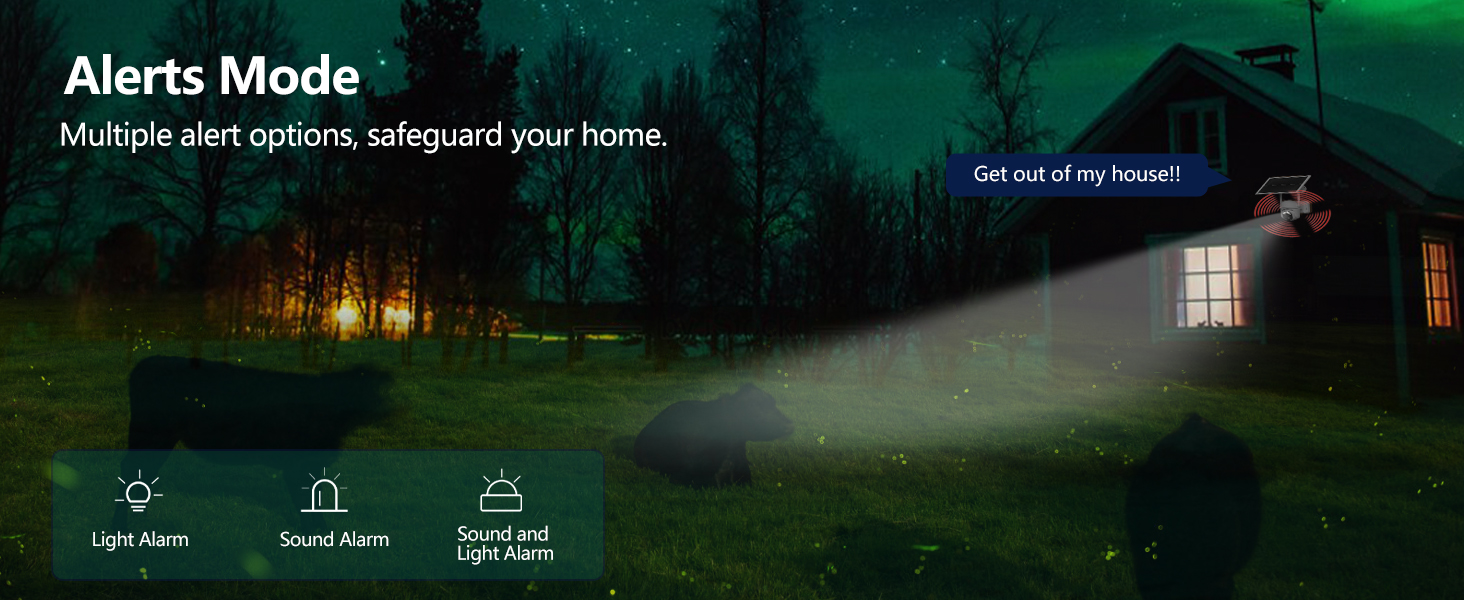
Figure 4.2: Alerts Mode (Light and Sound Alarm)
4.5 Night Vision
The SOLIOM S40 features advanced night vision modes:
- Infrared Night Vision: Provides clear black and white video in complete darkness.
- Color Night Vision: When motion is detected or manually activated, the built-in spotlight illuminates the area, allowing for full-color video recording at night.

Figure 4.3: Day and Night Vision Comparison
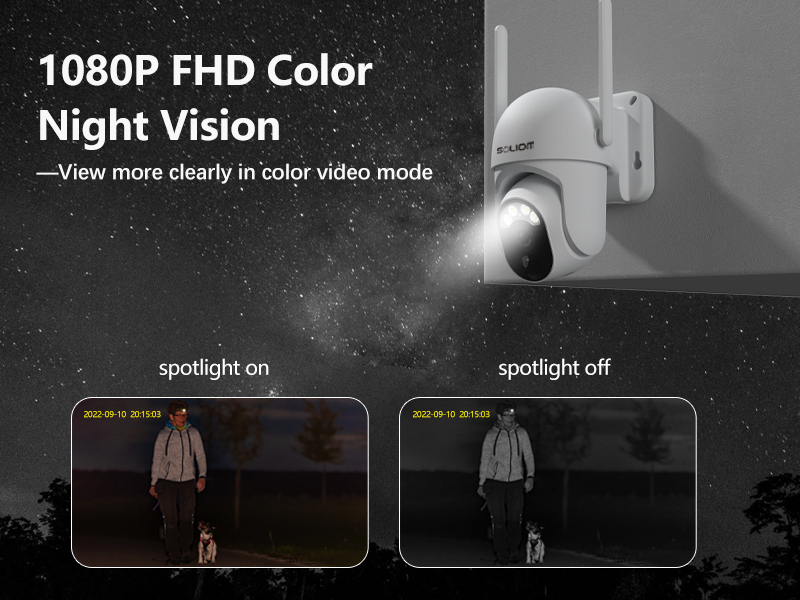
Figure 4.4: Color Night Vision with Spotlight
4.6 Two-Way Audio
Use the microphone and speaker icons in the app's live view to enable two-way communication. This allows you to speak to visitors or deter intruders remotely.
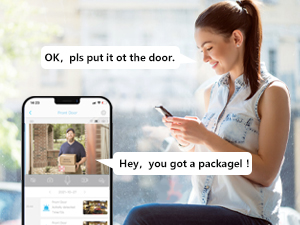
Figure 4.5: Two-Way Audio Communication
5. Maintenance
- Cleaning: Periodically clean the camera lens and solar panel with a soft, damp cloth to ensure optimal performance. Do not use harsh chemicals.
- Battery Health: While the solar panel provides continuous charging, ensure the solar panel is free from obstructions and receives adequate sunlight. If the camera's battery level drops significantly, manually charge it via USB.
- Firmware Updates: Check the SOLIOM+ app regularly for firmware updates. Keeping your camera's firmware up-to-date ensures optimal performance and security.
- SD Card Management: If using an SD card, periodically check its storage capacity and format it through the app if necessary to maintain recording efficiency.
6. Troubleshooting
- Camera Offline:
- Check 4G signal strength at the camera's location.
- Ensure the SIM card is properly inserted and has an active data plan.
- Verify the camera battery is charged.
- Restart the camera by pressing the reset button (if applicable) or power cycling.
- Poor Video Quality:
- Clean the camera lens.
- Ensure adequate lighting, especially at night.
- Check 4G signal stability.
- Motion Detection Not Working:
- Adjust PIR sensitivity settings in the app.
- Ensure the camera's view is clear of obstructions.
- Check the motion detection schedule in the app.
- Battery Not Charging via Solar:
- Ensure the solar panel is clean and free of debris.
- Verify the solar panel is positioned to receive direct sunlight for several hours daily.
- Check the connection cable between the solar panel and the camera.
- Cannot Connect to App:
- Ensure your smartphone has a stable internet connection.
- Verify the camera is powered on and has a working SIM card.
- Try resetting the camera (refer to the reset button location near the SIM/SD card slots).
7. Specifications
| Feature | Specification |
|---|---|
| Model Number | S40-4G |
| Connectivity | 3G/4G LTE (SIM Card required) |
| Power Source | Battery Powered, Solar Powered |
| Video Resolution | 1080 Pixels (Full HD) |
| Pan Angle | 355 Degrees |
| Tilt Angle | 90 Degrees |
| Field of View | 360 Degrees (Pan/Tilt combined) |
| Night Vision | Infrared, Color Night Vision (with Spotlight) |
| Motion Detection | PIR Motion Sensor |
| Audio | Two-Way Audio |
| Storage | Micro SD Card (up to 128GB), Cloud Storage (subscription required) |
| Weather Resistance | IP66 |
| Dimensions (L x W x H) | 3 x 3 x 5 inches |
| Item Weight | 2.48 pounds |
8. Warranty and Support
8.1 Warranty Information
SOLIOM products typically come with a limited warranty. Please refer to the warranty card included with your product or visit the official SOLIOM website for detailed warranty terms and conditions.
8.2 Customer Support
If you encounter any issues or have questions not covered in this manual, please contact SOLIOM customer support. Contact information can usually be found on the SOLIOM official website or on the product packaging.
For the latest information and support resources, please visit: SOLIOM Official Store on Amazon
Ask a question about this manual
Ask about setup, troubleshooting, compatibility, parts, safety, or missing instructions. Manuals+ will review the question and use this page’s manual context to help answer it.