
1. Introduction
Thank you for choosing the Cherry MX 2.0S Wired Gaming Keyboard. This manual provides essential information for setting up, operating, maintaining, and troubleshooting your new mechanical keyboard. Designed for both gaming and productivity, the Cherry MX 2.0S combines robust construction with advanced features to enhance your computing experience.
2. Product Overview
The Cherry MX 2.0S is a full-size mechanical gaming keyboard featuring original Cherry MX switches, available in various characteristics including MX Brown, MX Black, MX Blue, MX Red, and MX Silent Red. It boasts vibrant RGB lighting with over 16 million colors and numerous integrated effects. The keyboard is built with abrasion-resistant, laser-cut keycaps and a reduced technical design for a uniform tactile feel.

Image: White Cherry MX 2.0S keyboard with RGB lighting and 'German Design Award Special 2021' badge.

Image: Split image showing the Cherry MX 2.0S keyboard in both white and black, demonstrating the 'Blaze of Color' RGB lighting.
3. Key Features
- Original CHERRY MX Switches: Gold Crosspoint precision switches made in Germany for all keys, ensuring durability and precise actuation.
- RGB Lighting: Over 16 million colors with numerous integrated color effects, customizable via Cherry utility software.
- Durable Keycaps: Abrasion-resistant, laser-cut keycaps for long-lasting legibility and feel.
- Gaming Performance: Features Full N-Key Rollover (all buttons are read simultaneously), Anti-Ghosting (no false inputs), and a useful WIN key lock to prevent accidental interruptions during gameplay.
- Ergonomic Design: Reduced technical shape and uniform sense of touch over all keys.

Image: Black Cherry MX 2.0S keyboard highlighting features: Full N-Key Rollover, Abrasion-Resistant Keycaps, WIN Key Lock, and Anti-Ghosting.

Image: Diagram illustrating Cherry MX mechanical keyswitch technology, showing precise actuation, fast input, individual type feeling, and up to 100 million keystrokes, with 'Made in Germany' label.
4. Setup and Connection
The Cherry MX 2.0S keyboard is designed for simple plug-and-play operation. No special drivers are typically required for basic functionality.
- Connect the Keyboard: Plug the USB-A connector of the keyboard's integrated cable into an available USB-A port on your computer.
- Initial Power-On: The keyboard's RGB lighting will illuminate upon successful connection.
- Adjust Angle: For optimal typing comfort, you can extend the flip-out feet located on the underside of the keyboard to adjust its angle.
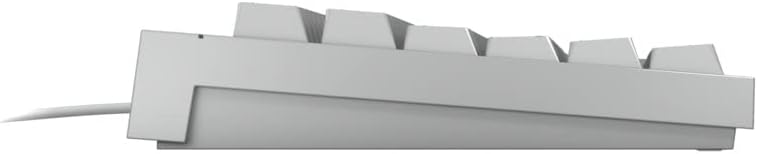
Image: Side profile view of the Cherry MX 2.0S keyboard, illustrating its ergonomic angle.

Image: Underside view of the Cherry MX 2.0S keyboard, showing the product label, model number, and flip-out feet.
Video: This video demonstrates the unboxing, physical features, and connection process of the Cherry MX 2.0S Mechanical Keyboard, including a sound test of the MX Brown switches and a display of the RGB lighting.
5. RGB Lighting Customization
The Cherry MX 2.0S features dynamic RGB lighting that can be customized to your preference. While many integrated color games and effects are available directly on the keyboard, advanced customization can be achieved using the Cherry utility software (if applicable to your version).
- Refer to the included quick start guide or the Cherry website for specific key combinations to cycle through lighting modes and adjust brightness.
- For detailed configuration, download the official Cherry utility software from the manufacturer's website. This software allows for individual assignment of keys and fine-tuned lighting control.
6. Maintenance
Proper maintenance ensures the longevity and optimal performance of your Cherry MX 2.0S keyboard.
- Cleaning: Use a soft, dry cloth to wipe down the keyboard surface. For deeper cleaning, gently remove keycaps (if designed for removal) and use compressed air to clear debris from beneath. Avoid harsh chemicals or abrasive materials.
- Spills: In case of liquid spills, immediately disconnect the keyboard from your computer. Invert the keyboard to drain excess liquid and allow it to dry completely for at least 24-48 hours before reconnecting.
- Storage: Store the keyboard in a clean, dry environment away from extreme temperatures and direct sunlight.
7. Troubleshooting
If you encounter issues with your keyboard, try the following steps:
- Keyboard Not Responding: Ensure the USB cable is securely plugged into both the keyboard and the computer. Try a different USB port.
- RGB Lighting Not Working: Check if the lighting is enabled via keyboard shortcuts (refer to your quick start guide). Ensure the Cherry utility software is installed and configured correctly if you are using custom profiles.
- Keys Not Registering: Clean around the affected keycaps to remove any debris. If the issue persists, it may indicate a switch problem.
- Intermittent Connectivity: Ensure the USB cable is not damaged. Avoid routing the cable near strong electromagnetic interference sources.
For further assistance, please refer to the official Cherry support resources.
8. Technical Specifications
| Feature | Detail |
|---|---|
| Model Number | MX 2.0S |
| Brand | Cherry |
| Manufacturer | CHERRY |
| Keyboard Type | Mechanical |
| Switch Types Available | MX Black, MX Blue, MX Brown, MX Red, MX Silent Red |
| Connectivity Technology | Wired (USB-A plug) |
| Backlighting | RGB (16.8 million colors) |
| Keycaps | Abrasion-resistant, laser-cut |
| Special Features | Full N-Key Rollover, Anti-Ghosting, WIN Key Lock, Ergonomic |
| Recommended Use | Gaming |
| Item Weight | 2.48 pounds |
| Package Dimensions | 17.87 x 7.64 x 1.81 inches |
| Included Components | USB Cable |
9. Warranty and Support
For information regarding product warranty, returns, or technical support, please visit the official Cherry website or contact their customer service department. Keep your purchase receipt as proof of purchase for warranty claims.


