
Introduction
This manual provides detailed instructions for the setup, operation, maintenance, and troubleshooting of your iClever BK23 Rechargeable Bluetooth Wireless Keyboard. Please read this manual thoroughly before using the product to ensure optimal performance and longevity.
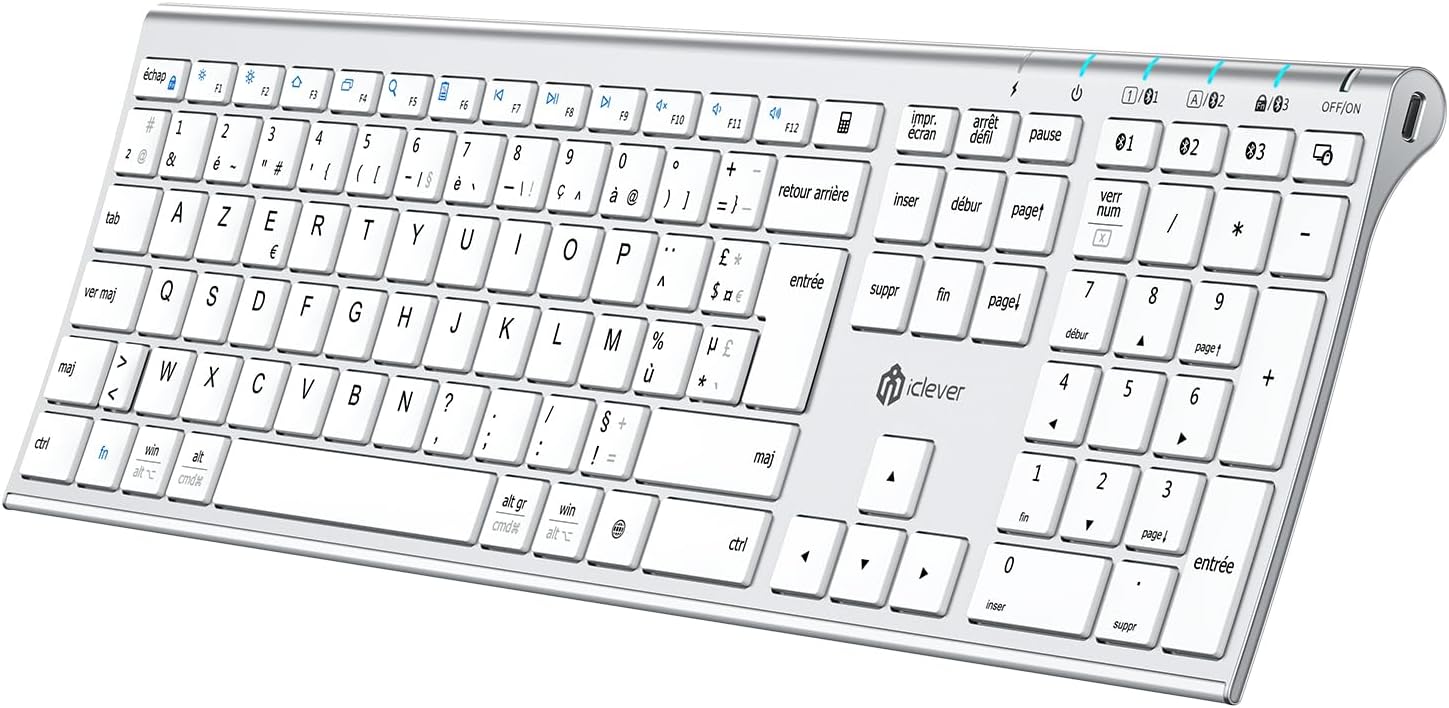
Image: The iClever BK23 AZERTY Bluetooth Wireless Keyboard, showcasing its full layout and slim design.
Setup
1. Charging the Keyboard
Before initial use, fully charge the keyboard. The iClever BK23 features a USB-C charging port.
- Locate the USB-C charging port on the keyboard.
- Connect the provided USB-C cable to the keyboard and the other end to a USB power source (e.g., computer, wall adapter).
- The charging indicator light will illuminate. Once fully charged (typically less than 2 hours), the light will change or turn off.

Image: Close-up of the iClever BK23 keyboard showing the USB-C charging port and charging indicators. The battery capacity is 280mAh, with a fast charge time of less than 2 hours and a standby time of 90 days.
2. Bluetooth Pairing
The iClever BK23 keyboard supports connection to up to three devices simultaneously via Bluetooth 5.1.
- Turn on the keyboard using the ON/OFF switch located on the side.
- Press and hold the Fn key and one of the Bluetooth channel keys (BT1, BT2, or BT3) for 3-5 seconds until the corresponding indicator light flashes rapidly. This indicates the keyboard is in pairing mode.
- On your device (computer, tablet, smartphone), enable Bluetooth and search for available devices.
- Select "iClever BK23" from the list of found devices.
- Follow any on-screen prompts to complete the pairing process. The indicator light on the keyboard will stop flashing and remain solid for a few seconds, then turn off, indicating a successful connection.
- Repeat these steps for up to two additional devices using the other Bluetooth channel keys.

Image: Diagram illustrating the iClever BK23 keyboard connecting to multiple devices (iPad, MacBook, iPhone) via Bluetooth channels 1, 2, and 3. It also shows key mappings for Windows/Android (Win/Alt) and iOS/Mac (Opt/Cmd).
Operating Instructions
1. Switching Between Connected Devices
To switch between your paired devices, simply press the Fn key along with the corresponding Bluetooth channel key (BT1, BT2, or BT3) for the desired device. The keyboard will automatically connect to the selected device.
2. Operating System Compatibility
The iClever BK23 automatically recognizes different operating systems and adjusts its layout accordingly. It supports:
- Windows PCs/Laptops
- iMac/MacBooks
- iPhones/iPads (iOS)
- Android Smartphones/Tablets
Special function keys may vary in behavior depending on the operating system.
3. Key Features
- Scissor-Key Mechanism: The keyboard utilizes a scissor-key mechanism for improved feedback, stability, and a smooth, responsive typing experience. Optimized key travel and anti-slip strips contribute to comfortable, quiet, and precise typing.
- Ergonomic Design: Constructed from stainless steel and ABS, the keyboard features a 10-degree incline for ergonomic comfort during extended use. Its slim profile allows for a clutter-free workspace.

Image: Close-up view of a key on the iClever BK23 keyboard, highlighting the silent scissor switch mechanism for a fluid and responsive typing experience.

Image: Side view of the iClever BK23 keyboard, emphasizing its elegant and sophisticated design with best-in-class stainless steel and a matte finish coating.
Maintenance
1. Cleaning
To maintain the keyboard's appearance and functionality:
- Turn off the keyboard before cleaning.
- Use a soft, lint-free cloth slightly dampened with water or a mild cleaning solution.
- Avoid excessive moisture and do not spray cleaners directly onto the keyboard.
- For dust and debris between keys, use compressed air.
2. Battery Care
The keyboard contains a rechargeable lithium battery. To prolong battery life:
- Avoid fully discharging the battery frequently.
- Store the keyboard in a cool, dry place if not used for extended periods.
- Recharge the keyboard periodically even if not in use to prevent deep discharge.
Troubleshooting
1. Keyboard Not Connecting via Bluetooth
- Ensure the keyboard is turned ON and fully charged.
- Make sure the keyboard is in pairing mode (indicator light flashing).
- Check that Bluetooth is enabled on your device.
- Try unpairing and re-pairing the keyboard from your device's Bluetooth settings.
- Ensure the keyboard is within the effective Bluetooth range (typically 10 meters).
- Restart both the keyboard and your device.
2. Keys Not Responding
- Check the battery level and recharge if necessary.
- Ensure the keyboard is properly connected to your device (check the Bluetooth indicator).
- Try switching to a different Bluetooth channel if multiple devices are paired.
- Clean any debris that might be stuck under the keys.
3. Charging Issues
- Verify that the USB-C cable is securely connected to both the keyboard and the power source.
- Try using a different USB-C cable or power adapter.
- Ensure the power source is functional.
Specifications
| Feature | Detail |
|---|---|
| Brand | iClever |
| Model Name | BK23 |
| Connectivity Technology | Bluetooth |
| Special Features | Backlit (Information from product specifications, though not explicitly mentioned in feature bullets for this model, it's listed in specs) |
| Compatible Devices | Laptop, PC, Tablet, Smartphone |
| Included Components | USB Cable |
| Power Source | Cable Electric (Rechargeable Battery) |
| Keyboard Layout | AZERTY (QWERTZ is listed in specs, but product title and images indicate AZERTY. Assuming AZERTY based on title and image) |
| Hand Orientation | Ambidextrous |
| Number of Buttons | 108 |
| Battery Capacity | 280mAh Lithium |
| Charging Time | < 2 hours |
| Standby Time | 90 days |

Image: Technical drawing of the iClever BK23 keyboard showing its ultra-thin design and dimensions (16.8 inches length, 4.9 inches width, 0.15-0.48 inches thickness).
Warranty and Support
Information regarding product warranty and customer support was not available in the provided data. Please refer to the product packaging or the manufacturer's official website for the most current warranty details and support contact information.


