
Introduction
This manual provides comprehensive instructions for the setup, operation, and maintenance of your ROYALAXE Y68 TKL Wireless Mechanical Keyboard. Designed for versatility and performance, this keyboard offers wired, 2.4G wireless, and Bluetooth connectivity options, along with customizable RGB lighting and hot-swappable switches.
Please read this manual thoroughly before using your keyboard to ensure optimal performance and longevity.
What's in the Box
Verify that all items are present in your package:
- Y68 Mechanical Keyboard
- Keycap Puller
- USB-C to USB-A Aviation Plug Cable
- 4 Spare Gateron G Pro Yellow Switches
- Two Pairs of Magnetic Feet

Figure 1: Package Contents of the ROYALAXE Y68 TKL Keyboard.
Setup
1. Initial Setup
Before first use, it is recommended to fully charge the keyboard's built-in 3000mAh Lithium Ion battery using the provided USB-C cable. Connect the USB-C end to the keyboard and the USB-A end to a power source (e.g., computer USB port, USB wall adapter).
The keyboard features two pairs of magnetic feet for adjustable typing angles. Choose the pair that best suits your ergonomic needs and attach them to the bottom of the keyboard.

Figure 2: Attaching the magnetic feet for preferred typing angle.
2. Connection Modes
The ROYALAXE Y68 keyboard supports three connection modes: Wired (USB-C), 2.4G Wireless, and Bluetooth 5.0. Use the physical toggle switch located on the top-right corner of the keyboard to select your desired mode.

Figure 3: Triple Connection Modes and Mode Switch.
2.1. Wired (USB-C) Connection
Connect the provided USB-C to USB-A Aviation Plug Cable to the keyboard's USB-C port and your computer's USB-A port. Ensure the mode switch is set to the wired position (usually indicated by a cable icon or 'USB'). The keyboard will be immediately recognized by your system.
2.2. 2.4G Wireless Connection
Locate the 2.4G USB dongle, which is conveniently stored in a concealed compartment on the keyboard (refer to Figure 4). Remove the dongle and plug it into an available USB port on your computer. Set the mode switch on the keyboard to the '2.4G' position. The keyboard should automatically connect.

Figure 4: 2.4G USB Dongle Storage.
2.3. Bluetooth 5.0 Connection
The keyboard supports up to 3 Bluetooth channels for multi-device tasking. Set the mode switch to 'BT'.
- On the keyboard, press Fn + Q, Fn + W, or Fn + E for 3-5 seconds to select Bluetooth channel 1, 2, or 3 respectively. The corresponding key will flash rapidly, indicating pairing mode.
- On your device (Laptop, PC, Tablet, Smartphone, Mac), enable Bluetooth and search for new devices.
- Select "ROYALAXE Y68" from the list of available devices.
- Once connected, the flashing light on the keyboard will become solid.
To switch between paired Bluetooth devices, simply press Fn + Q, Fn + W, or Fn + E briefly (no need to hold).
Operating Instructions
1. Key Functions and Combinations
The Y68 TKL keyboard utilizes Fn (Function) key combinations to access secondary functions and media controls. Refer to the quick manual for a full list of Fn key combinations.
- Fn + [Key]: Access secondary functions printed on the keycaps.
- Full keys Anti-Ghosting (N-Key Rollover) ensures all your keystrokes are registered accurately, even during rapid typing or intense gaming.
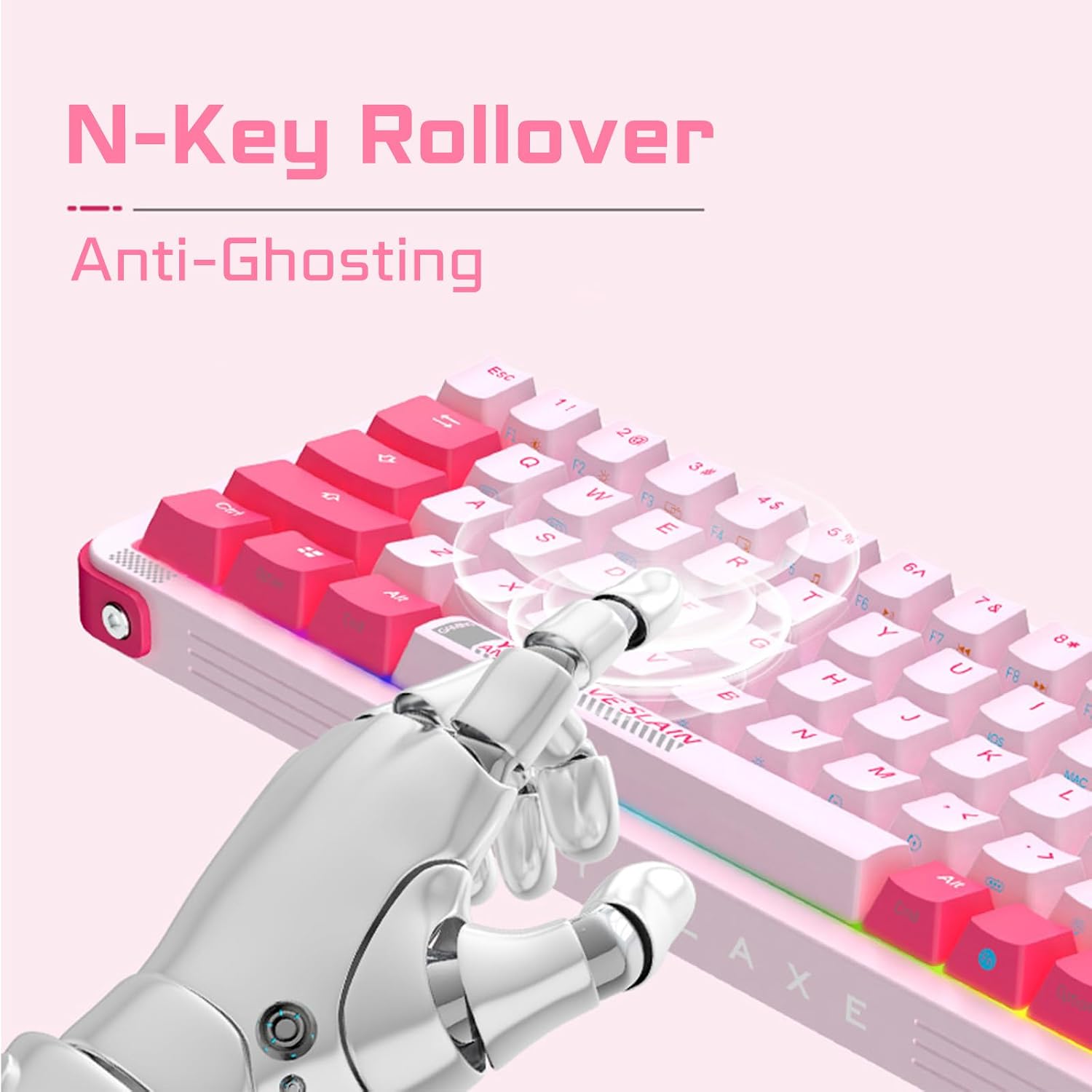
Figure 5: N-Key Rollover and Anti-Ghosting.
2. RGB Lighting Control
The keyboard features vibrant RGB lighting with 18+4 lighting effects. Control lighting modes, brightness, and speed using Fn key combinations.
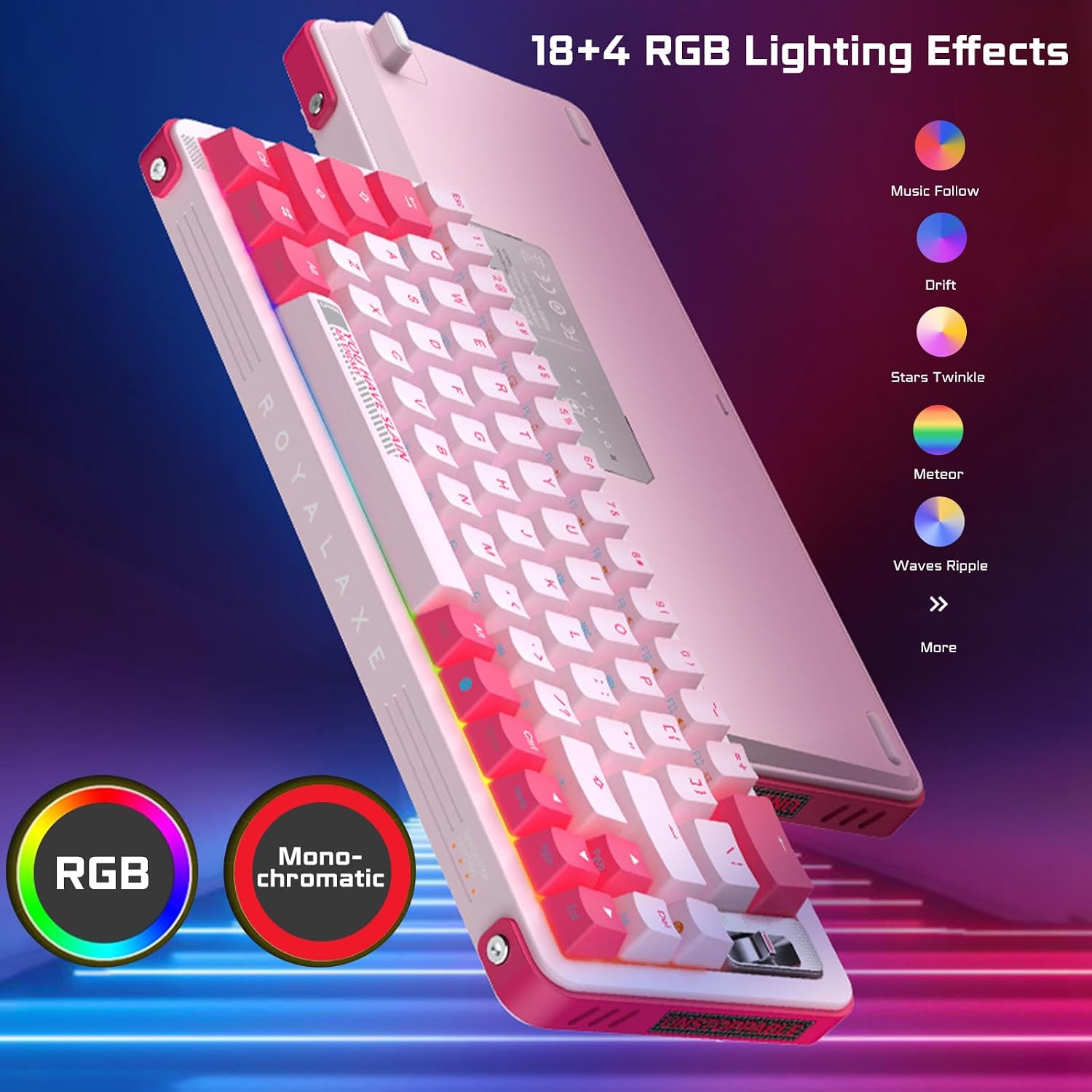
Figure 6: RGB Lighting Effects.
For advanced customization, including macro programming and light synchronization, download the exclusive ROYALAXE driver software from the official ROYALAXE website.
3. Hot-Swappable Switches
The ROYALAXE Y68 is equipped with factory-lubricated Gateron G Yellow Pro Switches, offering a smooth linear feel. The hot-swappable design with 5-pin sockets allows for easy replacement of switches without soldering. Keycap and switch removers are included in the package.

Figure 7: Gateron G Yellow Pro Switches and Hot-Swappable Design.
The sockets support both 5-pin and 3-pin switches, but are not compatible with Cherry switches.
4. Battery Life
The 3000mAh battery provides approximately 250 hours of standby time with RGB lighting off and about 10 hours with RGB lighting on. Battery life may vary based on usage and lighting intensity.
Maintenance
1. Cleaning
To clean your keyboard, first disconnect it from all power sources. Use a soft, lint-free cloth dampened with a small amount of water or a mild cleaning solution. For deeper cleaning, use the provided keycap puller to remove keycaps and clean underneath with compressed air or a small brush. Ensure the keyboard is completely dry before re-connecting.

Figure 8: Double Shot PBT Keycaps for durability and easy cleaning.
2. Keycap and Switch Replacement
Use the provided keycap puller to gently remove keycaps. For switches, use the switch puller to carefully extract them from their sockets. Align new switches with the sockets and press firmly until they click into place. Ensure pins are not bent during installation.
Troubleshooting
- Keyboard not responding:
- Ensure the correct connection mode (Wired, 2.4G, or BT) is selected using the toggle switch.
- Check battery level. Charge the keyboard if low.
- For wired connection, try a different USB port or cable.
- For 2.4G wireless, ensure the dongle is securely plugged in and try a different USB port.
- For Bluetooth, ensure the keyboard is paired correctly to the selected channel (Fn+Q/W/E) and your device's Bluetooth is on. Try re-pairing if necessary.
- RGB lighting not working:
- Check if RGB lighting is turned off (Fn+light control key).
- Ensure the keyboard has sufficient battery charge.
- If using custom profiles, ensure the software is running and settings are applied.
- Keys not registering or double-typing:
- Ensure switches are fully seated in their sockets. Gently press down on affected keycaps.
- If a specific switch is faulty, replace it with one of the spare switches provided.
If issues persist, please refer to the official ROYALAXE support channels or the full user manual (PDF) available online.
Specifications
| Feature | Detail |
|---|---|
| Model | Y68 |
| Connectivity Technology | Bluetooth 5.0, 2.4G Wireless, USB-C Wired |
| Switch Type | Gateron G Yellow Pro (Linear, 50gf actuation, pre-lubed) |
| Keycaps | Double Shot PBT |
| Number of Keys | 66 |
| Backlighting | RGB (18+4 effects) |
| Battery Capacity | 3000mAh Lithium Ion |
| Battery Life (RGB Off) | Up to 250 hours (standby) |
| Battery Life (RGB On) | Up to 10 hours |
| Product Dimensions | 12.8 x 4.6 x 1.6 inches |
| Item Weight | 2.1 pounds |
| Special Features | Hot-swappable, Lubed Stabilizers, Magnetic Feet, Anti-Ghosting (N-Key Rollover) |
Warranty and Support
For warranty information, technical support, or to download the latest software drivers, please visit the official ROYALAXE website or contact their customer service directly. You can also refer to the User Manual (PDF) provided with your product or available for download from the Amazon product page.
Official Product Video:
Video Description: An official product video from ROYALAXE DIRECT showcasing the features and design of the Y68 Candy Pink Mechanical Keyboard.


