
Nulea M501
Nulea M501 Wireless Trackball Mouse User Manual
Model: M501
1. Product Overview
The Nulea M501 is an ergonomic wireless trackball mouse designed for comfort and precision. It features multi-device connectivity, a rechargeable battery, and adjustable DPI settings, making it suitable for various computing environments and tasks.

Figure 1.1: Nulea M501 Wireless Trackball Mouse.
2. Package Contents
Please check the package contents to ensure all items are present:
- Nulea M501 Wireless Trackball Mouse
- USB Charging Cable
- User Manual (this document)
- 2.4G USB Receiver (stored inside the mouse)
3. Product Features

Figure 3.1: Key components of the Nulea M501 mouse.
- 1. Back/Forward Buttons: (Non-programmable) For navigation.
- 2. DPI Level Indicator: Shows current DPI setting.
- 3. Skin-friendly Surface: For improved tactility and comfort.
- 4. Detachable Ball: For easy cleaning.
- Ergonomic Design and Smooth Thumb Control: Designed to reduce wrist and arm strain by allowing cursor movement via a smooth trackball. The optimal angle promotes a natural hand position for all-day comfort.
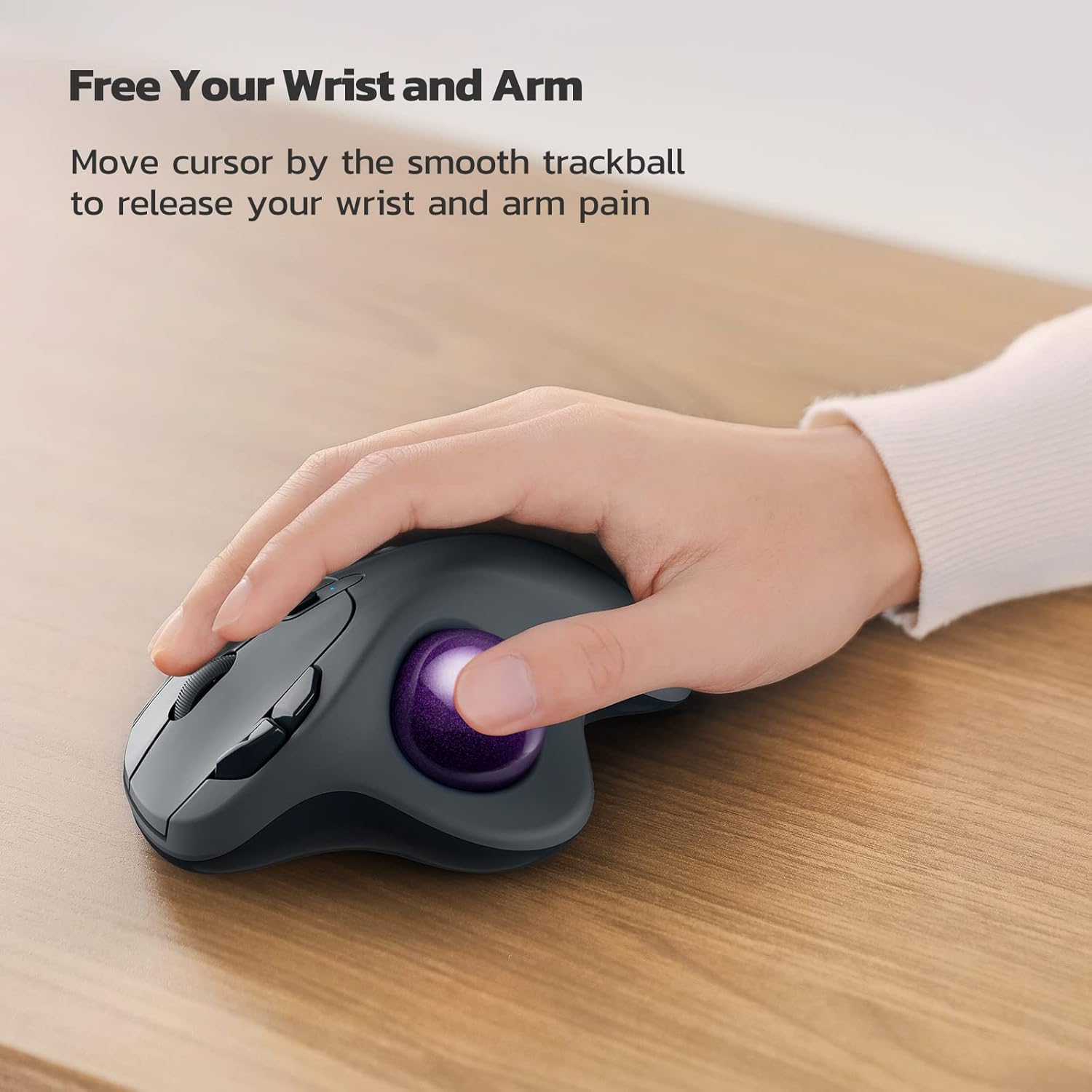
Figure 3.2: Ergonomic design for wrist and arm comfort.

Figure 3.3: The 49.5° angle promotes a natural hand position.
- Accurate Tracking with Adjustable DPI: Provides precise cursor movement with excellent accuracy and control. The smooth trackball enhances productivity in various environments, especially in narrow spaces.
Figure 3.4: Ideal for use in narrow spaces.
- True Wireless Freedom (Multi-Device Connectivity): Connects up to 3 devices via Bluetooth or the 2.4G USB dongle. Easily switch between connected devices using the button on the bottom of the mouse.

Figure 3.5: Seamless switching between up to three devices.
- Rechargeable Built-in Battery: Features a long-lasting rechargeable battery, eliminating the need for disposable dry cells.

Figure 3.6: Charging the Nulea M501 mouse.
- 6-Button High Performance: Includes ergonomic details and an elegant curved shape, along with back and forward buttons for enhanced productivity. Note: All buttons are non-programmable.
4. Setup
4.1 Initial Charging
Before first use, please fully charge the mouse. Use the included USB charging cable to connect the mouse to a PC's USB port or a 5V charger. Do not use a fast charger.
4.2 Connecting via 2.4G USB Receiver
- Locate the 2.4G USB receiver stored in the compartment at the bottom of the mouse.
- Plug the USB receiver into an available USB port on your computer.
- Turn on the mouse using the power switch on the bottom.
- The mouse should automatically connect to your computer.
4.3 Connecting via Bluetooth
- Turn on the mouse using the power switch on the bottom.
- Press the mode switch button on the bottom of the mouse to select a Bluetooth channel (e.g., BT1 or BT2). The indicator light will blink.
- On your computer or device, enable Bluetooth and search for new devices.
- Select "Nulea M501" from the list of available devices to pair.
- Once paired, the indicator light will stop blinking and remain solid.
5. Operating Instructions
5.1 DPI Adjustment
The Nulea M501 trackball mouse features adjustable DPI settings for precise cursor control. Press the DPI button (usually located near the scroll wheel) to cycle through different DPI levels. The indicator light will change or blink to show the current setting.
5.2 Switching Between Devices
If you have connected the mouse to multiple devices (via 2.4G USB and Bluetooth), you can switch between them by pressing the mode switch button on the bottom of the mouse. Each press will cycle to the next connected device.
5.3 Button Functions
- Left Click: Standard selection.
- Right Click: Context menu.
- Scroll Wheel: Scroll up/down, middle click.
- Back/Forward Buttons: Navigate web pages or folders. (Note: These buttons are non-programmable.)
- DPI Button: Adjust cursor sensitivity.
6. Maintenance
6.1 Cleaning the Trackball
Over time, dust and debris may accumulate around the trackball, affecting its smoothness. To clean:
- Gently push the trackball from the bottom of the mouse to remove it.
- Use a soft, lint-free cloth to wipe the trackball clean.
- Clean the inside cavity of the mouse, paying attention to the three small support points where the ball rests.
- Reinsert the trackball into its socket.
6.2 General Care
- Avoid exposing the mouse to extreme temperatures, direct sunlight, or high humidity.
- Do not disassemble the mouse, as this may void the warranty.
- Use a dry, soft cloth to clean the exterior of the mouse.
7. Troubleshooting
| Problem | Possible Cause | Solution |
|---|---|---|
| Mouse not responding | Low battery; USB receiver disconnected; Bluetooth not paired. | Charge the mouse; Re-insert USB receiver; Re-pair Bluetooth. |
| Cursor movement is erratic or sticky | Trackball or internal sensors are dirty. | Clean the trackball and its cavity (refer to Section 6.1). |
| Cannot switch between devices | Incorrect mode selected; Devices not properly paired. | Ensure devices are paired; Press the mode switch button firmly. |
| Bluetooth connection unstable | Interference; Device too far; Low battery. | Move closer to the device; Reduce interference; Charge the mouse. |
8. Specifications
| Feature | Detail |
|---|---|
| Model Number | M501 |
| Connectivity | Bluetooth, 2.4G USB Wireless |
| Compatible OS | Windows, Mac OS |
| Movement Detection Technology | Trackball |
| Buttons | 6 (Left/Right Click, Scroll Wheel, Back/Forward, DPI) |
| Battery Type | Rechargeable Built-in Battery |
| Color | Blue (with purple trackball) |
| Dimensions (L x W x H) | Approx. 14.1 x 11.1 x 6.1 cm |
| Weight | Approx. 240 g |
9. Warranty and Support
Nulea products are designed and manufactured to the highest quality standards. For warranty information and technical support, please refer to the warranty card included with your product or visit the official Nulea website. Please retain your proof of purchase for warranty claims.
For further assistance, you may contact Nulea customer service through the contact information provided on the product packaging or the official website.
Related documentsM501


Ask a question about this manual
Ask about setup, troubleshooting, compatibility, parts, safety, or missing instructions. Manuals+ will review the question and use this page’s manual context to help answer it.