
IINE L760
IINE Wireless Switch Pro Controller User Manual
Model: L760
1. Introduction
This manual provides detailed instructions for the IINE Wireless Switch Pro Controller, designed for use with Nintendo Switch, Switch Lite, OLED models, and PC (Steam/Steam Deck). It features a unique game-themed design, customizable RGB lighting, advanced motion controls, adjustable vibration, and programmable macro functions to enhance your gaming experience.

The IINE Wireless Switch Pro Controller, showcasing its unique design and features.
2. Package Contents
- 1X Wireless Pro Switch Controller
- 1X USB Type-C Charging Cable
- 1X User Manual
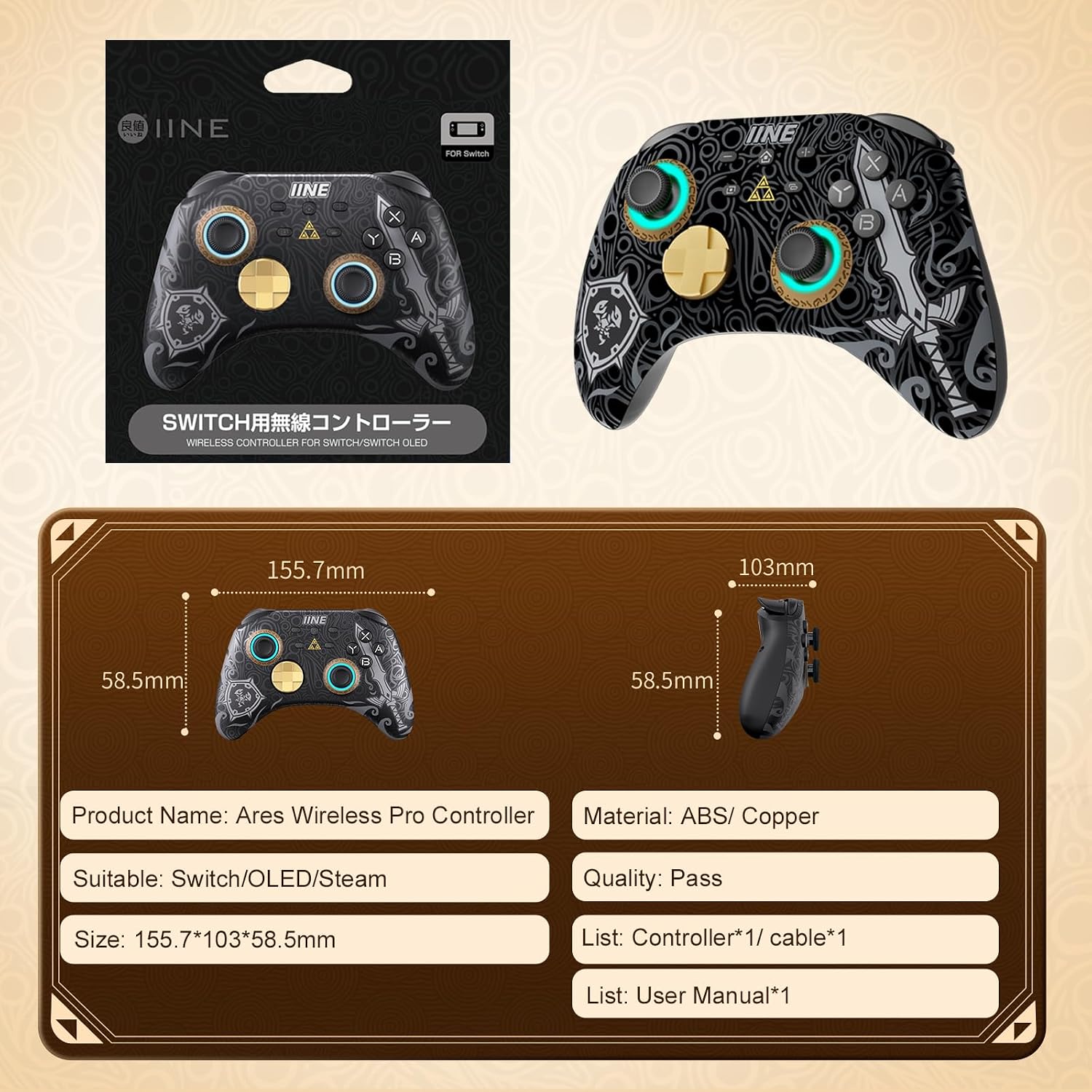
Contents included in the IINE Wireless Switch Pro Controller package.
3. Product Features
3.1 Game Theme and RGB Lights
The controller features a distinctive game element pattern and is equipped with 8 light colors and 4 light modes. The brightness of the lights can be adjusted, allowing users to customize the visual experience to match different games and enhance immersion.

Overview of key features including RGB lighting.
3.2 Multi-Platform Compatibility
The IINE Switch Pro Controller is fully compatible with Nintendo Switch, Switch Lite, OLED models, and PC (Steam/Steam Deck). It supports both wireless and wired connections for Nintendo Switch games, and wired connection for PC Steam/Steam Deck.

The controller's wide compatibility across various gaming platforms.
3.3 6-Axis Gyro Sensor
A built-in 6-axis gyro sensor allows for precise control of in-game characters and vehicles. This feature intelligently detects rotation and orientation changes, supporting games that utilize somatosensory actions, shooting, and aiming.

Illustrating the precision of the 6-axis gyro sensor in gameplay.
3.4 Adjustable Dual Vibration
The wireless grip incorporates dual vibration motors, offering four levels of precise vibration intensity: 0%, 30%, 75%, and 100%. This provides realistic haptic feedback, enhancing the gaming experience.

Visual representation of the adjustable dual-motor vibration feature.
3.5 Macro Setting and Auto-fire Function
The MR/ML back buttons can be programmed to map basic function keys (A/B/X/Y/L/ZL/R/ZR) to various combined function keys. The controller also supports both automatic TURBO and manual TURBO modes, catering to diverse gaming needs and providing a more comfortable operating experience.

Instructions for customizing macro settings on the controller.

Explanation of the Turbo auto-fire function.
3.6 Headset Jack
The controller includes a headset jack for audio output. Note that the headset can only be used when the controller is wired connected to the Switch via a Type-C cable.
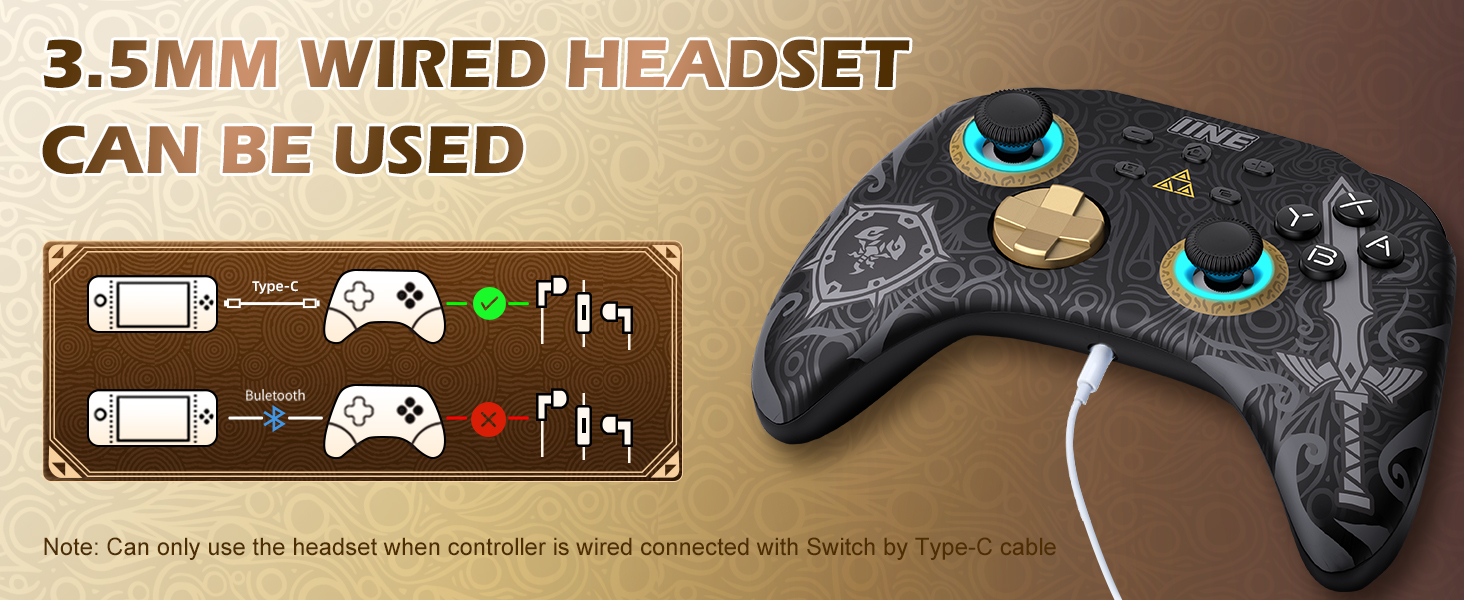
How to connect a wired headset to the controller.
4. Setup Guide
4.1 Initial Pairing with Nintendo Switch (Wireless)
- On your Nintendo Switch, navigate to the HOME Menu.
- Select 'Controllers' > 'Change Grip/Order'.
- On the IINE controller, press and hold the pairing button (usually a small button on the top edge or back) for 3-5 seconds until the indicator lights begin to flash.
- Once the controller is successfully paired, the player indicator light(s) on the controller will remain solid.
Official video demonstrating the IINE Pro Controller's features and connection process.
4.2 Wired Connection to PC (Steam/Steam Deck)
- Connect the USB Type-C charging cable to the controller and the other end to an available USB port on your PC.
- The controller should be automatically recognized by your PC. If not, ensure your PC's drivers are up to date.
Unboxing and initial setup of the IINE Zelda controller, showing physical components.
5. Operating Instructions
Once connected, the controller functions similarly to a standard Nintendo Switch Pro Controller or a PC gamepad. Use the joysticks for movement and camera control, and the face buttons (A, B, X, Y) and shoulder buttons (L, R, ZL, ZR) for in-game actions. The D-pad provides directional input.
Demonstration of the IINE Zelda Theme Game Accessories in action, including gameplay.
6. Maintenance
- Keep the controller clean by wiping it with a soft, dry cloth.
- Avoid exposing the controller to extreme temperatures, humidity, or direct sunlight.
- Do not disassemble the controller, as this may void the warranty.
- Store the controller in a safe place when not in use to prevent damage.
7. Troubleshooting
7.1 Controller Not Connecting/Staying Connected
- Ensure the controller is fully charged.
- Try re-pairing the controller with your Switch (refer to Section 4.1).
- Ensure there are no strong wireless interferences nearby.
- If using wired connection, try a different USB port or cable.
- Restart your Nintendo Switch or PC.
7.2 Headphone Port Not Working
- Verify that the controller is connected to the Nintendo Switch via a wired Type-C cable. The headset jack only functions in wired mode.
- Ensure the headset is properly plugged into the controller's 3.5mm jack.
- Test the headset with another device to confirm it is working correctly.
- Check the audio settings on your Nintendo Switch.
7.3 Buttons or Joysticks Unresponsive/Sticking
- Ensure the controller is clean and free of debris around the buttons and joysticks.
- Perform a soft reset on the controller (consult the specific reset procedure in the included user manual if available).
- Update the controller's firmware if an update is available (check the IINE official website for tools and instructions).
8. Specifications
| Attribute | Detail |
|---|---|
| Product Name | Ares Wireless Pro Controller |
| Model | L760 |
| Compatibility | Nintendo Switch/OLED/Steam |
| Dimensions | 155.7 x 103 x 58.5 mm |
| Material | ABS/ Copper |
| Item Weight | 12.6 ounces |
| Batteries | 1 AAA batteries required (included) |
| Country of Origin | China |
9. Warranty and Support
The IINE team is committed to providing excellent customer service. For any inquiries, technical assistance, or warranty claims, please contact our support team. We offer 24-hour service to assist you with your product needs.
Please refer to the contact information provided on the product packaging or the official IINE website for the most up-to-date support channels.
Related documentsL760


Ask a question about this manual
Ask about setup, troubleshooting, compatibility, parts, safety, or missing instructions. Manuals+ will review the question and use this page’s manual context to help answer it.