
Product Overview
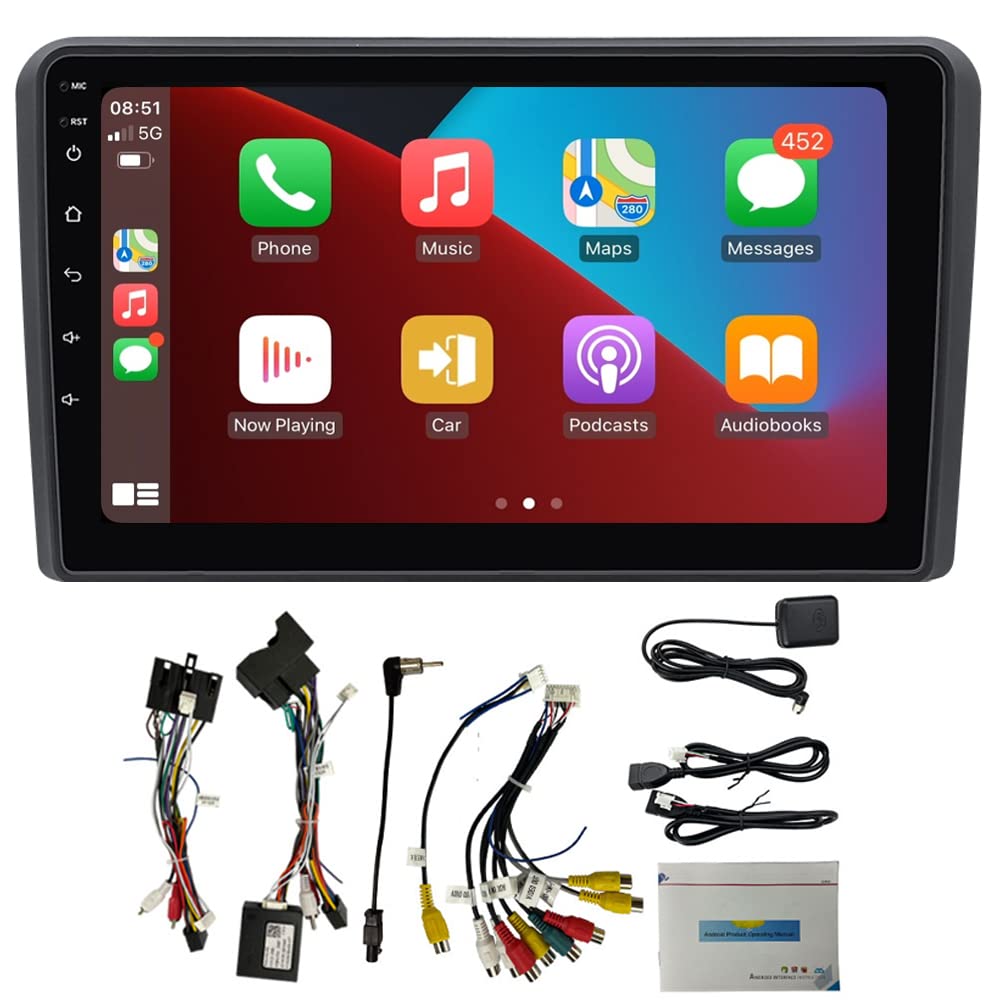
Figure 0: The Polarlander Android Car Stereo unit integrated into a vehicle's dashboard, displaying the main interface.
The Polarlander Android Car Stereo is a 9-inch multimedia player designed for Audi A3 models from 2002-2008. It features an Android 9.1 operating system, a high-definition digital screen with 1024x600 resolution, and a Quad-core Cortex processor. Key functionalities include Wireless CarPlay, Android Auto, GPS navigation, Bluetooth 5.0 for hands-free calls and music streaming, Wi-Fi connectivity, and mirror link capabilities for both Apple iOS and Android devices. The unit also includes an FM radio tuner with RDS and supports steering wheel controls.
This unit is designed for direct plug-and-play installation, requiring no additional parts or cables for compatible vehicles. It supports various audio, video, and image formats, and offers expandability for a rear-view camera (optional).
Installation Guide
Before beginning installation, ensure your vehicle is compatible with this unit. This model is suitable for Audi A3 2002-2008. Verify the shape and style of your car's original head unit matches the product's design to ensure proper fitment.
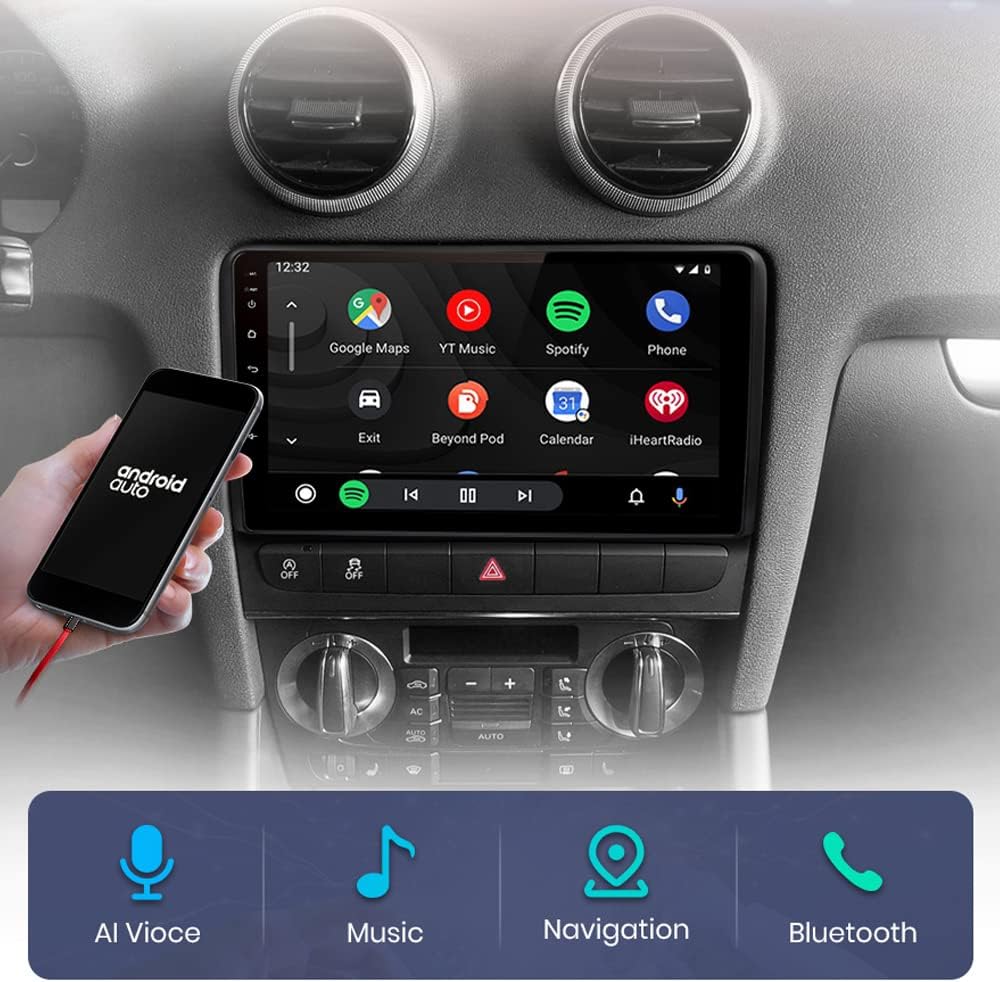
Figure 1: Compatibility check for Audi A3 center console. The image on the left shows a compatible console, while the image on the right shows an incompatible console. Ensure your vehicle's console matches the compatible design before proceeding.
Wiring Connections
Follow these steps to connect the necessary cables to the head unit:
- GPS Antenna: Insert the GPS antenna cable into its designated port on the back of the head unit and tighten the screws. Position the antenna under the front windshield for optimal signal reception.
- Camera Input Cable: Connect the camera input cable to the corresponding port on the head unit. This is used for an optional rear-view camera.
- USB Cables: Insert the 6-pin USB cable and the OEM 4-pin USB cable into their respective ports. These provide USB connectivity for media and device charging.
- RCA Cable: Connect the RCA cable harness to the head unit. This harness includes various audio and video input/output connections.
- CANBUS Box: Plug the power cable into the CANBUS box, then connect the 8-pin CANBUS connector into its matching socket on the head unit.
- Radio Adapter Cable: Insert the radio adapter cable into the radio socket.
- Amplifier Connection (if applicable): If your vehicle has an OEM amplifier, connect the AMP-CON wire to the AMP CONT wire on the RCA harness. After installation, enable "Amp Control" in the unit's settings.
Video 1: This video demonstrates the wiring connections for the car stereo, including the GPS antenna, camera input, USB cables, RCA cables, CANBUS box, and radio adapter. It also shows how to connect the amplifier control wire if your vehicle has an OEM amplifier.
Operating Instructions
1. Wireless CarPlay & Android Auto
The unit supports both Wireless CarPlay for Apple iOS devices and Android Auto for Android smartphones. Connect your phone via Bluetooth or USB to activate these features. CarPlay and Android Auto provide a simplified interface for accessing navigation, music, calls, and messages directly from your car's display.

Figure 2: Display showing the CarPlay interface with applications like Phone, Music, Maps, and Messages. A smartphone is shown connected, indicating wireless or wired CarPlay functionality.

Figure 3: Display showing the Android Auto interface with applications like Google Maps, YouTube Music, Spotify, and Phone. A smartphone is shown connected, indicating Android Auto functionality.
2. GPS Navigation
The unit features a built-in GPS navigation system with support for online and offline maps. You can use popular navigation applications like Google Maps. A free GPS antenna is included for accurate location tracking. Ensure the GPS antenna is properly installed for optimal performance.

Figure 4: The GPS navigation screen displaying a map and icons for supported navigation applications such as Navitel, iGO, Yandex, and Google Maps.
3. Bluetooth 5.0
Connect your smartphone via Bluetooth 5.0 for hands-free calling and wireless music streaming. The unit supports automatic phone book loading and displays caller ID for incoming calls.

Figure 5: The Bluetooth interface showing a phone dial pad and connection status, indicating hands-free calling functionality.
4. FM Radio Tuner
Access FM radio stations with the built-in digital stereo FM tuner. It supports automatic and semi-automatic station searching, RDS (Radio Data System), and allows for presetting up to 18 radio stations.

Figure 6: The FM radio tuner interface displaying current frequency and preset station options.
5. Mirror Link
The upgraded dual system mirror link feature allows one-way projection from iOS devices to the car stereo screen and two-way connection for Android devices, enabling control from both the phone and the head unit.
6. Steering Wheel Control
The unit supports steering wheel control functions, allowing you to manage audio, calls, and other features directly from your vehicle's steering wheel for convenience and safety.
Specifications
| Feature | Detail |
|---|---|
| Brand | Polarlander |
| Model Number | 7002ADC |
| Operating System | Android 9.1 |
| Screen Size | 9 Inches |
| Resolution | 1024 x 600 |
| Processor | Quad-core Cortex |
| Memory (RAM + ROM) | 1GB RAM + 16GB ROM |
| Output Power | 4x45W |
| Bluetooth Version | 5.0 |
| FM Frequency Range | 87.5-108 MHz |
| Connectivity | Bluetooth, Wi-Fi, USB |
| Special Features | Wireless CarPlay, Android Auto, GPS Navigation, Touchscreen, Mirror Link, Steering Wheel Control, RDS |
| Compatible Vehicle Type | Car (Audi A3 2002-2008) |
| Input Voltage | DC 12V |
| DVD Function | No |

Figure 7: Diagram showing the dimensions of the 9-inch car stereo unit, with measurements of 13.9cm (5.47in) height and 25.0cm (9.84in) width.
Troubleshooting
- No Power: Ensure all power cables are securely connected and the vehicle's fuse for the radio is intact. Check the main power harness connection.
- No Sound: Verify speaker connections. If an OEM amplifier is present, ensure the AMP-CON wire is connected and "Amp Control" is enabled in the settings. Check volume levels.
- GPS Signal Issues: Confirm the GPS antenna is properly connected and placed in an unobstructed location, such as under the front windshield.
- Bluetooth Connection Problems: Ensure Bluetooth is enabled on both the car stereo and your mobile device. Try unpairing and re-pairing the devices.
- Steering Wheel Controls Not Working: Check the CANBUS box connection and ensure it is correctly configured for your vehicle model. Some vehicles may require specific settings adjustments in the unit's menu.
- Screen Unresponsive: Try restarting the unit. If the issue persists, a factory reset might be necessary (refer to settings menu).
Warranty and Support
For warranty information, technical support, or service inquiries, please refer to the documentation provided with your purchase or contact Polarlander customer service directly. Keep your purchase receipt and model number (7002ADC) handy for faster assistance.
