
1. Product Overview
The XZENT X-107 is a versatile 2 DIN car radio and multimedia system designed for vehicles and camper vans. It features a 6.75-inch (17.1 cm) capacitive real glass touchscreen, complemented by four touch keys and a rotary volume knob for intuitive control.
This system integrates a DAB+ tuner for high-quality digital radio reception, an RDS FM tuner, and a USB 2.0 port for media playback and smartphone connectivity. WebLink 2.0 functionality allows seamless access to various smartphone applications. Bluetooth 4.2 ensures clear hands-free communication and audio streaming.
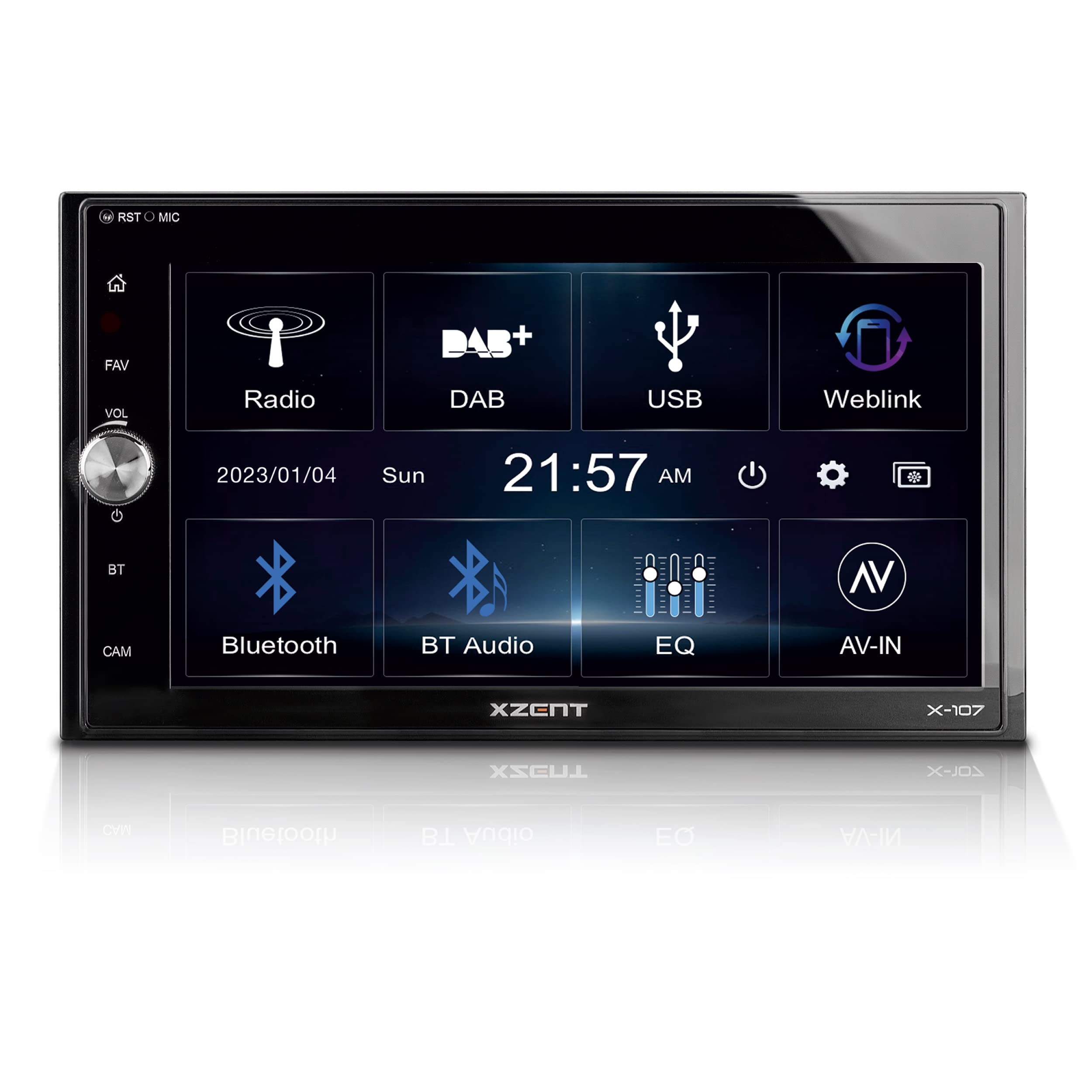
Image: Front view of the XZENT X-107 Autoradio Multimedia System, showing the main interface with options for FM/AM, DAB, USB, WebLink, BT Phones, BT Audio, EQ, and AV-IN.
2. Setup and Installation
The X-107 is designed for a standard 2 DIN mounting bay. Installation requires connecting various cables and adapters included in the package. It is recommended to consult a professional for installation to ensure proper wiring and functionality.
2.1 Package Contents
- XZENT X-107 Multimedia System
- External Bluetooth Microphone
- USB Cable
- Various Connection Cables and Adapters
- 2 DIN Mounting Frame
- 2 DIN Decorative Frame
- Unlocking Tool
2.2 Mounting
Insert the 2 DIN mounting frame into the vehicle's dashboard opening. Secure it according to your vehicle's specifications. Connect all necessary power, speaker, antenna, and accessory cables to the X-107 unit. Slide the X-107 into the mounting frame until it clicks into place. Attach the decorative frame if desired.

Image: The XZENT X-107 unit seamlessly integrated into a car dashboard, showing the DAB+ radio interface.
3. Operating Instructions
3.1 Power On/Off and Volume Control
- To power on the device, press the power button (usually integrated with the volume knob or a dedicated touch key).
- Rotate the volume knob to adjust the audio level.
- Press and hold the power button to turn off the device.
3.2 Touchscreen and Interface Navigation
The 6.75-inch touchscreen allows for direct interaction with the system's functions. Tap icons to select modes or options. Swipe gestures may be supported for navigating menus or lists.

Image: A close-up of the XZENT X-107 touchscreen interface, displaying icons for FM/DAB, USB, WebLink, Bluetooth, and other functions.
3.3 Radio Functions (DAB+ and FM)
- DAB+ Tuner: Select the DAB+ icon from the main menu. The system will scan for available digital radio stations. Use the on-screen controls to navigate stations, view DLS text (Dynamic Label Segment), and utilize DAB/DAB-FM service following.
- FM Tuner: Select the FM/AM icon. The RDS FM tuner provides station information. Use the on-screen controls to manually tune or auto-scan for FM stations.

Image: A screenshot of the XZENT X-107 displaying the FM radio tuning interface.
3.4 USB Media Playback
Connect a USB storage device to the USB 2.0 port. Select the USB icon from the main menu. The system supports playback of various audio and video file formats. Use the on-screen controls for playback, pause, skip, and folder navigation.
3.5 WebLink 2.0
The WebLink 2.0 function allows you to mirror and control compatible applications from your Android or iOS smartphone on the X-107's screen. Connect your smartphone via USB. Select the WebLink icon and follow the on-screen instructions to establish the connection. Supported applications include audio/video players, YouTube, Waze, and Genius Maps.

Image: A screenshot of the XZENT X-107 WebLink 2.0 interface, displaying icons for Music Player, Video Player, YouTube, Cast, Genius Map, and Waze.
3.6 Bluetooth Connectivity
The Bluetooth 4.2 module enables hands-free calling and audio streaming.
- Pairing: Go to the Bluetooth settings on the X-107 and your smartphone. Search for available devices and select "XZENT X-107" to pair.
- Hands-Free Calling: Once paired, you can import up to 1000 phonebook contacts. Use the on-screen dial pad or contact list to make calls. The external microphone ensures clear voice transmission.
- Audio Streaming (A2DP): Play music from your smartphone via Bluetooth. Use the X-107's controls (AVRCP) to manage playback.

Image: A screenshot of the XZENT X-107 Bluetooth phone interface, showing a dial pad and contact options.
3.7 Camera Input
The X-107 supports a rearview camera input. The camera view can be activated manually by pressing the dedicated CAM selection button on the front panel, or automatically when the vehicle is put into reverse (if properly wired).

Image: A screenshot of the XZENT X-107 displaying the rearview camera feed with parking guidelines.
4. Maintenance
4.1 Cleaning the Screen
To clean the touchscreen, gently wipe it with a soft, lint-free cloth. For stubborn smudges, slightly dampen the cloth with water or a screen-safe cleaning solution. Avoid using harsh chemicals or abrasive materials, as these can damage the screen surface.
4.2 Software Updates
Software updates for the X-107 system are periodically released to improve performance and add new features. Please visit the official XZENT homepage for information on available updates and instructions on how to install them.
5. Troubleshooting
If you encounter issues with your XZENT X-107, please refer to the following general troubleshooting steps:
- No Power: Check all power connections and the vehicle's fuse box. Ensure the ignition is on.
- No Audio: Verify speaker connections. Check volume levels on both the X-107 and any connected smartphone. Ensure the correct audio source is selected.
- Bluetooth Connection Issues: Ensure Bluetooth is enabled on both the X-107 and your smartphone. Try unpairing and re-pairing the devices.
- Touchscreen Unresponsive: Try restarting the unit. If the issue persists, a factory reset might be necessary (consult the full manual for specific instructions).
- Poor Radio Reception: Check the antenna connection. For DAB+, ensure you are in an area with good digital radio coverage.
For more detailed troubleshooting or persistent problems, please contact XZENT customer support or refer to the comprehensive manual available on the XZENT website.
6. Specifications
| Feature | Specification |
|---|---|
| Brand | XZENT |
| Model Number | X-107 |
| Color | Multicolor |
| Display | 6.75" / 17.1 cm Capacitive Touchscreen |
| Radio Tuner | DAB+, RDS FM |
| Connectivity Technology | Bluetooth 4.2, USB Type A |
| Special Features | DAB+ Tuner, WebLink 2.0, Camera Input |
| Compatible Devices | Android Smartphone, iPhone |
| Audio Output Mode | Stereo |
| Surround Sound Channel Configuration | 5.1 |
| Video Encoding | H.264, H.265/HEVC |
| Total HDMI Ports | 1 |
7. Warranty and Support
7.1 Warranty Information
Specific warranty details for the XZENT X-107 are typically provided with the product packaging or can be found on the official XZENT website. Please retain your proof of purchase for warranty claims.
7.2 Customer Support
For technical assistance, product inquiries, or to access the full user manual, please visit the official XZENT website. Information regarding spare parts availability is currently not provided.