
1. Introduction
The OBZ OY-20N Barcode Scanner is a versatile and efficient device designed for rapid and accurate scanning of 1D, 2D, and QR codes. Utilizing advanced CMOS imaging technology, it offers high-speed data capture from various surfaces, including paper and electronic screens. This manual provides essential information for setup, operation, and maintenance to ensure optimal performance.

Figure 1: OBZ OY-20N Barcode Scanner
2. Setup
2.1 Connecting the USB Cable
The OBZ OY-20N Barcode Scanner is a plug-and-play device, requiring no software or driver installation. Simply connect it to your computer via the provided USB cable.
- Locate the USB port on the bottom of the scanner.
- Insert the smaller end of the USB cable into the scanner's port.
- Insert the larger USB-A end of the cable into an available USB port on your computer (PC, laptop, or POS system).
- The scanner will emit a short beep and its indicator light will turn on, signifying a successful connection and readiness for use.
Video 1: Demonstrates how to detach and attach the USB cable to the scanner.
Video 2: Comprehensive demonstration of the scanner's USB wired plug-and-play functionality and compatibility with various systems.
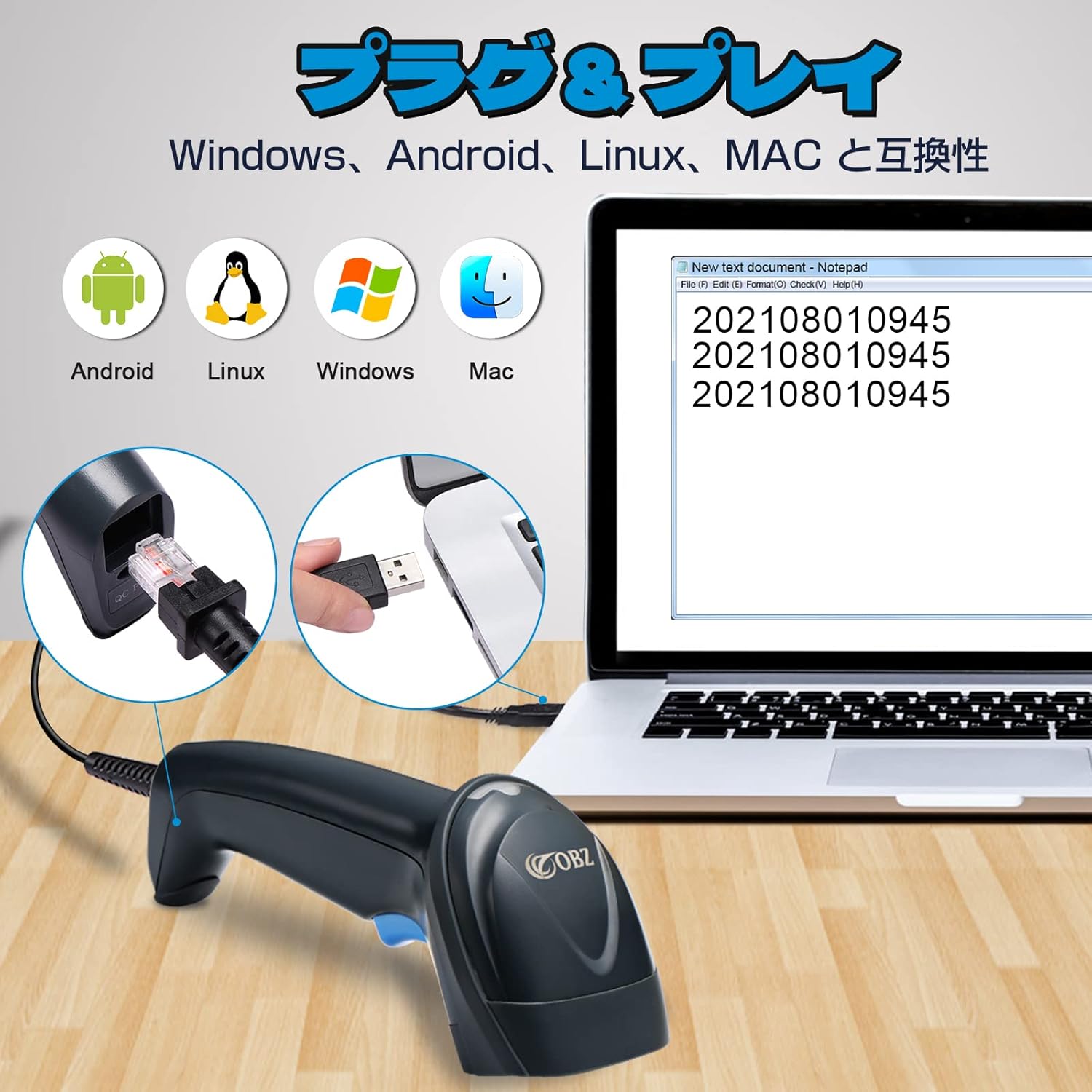
Figure 2: Illustrates the simple USB Plug & Play connection process.
The scanner is compatible with various operating systems including MAC, Windows, Android, and Linux. It works seamlessly with common applications like Word, Excel, and Notepad.

Figure 3: Shows compatibility with Windows, Android, Linux, and Mac operating systems.
3. Operating Instructions
3.1 Scan Modes
The OBZ OY-20N offers three convenient scanning modes:
- Automatic Sensor Mode: The scanner automatically detects a barcode placed in front of it and scans it without requiring a trigger press. Ideal for hands-free operation.
- Continuous Scan Mode: The scanner continuously emits a scan line, allowing for rapid scanning of multiple items without individual trigger presses.
- Manual Scan Mode: Press the trigger button to activate the scan line and release it to stop. This mode provides precise control over scanning.
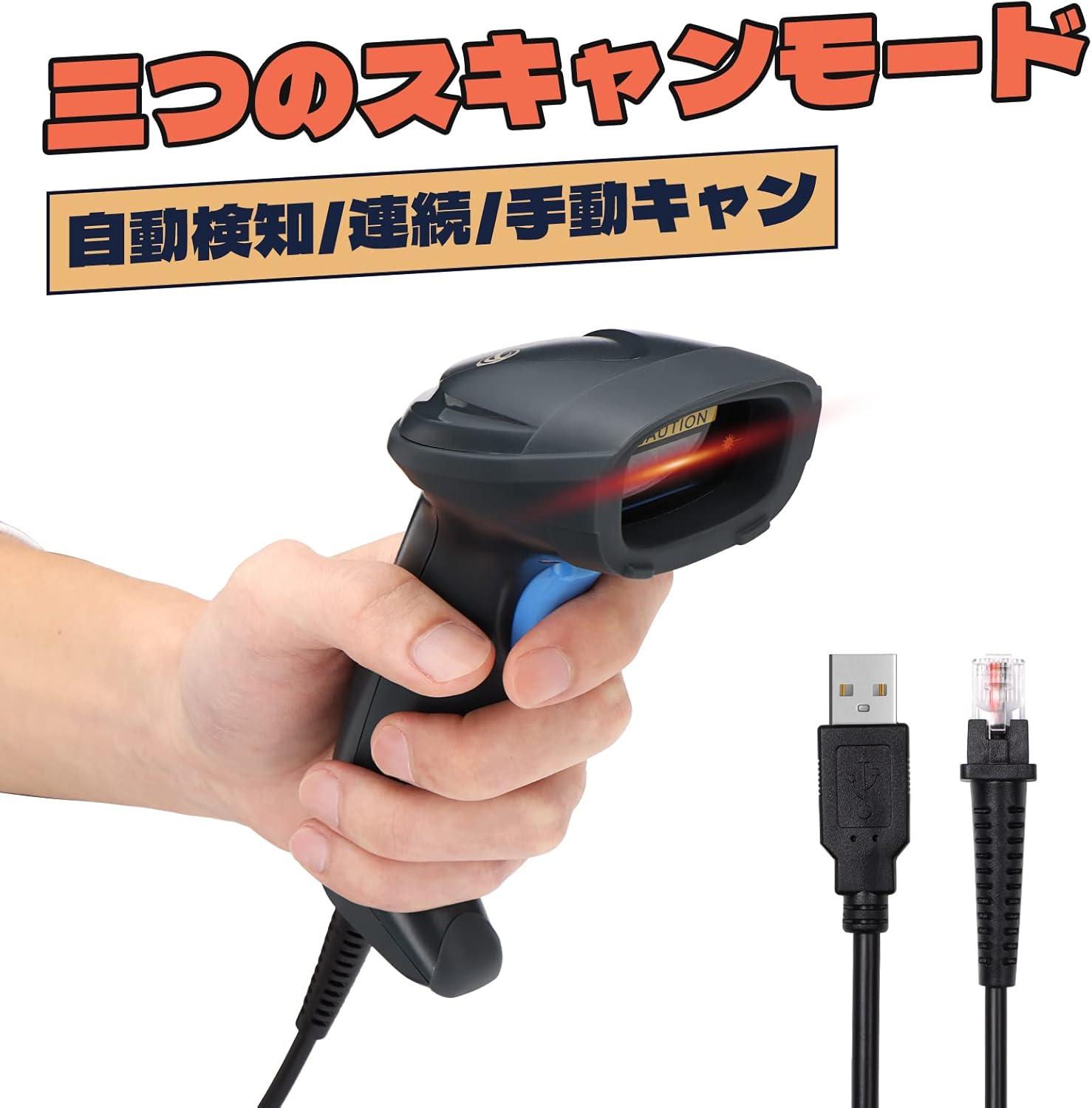
Figure 4: Visual representation of the three available scan modes.
3.2 Supported Barcode Types
This scanner supports a wide range of 1D and 2D barcode symbologies, including those on paper, plastic cards, and electronic screens:
- 1D Barcodes: EAN13, EAN8, UPC-A, UPC-E0, UPC-E1, Code128, Code39, Code93, CodaBar, Interleaved 2 of 5, Industrial 25, Matrix 2 of 5, Code11, MSI Plessey, RSS-14, Limited RSS, Extended RSS.
- 2D Barcodes: QR Code, Data Matrix (ECC200), PDF417.
It features strong decoding capabilities, allowing it to scan various conditions of barcodes, including reflective, deformed, damaged, colorful, dirty, and scratched codes.

Figure 5: Examples of various barcode conditions the scanner can read.
Video 3: Demonstrates the OBZ barcode reader's ability to scan 1D, 2D, and QR codes efficiently.
3.3 Multi-language Support
The scanner supports outputting code content, including Japanese characters, to applications like Excel, Word, and Notepad. It also supports various customization settings such as adding/deleting prefixes/suffixes, deleting characters, and adding TAB, TR&LF.
Figure 6: Shows support for multiple languages including Japanese, English, Spanish, French, German, Czech, Italian, and Swiss.
3.4 Mute Mode
For quiet environments such as offices or libraries, the scanner offers a mute mode. You can disable the beep sound while still receiving visual confirmation of successful scans via the indicator light.

Figure 7: Instructions for turning the beep sound ON or OFF.
4. Troubleshooting
4.1 Character Encoding Issues (Japanese Characters / Special Symbols)
If you encounter issues where special characters (e.g., ':' becoming '+', '=' becoming '^', '@' becoming '"') or Japanese characters are not correctly recognized when scanning barcodes containing them, especially when recognized as a URL in a browser, you may need to adjust the scanner's settings.
To resolve this, scan the two configuration QR codes provided in Figure 8 in sequence. This will adjust the scanner's internal settings to correctly interpret these characters.

Figure 8: Scan these QR codes (1 then 2) to correct character encoding issues.
4.2 Windows 11 Compatibility and Half-width/Full-width Characters
Some users may experience issues with data input stopping midway or incorrect half-width/full-width character conversion on Windows 11. While the scanner is generally compatible, such issues might arise due to specific system configurations or keyboard language settings.
- Ensure your PC's keyboard input setting is set to half-width alphanumeric before scanning.
- If issues persist, try scanning the language setting barcodes (e.g., for Japanese, English, etc.) from the scanner's manual or support documentation to reconfigure the keyboard language.
- If the problem continues, contact customer support for further assistance.
5. Specifications
| Feature | Specification |
|---|---|
| Model Number | OY-20N |
| Color | Gray |
| Dimensions (Product) | 8 x 7 x 12 cm |
| Weight | 250 g |
| Connectivity | USB Cable |
| Supported OS | Linux, Windows, MAC, Android |
| Barcode Types | 1D (EAN13, Code128, etc.), 2D (QR Code, Data Matrix, PDF417) |
| Max Storage Temperature | 70 ℃ |
6. Typical Applications
The OBZ OY-20N Barcode Scanner is suitable for a wide range of environments and applications, enhancing work efficiency and saving time:
- Retail: Supermarkets, convenience stores, pharmacies for checkout and inventory management.
- Logistics & Warehousing: Efficient tracking of goods, inventory control, and shipping.
- Office & Administration: Document management, asset tracking, and data entry.
- Libraries: Book check-out/in and cataloging.
- Medical Facilities: Compatible with GS1 DataBar Limited Type and GS1 128 for medical data management.

Figure 9: Illustrates diverse environments where the scanner can be effectively used.
7. Warranty and Support
OBZ is a specialized manufacturer in barcode scanners, committed to product development and manufacturing. This product comes with a three-year warranty.
If you have any questions or encounter any issues with your OBZ OY-20N Barcode Scanner, please do not hesitate to contact our customer support. We are dedicated to providing prompt and helpful assistance.