
1. Introduction
Thank you for choosing the Arafuna Portable Bluetooth CD Player CD521B. This device is designed to provide high-quality audio playback from CDs, MP3s, and TF cards, with added features like Bluetooth connectivity, FM transmission, and anti-shock protection. Please read this manual carefully to ensure proper use and to maximize your listening experience.

Image: The Arafuna Portable Bluetooth CD Player CD521B, a sleek black circular device with an LCD screen and control buttons.
2. Package Contents
Please check the package for the following items:
- Arafuna Portable CD Player CD521B
- Wired Headphones
- USB Charging Cable
- 3.5mm AUX Cable
- User Manual

Image: The Arafuna CD player box with included accessories: headphones, USB charging cable, and AUX cable.
3. Product Overview
Familiarize yourself with the buttons and ports on your CD player.
Front Panel Controls and Display

Image: Diagram showing the front panel of the CD player with labels for each button and the LCD screen.
- Display Screen: Shows track information, time, mode, and battery status.
- A-B/REC: A-B Repeat function / Record function.
- FM: Activates FM radio mode.
- PROG/FM TX: Program playback / FM Transmitter function.
- Bluetooth: Activates Bluetooth pairing mode.
- Play/Pause: Starts or pauses playback.
- Stop: Stops playback.
- Previous/Rewind: Skips to the previous track or rewinds the current track.
- Next/Fast Forward: Skips to the next track or fast forwards the current track.
- EQ: Cycles through equalizer sound effects.
- MODE: Cycles through playback modes (Repeat 1, Repeat All, Random, Intro).
Side and Rear Ports/Switches
Image: Diagram showing the side and rear ports of the CD player with labels for each connection.
- TF Card Slot: For playing music from a TF (MicroSD) card.
- DC 5V Charge Port: USB-C port for charging the device.
- Charge Indicator: LED light indicating charging status.
- Power ON/OFF Switch: Turns the device on or off.
- Headphone Jack 1 (3.5mm): Primary headphone output.
- Headphone Jack 2 (3.5mm): Secondary headphone output for sharing audio.
- Volume Control: Slider to adjust the playback volume.
- HOLD Switch: Locks all buttons to prevent accidental operation.
- Open Cover Latch: Releases the CD compartment cover.
4. Setup
4.1 Charging the CD Player
The CD player has a built-in 2000mAh rechargeable battery. Before first use, fully charge the device.
- Connect the USB charging cable to the DC 5V Charge port on the player and to a USB power adapter (not included), computer, car charger, or power bank.
- The charge indicator light will illuminate red during charging and turn green when fully charged.
- A full charge typically takes 3-4 hours. The player can operate for up to 19 hours without Bluetooth, or 12 hours with Bluetooth enabled.

Image: Illustration showing the CD player being charged via a USB cable, with battery icons indicating charging status and battery life.
4.2 Inserting a CD
The player supports CD, CD-R, CD-RW, MP3, and HDCD formats. DVD, VCD, and Blu-ray discs are not supported.
- Ensure the HOLD switch is in the "OFF" position.
- Slide the Open Cover Latch to open the CD compartment.
- Carefully place a compatible CD onto the spindle, label side up, ensuring it clicks into place.
- Close the CD compartment cover firmly until it latches.

Image: The CD player with its lid open, showing a CD being placed inside. Text indicates supported formats: CD, CD-R, HDCD, MP3.
4.3 Connecting Headphones or External Speakers
You can connect up to two pairs of wired headphones or use the AUX cable to connect to external speakers.
- For headphones, plug your 3.5mm headphones into either Headphone Jack 1 or Headphone Jack 2.
- For external speakers, connect one end of the 3.5mm AUX cable to Headphone Jack 1 and the other end to the AUX input of your external speaker system.
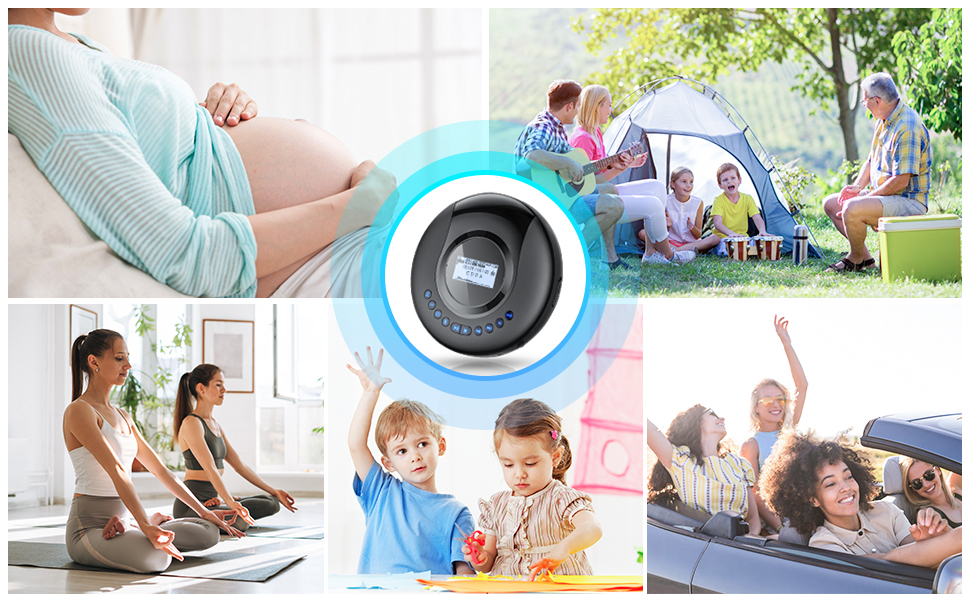
Image: A child and an adult sharing music using two wired headphones connected to the CD player.
4.4 Inserting a TF Card
The player supports TF (MicroSD) cards for MP3 playback. Ensure the card is formatted to FAT32.
- Locate the TF Card Slot on the side of the player.
- Insert the TF card gently until it clicks into place.

Image: A close-up of the TF card slot on the CD player, with a TF card being inserted. Text indicates "Uniquely for FAT32 format".
5. Operating Instructions
5.1 Power On/Off
- To turn on, slide the Power ON/OFF switch to "ON".
- To turn off, slide the Power ON/OFF switch to "OFF".
5.2 Basic CD Playback
- After inserting a CD and powering on, the player will automatically start reading the disc.
- Press the Play/Pause button to start or pause playback.
- Press the Stop button to stop playback.
- Use the Previous/Rewind and Next/Fast Forward buttons to navigate tracks. Hold them down to fast forward or rewind within a track.
- Adjust volume using the Volume Control slider on the side.
5.3 Playback Modes and EQ Settings

Image: A woman listening to the CD player, with text overlays describing compatible formats, 5 sound effects (EQ), 5 play modes, and Anti-Skip Protection (ASP).
- Press the MODE button repeatedly to cycle through playback modes: Repeat One, Repeat All, Random Play, Intro Play (plays first 10 seconds of each track), and Program Play.
- Press the EQ button repeatedly to cycle through sound effects: Normal, BBS (Bass Boost), Pop, Jazz, Rock, Classic.
5.4 Bluetooth Connection
The player features an upgraded Bluetooth 5.2 transmitter for connecting to Bluetooth headphones or speakers. Note: Bluetooth cannot connect to car systems directly.
- Ensure your Bluetooth receiving device (headphones/speaker) is in pairing mode.
- On the CD player, press the Bluetooth button. The Bluetooth icon on the LCD screen will flash.
- The CD player will search for nearby Bluetooth devices. Once connected, the Bluetooth icon will stop flashing and remain solid.

Image: A woman listening to the CD player connected via Bluetooth to headphones, with icons showing compatibility with various Bluetooth devices.
5.5 FM Transmitter Function (for Car Audio)
This function allows you to transmit audio from the CD player to your car's FM radio.
- While the CD player is playing or paused, short press the PROG/FM TX button to enter FM transmission mode. The screen will display available FM frequencies (79.3 / 88.5 / 93.6 / 101.9 / 107.1 MHZ).
- Select a frequency on the CD player.
- Tune your car radio to the exact same FM frequency.
- The audio from the CD player will now play through your car's speakers.
- Note: When FM transmission is active, the player's internal speakers (if any) will be muted.

Image: Two panels showing how to connect the CD player to a car: one via FM transmission (matching frequencies) and another via an AUX cable.
5.6 Recording Function (REC)
The player supports recording audio to a TF card. It can only record titles from a disc to a TF card. External recordings (e.g., background noise) are not supported.
- Ensure a TF card is inserted.
- During CD playback, press and hold the A-B/REC button to start recording.
- Press the A-B/REC button again to stop recording.
5.7 HOLD Function
The HOLD switch prevents accidental button presses.
- Slide the HOLD switch to "ON" to lock all buttons. The display will show "HOLD".
- Slide the HOLD switch to "OFF" to unlock the buttons and resume normal operation.

Image: Close-up of the HOLD switch on the bottom of the CD player, showing ON and OFF positions.
5.8 Resume Playback
The player features a resume function. If the device is turned off and then back on, it will continue playing from where it last stopped.
5.9 Video Demonstration
Video: A comprehensive demonstration of the Arafuna CD player's features, including Bluetooth pairing, recording, FM transmission, charging, compatible disc types, playback modes, EQ settings, and the HOLD function.
6. Maintenance
- Clean the CD player with a soft, dry cloth. Do not use abrasive cleaners or solvents.
- Keep the device away from direct sunlight, heat sources, and moisture.
- Avoid dropping the player or subjecting it to strong impacts.
- To clean the CD lens, use a specialized CD lens cleaning kit.
7. Troubleshooting
| Problem | Possible Cause | Solution |
|---|---|---|
| Player does not turn on. | Battery is depleted. HOLD switch is ON. | Charge the battery. Slide HOLD switch to OFF. |
| No sound. | Volume too low. Headphones not connected properly. FM transmitter active. | Increase volume. Reconnect headphones. Deactivate FM transmitter. |
| CD skips or stops. | CD is dirty or scratched. Player is subjected to strong vibration. | Clean or replace CD. Ensure player is on a stable surface. Anti-shock protection (ASP) is active to minimize this. |
| Bluetooth not connecting. | Device not in pairing mode. Out of range. | Ensure receiving device is in pairing mode. Move devices closer. |
| FM transmission not working. | Car radio not tuned to correct frequency. | Match the FM frequency on both devices. |
8. Specifications
- Brand: Arafuna
- Model Number: CD521B
- Color: Black
- Connectivity Technology: Bluetooth, 3.5mm AUX
- Special Features: Bluetooth, CD-R/RW Compatible, Lightweight, Anti-skip Protection, FM Transmitter, Recording Function, Dual Headphone Jacks, LCD Screen with Backlight
- Compatible Devices: Headphones, Speakers
- Battery Composition: Lithium-ion
- Rechargeable Battery: Yes (2000mAh)
- Audio Format Support: CD, MP3, HDCD
- Number of Discs: 1
- Number of Channels: 2
- Manufacturer: Arafuna
- Country of Origin: China
9. Warranty and Support
This product comes with a 2-year manufacturer's warranty.
For any questions, technical support, or warranty claims, please contact Arafuna customer service through your purchase platform or visit the official Arafuna website.


