
TP-Link Archer TX20UH
TP-Link Archer TX20UH AX1800 WiFi 6 Dual Band Wireless USB Adapter
Model: Archer TX20UH
Product Overview
The TP-Link Archer TX20UH is an AX1800 WiFi 6 Dual Band Wireless USB Adapter designed to upgrade your PC's wireless capabilities, providing faster speeds and broader coverage. It supports the latest Wi-Fi 6 standard, offering enhanced performance for demanding online activities.
- Fast WiFi 6: Achieves speeds up to 1201 Mbps on the 5 GHz band and 574 Mbps on the 2.4 GHz band.
- Dual Band Wireless: Offers flexible connectivity across both 2.4 GHz and 5 GHz frequencies.
- Broader Coverage: Equipped with high-gain antennas and Beamforming technology to extend Wi-Fi range.
- Lower Latency: Utilizes OFDMA and MU-MIMO for efficient data transmission and reduced lag, ideal for gaming and streaming.
- Improved Security: Features WPA3 encryption for enhanced personal password protection.
- SuperSpeed USB 3.0: Provides up to 10x faster transfer speeds compared to USB 2.0, ensuring optimal performance for the adapter.

Image: The TP-Link Archer TX20UH AX1800 WiFi 6 USB Adapter shown with its wired cradle stand, ready for desktop use. The adapter is upright in the cradle, connected via a USB cable.

Image: The individual components of the Archer TX20UH package, including the USB adapter, the cradle stand, and the USB 3.0 cable, laid out separately.
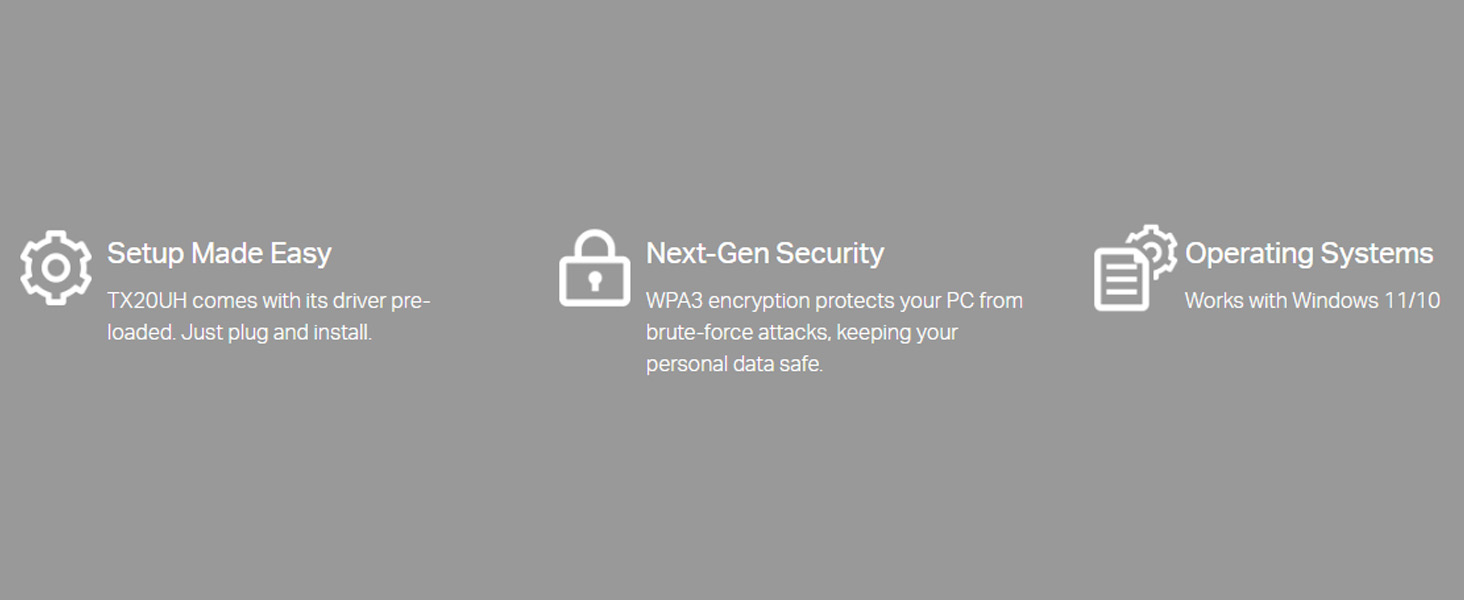
Image: A summary of the Archer TX20UH's key features, including WiFi 6 support, AX1800 speeds, range boosting capabilities, USB 3.0 connectivity, WPA3 security, Windows 10/11 compatibility, and flexible installation.
Setup Guide
1. Hardware Installation
- Connect the Adapter: Insert the Archer TX20UH USB adapter into the provided USB 3.0 cradle. Ensure it is securely seated.
- Connect to PC: Plug the USB 3.0 cable from the cradle into an available USB 3.0 port on your desktop or laptop computer. For optimal performance, always use a USB 3.0 port (typically blue inside).
- Alternatively, you can plug the Archer TX20UH adapter directly into a USB 3.0 port on your computer without using the cradle.
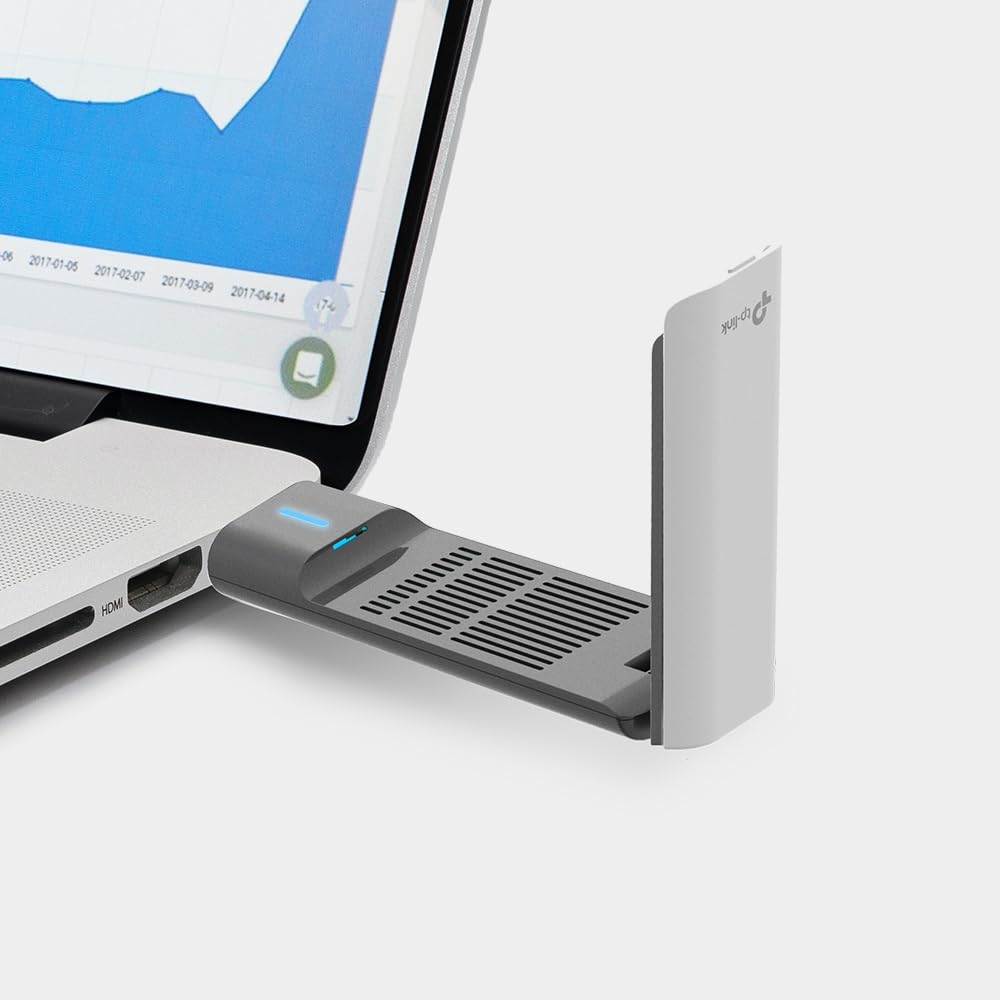
Image: The Archer TX20UH adapter plugged directly into a laptop's USB port, demonstrating a compact setup option.
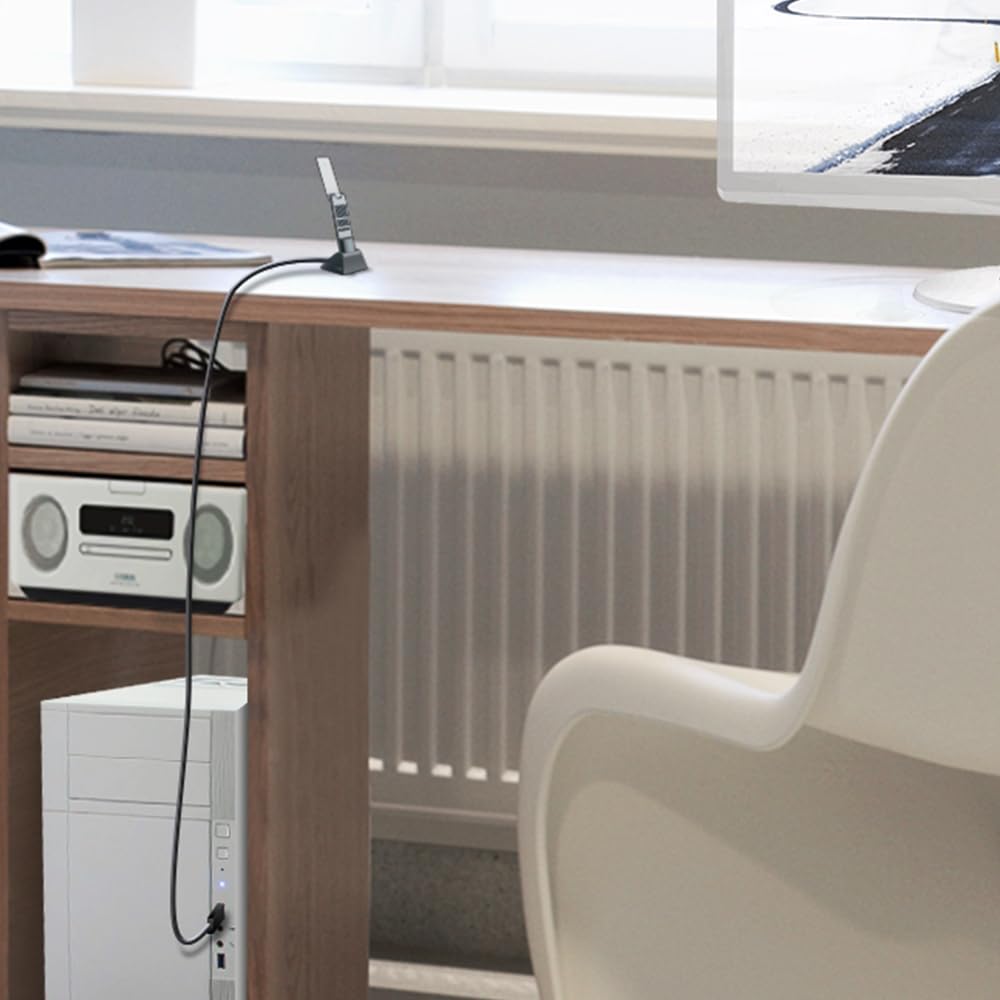
Image: The Archer TX20UH adapter in its cradle, connected to a desktop computer via the USB cable, positioned on a desk for extended range and flexibility.
2. Driver Installation
The Archer TX20UH comes with its driver pre-loaded. For Windows 10 and Windows 11, the operating system should automatically detect the device and install the necessary drivers upon first connection. If automatic installation does not occur:
- Check Device Manager: Open Device Manager (Right-click Start button > Device Manager). Look for the adapter under "Network adapters" or "Other devices."
- Install from TP-Link Website: If the driver is not installed, visit the official TP-Link support website for the Archer TX20UH model and download the latest drivers. Follow the on-screen instructions for manual installation.
Operating Instructions
Connecting to a Wi-Fi Network
- Once the adapter is installed and drivers are recognized, click the Wi-Fi icon in your computer's system tray (usually in the bottom right corner of the screen).
- A list of available Wi-Fi networks will appear. Select your desired network.
- Enter the network security key (password) if prompted, then click "Connect."
- Your computer should now be connected to the Wi-Fi network via the Archer TX20UH adapter.
Optimizing Performance
- Use USB 3.0 Port: Ensure the adapter is connected to a USB 3.0 port on your computer to achieve maximum data transfer speeds.
- Positioning: Utilize the wired cradle to position the adapter for optimal signal reception. Avoid placing it behind large metal objects or in enclosed spaces. The adapter's high-gain antennas can be adjusted for better signal direction.
- Dual Band Selection: If your router supports both 2.4 GHz and 5 GHz bands, connect to the 5 GHz band for higher speeds and less interference, especially for activities like online gaming or 4K video streaming. The 2.4 GHz band offers better range.
- Router Settings: For advanced users, configuring your router to utilize OFDMA and MU-MIMO features can further enhance network efficiency when used with the Archer TX20UH.

Image: A visual representation of the Archer TX20UH's dual-band capabilities, showing 1201 Mbps on the 5 GHz band for high-bandwidth tasks like video calls and 574 Mbps on the 2.4 GHz band for general browsing.

Image: Illustrates the 180-degree adjustable antenna of the Archer TX20UH and compares its extended coverage with a standard adapter, highlighting improved signal reach.
Maintenance
- Driver Updates: Periodically check the TP-Link support website for updated drivers. Keeping your drivers current ensures optimal performance and compatibility with the latest operating system updates.
- Cleaning: Keep the adapter and cradle free from dust and debris. Use a soft, dry cloth to gently wipe the surfaces. Avoid using liquid cleaners.
- Proper Storage: When not in use for extended periods, store the adapter in a cool, dry place away from direct sunlight and extreme temperatures.
Troubleshooting
No Wi-Fi Connection or Frequent Disconnections
- Check USB Port: Ensure the adapter is securely plugged into a functioning USB 3.0 port. Try a different USB port.
- Driver Status: Verify that the drivers are correctly installed in Device Manager. Reinstall drivers if necessary.
- Wi-Fi Security Settings: Some users have reported improved stability by setting their mobile hotspot/tethering security to WPA2 instead of WPA3, especially if experiencing delays in reconnection after sleep. Check your router's security settings.
- Interference: Move the adapter away from other electronic devices that might cause interference (e.g., microwaves, cordless phones).
- Router Distance: While the Archer TX20UH offers extended range, extreme distances or multiple obstacles can still affect signal strength. Try moving closer to the router.
Slow Speeds
- USB 3.0 Verification: Confirm you are using a USB 3.0 port. USB 2.0 ports will limit performance.
- Band Selection: Ensure you are connected to the 5 GHz band if your router supports it and you are within reasonable range, as it offers higher speeds.
- Network Congestion: High network traffic or many devices on the same network can reduce speeds.
- Router Performance: Ensure your router is capable of delivering the speeds you expect and is properly configured.
Specifications
| Feature | Detail |
|---|---|
| Brand | TP-Link |
| Model | Archer TX20UH |
| Wireless Standard | Wi-Fi 6 (802.11ax) |
| Data Transfer Rate | Up to 1800 Mbps (1201 Mbps on 5 GHz, 574 Mbps on 2.4 GHz) |
| Frequency Bands | 2.4 GHz and 5 GHz Dual Band |
| Interface | USB 3.0 |
| Antennas | High-Gain, Adjustable |
| Security | WPA3, WPA2, WPA/WPA2-Enterprise, WEP |
| Operating System | Windows 10, Windows 11 |
| Dimensions (Adapter) | 30L x 112W x 15H Millimeters (approx.) |
| Item Weight | 210 g |
| Included Components | AX1800 High Gain Wireless USB Adapter Archer TX20UH, Quick Installation Guide, USB 3.0 Cradle |
Warranty and Support
For warranty information and technical support, please contact TP-Link directly. You can find detailed support resources, including FAQs, driver downloads, and contact information, on the official TP-Link website.
Importer Contact Information:
TP-LINK India Private LimitedGreen Industrial Park, Dongri Pada, Poman, Kaman-Bhiwandi Road,
Vasai East, Palghar, Maharashtra – 401208, India
Toll Free: 1800 2094 168
Email: support.in@tp-link.com
Please retain your proof of purchase for warranty claims.
Related documentsArcher TX20UH


Ask a question about this manual
Ask about setup, troubleshooting, compatibility, parts, safety, or missing instructions. Manuals+ will review the question and use this page’s manual context to help answer it.