
1. Introduction
This manual provides essential information for setting up, operating, maintaining, and troubleshooting your Alienware 16 Aurora Gaming Laptop AC16250. Designed for optimal performance and an immersive gaming experience, this laptop features a WQXGA 120Hz display, Intel Core 7-240H Processor, 16GB DDR5 RAM, 1TB SSD, and NVIDIA GeForce RTX 5050 Graphics.
2. Setup
2.1 Unboxing Your Laptop
Carefully remove all components from the packaging. Ensure all items listed in the 'What's in the Box' section are present.

Image: Alienware 16 Aurora Laptop in its protective packaging.
2.2 Initial Power-On and Configuration
- Connect the 180-Watt adapter to the laptop's power port and then to a power outlet.
- Open the laptop lid and press the power button.
- Follow the on-screen instructions to complete the Windows 11 Home setup, including language, region, network connection, and user account creation.
2.3 Connecting Peripherals
Utilize the various ports available on your Alienware 16 Aurora for connecting external devices such as mice, keyboards, external displays, and storage devices.

Image: Side view of the Alienware 16 Aurora Laptop highlighting its various connectivity ports.
2.4 Unboxing and Setup Video
Video: An overview of the Alienware Aurora 16 Gaming Laptop, showcasing its design and features.
3. Operating Your Laptop
3.1 Display and Graphics
Experience games and media on the 16-inch WQXGA 120Hz display with 300 nits brightness. The NVIDIA GeForce RTX 5050 Laptop GPU, powered by NVIDIA Blackwell and AI, delivers exceptional visual performance.

Image: The Alienware 16 Aurora Laptop's WQXGA display showcasing a high-resolution game.
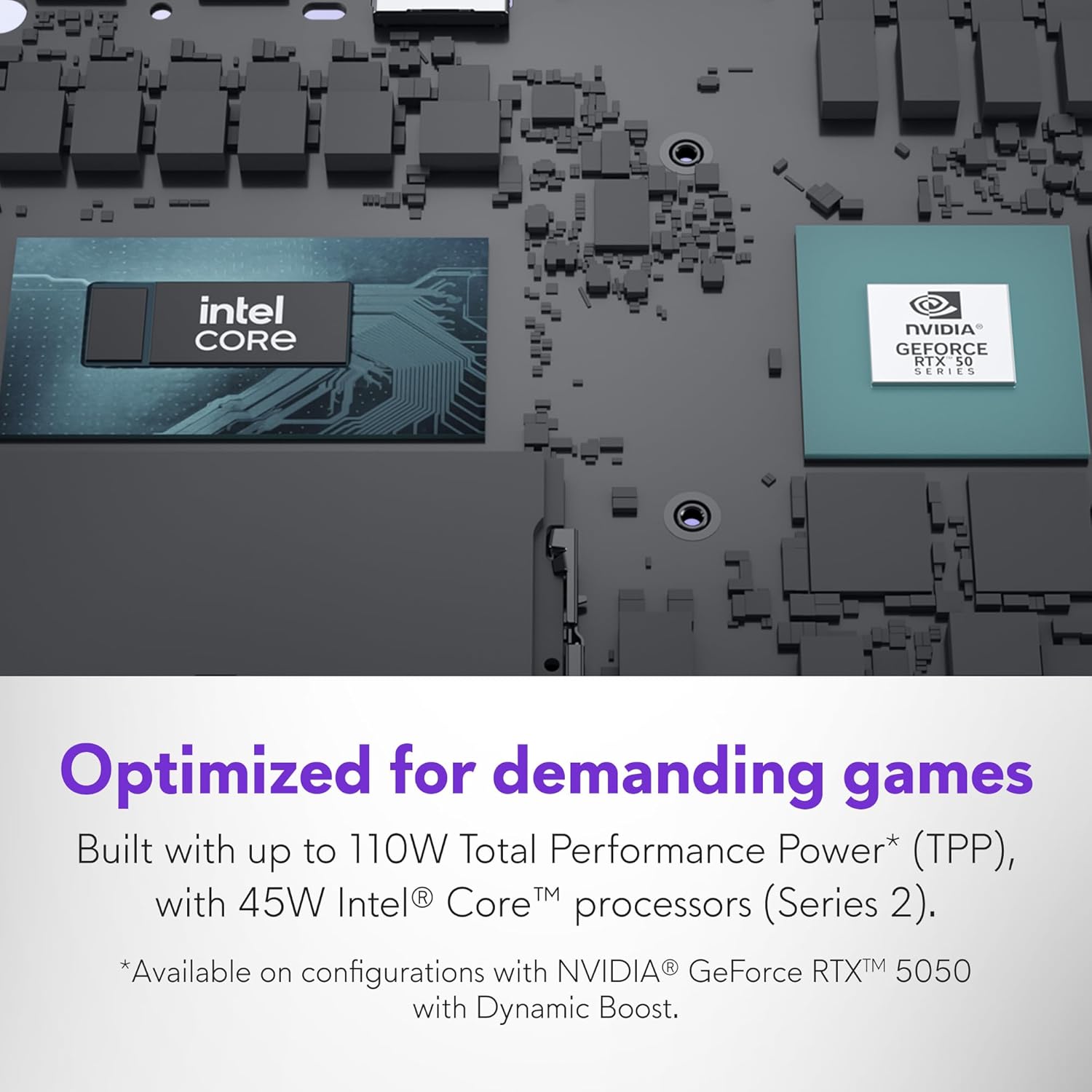
Image: Detailed view of the NVIDIA GeForce RTX 5050 and Intel Core processor chips on the laptop's motherboard.
3.2 Performance and Cooling
The Intel Core 7-240H processor and innovative Cryo-Chamber cooling system ensure sustained high performance during demanding tasks and gaming sessions.

Image: The Alienware 16 Aurora Laptop's cooling system with air flowing through the vents.
3.3 Keyboard and Touchpad
The laptop features a white-backlit keyboard with a dedicated AI key and full Numpad for comfortable and efficient input. The precision touchpad offers smooth navigation.

Image: A close-up of the Alienware 16 Aurora's white-backlit keyboard and touchpad.
3.4 Alienware Command Center and Stealth Mode
Manage performance presets, lighting, and more through the Alienware Command Center. Activate Stealth Mode for a discreet, low-noise experience in quieter settings.

Image: Screenshot of the Alienware Command Center interface, showing system monitoring and customization options.

Image: The Alienware 16 Aurora Laptop with an illustration of Stealth Mode, indicating quiet operation.
3.5 Processor Overview Video
Video: A brief overview of Intel Core Ultra Processors, highlighting their capabilities.
4. Maintenance
To ensure the longevity and optimal performance of your Alienware 16 Aurora, regular maintenance is recommended:
- Keep it Clean: Regularly clean the screen with a microfiber cloth and the keyboard with compressed air to remove dust and debris.
- Software Updates: Keep your operating system, drivers, and Alienware Command Center software updated to the latest versions.
- Battery Care: Avoid completely draining the battery frequently. For prolonged storage, charge the battery to about 50-60%.
- Ventilation: Ensure the laptop's vents are unobstructed to allow for proper airflow and cooling.
5. Troubleshooting
If you encounter issues with your Alienware 16 Aurora, consider the following basic troubleshooting steps:
- No Power: Ensure the power adapter is securely connected to both the laptop and the power outlet. Try a different outlet.
- Display Issues: If the screen is black, try connecting an external monitor to check if the issue is with the laptop's display. Restart the laptop.
- Performance Lag: Close unnecessary applications, check for background processes, and ensure drivers are up to date. Monitor temperatures using Alienware Command Center.
- Connectivity Problems: For Wi-Fi issues, restart your router and the laptop. For wired connections, check the Ethernet cable.
- Software Glitches: Restart the application or the entire system. If persistent, consider reinstalling the problematic software.
6. Specifications
Below are the detailed technical specifications for the Alienware 16 Aurora Gaming Laptop AC16250:

Image: A visual summary of the Alienware 16 Aurora Laptop's core specifications.
| Feature | Detail |
|---|---|
| Standing screen display size | 16 Inches |
| Screen Resolution | 2560 x 1600 pixels (WQXGA) |
| Max Screen Resolution | 2560x1600 Pixels |
| Processor | 1.8 GHz Intel Core 7-240H (10 cores, up to 5.2 GHz P-Core Turbo) |
| RAM | 16 GB DDR5 |
| Memory Speed | 5600 MHz |
| Hard Drive | 1 TB SSD |
| Graphics Coprocessor | NVIDIA GeForce RTX 5050 |
| Graphics Card Ram Size | 8 GB |
| Wireless Type | 802.11.be, Bluetooth |
| Number of USB 3.0 Ports | 4 |
| Operating System | Windows 11 Home |
| Item Weight | 5.49 pounds |
| Product Dimensions | 10.45 x 14.06 x 0.73 inches |
| Color | Blue |
7. Warranty and Support
Your Alienware 16 Aurora Gaming Laptop AC16250 comes with comprehensive support options:
7.1 1-Year Onsite Service
Enjoy 1 Year Onsite Service after remote diagnosis. Dell will provide support at your home, office, or location of choice if an issue covered by the Limited Hardware Warranty cannot be resolved remotely. The tech and/or replacement part will be dispatched, usually within 1 to 2 business days, following the completion of remote diagnosis. Other conditions apply. For complete details, refer to Dell's service contracts.

Image: Details about Dell's onsite support services, including hardware support and PC repairs.
7.2 Additional Support
For further assistance, please visit the official Dell Support website or consult the documentation included with your laptop.


