1. Introduction
The E-YOOSO K-662 is a full-size 104-key wired mechanical gaming keyboard designed for PC users. It features OUTEMU Blue switches, customizable rainbow backlighting, RGB sidelights, and an integrated wrist rest for enhanced comfort and performance. This manual provides essential information for setting up, operating, and maintaining your keyboard.
Package Contents:
- E-YOOSO K-662 Mechanical Keyboard
- Integrated Wrist Rest
2. Key Features
- Full Keys Anti-ghosting & 12 Multimedia Keys: Ensures all key presses are registered accurately, even during rapid, simultaneous inputs. Dedicated multimedia functions enhance control.
- OUTEMU Clicky Blue Switch: Guarantees 50 million keypresses with a 2.8 mm keystroke distance and 65g actuation force, providing a quick, springy response and a distinct click sound.
- Double Injection Keycaps & Wide Palm Rest: Durable double injection-molded keycaps offer clear, uniform backlighting. The wide palm rest provides ergonomic support for comfortable use.
- Rainbow Backlit & RGB Sidelight: Features 10 adjustable rainbow backlight modes and 5 RGB sidelight modes, with customizable brightness and speed settings.
- Wide Compatibility: Compatible with Windows 2000/XP/Vista/7/8/10/11 and Mac OS (note: some multimedia functions may not be available on Mac OS). Works with Desktops, Chromebooks, PCs, Laptops, and more.
3. Setup
To set up your E-YOOSO K-662 keyboard:
- Unpack the keyboard from its packaging.
- Connect the keyboard's USB cable to an available USB port on your computer.
- The keyboard is plug-and-play and does not require additional drivers for basic functionality. Your operating system should automatically detect and install the necessary drivers.
4. Operating Instructions
4.1 Multimedia Functions
Access multimedia controls by holding the Fn key and pressing the corresponding F1-F12 function keys:
- Fn + F1-F12: Various multimedia shortcuts (e.g., media player, volume control, web browser).

Image: E-YOOSO K-662 keyboard layout highlighting multimedia functions (Fn + F1-F12).
4.2 Backlight Modes and Customization
The keyboard features various backlight effects and customization options:
- Fn + Ins: Cycle through 10 different rainbow backlight operation modes.
- Fn + 9 / Fn + 0: Activate custom backlight modes.
- Fn + Up Arrow / Fn + Down Arrow: Adjust backlight brightness.
- Fn + Left Arrow / Fn + Right Arrow: Adjust backlight speed.

Image: Instructions for customizing backlight modes and Win Lock function.
4.3 RGB Sidelight
The keyboard includes RGB sidelights with multiple effects:
- Fn + Pause: Cycle through 5 RGB sidelight modes.
- Fn + Minus (-) / Fn + Plus (=): Adjust sidelight color and speed.

Image: E-YOOSO K-662 keyboard with active RGB streamer sidelights.
4.4 Win Key Lock
To prevent accidental interruptions during gaming or other activities:
- Fn + Win: Lock the Windows key. Press again to unlock.
4.5 Anti-Ghosting
The E-YOOSO K-662 features 104-key anti-ghosting. This ensures that every key press is registered accurately, even when multiple keys are pressed simultaneously, which is crucial for fast-paced gaming.
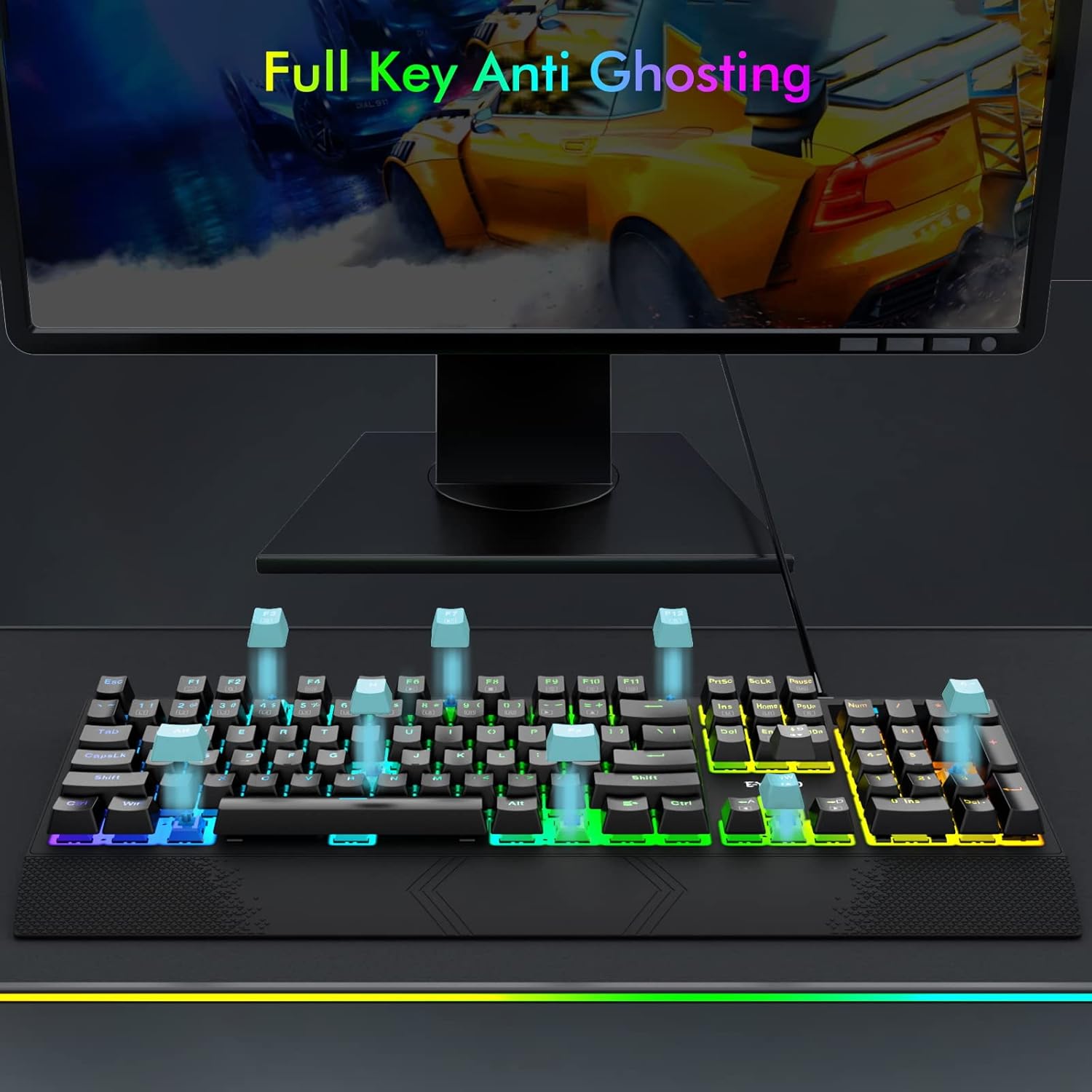
Image: Visual representation of full key anti-ghosting on the E-YOOSO K-662 keyboard.
5. Maintenance
Proper maintenance helps prolong the life and performance of your keyboard:
- Cleaning: Disconnect the keyboard from your computer before cleaning. Use a soft, dry cloth to wipe the surface. For removing debris between keycaps, use compressed air. Avoid using harsh chemicals, solvents, or abrasive materials.
- Storage: Store the keyboard in a cool, dry place away from direct sunlight and extreme temperatures.
- Handling: Avoid dropping the keyboard or exposing it to liquids. Do not attempt to disassemble the keyboard, as this may void the warranty.

Image: Double-shot ABS keycaps, designed for durability and clear backlighting.
6. Troubleshooting
If you encounter issues with your E-YOOSO K-662 keyboard, refer to the following troubleshooting steps:
- Keyboard not responding:
- Ensure the USB cable is securely connected to both the keyboard and your computer.
- Try connecting the keyboard to a different USB port on your computer.
- Restart your computer.
- Backlight not working or incorrect:
- Check backlight mode settings using Fn + Ins to cycle through modes.
- Adjust brightness with Fn + Up Arrow / Fn + Down Arrow.
- If specific keys are not lighting up, ensure custom modes are not active unintentionally.
- Multimedia keys not working on Mac OS:
- Some multimedia functions may have limited or no compatibility with Mac OS due to operating system differences.
- Keys failing to register intermittently:
- Ensure the keyboard is clean and free of debris that might obstruct key switches.
- If the issue persists after cleaning, contact customer support for further assistance.
7. Specifications
| Feature | Specification |
|---|---|
| Model Number | K-662 |
| Manufacturer | E-YOOSO |
| Connectivity Technology | USB (Wired) |
| Keyboard Description | Gaming, Mechanical |
| Switch Type | OUTEMU Blue Switches |
| Key Count | 104 Keys (Full Size) |
| Backlighting | Rainbow Backlit, RGB Sidelight |
| Special Features | Backlit, Ergonomic, Wrist Rest, Anti-ghosting |
| Compatible Devices | Gaming Console, PC, Laptop, Chromebook |
| Operating System Compatibility | Windows 2000/XP/Vista/7/8/10/11, Mac OS |
| Material | Plastic |
| Item Weight | 2.84 pounds (approx. 1.29 kg) |
| Package Dimensions | 17.75 x 8 x 1.75 inches (approx. 45.09 x 20.32 x 4.45 cm) |

Image: Detailed view of an OUTEMU Blue mechanical switch.
8. Warranty and Support
The E-YOOSO K-662 Mechanical Keyboard typically comes with a 1-year limited warranty from the date of purchase. This warranty covers manufacturing defects under normal use.
For warranty claims, technical support, or any product-related inquiries, please refer to the contact information provided with your product packaging or visit the official E-YOOSO website for the most up-to-date support resources.


