
MageGee STAR98
MageGee STAR98 Mechanical Gaming Keyboard and Mouse User Manual
Model: STAR98
Introduction
This manual provides comprehensive instructions for the setup, operation, and maintenance of your MageGee STAR98 Mechanical Gaming Keyboard and Mouse. Please read this manual thoroughly before using the product to ensure optimal performance and longevity.
Product Overview
The MageGee STAR98 Mechanical Gaming Keyboard and Mouse combo is designed for an enhanced gaming and computing experience, featuring responsive mechanical switches, customizable backlighting, and an ergonomic design.
Keyboard Features
- 94% Layout with Number Pad: This keyboard features 98 keys, providing a compact design while retaining essential keys like arrow keys, number keys, and multimedia keys. It offers more desk space compared to a standard full-size keyboard.
- Adjustable Tilt Angles: Two-step rear feet allow for setting the keyboard at 3 different tilt angles for ergonomic comfort.
- 2-in-1 Multifunctional Knob: Located in the upper right corner, this knob controls both audio volume and backlight settings.
- Linear Red Switches: Equipped with responsive red mechanical switches, offering a smooth and less audible keystroke, ideal for gaming and typing. These switches have an expected lifespan of 50 million actuations.
- 100% Anti-Ghosting: Ensures every keystroke is detected correctly, even when multiple keys are pressed simultaneously.
- Gorgeous Rainbow Backlighting: Features 8 light modes (static & dynamic), 5 brightness levels, and 4 speed levels for customizable illumination.
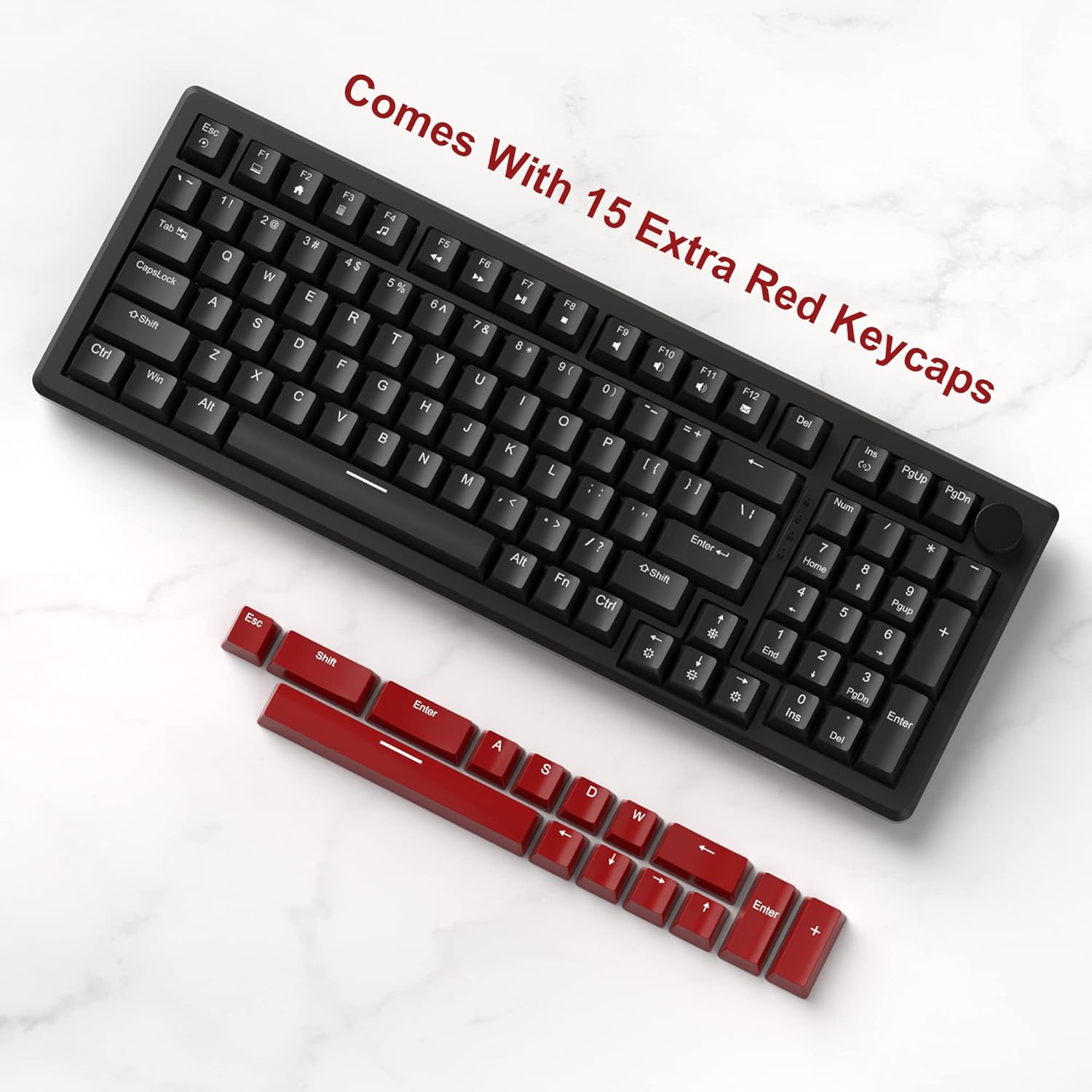
- Extra Keycaps: Includes an additional 15 red/yellow keycaps for DIY customization.
Mouse Features
- Ergonomic Gaming Mouse: Designed for comfort and control, fitting perfectly in the palm with an anti-slip design.
- 7 Buttons: Provides versatile control for various applications and games.
- 6 Speed Levels (DPI): Adjustable DPI settings (600/800/1200/1600/2400/3200) allow for easy customization of mouse speed to suit different scenarios.
- 7-Color Breathing LED Lights: The mouse features breathing LED lights in white, yellow, blue, purple, green, red, and cyan, enhancing the gaming atmosphere.
- Accurate Positioning and Stable Transmission: Ensures smooth and precise gameplay.
Setup
Follow these steps to set up your MageGee STAR98 Mechanical Gaming Keyboard and Mouse:
- Unpack the Product: Carefully remove the keyboard and mouse from their packaging. Ensure all components, including the additional keycaps and USB cable, are present.
- Connect the Keyboard: Locate the USB cable attached to the keyboard. Plug the USB-A connector into an available USB port on your computer (desktop PC or laptop). The keyboard is plug-and-play and does not require additional drivers for basic functionality.
- Connect the Mouse: Locate the USB cable attached to the mouse. Plug the USB-A connector into another available USB port on your computer. The mouse is also plug-and-play.
- Adjust Keyboard Tilt: Flip the keyboard over and extend the two-step adjustable feet to your preferred typing angle. There are three possible angles.
- Initial Power-On: Once connected, the keyboard and mouse backlighting should illuminate, indicating they are powered on and ready for use.


Operating Instructions
Keyboard Operation
- Multimedia Keys: The function keys (F1-F12) often have secondary multimedia functions. These are typically accessed by pressing the Fn key simultaneously with the desired function key. For example, Fn + F1 for Media Player, Fn + F2 for Volume Down, etc.
- Multifunctional Knob:
- Volume Control (Default): Turn the knob left to decrease volume, right to increase volume. Short press the knob to pause or play media.
- Backlight Mode: Long press the knob to switch to backlight control mode. The 'M' indicator light will illuminate. In this mode:
- Turn the knob left or right to adjust backlight brightness.
- Short press the knob to cycle through different backlight effects/modes.
- Backlight Control (Fn Combinations):
- Switch Light Modes: Press Fn + Ins to cycle through 8 different light modes (static & dynamic).
- Turn On/Off Light: Press Fn + Del to toggle the backlight on or off.
- Adjust Light Speed: Press Fn + Left Arrow to decrease light speed, Fn + Right Arrow to increase light speed (for dynamic modes).
- Adjust Light Brightness: Press Fn + Up Arrow to increase brightness, Fn + Down Arrow to decrease brightness.
- Keycap Customization: Use the provided keycap puller (if included) to carefully remove existing keycaps and replace them with the additional red/yellow keycaps for a personalized look.


Mouse Operation
- DPI Adjustment: The mouse features a dedicated DPI button (usually located behind the scroll wheel). Press this button to cycle through the 6 available speed levels (600/800/1200/1600/2400/3200 DPI). The LED lighting may change color to indicate the current DPI setting.
- 7-Color Breathing LED: The mouse's LED lights automatically cycle through 7 colors, creating a breathing effect. There is no manual control for specific colors or modes for the mouse lighting.
- Ergonomic Design: Position your hand comfortably over the mouse, utilizing its ergonomic shape and anti-slip surface for extended use.

Maintenance
Proper maintenance ensures the longevity and optimal performance of your keyboard and mouse:
- Cleaning:
- Disconnect the devices from your computer before cleaning.
- Use a soft, lint-free cloth slightly dampened with water or a mild cleaning solution to wipe down the surfaces.
- For the keyboard, use compressed air to remove dust and debris from between the keycaps.
- For deeper cleaning, keycaps can be carefully removed using a keycap puller and cleaned separately. Ensure they are completely dry before reattaching.
- Avoid using harsh chemicals, abrasive cleaners, or solvents.
- Storage: Store the keyboard and mouse in a cool, dry place away from direct sunlight and extreme temperatures when not in use for extended periods.
- Handling: Avoid dropping the devices or exposing them to excessive force, which can damage internal components or switches.
Troubleshooting
If you encounter issues with your MageGee STAR98 Mechanical Gaming Keyboard and Mouse, refer to the following common solutions:
| Problem | Possible Cause | Solution |
|---|---|---|
| Keyboard/Mouse not responding | Loose USB connection, faulty USB port, driver issue. |
|
| Backlight not working or flickering | Backlight turned off, brightness too low, software conflict. |
|
| Mouse cursor erratic or unresponsive | Dirty sensor, incorrect DPI setting, surface issue. |
|
| Keys not registering or double-typing | Debris under keycap, faulty switch. |
|
Specifications
- Brand: MageGee
- Model: STAR98
- Keyboard Layout: 94% (98 keys)
- Switch Type: Linear Red Switches
- Backlight: Rainbow LED (8 modes, 5 brightness, 4 speed)
- Connectivity: Wired USB
- Keyboard Dimensions: Approximately 15.1 x 5.4 x 1.6 inches
- Mouse Buttons: 7
- Mouse DPI Levels: 6 (600/800/1200/1600/2400/3200)
- Mouse Lighting: 7-Color Breathing LED
- Mouse Dimensions: Approximately 5.1 x 2.8 x 1.6 inches
- Item Weight: 2.44 pounds (Keyboard and Mouse combined)
- Compatible Devices: Laptop, Personal Computer
- Operating System Compatibility: Windows


Warranty and Support
MageGee products are manufactured to high-quality standards. For warranty information, technical support, or service inquiries, please refer to the contact information provided with your product packaging or visit the official MageGee website. Please retain your proof of purchase for any warranty claims.
Ask a question about this manual
Ask about setup, troubleshooting, compatibility, parts, safety, or missing instructions. Manuals+ will review the question and use this page’s manual context to help answer it.