
RUPA 9b62a641-bc61-465b-9d1d-af65cf124577
RUPA Android TV Box 11.0 User Manual
Model: 9b62a641-bc61-465b-9d1d-af65cf124577
Brand: RUPA
1. Introduction
Thank you for choosing the RUPA Android TV Box 11.0. This device is designed to transform your television into a smart entertainment hub, offering access to a vast array of streaming content, applications, and multimedia experiences. With its powerful hardware, including 8GB RAM and 128GB ROM, and support for advanced video technologies like 8K Ultra HD and HDR, this TV box delivers exceptional performance and visual quality. Please read this manual carefully to ensure proper setup, operation, and maintenance of your device.
2. Safety Information
To ensure safe and optimal operation of your RUPA Android TV Box, please observe the following safety precautions:
- Do not expose the device to water, moisture, or extreme temperatures.
- Avoid placing the device near heat sources such as radiators, heat registers, stoves, or other apparatus (including amplifiers) that produce heat.
- Use only the power adapter supplied with the device. Using unauthorized power adapters may damage the device and void the warranty.
- Do not open the device casing. Servicing should only be performed by qualified personnel.
- Ensure proper ventilation around the device to prevent overheating. Do not block ventilation openings.
- Keep the device away from strong magnetic fields.
- Disconnect the power adapter during lightning storms or when unused for long periods.
3. Package Contents
Please check the box for the following items:
- RUPA Android TV Box 11.0
- IR Remote Control
- HDMI Cable
- Power Adapter
- User Manual (this document)
4. Product Overview
The RUPA Android TV Box is a compact and powerful device designed for home entertainment. It features multiple ports for connectivity and a user-friendly interface.

Image: RUPA Android TV Box and its accompanying remote control. The box is black with a circular design on top, displaying "RUPA Ultra HD 8K". The remote is sleek, black, with various navigation and function buttons.

Image: Top-down view of the RUPA Smart TV Box with various ports labeled. These include DC (power), SPDIF (digital audio), HD (HDMI), LAN (Ethernet), AV (audio/video), USB 2.0, USB 3.0, and TF (MicroSD card slot).
4.1. Ports and Connections
- DC Port: For connecting the power adapter.
- SPDIF: Digital audio output for connecting to audio receivers.
- HDMI 2.1: High-definition video and audio output for connecting to your TV or monitor.
- LAN (Ethernet): Gigabit Ethernet port for wired network connection.
- AV: Analog audio/video output for older televisions.
- USB 2.0 Ports: For connecting peripherals like keyboards, mice, or USB storage devices.
- USB 3.0 Port: High-speed USB port for faster data transfer with compatible devices.
- TF Card Slot: For expanding storage with a MicroSD card (up to 1TB).

Image: Diagram illustrating the speed difference between USB 2.0 (480Mbps) and USB 3.0 (5Gbps), highlighting the faster data transfer capabilities of the USB 3.0 port on the device.
5. Setup Guide
Follow these steps to set up your RUPA Android TV Box:
- Connect to TV: Connect one end of the HDMI cable to the HDMI port on the TV Box and the other end to an available HDMI input on your television. Note the HDMI input number (e.g., HDMI 1, HDMI 2).
- Connect to Power: Plug the power adapter into the DC port on the TV Box, then plug the other end into a wall outlet.
- Power On: The device should automatically power on. If not, press the power button on the remote control.
- Select Input: On your TV, use the remote control to select the corresponding HDMI input you connected the TV Box to.
- Initial Setup Wizard: Follow the on-screen instructions to complete the initial setup, which typically includes:
- Language selection.
- Network connection (Wi-Fi or Ethernet). For Wi-Fi, select your network and enter the password. For Ethernet, simply connect a LAN cable to the LAN port.
- Google account sign-in (optional, but recommended for app downloads).
- Date and time settings.
6. Operating Instructions
6.1. Navigation and User Interface
The RUPA Android TV Box runs on Android 11.0 OS, providing a user-friendly interface. Use the included IR remote control to navigate through menus and select applications.

Image: Screenshot of the Android 11.0 OS interface on a TV screen, showing various app icons like YouTube, Twitter, Skype, and a settings icon, indicating a modern and intuitive user experience.
6.2. App Installation
Access thousands of applications through the pre-installed App Store (Google Play Store if signed in with a Google account). Navigate to the App Store, search for your desired application, and select "Install".

Image: A RUPA Android TV Box connected to a television displaying the Android 11.0 OS home screen with various streaming service logos such as Netflix, Google Play, YouTube, Prime Video, Facebook, Twitter, and Skype, demonstrating its entertainment capabilities.
6.3. Media Playback and Video Quality
The TV Box supports 8K@60fps, 6K, 4K, 3D, and HDR10+ video playback, ensuring a high-quality viewing experience. It is compatible with VP9 and AV1 codecs for next-generation streaming platforms.
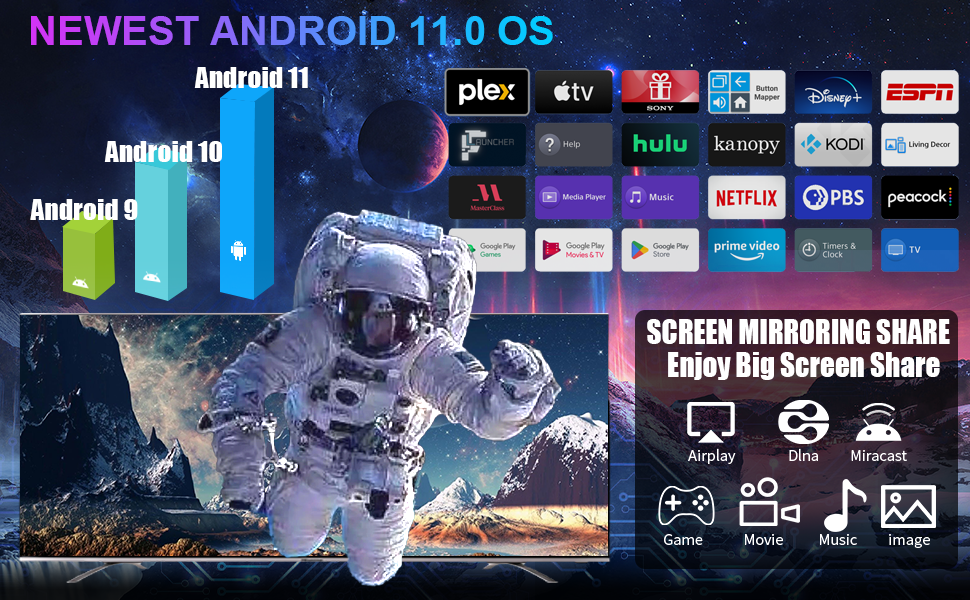
Image: A visual comparison demonstrating the benefits of H.265 decoding and HDR. The left image shows "H.265 Decoding+HDR" with smooth play, while the right image shows "Ordinary Decoding+No HDR" which is prone to freezing, highlighting improved performance and visual quality.

Image: Two sets of comparisons. The top compares H.264 (slow loading/stuttering) with H.265 (loads fast/clear), indicating H.265 saves 50% bandwidth. The bottom compares "NO HDR" (dull color) with "HDR" (brighter and more colorful), showing enhanced visual detail and realism.

Image: A split image demonstrating the difference between 4K (3840*2160) and 8K (7680*4320) resolutions, with a scenic waterfall. Below, icons indicate support for Android 11.0, 8K, and HDR, emphasizing the device's advanced video capabilities.
6.4. Connectivity
The device offers robust connectivity options for a stable and fast experience.
- Wi-Fi: Supports Dual-band Wi-Fi 2.4G/5.8G for flexible wireless connections.
- Ethernet: 1000M LAN (Gigabit Ethernet) for ultra-stable wired internet.
- Bluetooth 5.0: For seamless pairing with external devices like speakers, headphones, game controllers, and keyboards.

Image: A graphic highlighting the stable network connection features of the RUPA TV Box, including LAN1000M (Gigabit Ethernet) and 2.4G/5G dual-band Wi-Fi. Icons below show compatibility with Bluetooth, headsets, speakers, mice, gamepads, keyboards, and remote controls.
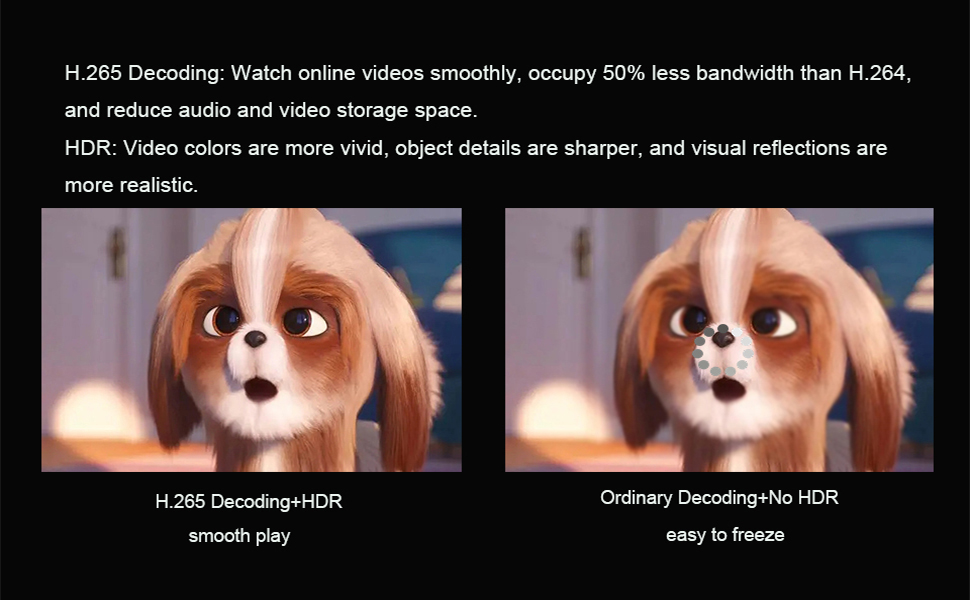
Image: A diagram illustrating the universal compatibility of the RUPA TV Box, showing connections to a USB drive, headphones, gamepad, smartphone, and laptop, emphasizing its versatility for various peripherals and devices.
6.5. Screen Mirroring
The RUPA TV Box supports screen mirroring technologies like Airplay, DLNA, and Miracast, allowing you to cast content from your smartphone or tablet to your TV.
Video: A short demonstration of the RUPA Android TV Box's video playback capabilities, showcasing a scene from a movie on a television screen. This video highlights the visual quality and smooth performance of the device.
7. Maintenance
To ensure the longevity and optimal performance of your RUPA Android TV Box, follow these maintenance tips:
- Cleaning: Use a soft, dry cloth to clean the device. Do not use liquid cleaners or aerosol sprays.
- Ventilation: Ensure the ventilation holes are not blocked. Do not place the device on soft surfaces like carpets or beds that may obstruct airflow.
- Software Updates: Periodically check for system updates in the settings menu to ensure you have the latest features and security patches.
- Storage Management: Regularly clear cache and unnecessary files to free up storage space and maintain performance.
- Power Cycle: If the device becomes unresponsive, disconnect the power adapter for a few seconds and then reconnect it to perform a power cycle.
8. Troubleshooting
If you encounter issues with your RUPA Android TV Box, refer to the following common problems and solutions:
| Problem | Possible Cause | Solution |
|---|---|---|
| No Power | Power adapter not connected; Power outlet faulty. | Ensure power adapter is securely connected to the device and a working power outlet. Try a different outlet. |
| No Picture on TV | Incorrect HDMI input selected; HDMI cable loose or faulty. | Verify the TV is on the correct HDMI input. Check HDMI cable connections; try a different HDMI cable or port. |
| No Internet Connection | Wi-Fi password incorrect; Ethernet cable loose; Router issue. | For Wi-Fi, re-enter password. For Ethernet, ensure cable is connected. Restart your router and the TV Box. |
| Remote Control Not Working | Batteries low or inserted incorrectly; Obstruction between remote and device. | Replace batteries. Ensure line of sight to the TV Box's IR receiver. |
| Apps Crashing or Slow Performance | Too many apps running; Low storage; Outdated software. | Close background apps. Clear app caches. Check for system updates. Consider a factory reset if issues persist (backup data first). |
9. Specifications
| Feature | Detail |
|---|---|
| Model | 9b62a641-bc61-465b-9d1d-af65cf124577 |
| Operating System | Android 11.0 |
| Processor | Quad-core Cortex-A55 CPU (RK3566 chipset) |
| GPU | Mali-G52 |
| RAM | 8GB |
| ROM | 128GB (expandable up to 1TB via TF card) |
| Video Output | HDMI 2.1 (supports 8K@60fps, 6K, 4K, 3D, HDR10+) |
| Connectivity | Dual-band Wi-Fi (2.4G/5.8G), Gigabit Ethernet (1000M LAN), Bluetooth 5.0 |
| Ports | DC, SPDIF, HDMI, LAN, AV, USB 2.0 (x2), USB 3.0 (x1), TF Card Slot |
| Dimensions | 7 x 3 x 2 inches |
| Weight | 11.7 ounces |
10. Warranty and Support
RUPA products are designed for reliability and performance. For warranty information and technical support, please refer to the warranty card included in your package or visit the official RUPA website. You may also contact the seller directly for assistance.
For common inquiries, please visit the RUPA Store on Amazon.
Ask a question about this manual
Ask about setup, troubleshooting, compatibility, parts, safety, or missing instructions. Manuals+ will review the question and use this page’s manual context to help answer it.