
Introduction
This manual provides detailed instructions for the setup, operation, and maintenance of your MINISFORUM HX99G Mini PC. Please read this guide thoroughly before using the device to ensure proper functionality and longevity.

Image: The MINISFORUM HX99G Mini PC, a compact desktop computer.
Product Overview
The MINISFORUM HX99G is a high-performance mini PC featuring an AMD Ryzen 9 6900HX processor and AMD Radeon RX 6600M discrete graphics. It is designed for demanding tasks such as gaming, video editing, and multitasking, offering robust connectivity and expandability in a small form factor.
Video: An overview of the MINISFORUM HX99G Mini PC's physical appearance and design.
1. Setup
1.1 Package Contents
Verify that all items listed below are included in your package:
- 1x HX99G Mini PC
- 1x HDMI Cable
- 1x US Power Adapter
- 1x Base Support
- 1x Manual (this document)
- Screws for installation
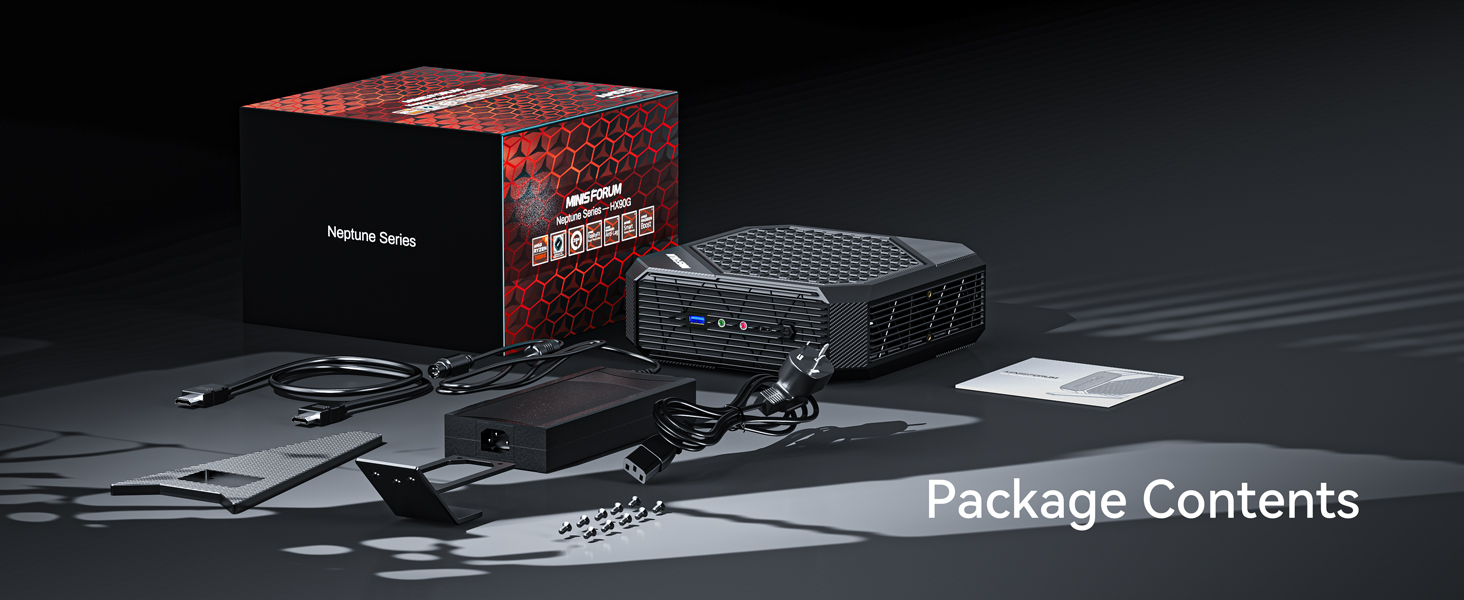
Image: All components included in the MINISFORUM HX99G Mini PC package.
Video: An unboxing demonstration of the HX99G Mini PC and its accessories.
1.2 Connecting Peripherals
Connect your monitor(s), keyboard, and mouse to the appropriate ports on the Mini PC. The HX99G supports up to four independent displays via two HDMI ports (4K@60Hz) and two USB4 ports (8K@60Hz).

Image: Diagram illustrating the various ports on the MINISFORUM HX99G Mini PC.
1.3 Power Connection
Connect the US Power Adapter to the Mini PC's power input and then plug it into a wall outlet.
1.4 Installing the Base
The Mini PC includes a base support for vertical orientation. Attach the base using the provided screws.
Video: Instructions on how to install the base support for the HX99G Mini PC.
1.5 Storage Installation (Optional)
The HX99G allows for storage expansion. You can install additional M.2 2280 SSDs (PCIe4.0 or SATA/NVMe) in the available slots. Refer to the video for detailed installation steps.

Image: Diagram showing the internal layout for storage expansion in the HX99G Mini PC.
Video: A guide on how to install additional storage (SSD) in the HX99G Mini PC.
2. Operating Instructions
2.1 Powering On/Off
Press the power button located on the front of the Mini PC to turn it on. To shut down, use the operating system's shutdown procedure.
2.2 Display Configuration
The HX99G supports up to four displays. Connect your monitors to the HDMI and USB4 ports. Configure display settings through your operating system.

Image: Illustration of the HX99G Mini PC connected to four displays for extended workspace.
2.3 Network Connectivity
Connect to a wired network using the 2.5Gbps LAN port or connect to a wireless network via the integrated Wi-Fi (802.11ax).
3. Maintenance
3.1 Cooling System
The HX99G features an efficient cooling system with dual fans and 7 heat pipes. Ensure that the ventilation openings are not obstructed to maintain optimal performance and prevent overheating.

Image: Diagram showcasing the efficient heat dissipation system of the HX99G Mini PC.
3.2 Storage Expansion
For future storage needs, the device supports additional M.2 2280 SSDs. Consult the 'Storage Installation' section for guidance.
3.3 Cleaning
Regularly clean the exterior of the Mini PC with a soft, dry cloth. Avoid using liquid cleaners directly on the device. Periodically check and clean the ventilation grilles to prevent dust buildup.
4. Troubleshooting
If you encounter issues with your MINISFORUM HX99G Mini PC, refer to the following common solutions:
- No Display Output: Ensure all display cables are securely connected to both the Mini PC and the monitor. Verify the monitor is set to the correct input source.
- System Restarts Unexpectedly: Check for proper ventilation and ensure the Mini PC is not overheating. Update drivers and the operating system to the latest versions.
- Audio/Microphone Not Working: Confirm that audio devices are correctly plugged into the headphone or microphone jacks. Check audio settings within your operating system. Ensure all audio drivers are up to date.
- Network Connectivity Issues: For wired connections, verify the Ethernet cable is properly connected. For Wi-Fi, check network settings and ensure the Wi-Fi adapter is enabled.
- General Performance Issues: Ensure all drivers are updated. The MINISFORUM website may provide specific driver updates.
5. Specifications
Key technical specifications for the MINISFORUM HX99G Mini PC:
| Feature | Detail |
|---|---|
| Brand | MINISFORUM |
| Operating System | OS (User-installed) |
| CPU Model | AMD Ryzen 9 6900HX |
| CPU Speed | 3.3 GHz (up to 4.9 GHz boost) |
| Graphics Card | AMD Radeon RX 6600M (GDDR6 8GB) |
| Memory (RAM) | 64 GB DDR5-4800 (2x SODIMM slots, max 64GB) |
| Storage | 1TB PCIe4.0 SSD (1x M.2 2280 slot, supports SATA/NVMe SSD, up to 2TB) |
| Video Output | 2x HDMI (4K@60Hz), 2x USB4 (8K@60Hz) - Quad Display Support |
| Network | 2.5Gbps LAN, Wi-Fi (802.11ax), Bluetooth |
| Ports | USB3.2 Gen1 Type-A, USB3.2 Gen2 Type-A, USB3.2 Gen1 Type-C, Headphone Jack, Microphone Jack |
| Cooling Method | Dual Fan with 7 Heat Pipes |
| Dimensions | Approx. 8.07 x 7.99 x 2.73 inches |
6. Warranty and Support
MINISFORUM provides a standard warranty for the HX99G Mini PC. For specific warranty terms and conditions, please refer to the documentation included with your purchase or visit the official MINISFORUM website. For technical support, driver updates, or service inquiries, please contact MINISFORUM customer support through their official channels.


