
1. Introduction
This manual provides comprehensive instructions for the ALLIMITY Replacement Remote Control. This remote is designed to function as a direct replacement for your original remote, covering all essential functions for compatible Sharp and Technika television models. No complex programming is required for initial setup.
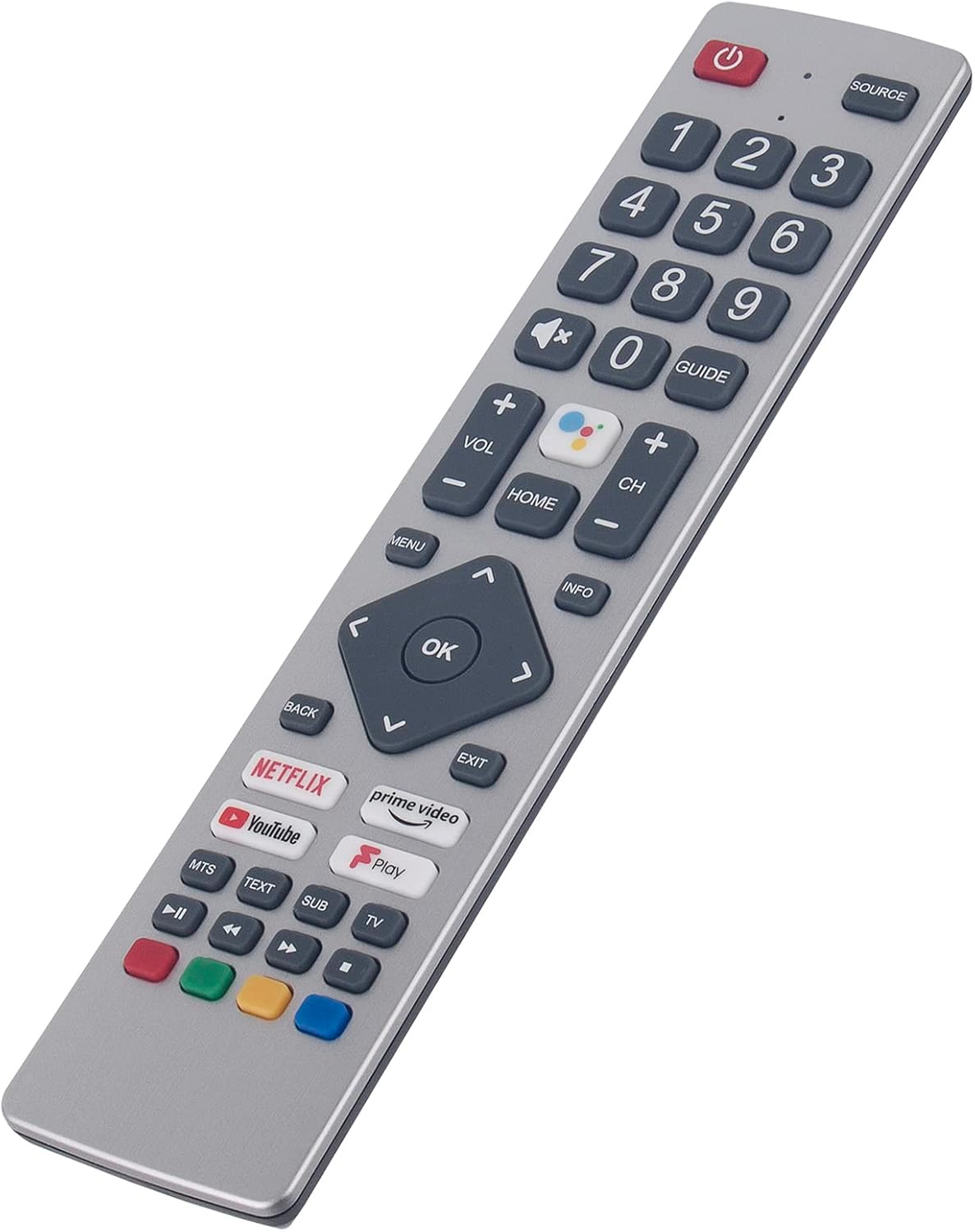
Image 1: The ALLIMITY Replacement Remote Control, showing its full layout and design.
2. Setup
2.1 Battery Installation
To begin using your ALLIMITY Replacement Remote Control, you must first install the batteries.
- Locate the battery compartment on the back of the remote control.
- Slide open the battery compartment cover.
- Insert two new AAA alkaline batteries, ensuring the positive (+) and negative (-) terminals align correctly with the markings inside the compartment.
- Close the battery compartment cover securely.
Once batteries are installed, the remote control is ready for immediate use with compatible television models. No additional programming or pairing steps are required.
3. Operating Instructions
The ALLIMITY Replacement Remote Control is designed to replicate the functionality of your original remote. Below is an overview of common buttons and their functions.

Image 2: Top-down view of the remote control, highlighting the button layout.
- Power Button (⏻): Turns the TV on or off.
- Source Button: Selects input sources (HDMI, AV, etc.).
- Number Buttons (0-9): Directly select channels.
- Mute Button (🔇): Mutes or unmutes the TV audio.
- Volume Up/Down (VOL +/-): Adjusts the volume level.
- Channel Up/Down (CH +/-): Changes the TV channel.
- Home Button: Accesses the TV's main menu or smart TV interface.
- Navigation Pad (Up, Down, Left, Right, OK): Navigates through menus and confirms selections.
- Back Button: Returns to the previous screen or menu.
- Exit Button: Exits the current menu or application.
- Menu Button: Opens the TV's settings menu.
- Info Button: Displays information about the current program or input.
- Dedicated App Buttons (Netflix, Prime Video, YouTube, Play): Provides quick access to streaming services.
- Media Control Buttons (Play/Pause, Rewind, Fast Forward, Stop): Controls media playback.
- Color Buttons (Red, Green, Yellow, Blue): Used for specific functions within certain applications or menus.
3.1 Voice Control Functionality
This remote control supports voice commands, allowing for hands-free operation of certain TV functions. Look for the dedicated voice control button, often represented by a microphone icon or a colored circle.

Image 3: The remote control highlighting its voice control capabilities.
To use voice control:
- Press and hold the Voice Control button.
- Speak your command clearly into the remote's microphone.
- Release the button once your command is complete.
Ensure your TV's Bluetooth is enabled and the remote is properly paired for voice functionality, if required by your specific TV model.
4. Maintenance
4.1 Cleaning
To maintain the remote control's appearance and functionality:
- Wipe the remote with a soft, dry cloth.
- For stubborn dirt, lightly dampen the cloth with water or a mild, non-abrasive cleaner.
- Avoid using harsh chemicals or abrasive materials, as these can damage the remote's surface or internal components.
4.2 Battery Replacement
Replace batteries when the remote's response becomes sluggish or it stops functioning. Always replace both batteries at the same time with new alkaline batteries of the same type (AAA). Do not mix old and new batteries, or different types of batteries.
5. Troubleshooting
If you encounter issues with your remote control, refer to the following troubleshooting steps:
- Remote not responding:
- Ensure batteries are correctly installed with proper polarity.
- Replace old batteries with new ones.
- Check for any obstructions between the remote and the TV's infrared sensor.
- Point the remote directly at the TV's sensor.
- Limited range:
- Ensure batteries are fresh.
- Remove any objects that might be blocking the signal path.
- Voice control not working:
- Confirm that your TV supports voice control and that Bluetooth is enabled.
- Ensure the remote is paired with your TV (if required for voice functions).
- Speak clearly and hold the remote closer to your mouth.
- Specific buttons not working:
- This remote is a replacement and may not support all advanced or unique functions of every original TV remote. Verify compatibility with basic functions first.
6. Specifications
| Brand | ALLIMITY |
| Item Model Number | PA50U5192MEKB |
| Controller Type | Remote Control |
| Connectivity Technology | Voice Remote |
| Special Features | Universal |
| Maximum Range | 10 Meters |
| Battery Description | Alkaline (AAA, not included) |
| Compatible Devices | Sharp Technika 40A23B-FHD, 24A23B-HD, 32A23B-HD, 50BN2KA, 50BN3KA, 50BN4KA, 50BN5KA, 50BL3EA, 55BL2EA, 55BL5EA, 65BL2EA, 65BL3EA, 65BL5EA, 65BL3KA, 65BN5KA, PA50U5192MEKB, PA32H4312LEKB, P50UAM2351U, P32RAM1071U, LC-65UK7553, LC-65UK7353E, LC-65UK7253E, LC-55UK7553E, LC-55UK7353E, LC-55UK7253E, LC-50UK7553E, LC-50UK7353E, LC-50UK7253E, LC-40UK7553E, LC-40UK7353E, LC-40UK7253E, 40BJ3KA, 40BI5KA, 40BI4KA, 40BI3KA, 40BI3IA, 40BI2KA, 40A23B-FHD, 32BI5KA, 32BI4KA, 32BI3KA, 32BI2KA, 32A23B-HD, 2T-C40BI3KE2AB, 2T-C40BI2KE2AB, 24A23B-HD, 1T-C32BI4KE2AB, 1T-C32BI3KE2AB, 1T-C32BI2KE2AB, 1T-2T-C40BI3IE2AB, and more. |
7. Warranty and Support
Information regarding specific warranty terms for this ALLIMITY Replacement Remote Control is not provided in the product details. For any support inquiries or issues not covered in this manual, please refer to the retailer or manufacturer's customer service channels.
Spare parts availability and software update guarantees are listed as unavailable in the product specifications.
