
1. Introduction
The Ugoos X4Q Plus is an advanced Android TV Box designed to enhance your home entertainment experience. Powered by the Amlogic S905X4 Quad Core Cortex-A55 CPU and running on Android 11, this device offers robust performance for streaming, gaming, and various applications. It supports AV1 HDR, 4K 60fps video playback, and features comprehensive connectivity options including dual-band Wi-Fi, Bluetooth 5.1, and Gigabit Ethernet.

Image 1.1: Ugoos X4Q Plus Android TV Box.
Video 1.1: Overview of the Ugoos X4Q Plus Android TV Box, highlighting its features, specifications, and included accessories.
2. Package Contents
Please check the box for the following items:
- Ugoos X4Q Plus TV Box
- BT Remote Control
- HD Cable (HDMI)
- Power Adapter (DC 5V/2.5A, Type C, US Plug)
- English User Manual

Image 2.1: All items included in the Ugoos X4Q Plus package.
3. Product Features
- Processor: Amlogic S905X4 Quad Core Cortex-A55 CPU.
- Operating System: Android 11.
- Memory & Storage: 4GB RAM + 64GB ROM.
- Video Output: Supports 4K 60fps, H.265, AV1 encoded, and 4K HDR content.
- Connectivity: Dual-band 2.4G/5G WiFi (IEEE 802.11 a/b/g/n/ac with 2T2R MIMO), 1000Mbps Ethernet, Bluetooth 5.1 LE.
- Ports: USB 2.0, USB 3.0, HDMI, SPDIF, TF Card slot, DC 5V (Type C).
- Special Features: DLNA, Miracast, OTA updater for firmware.
Image 3.1: The Ugoos X4Q Plus runs on Android 11 OS.
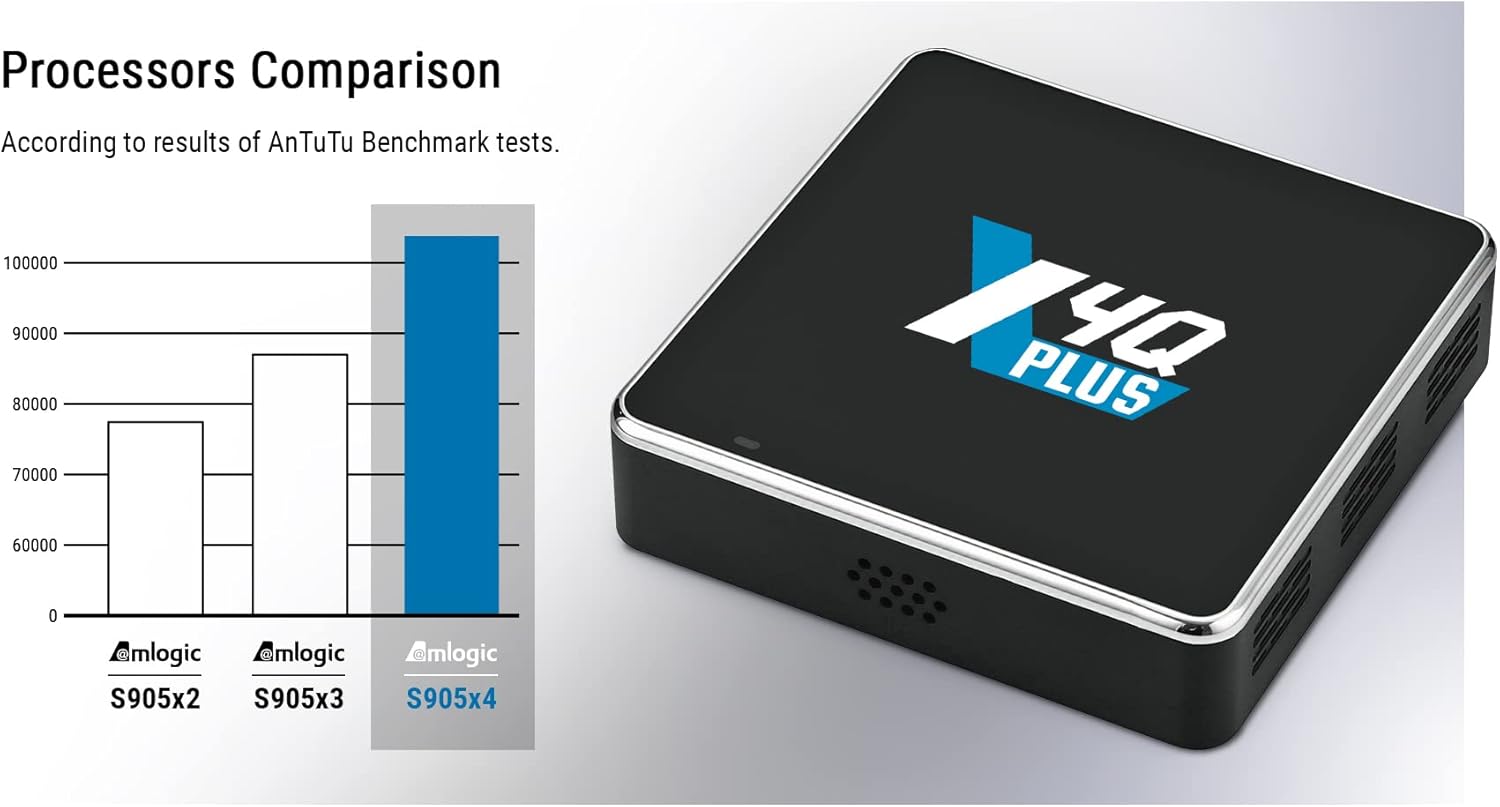
Image 3.2: Processor comparison highlighting the Amlogic S905X4 performance.
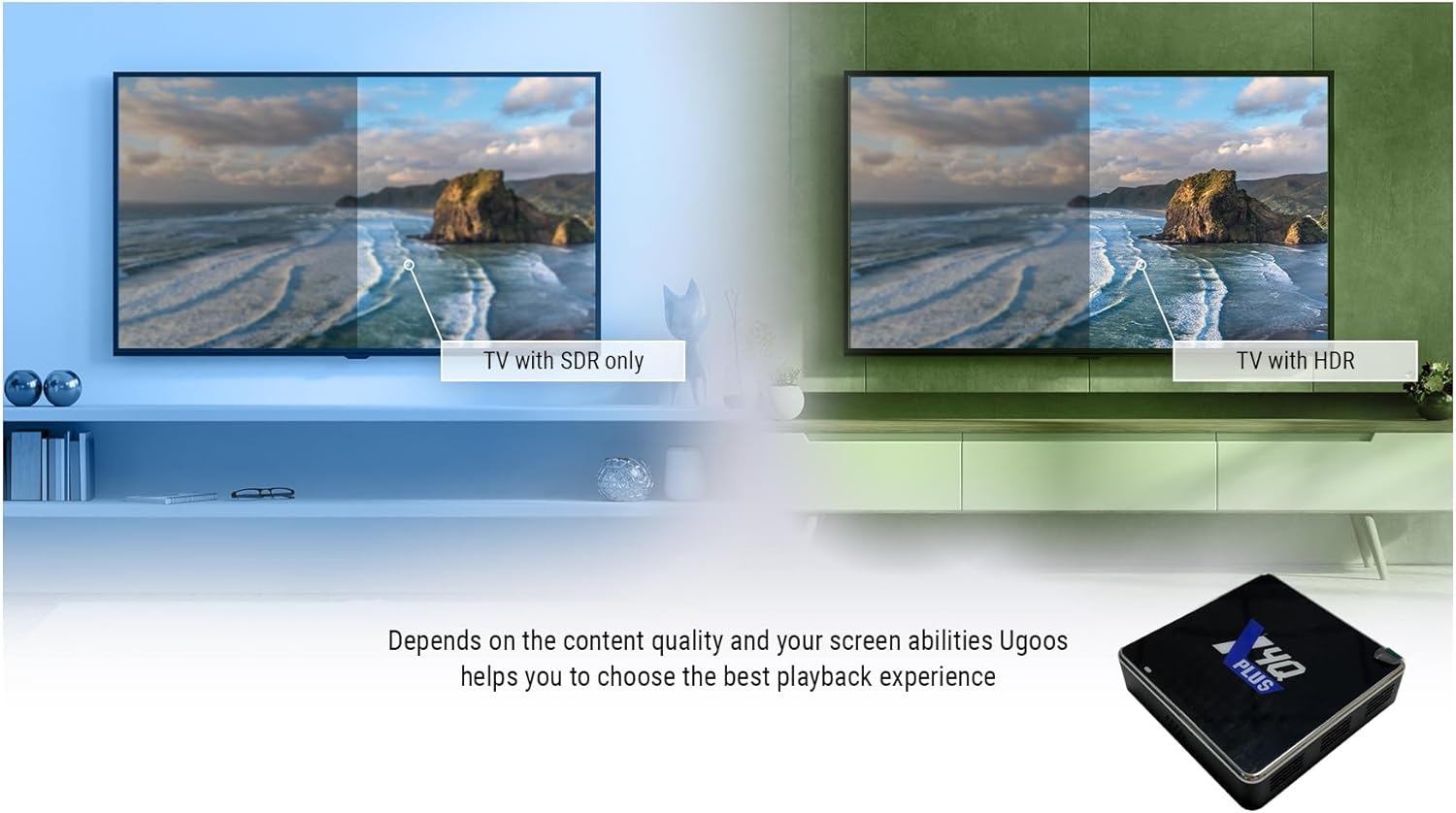
Image 3.3: Visual comparison demonstrating the enhanced quality of 4K HDR content.
4. Setup Guide
- Connect to TV: Connect the Ugoos X4Q Plus TV Box to your television using the provided HDMI cable. Ensure the HDMI cable is securely plugged into both the TV Box and an available HDMI input on your TV.
- Power Connection: Connect the Type-C power adapter to the DC 5V port on the TV Box, then plug the adapter into a power outlet.
- Network Connection:
- Wired: For a stable connection, connect an Ethernet cable from your router to the LAN port on the TV Box.
- Wireless: Alternatively, you can connect to Wi-Fi during the initial setup process.
- Power On: The device should power on automatically. If not, press the power button on the remote control.
- Initial Setup: Follow the on-screen instructions to complete the initial setup, including language selection, network configuration, and Google account login.

Image 4.1: Overview of the various ports and interfaces on the Ugoos X4Q Plus, including DC-5V (Type C), HDMI, USB 2.0 OTG, LAN, SPDIF, USB 3.0, and TF-CARD slot.
5. Operating Instructions
5.1 Basic Navigation
- Use the directional buttons on the remote control to navigate through menus and select items.
- Press the OK button to confirm selections.
- Press the Back button to return to the previous screen.
- Press the Home button to go to the main Android home screen.
5.2 Installing Applications
The Ugoos X4Q Plus supports Google Play Store and APK installation:
- Google Play Store: Access the Google Play Store from the home screen to download and install your favorite streaming apps, games, and utilities.
- APK Installation: For apps not available on Google Play, you can download APK files from trusted sources and install them via a file manager. Ensure 'Unknown sources' installation is enabled in security settings if required.
5.3 Media Playback
The device supports various video and audio formats, including AV1, H.265, MP3, AAC, WMA, RM, FLAC, and Ogg. You can play media from:
- Connected USB drives (USB 2.0, USB 3.0).
- TF cards.
- Network shares (DLNA, Miracast).
- Streaming services (e.g., YouTube).
6. Remote Control Instructions
6.1 Pairing Ugoos Remote UR01-BLE
To pair the Bluetooth remote control:
- Hold down the Volume Down and Volume Up buttons simultaneously.
- The red light on the remote will start to flash slowly after 3 seconds, indicating it has entered standby mode.
- On your TV Box, navigate to the Bluetooth search function in the settings.
- Wait until it finds "Ugoos Remote" in the list.
- Select "Ugoos Remote" to initiate pairing and accept any system requests.
- The red light on the Ugoos remote control will turn off if the pairing is successful.
6.2 Remote Control Button IR Setting (IR Learning)
This function is available only for the Power button on the remote control to learn infrared signals from another remote:
- Hold the Power button on the Ugoos remote for about 3 seconds. The red light will flash slowly. Release the button once the red light stays on, indicating it's in IR learning mode.
- Position the Ugoos remote and the remote you wish to copy from (e.g., your TV remote) head-to-head, about 3-5 cm apart.
- Press the desired button on your TV remote (e.g., its power button). The red light on the Ugoos remote will flash twice and then stay on, indicating successful learning.
- The Ugoos remote will automatically exit IR learning state after about 10 seconds of inactivity.

Image 6.1: Detailed instructions for pairing the Bluetooth remote and setting up IR learning for the power button.
7. Specifications
| Feature | Detail |
|---|---|
| Brand | Ugoos |
| Model Name | X4Q Plus |
| Operating System | Android 11 |
| Processor | Amlogic S905X4 Quad Core Cortex-A55 |
| RAM | 4GB |
| ROM | 64GB |
| Connectivity Technology | Ethernet (1000Mbps), Wi-Fi (2.4G/5G Dual-band, MIMO), Bluetooth 5.1 LE |
| Video Resolution | 4K @ 60fps |
| Video Codecs Supported | AV1, H.265, VP9 Profile-2, H.264 AVC, MPEG-2, MPEG-1 |
| Audio Formats Supported | MP3, AAC, WMA, RM, FLAC, Ogg |
| Ports | HDMI, USB 2.0, USB 3.0, SPDIF, LAN, TF Card, DC 5V (Type C) |
| Special Features | DLNA, Miracast, OTA Updater |
| Dimensions | 3.46 x 3.46 x 0.86 inches |
| Item Weight | 1.21 pounds |
| Power Adapter | DC 5V/2.5A (Type C) |
8. Maintenance
- Cleaning: Use a soft, dry cloth to clean the device. Avoid liquid cleaners or abrasive materials.
- Ventilation: Ensure the TV Box is placed in a well-ventilated area to prevent overheating. Do not block the ventilation holes.
- Software Updates: The device supports OTA (Over-The-Air) updates. Regularly check for and install available software updates to ensure optimal performance and security.
- Power Cycle: If the device becomes unresponsive, disconnect the power adapter, wait for 10 seconds, and then reconnect it to perform a power cycle.
9. Troubleshooting
- No Power: Ensure the power adapter is securely connected to the device and a working power outlet.
- No Picture: Verify the HDMI cable is correctly connected to both the TV Box and the TV. Ensure the TV input source is set to the correct HDMI port.
- No Sound: Check the volume settings on both the TV Box and your television. Ensure audio cables (if used) are properly connected.
- Wi-Fi Connection Issues: Restart your router and the TV Box. Re-enter the Wi-Fi password if necessary. Ensure the TV Box is within range of your Wi-Fi router.
- Remote Control Not Responding: Check the batteries in the remote control. If it's a Bluetooth remote, ensure it is properly paired (refer to Section 6.1).
- Apps Crashing/Freezing: Try clearing the cache of the problematic app in the Android settings. If the issue persists, reinstall the app.
10. Warranty and Support
The Ugoos X4Q Plus Android TV Box comes with a standard manufacturer's warranty. Please refer to the warranty card included in your package for specific terms and conditions. For technical support, troubleshooting assistance, or warranty claims, please contact your retailer or visit the official Ugoos support website.
Keep your purchase receipt as proof of purchase for warranty purposes.


