Introduction
Thank you for choosing the Xtrike Me Pudding GK-985P 61-Key Wired Mechanical Gaming Keyboard. This compact 60% keyboard is designed for gaming enthusiasts and users seeking a responsive and durable typing experience. It features blue mechanical switches, vibrant rainbow backlighting, and robust double-shot keycaps. This manual provides essential information for setting up, operating, maintaining, and troubleshooting your new keyboard.
Package Contents
Please check the package contents carefully. If any items are missing or damaged, contact your retailer.
- Xtrike Me Pudding GK-985P 61-Key Mechanical Gaming Keyboard
- USB Type-A Cable (attached)
- User Manual (this document)
Setup
Follow these steps to set up your Xtrike Me GK-985P keyboard:
- Connect the Keyboard: Locate an available USB Type-A port on your computer (PC or laptop) or game console. Insert the USB cable attached to the keyboard into the USB port.
- Automatic Driver Installation: Your operating system (Windows, macOS, Linux) should automatically detect and install the necessary drivers. This is typically a plug-and-play process and no additional software is required.
- Verify Functionality: Once connected, the keyboard's rainbow backlighting should illuminate. Test typing in a text editor to ensure all keys are functioning correctly.
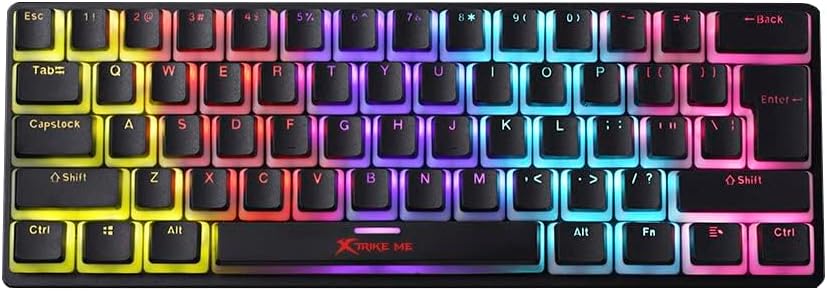
Image: Top-down view of the Xtrike Me GK-985P keyboard, showcasing its compact 60% layout and vibrant rainbow backlighting across all keys.
Operating Instructions
Basic Functions
The Xtrike Me GK-985P is a standard QWERTY layout keyboard. All primary alphanumeric and symbol keys function as expected. Due to its 60% compact design, some functions are accessed via the Fn (Function) key.
Backlight Control
The keyboard features 8 distinct rainbow backlight modes. Use the following key combinations to control the backlighting:
- Fn + \ |: Cycle through different backlight modes.
- Fn + [ { : Decrease backlight brightness.
- Fn + ] } : Increase backlight brightness.
- Fn + ; : : Decrease backlight speed (for dynamic modes).
- Fn + ' " : Increase backlight speed (for dynamic modes).

Image: An angled view of the Xtrike Me GK-985P keyboard, highlighting the ergonomic keycap profile and the vibrant rainbow illumination from the blue mechanical switches.
Function Key Combinations (Fn Layer)
To access secondary functions printed on the keycaps, press and hold the Fn key, then press the desired key. Common combinations include:
- Fn + A/S/D/W: Arrow keys (Up, Left, Down, Right) - (This is a common 60% layout feature, assuming it applies here)
- Fn + P: Print Screen
- Fn + L: Lock Windows Key
- Fn + K: Scroll Lock
- Fn + M: Pause Break
- Fn + Q: Home
- Fn + E: End
- Fn + R: Page Up
- Fn + T: Page Down
- Fn + F1-F12: Access multimedia controls or system functions (e.g., volume, media playback). Refer to the specific legends on your keycaps.
Note: The exact Fn key combinations may vary slightly. Refer to the legends printed on your keycaps for precise functionality.
Maintenance
Proper maintenance ensures the longevity and performance of your keyboard.
- Cleaning Keycaps: Use a soft, damp cloth with mild soap and water to clean the keycaps. Avoid harsh chemicals. For deeper cleaning, keycaps can be carefully removed using a keycap puller (not included) and cleaned separately.
- Cleaning the Keyboard Body: Wipe the keyboard body with a dry or slightly damp cloth. Do not immerse the keyboard in water or spray cleaning solutions directly onto it.
- Dust Removal: Use compressed air to remove dust and debris from between the keycaps and switches.
- Avoid Spills: Keep liquids away from the keyboard to prevent damage to the internal electronics.
- Storage: When not in use for extended periods, store the keyboard in a dry, dust-free environment.

Image: Side profile of the Xtrike Me GK-985P keyboard, illustrating the height and angle of the double-shot keycaps and the visible blue mechanical switches beneath.
Troubleshooting
If you encounter issues with your keyboard, refer to the following common solutions:
| Problem | Possible Solution |
|---|---|
| Keyboard not responding. |
|
| Backlight not working or stuck. |
|
| Certain keys are not working. |
|
Specifications
| Feature | Detail |
|---|---|
| Brand | Xtrike Me |
| Model | GK-985P |
| Keyboard Type | Mechanical Gaming Keyboard |
| Layout Size | 60% |
| Number of Keys | 61 Keys |
| Switch Type | Blue Mechanical Switches |
| Keycap Type | Double Shot Keycaps |
| Backlighting | Rainbow Illumination (8 modes) |
| Connectivity | Wired (USB Type-A) |
| Compatible Devices | Personal Computer, Game Console, Laptop |
| Material | Plastic |
| Dimensions (L x W x H) | 31.1 x 13.3 x 5.1 cm |
| Weight | 580 grams |
Warranty and Support
For warranty information or technical support, please refer to the warranty card included with your product or contact your retailer. You may also visit the official Xtrike Me website for further assistance and updated support resources.


