
Introduction
Thank you for choosing the Genai True Wireless Earphones. This manual provides detailed instructions on how to set up, operate, maintain, and troubleshoot your new earphones. Please read this manual carefully before use to ensure optimal performance and longevity of your device.
Product Overview
The Genai True Wireless Earphones feature a digital intelligence LED display on the charging case, tap control for easy operation, and Bluetooth 5.0 for stable connectivity. They are designed for comfortable in-ear wear and deliver clear stereo sound.
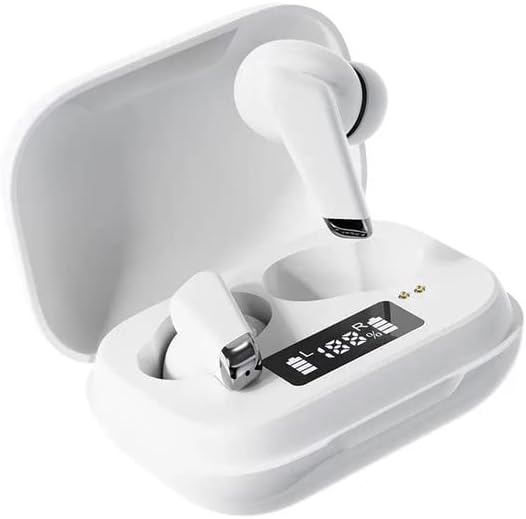
Image: Genai True Wireless Earphones in their charging case, showcasing the digital LED display indicating battery levels.
Key Features:
- True Wireless Stereo (TWS): Seamless audio experience without cables.
- Tap Control: Intuitive touch-sensitive controls for music and calls.
- Digital Intelligence LED Display: Shows real-time battery status of earbuds and charging case.
- Bluetooth 5.0: Ensures stable and efficient wireless connection.
- Ergonomic In-Ear Design: Comfortable and secure fit.
Setup Guide
1. Charging the Earphones and Case
- Initial Charge: Before first use, fully charge the charging case and earbuds. Place the earbuds into the charging case.
- Connect Charger: Connect the charging case to a power source using a compatible USB cable.
- Monitor LED Display: The digital LED display on the case will show the charging status and battery percentage. Ensure both earbuds and the case are fully charged before proceeding.

Image: The charging case with its digital LED display, indicating the charge level of both the case and the individual earbuds.
2. Pairing with Your Device
- Power On: Open the charging case. The earbuds will automatically power on and enter pairing mode. You may hear an audible prompt.
- Activate Bluetooth: On your smartphone or other Bluetooth-enabled device, go to the Bluetooth settings and enable Bluetooth.
- Select Device: Look for "Genai Earphones" (or similar name) in the list of available devices and select it to connect.
- Confirmation: Once successfully paired, you will hear a confirmation sound, and the earbuds will be ready for use.

Image: A visual representation of the Bluetooth 5.0 chipset, highlighting the stable wireless connection technology.
Operating Instructions
The Genai True Wireless Earphones feature intuitive tap controls. The specific functions may vary slightly, but common controls are listed below:
Power On/Off
- Power On: Open the charging case, or long-press the touch area on both earbuds for a few seconds.
- Power Off: Place the earbuds back into the charging case and close the lid, or long-press the touch area on both earbuds for several seconds until they power off.
Music Playback
- Play/Pause: Single tap on either earbud.
- Next Track: Double tap on the right earbud.
- Previous Track: Double tap on the left earbud.
Call Management
- Answer/End Call: Single tap on either earbud during an incoming call or active call.
- Reject Call: Long press on either earbud during an incoming call.
Voice Assistant
- Activate Voice Assistant: Triple tap on either earbud (functionality may vary by device).

Image: An illustration showing an earbud comfortably and ergonomically fitted within the ear canal.
Maintenance
Cleaning
- Use a soft, dry, lint-free cloth to clean the earbuds and charging case.
- Do not use abrasive cleaners, solvents, or aerosol sprays.
- Gently clean the ear tips and speaker mesh to remove any earwax or debris.
Storage
- Store the earphones in their charging case when not in use to protect them and keep them charged.
- Avoid storing in extreme temperatures, direct sunlight, or high humidity.
Troubleshooting
- Earbuds not pairing with each other or with device:
- Ensure both earbuds are charged.
- Place both earbuds back into the charging case, close the lid, wait a few seconds, then open the lid again.
- On your device, forget/delete the "Genai Earphones" from the Bluetooth list and try pairing again.
- No sound or low volume:
- Check the volume level on both your device and the earbuds.
- Ensure the earbuds are properly connected to your device.
- Clean any debris from the earbud speaker mesh.
- Charging issues:
- Ensure the charging cable is securely connected to both the case and the power source.
- Verify the power source is active.
- Clean the charging contacts on both the earbuds and the case.
Specifications
| Feature | Detail |
|---|---|
| Model | B0BX5G53VT |
| Connectivity Technology | Wireless (Bluetooth 5.0) |
| Earcups Type | Semi-open |
| Number Of Drivers | 2 |
| Charging Method | Charging case |
| Headphone Pads Material | Silicone |
| Driver Diameter | 10mm |
| Total Harmonic Distortion | 0.02% |
| Impedance Range | Up to 32 Ω |
| Material | Silicone |
| Ear Placement | In Ear |
| Form Factor | True Wireless |
Warranty and Support
The Genai True Wireless Earphones come with a 12-month warranty from the date of purchase, covering manufacturing defects. For any quality problems or support inquiries, please contact the seller directly through your purchase platform.
We are committed to ensuring 100% customer satisfaction. If you encounter any issues, please do not hesitate to reach out for assistance, including full refunds or replacements as applicable.

