
HyperX 6N0A8AA
HyperX Pulsefire Haste 2 Wired Gaming Mouse User Manual
Model: 6N0A8AA
Product Overview
The HyperX Pulsefire Haste 2 is a wired gaming mouse designed for high-performance gaming. It features an ultra-lightweight design, a high-precision sensor, and durable switches, optimized for speed and responsiveness.
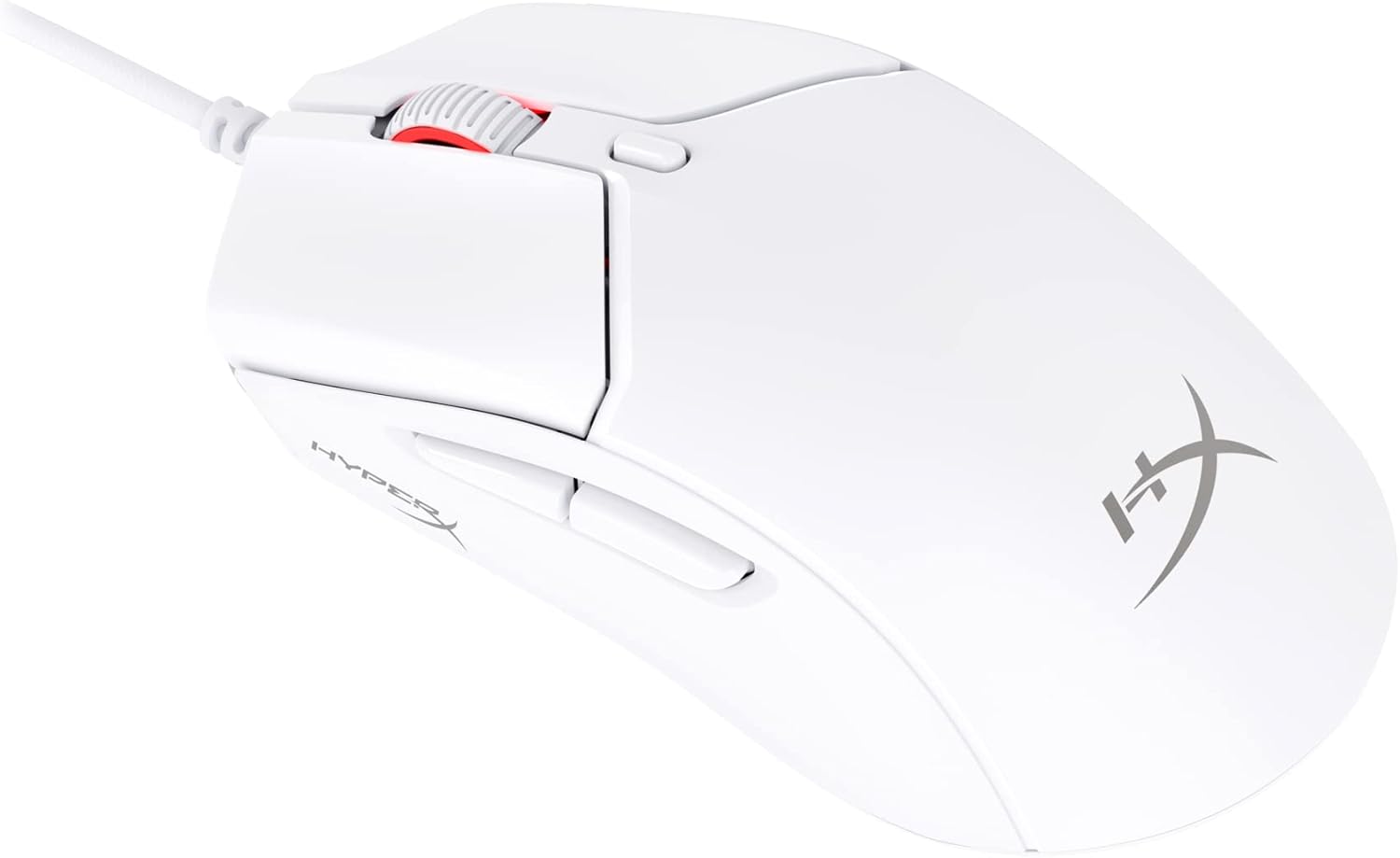
Figure 1: HyperX Pulsefire Haste 2 Wired Gaming Mouse (White)
Package Contents
Verify that all items are present in the package:
- HyperX Pulsefire Haste 2 Wired Gaming Mouse
- HyperX Grips (pre-applied or in package)
- Extra PTFE Skates
- Quick Start Guide (refer to the official PDF user guide for full details: User Guide PDF)
Setup
Connecting the Mouse
- Locate an available USB port on your computer.
- Plug the USB connector of the HyperX Pulsefire Haste 2 mouse into the USB port.
- The mouse is plug-and-play and should be recognized automatically by your operating system (Windows, macOS, Linux).
Applying Grip Tape (Optional)
The mouse includes optional grip tape for enhanced control and comfort. To apply:
- Ensure the mouse surface is clean and dry.
- Carefully peel the backing from the grip tape pieces.
- Align and firmly press the grip tape onto the designated areas (left/right mouse buttons, left/right sides of the mouse).

Figure 2: Anti-Slip Grip Tape Application Area
Operating the Mouse
Basic Functions
The HyperX Pulsefire Haste 2 features standard mouse buttons and a scroll wheel:
- Left Click: Primary action.
- Right Click: Secondary action/context menu.
- Scroll Wheel: Scroll up/down, middle click.
- Side Buttons: Typically used for forward/back navigation in web browsers or customizable functions.
- DPI Button: Located behind the scroll wheel, cycles through preset DPI (sensitivity) levels.
HyperX NGENUITY Software
To unlock the full potential of your Pulsefire Haste 2, download and install the HyperX NGENUITY software. This software allows for:
- Customizing DPI settings (up to 26,000 DPI).
- Programming the 6 buttons with macros or custom functions.
- Personalizing RGB lighting effects.
- Adjusting polling rate (up to 8000Hz).

Figure 3: HyperX NGENUITY Software Interface
For software download and detailed instructions, visit the official HyperX website.
Maintenance
Cleaning the Mouse
- Disconnect the mouse from your computer before cleaning.
- Use a soft, lint-free cloth slightly dampened with water or a mild cleaning solution to wipe the surface.
- Avoid using harsh chemicals, abrasives, or solvents.
- For the sensor area, use a cotton swab or compressed air to gently remove dust and debris.
Replacing PTFE Skates
The HyperX Pulsefire Haste 2 comes with extra PTFE skates. If the original skates show significant wear, they can be replaced for optimal glide performance.
- Carefully peel off the old PTFE skates using a thin, non-abrasive tool.
- Ensure the mouse's underside is clean and free of adhesive residue.
- Peel the backing from the new PTFE skates and align them precisely with the recesses on the mouse's bottom.
- Press firmly to ensure proper adhesion.

Figure 4: Mouse Underside with PTFE Skates
Troubleshooting
| Problem | Possible Cause | Solution |
|---|---|---|
| Mouse not responding | Loose USB connection, faulty USB port, driver issue. |
|
| Cursor movement is erratic or jumpy | Dirty sensor, unsuitable mouse pad surface. |
|
| Buttons or scroll wheel not working | Software conflict, physical obstruction. |
|
| RGB lighting not functioning | Software settings, power issue. |
|
Specifications
| Feature | Detail |
|---|---|
| Model Name | HyperX Pulsefire Haste 2 Wired Gaming Mouse |
| Model Number | 6N0A8AA |
| Connectivity | Wired USB |
| Sensor | HyperX 26K Sensor |
| DPI | Up to 26,000 (native) |
| Tracking Speed | Up to 650 IPS |
| Polling Rate | Up to 8000Hz |
| Buttons | 6 Programmable Buttons |
| Switches | HyperX Switches (rated for 100 million clicks) |
| Cable | HyperFlex 2 Cable (Paracord) |
| Skates | Virgin PTFE Skates |
| Weight | Approx. 53g (mouse only) |
| Dimensions (LxWxH) | 124 x 67 x 38 mm (4.9 x 2.6 x 1.5 inches) |
| Operating System Compatibility | Windows, macOS, Linux |

Figure 5: HyperX Pulsefire Haste 2 Dimensions and Weight
Warranty and Support
HyperX products are backed by a limited warranty. For specific warranty terms and conditions, please refer to the warranty information included with your product or visit the official HyperX website.
For technical support, driver downloads, and frequently asked questions, please visit the HyperX support page:
You can also refer to the official PDF user guide for additional details: User Guide PDF
Related documents6N0A8AA


Ask a question about this manual
Ask about setup, troubleshooting, compatibility, parts, safety, or missing instructions. Manuals+ will review the question and use this page’s manual context to help answer it.