
Introduction
The ELECOM NESTOUT Rugged Power Bank is a 10000mAh outdoor battery charger designed for durability and performance in challenging environments. Featuring 20W USB-C Fast Charging PD, IP67 waterproof and dustproof rating, and shockproof construction, it is ideal for hiking, travel, and camping. This manual provides essential information for the safe and effective use of your power bank.
Key Features
- IF DESIGN GOLD AWARD WINNER: Recognized for innovation, coherent design, and attention to detail, mimicking a vintage fuel bottle.
- FAST CHARGING USB-C PD: Equipped with USB-C ports for quick charging of electronic devices.
- SMART POWER DELIVERY: Automatically detects and allocates optimal energy to connected devices.
- WATERPROOF & DUSTPROOF IP67 RATING: Designed for outdoor activities, capable of submersion up to 30 minutes at 1 meter depth.
- SHOCKPROOF HARD SHELL BODY: Lithium-ion batteries are protected by a silicone cushion, tested to US Military Standard MIL-STD 810G 516.7 Drop Test.
- BOTTOM TRIPOD MOUNT: Standard ¼ 20” tripod mount for attaching accessories.
- MODULAR ACCESSORIES: Compatible with NESTOUT accessories like LAMP-1 lantern and FLASH-1 LED Panel (sold separately).
Package Contents
- NESTOUT Power Bank (10000mAh Beige)
- USB-C Charging Cable
- Product Manual
*Tripod and lights are NOT included with power banks.
Setup
1. Charging the Power Bank
Before first use, fully charge your NESTOUT Power Bank. Use the provided USB-C charging cable and a USB Power Delivery (PD) compatible AC charging adapter (18W or above is recommended). Charging via a PC USB port may take longer or may not be sufficient.
- Unscrew the top cap of the power bank to reveal the USB-C and USB-A charging ports.
- Connect the USB-C end of the charging cable to the power bank's USB-C input port.
- Connect the other end of the cable to a suitable power adapter.
- The LED indicator lights on the power bank will show the charging progress. All lights will be solid when fully charged.
- Once charged, securely screw the top cap back on to maintain the IP67 rating.

Image: NESTOUT Power Bank showing USB-C and USB-A charging ports, with cables inserted. This illustrates how to access and use the charging ports.
2. Connecting Devices for Charging
The power bank features both USB-C and USB-A output ports for charging various devices.
- Unscrew the top cap to access the ports.
- Connect your device's charging cable to the appropriate USB-C or USB-A output port on the power bank.
- The power bank will automatically detect your device and begin charging.
- Monitor your device's charging indicator.
- When finished, disconnect your device and securely screw the top cap back on.

Image: A NESTOUT Power Bank simultaneously charging a smartphone, earbuds, and a portable speaker, demonstrating its multi-device charging capability.
3. Using with Modular Accessories (Sold Separately)
The NESTOUT Power Bank is designed to integrate with specific modular accessories like the LAMP-1 lantern and FLASH-1 LED Panel.
- Unscrew the top cap of the power bank.
- Align the accessory (e.g., LAMP-1 or FLASH-1) with the top of the power bank and gently push it into place until it clicks securely.
- The accessory will draw power directly from the power bank.
- To remove, gently pull the accessory upwards while holding the power bank firmly.

Image: A NESTOUT Power Bank with the LAMP-1 lantern and FLASH-1 LED panel accessories attached, demonstrating their modular design.
Video: Official product video demonstrating the NESTOUT Outdoor Battery, Lighting Accessories (LAMP-1, FLASH-1), and Solar Charger in various outdoor scenarios. It highlights the modularity and ruggedness of the system.
Operating Instructions
1. Power On/Off and Battery Level Check
The power bank automatically powers on when a device is connected for charging. To check the battery level, press the small button located on the side of the power bank. The LED indicator lights will illuminate to show the remaining charge.
- 4 LEDs: 75-100% charge
- 3 LEDs: 50-75% charge
- 2 LEDs: 25-50% charge
- 1 LED: 0-25% charge (recharge soon)
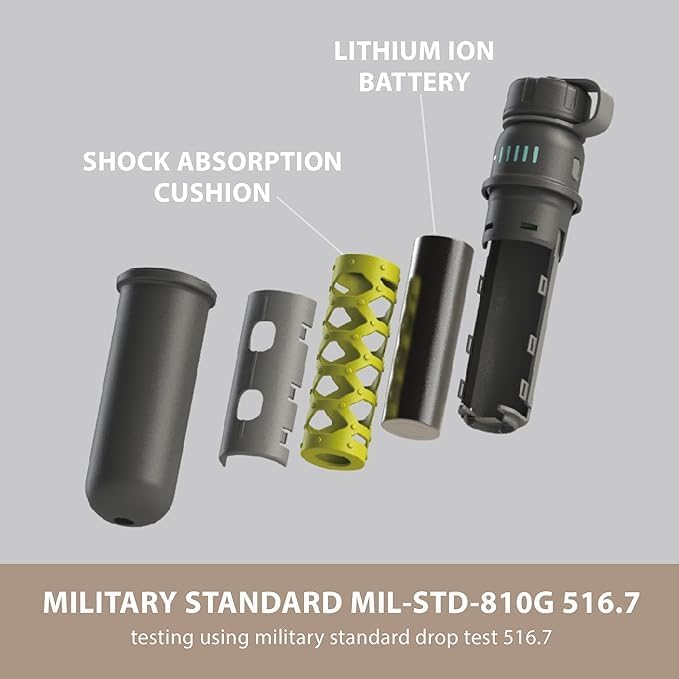
Image: Close-up of the NESTOUT Power Bank showing the LED indicator lights, which display the current battery charge level.
2. Using with Solar Charger (Sold Separately)
For extended outdoor use, the NESTOUT Power Bank can be recharged using compatible NESTOUT solar chargers (e.g., SOLAR-1 models).
- Unfold the solar charger panels and place them in direct sunlight.
- Connect the solar charger's output cable to the USB-C input port of the NESTOUT Power Bank.
- Ensure the connection is secure. The power bank will begin charging from the solar panels.
- Adjust the solar panel's angle for optimal sunlight exposure to maximize charging efficiency.

Image: NESTOUT Solar Charger panels laid out in an outdoor setting, demonstrating how they are used to capture solar energy.
Maintenance
- Cleaning: Wipe the power bank with a soft, damp cloth. Do not use harsh chemicals or abrasive cleaners. Ensure the top cap is securely closed before cleaning if water is involved.
- Storage: Store the power bank in a cool, dry place away from direct sunlight and extreme temperatures. For long-term storage, charge the power bank to about 50-75% every 3-6 months to maintain battery health.
- Waterproof Seal: Always ensure the top cap is tightly screwed on to maintain the IP67 waterproof and dustproof rating. Avoid exposing the open ports to water or dust.

Image: A NESTOUT Power Bank partially submerged in water, demonstrating its IP67 waterproof capability when the cap is securely closed.
Troubleshooting
| Problem | Possible Cause | Solution |
|---|---|---|
| Power bank not charging. |
|
|
| Device not charging from power bank. |
|
|
| Accessory (LAMP-1/FLASH-1) not working. |
|
|
Specifications
| Feature | Detail |
|---|---|
| Model Number | DE-NEST10000A |
| Battery Capacity | 10000 Milliamp Hours (mAh) |
| Product Dimensions | 5 x 2.4 x 1.4 inches |
| Item Weight | 8.5 ounces |
| Waterproof/Dustproof Rating | IP67 |
| Shock Resistance | MIL-STD 810G 516.7 Drop Test Certified |
| Connector Type | USB Type C, USB Type A |
| Special Features | Auto Shut-Off, LED Indicator Lights, Short Circuit Protection, Fast Charging, Scratch Resistant |
| Manufacturer | ELECOM CO., LTD |
| Country of Origin | China |
Warranty and Support
This product comes with a 1-year warranty. In the unlikely event of a product defect or quality issue within 1 year of purchase, ELECOM offers product replacement. For more information or to initiate a return/exchange, please visit the official ELECOM USA website (elecomusa.com) and use their return/exchange request form.
For technical support or further inquiries, please refer to the contact information provided on the ELECOM USA website.


