
1. Product Overview
The uleway T2301 is a 4G mobile phone designed for seniors, featuring large buttons, a clear display, and an emergency SOS function. It supports 2G, 3G, and 4G networks, making it compatible with various network operators.

Image: The uleway T2301 4G Senior Mobile Phone, showcasing its compact design and large buttons.
Key features include a user-friendly interface, a dedicated SOS button for emergencies, and a convenient charging dock.
2. Package Contents
Please check the package for the following items:
- uleway T2301 Mobile Phone
- Rechargeable Lithium-ion Battery
- Charging Dock
- USB Type-C Charging Cable
- Power Adapter (may vary by region)
- User Manual (this document)
3. Setup Guide
3.1. Installing the SIM Card and Battery
- Remove the Back Cover: Gently pry open the back cover of the phone.
- Insert SIM Card(s): The phone supports Dual SIM (Nano SIM). Locate the SIM card slots. Insert your Nano SIM card(s) into the designated slots with the gold contacts facing down. Ensure they are securely seated.
- Insert MicroSD Card (Optional): If you wish to expand storage, insert a MicroSD card (up to 32GB) into the dedicated slot.
- Insert the Battery: Place the Lithium-ion battery into the battery compartment, ensuring the contacts align with those on the phone.
- Replace the Back Cover: Carefully snap the back cover into place until it is secure.
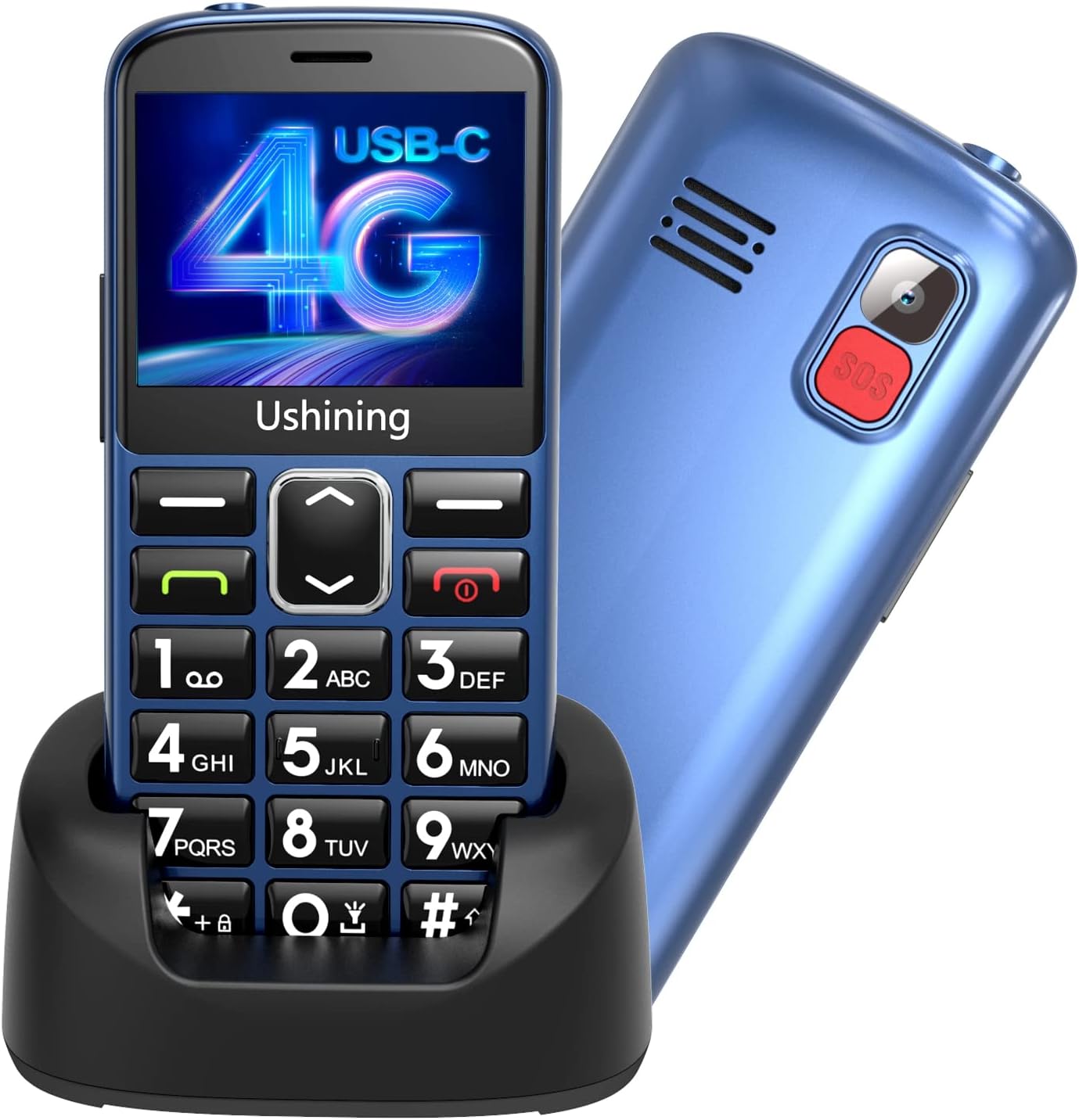
Image: The uleway T2301 phone next to its charging dock, illustrating the phone's design.
3.2. Charging the Phone
The uleway T2301 offers two charging methods:
- Using the Charging Dock: Connect the USB Type-C charging cable to the charging dock and then to a power adapter. Place the phone into the charging dock. The phone will stand upright and begin charging. This method is convenient for regular charging.
- Direct USB Type-C Connection: Connect the USB Type-C charging cable directly to the phone's Type-C port and then to a power adapter. The reversible Type-C connector allows for easy insertion.
A full charge typically takes a few hours. The battery indicator on the screen will show charging status.

Image: Illustration of the two charging methods for the uleway T2301: via the charging dock and direct USB Type-C cable connection.
3.3. Powering On/Off
- To Power On: Press and hold the Power/End Call button (usually red) until the screen lights up.
- To Power Off: Press and hold the Power/End Call button until a power-off option appears on the screen, then confirm.
4. Operating Instructions
4.1. User Interface Navigation
The uleway T2301 features a user-friendly interface with large icons and clear text. Use the navigation keys (up, down, left, right, and OK button) to move through menus and select options.
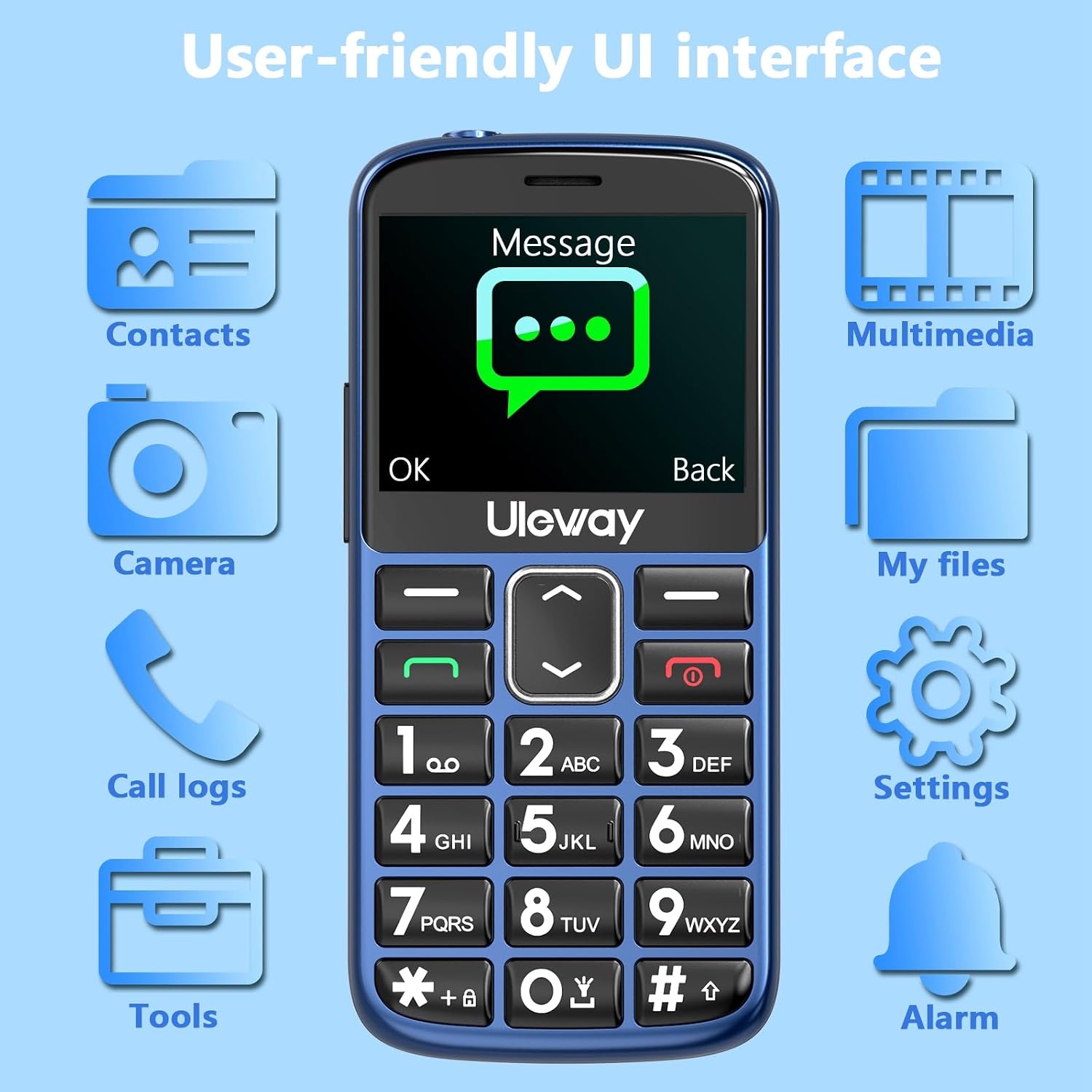
Image: A close-up of the uleway T2301's screen, displaying the main menu icons such as Contacts, Message, Camera, Multimedia, Call logs, My files, Tools, Settings, and Alarm.
Common menu options include:
- Contacts: Store and manage phone numbers.
- Message: Send and receive text messages.
- Call logs: View incoming, outgoing, and missed calls.
- Camera: Take photos.
- Multimedia: Access photos, videos, and audio files.
- My files: Manage files stored on the phone or memory card.
- Settings: Customize phone preferences.
- Alarm: Set alarms.
- Tools: Access additional utilities like Calculator, Calendar, and Flashlight.
4.2. Making and Receiving Calls
- To Make a Call:
- Enter the phone number using the large keypad.
- Press the Call button (usually green) to initiate the call.
- To Answer a Call: When the phone rings, press the Call button (green).
- To End a Call: Press the End Call button (red).
The phone features a loud volume for easy listening during conversations.
4.3. SOS Emergency Function
The uleway T2301 includes a dedicated SOS button for emergencies. This feature allows you to quickly contact pre-set emergency contacts.

Image: Rear view of the uleway T2301 highlighting the red SOS button and its function to contact up to 5 emergency contacts (Doctor, Son, First Aid, Daughter).
- Setting up SOS Contacts: Navigate to the SOS settings in the phone menu to add up to 5 emergency contact numbers.
- Using the SOS Function: In an emergency, press and hold the SOS button on the back of the phone. The phone will automatically call and send an emergency SMS to your pre-set contacts until one answers.
4.4. Speed Dial
The phone supports 8 speed dial numbers (keys 2-9) for quick access to frequently called contacts.

Image: The uleway T2301 keypad showing numbers 2-9 designated for speed dial, with an inset showing a close-up of the keys.
- Setting up Speed Dial: Go to the phone's settings or contacts menu to assign a contact to a speed dial key (2-9).
- Using Speed Dial: Press and hold the assigned number key to quickly call the corresponding contact.
4.5. Other Features
- Flashlight: Access the flashlight function through the Tools menu or a dedicated shortcut key (if available).
- FM Radio: The phone includes an FM radio. Connect headphones (not included) to use as an antenna.
- Bluetooth: Enable Bluetooth in settings to connect to compatible wireless devices.
- Camera: The 2-megapixel rear camera allows for basic photo capture.
5. Maintenance
5.1. Battery Care
The phone is equipped with a 1450mAh Lithium-ion battery, providing over 100 hours of standby time and over 5 hours of call time.

Image: The uleway T2301 screen displaying time and network status, with text indicating "Large Capacity Battery," "100hr+ standby time," "5hr+ Call time," and "1000mAh" (Note: Feature bullets state 1450mAh, using that for consistency).
- Avoid extreme temperatures.
- Do not fully discharge the battery regularly; charge it before it runs completely empty.
- Use only the original charger and cable provided.
5.2. Cleaning
Wipe the phone with a soft, dry cloth. Avoid using harsh chemicals or abrasive materials, which can damage the screen or casing.
5.3. Water Resistance
The phone is designed with a degree of water resistance. However, it is not fully waterproof. Avoid submerging the phone in water or exposing it to heavy rain. If the phone gets wet, power it off immediately and allow it to dry completely before use.
6. Troubleshooting
If you encounter issues with your uleway T2301, please refer to the following common solutions:
| Problem | Possible Solution |
|---|---|
| Phone does not power on | Ensure the battery is correctly installed and charged. Connect the charger and try again. |
| Cannot make or receive calls | Check if the SIM card is properly inserted and activated. Verify network signal strength. Ensure airplane mode is off. |
| Poor call quality | Move to an area with better network coverage. Check the earpiece/speaker for obstructions. |
| Battery drains quickly | Reduce screen brightness. Close unused applications. Ensure the phone is not in an area with poor signal, which can increase battery usage. |
| SOS function not working | Verify that emergency contacts are correctly set up in the SOS settings. Ensure the phone has network signal. |
If the problem persists, please contact customer support.
7. Specifications
| Feature | Detail |
|---|---|
| Model Number | T2301 |
| Network Technology | 2G, 3G, 4G |
| Wireless Carrier Support | All carriers |
| Display Size | 2.4 Inches |
| Display Resolution | 240 x 320 (QVGA) |
| RAM Size | 32 MB |
| Storage Capacity | 32 MB (Supports up to 32 GB MicroSD) |
| Battery Capacity | 1450 mAh Lithium-ion |
| Standby Time | 100+ hours |
| Call Time | 5+ hours |
| Rear Camera Resolution | 2 Megapixels |
| Connectivity | Bluetooth, USB Type C |
| SIM Card Slots | Dual SIM (Nano SIM) |
| Form Factor | Bar Phone |
| GPS | Yes |
| Water Resistance Level | Water-resistant |
8. Warranty and Support
For warranty information and customer support, please refer to the documentation included with your purchase or visit the official uleway website. Keep your purchase receipt as proof of purchase for warranty claims.
