Download PDFFree PDF. The Save button below keeps a bookmark and private notes in your account.
Hot Pepper Android 12 Tablet User Manual
Comprehensive guide for setting up, operating, maintaining, and troubleshooting your Hot Pepper Android 12 Tablet (Model DT40).
1. Setup
1.1 Unboxing and Initial Inspection
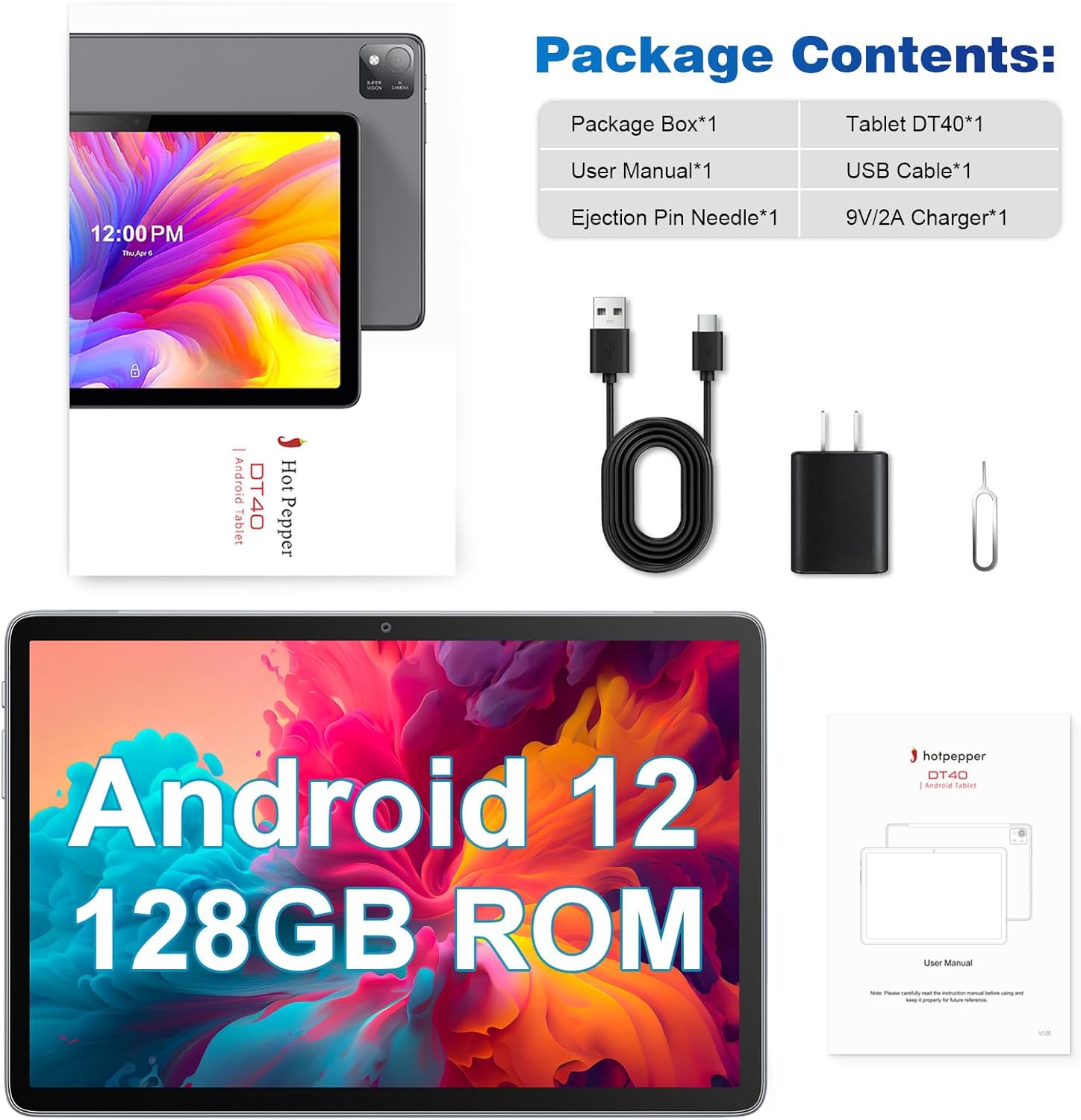
Upon receiving your Hot Pepper Android 12 Tablet, carefully unbox the package and inspect its contents. Ensure all items listed below are present and in good condition.
Package Contents:
1x Package Box
1x Tablet DT40
1x USB Cable
1x Charger
1x User Manual & Ejection Pin Needle
Figure 1: Contents of the Hot Pepper DT40 Tablet package.
The tablet comes with a protective film on the screen. You may remove this film before use for optimal viewing clarity.
Video 1: Unboxing and initial boot-up of the Hot Pepper Android 12 Tablet, demonstrating the removal of the protective film and the tablet's first power-on sequence.
1.2 Powering On and Initial Configuration
To power on your tablet, press and hold the power button located on the side until the Hot Pepper logo appears on the screen. Follow the on-screen prompts to complete the initial setup, including language selection, Wi-Fi connection, and Google account sign-in.
Video 2: Demonstration of the tablet's boot sequence and initial setup steps, including navigating the Android 12 interface.
The tablet runs on Android 12, offering enhanced privacy features and a user-friendly interface. You can customize settings and download applications from the Google Play Store after completing the initial setup.
2. Operating Your Tablet
2.1 Performance and Storage
The Hot Pepper Android 12 Tablet is equipped with an Octa-Core 2.0Ghz MT8183 processor and 6GB RAM, ensuring smooth multitasking and a responsive user experience. It comes with 128GB of internal storage, which can be expanded up to 1TB using a memory card (TF card), providing ample space for your files, applications, and media.
Figure 2: High-performance CPU and memory configuration for efficient operation.
Figure 3: Storage capacity and expansion options for the tablet.
2.2 Display and Audio
The tablet features a 10.1-inch IPS display with a resolution of 1920x1200 pixels, offering a comfortable 16:10 screen ratio ideal for watching videos and browsing. The dual stereo speakers provide clear and bright sound for an immersive audio experience.
Figure 4: Key features of the tablet's display and audio system.
Figure 5: The tablet's high-resolution display provides clear visuals.
2.3 Camera Features
Capture your moments with the tablet's 13MP rear camera, which includes a flash for improved low-light photography. The 8MP front camera is ideal for high-quality video calls and selfies.
Figure 6: Tablet camera features for capturing photos and video calls.
2.4 Connectivity and Navigation
The tablet supports AC dual-band high-speed Wi-Fi (2.4G/5G) for faster and more reliable internet connectivity. It also features GPS, allowing you to use navigation applications like Google Maps, even offline if maps are downloaded.
Video 3: Demonstration of the tablet's GPS functionality for navigation.
2.5 Battery Life
Equipped with a 7,000 mAh rechargeable battery, the tablet provides extended usage for work, learning, and entertainment. It offers approximately 7-8 hours of average battery life, suitable for prolonged use.
Figure 7: Overview of the tablet's large capacity battery and connectivity features.
2.6 Special Features
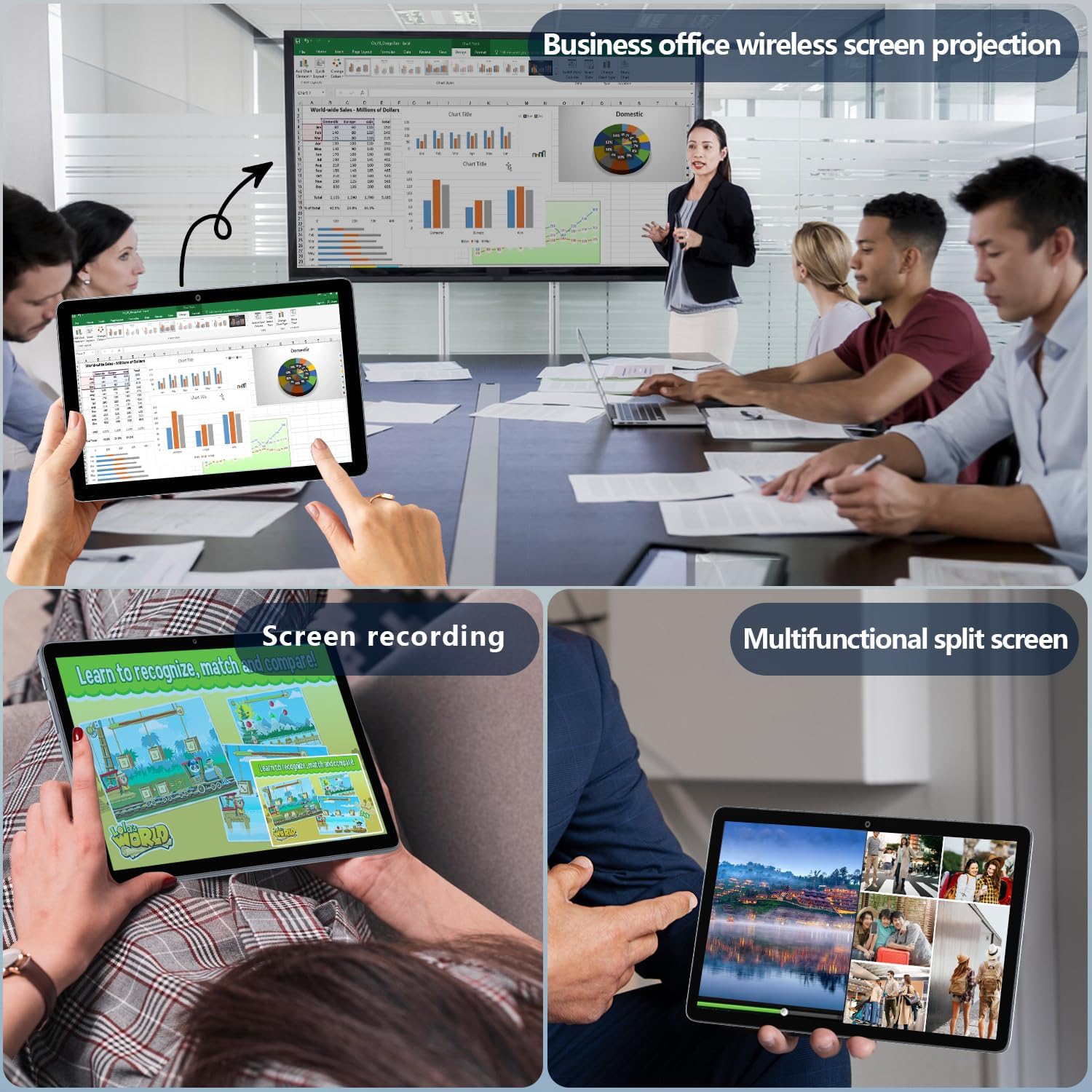
The tablet supports wireless projection, allowing you to easily connect it to a TV or other compatible display for a larger viewing experience. It also features a multifunctional split screen mode for enhanced productivity and screen recording capabilities.
Figure 8: Productivity and entertainment features of the tablet.
For families, the tablet includes digital health and parental controls, enabling you to monitor and guide your children's tablet usage to balance education and entertainment effectively.
3. Maintenance
3.1 Charging Your Tablet
To charge the tablet, connect the provided USB cable to the Type-C charging port on the tablet and the wall adapter. Plug the wall adapter into a power outlet. For optimal charging and battery longevity, always use the original charging cable and adapter provided with your tablet.
Figure 9: Proper charging method for the tablet.
3.2 Software Updates
Regularly check for and install software updates to ensure your tablet has the latest features, security patches, and performance improvements. You can usually find update options in the tablet's settings menu under "System" or "About tablet."
3.3 Cleaning and Care
To clean your tablet, use a soft, lint-free cloth. For stubborn smudges, slightly dampen the cloth with water or a screen cleaner specifically designed for electronics. Avoid using harsh chemicals or abrasive materials, as these can damage the screen or finish. Keep the tablet away from extreme temperatures and direct sunlight.
4. Troubleshooting
If you encounter any issues with your Hot Pepper Android 12 Tablet, please refer to the following common troubleshooting steps:
Tablet not turning on: Ensure the tablet is charged. Connect it to the charger and wait a few minutes before attempting to power it on again. If it still doesn't turn on, try holding the power button for 10-15 seconds for a forced restart.
Applications crashing or freezing: Close the problematic application and reopen it. If the issue persists, restart the tablet. Ensure you have enough free storage space and that the application is updated to its latest version.
Wi-Fi connectivity issues: Check if Wi-Fi is enabled on the tablet. Restart your Wi-Fi router. Forget the network on your tablet and reconnect. Ensure you are within range of the Wi-Fi signal.
Slow performance: Close unnecessary background applications. Clear cached data from apps. Consider uninstalling unused applications to free up RAM and storage.
For more complex issues or if the problem persists after trying these steps, please contact customer support as detailed in the Warranty and Support section.
5. Specifications
Feature
Specification
Brand
Hot Pepper
Model Name
Hot Pepper-DT40
Operating System
Android 12
Standing Screen Display Size
10.1 Inches
Screen Resolution
1920 x 1200 pixels
Processor
2 GHz mediatek_mt8183 (Octa-Core)
RAM
6 GB
Flash Memory Size
128 GB
Expandable Storage
Up to 1TB (TF Card)
Rear Webcam Resolution
13 MP
Front Webcam Resolution
8 MP
Wireless Type
802.11ac (2.4G/5G WiFi)
Battery Capacity
7,000 mAh
Average Battery Life
7 Hours
Item Weight
1.07 pounds
Product Dimensions
9.5 x 6.3 x 0.29 inches
Color
Gray
6. Warranty and Support
Hot Pepper provides a one-year warranty for your tablet. If you have any questions or require assistance, please contact us through Amazon. We are committed to providing a satisfactory answer within 24 hours during working days.
For further support, you may also visit the official Hot Pepper store on Amazon: Hot Pepper Store.
Ask about setup, troubleshooting, compatibility, parts, safety, or missing instructions. Manuals+ will review the question and use this page’s manual context to help answer it.