
Introduction
Thank you for choosing the UPULTRA Light Bulb Security Camera. This manual provides detailed instructions for the installation, operation, and maintenance of your new security camera. This device offers 360° panoramic surveillance, motion detection, two-way audio, and night vision capabilities, designed for both indoor and outdoor home security.
Setup
1. Physical Installation
The UPULTRA Light Bulb Security Camera is designed for easy installation into a standard E27 bulb base (110V~240V). No complex wiring is required.
- Ensure the power to the light fixture is turned off before installation.
- Carefully screw the camera into an E27 bulb socket. Ensure it is securely tightened.
- Turn on the power to the light fixture. The camera will power on and initiate its startup sequence.
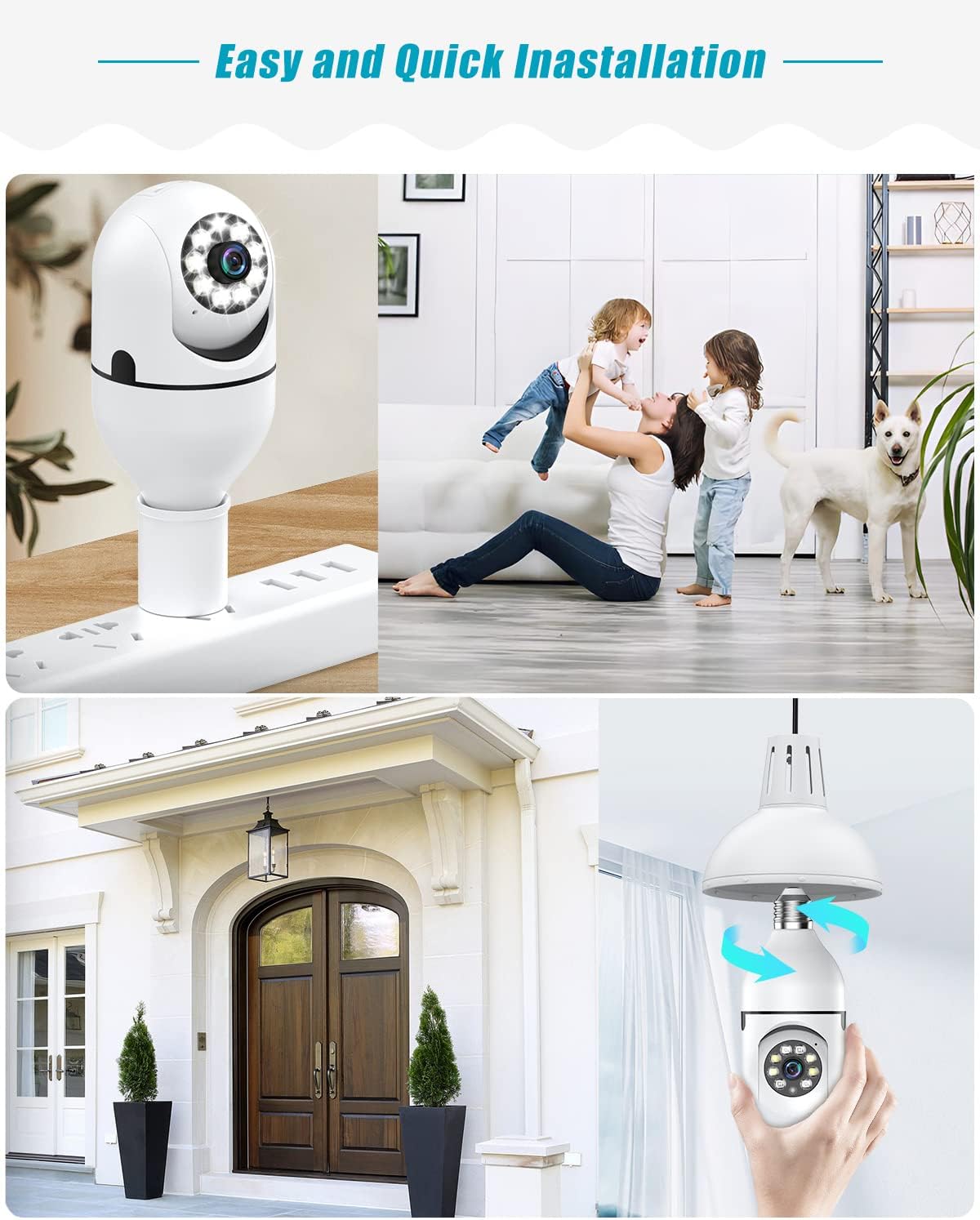
Image: The camera screws directly into a standard E27 light bulb socket for quick setup. It can be used indoors or outdoors in a protected fixture.
2. App Download and Account Creation
To operate the camera, you need to download the compatible mobile application.
- Scan the QR code provided in the camera's packaging or search for the recommended app (e.g., 'YI IoT' or similar smart home app) in your device's app store (iOS App Store or Google Play Store).
- Download and install the application.
- Open the app and create a new user account. Follow the on-screen instructions to complete registration.
3. Camera Connection to Wi-Fi
Connect your camera to your home Wi-Fi network using the mobile application.
- Ensure your mobile device is connected to a 2.4GHz Wi-Fi network. The camera supports 2.4GHz Wi-Fi only.
- In the app, tap 'Add Device' or the '+' icon.
- Select 'Light Bulb Camera' or a similar option from the device list.
- Follow the app's instructions to reset the camera if necessary (usually by pressing a reset button until an audible prompt is heard).
- The app will generate a QR code. Position your phone's screen in front of the camera lens (approximately 15-20 cm away) for the camera to scan it.
- Once the camera successfully scans the QR code, it will connect to your Wi-Fi network. Follow any final prompts in the app to complete the setup.
Operating Instructions
1. Live View and Pan/Tilt Control
Access the live video feed and control the camera's viewing angle directly from the mobile app.
- Open the app and select your camera from the device list.
- The live video feed will appear. Use the on-screen joystick or swipe gestures to pan (horizontal rotation up to 355°) and tilt (vertical movement up to 180°) the camera, eliminating blind spots.
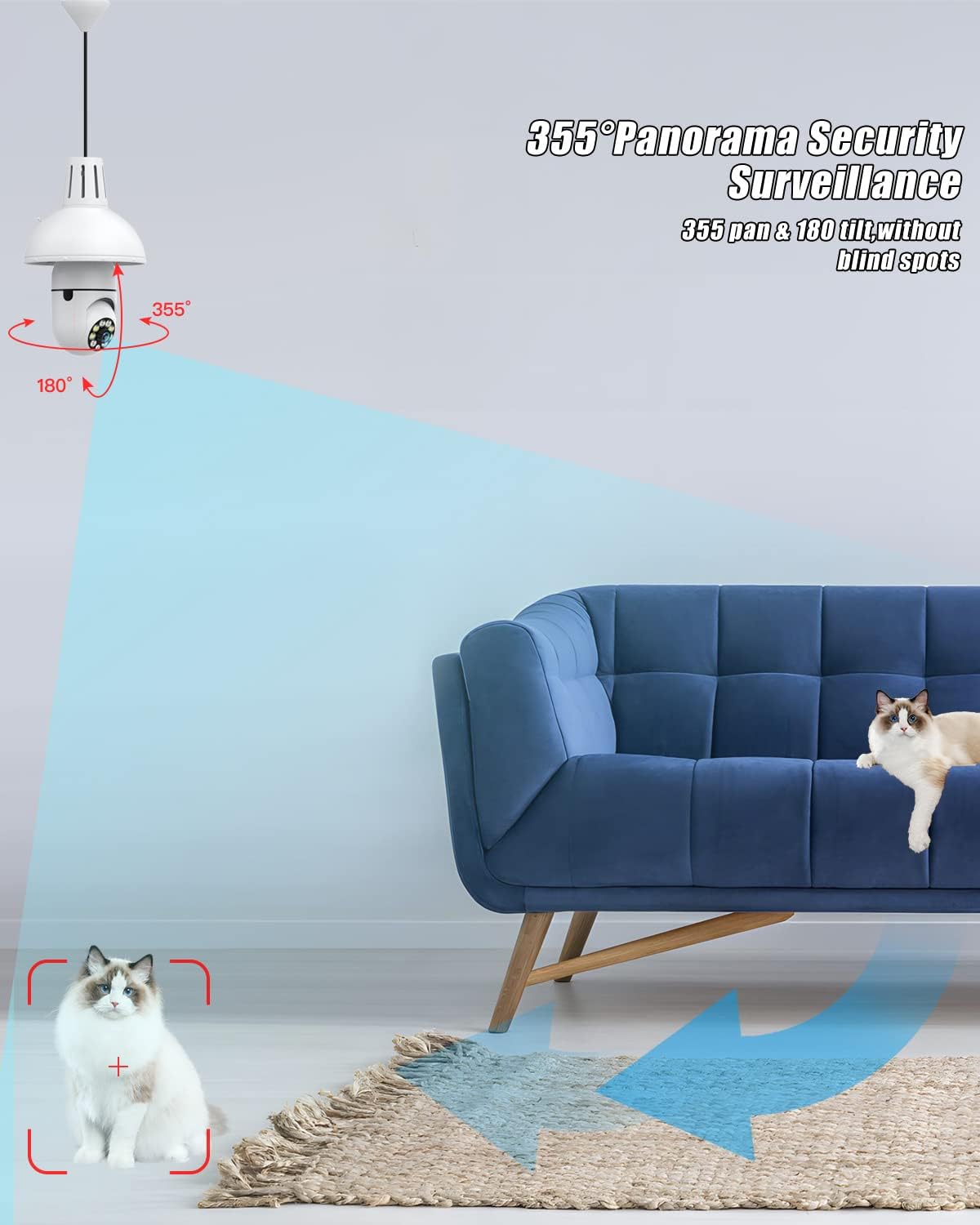
Image: The camera offers 355 degrees of horizontal pan and 180 degrees of vertical tilt for comprehensive surveillance.
2. Motion Detection and Real-time Alerts
The camera features a highly sensitive motion sensor to detect activity in its field of view.
- Enable motion detection in the app's settings for your camera.
- When motion is detected, the camera will automatically record the event and send a real-time notification to your mobile device.
- You can customize alert sensitivity and notification preferences within the app.
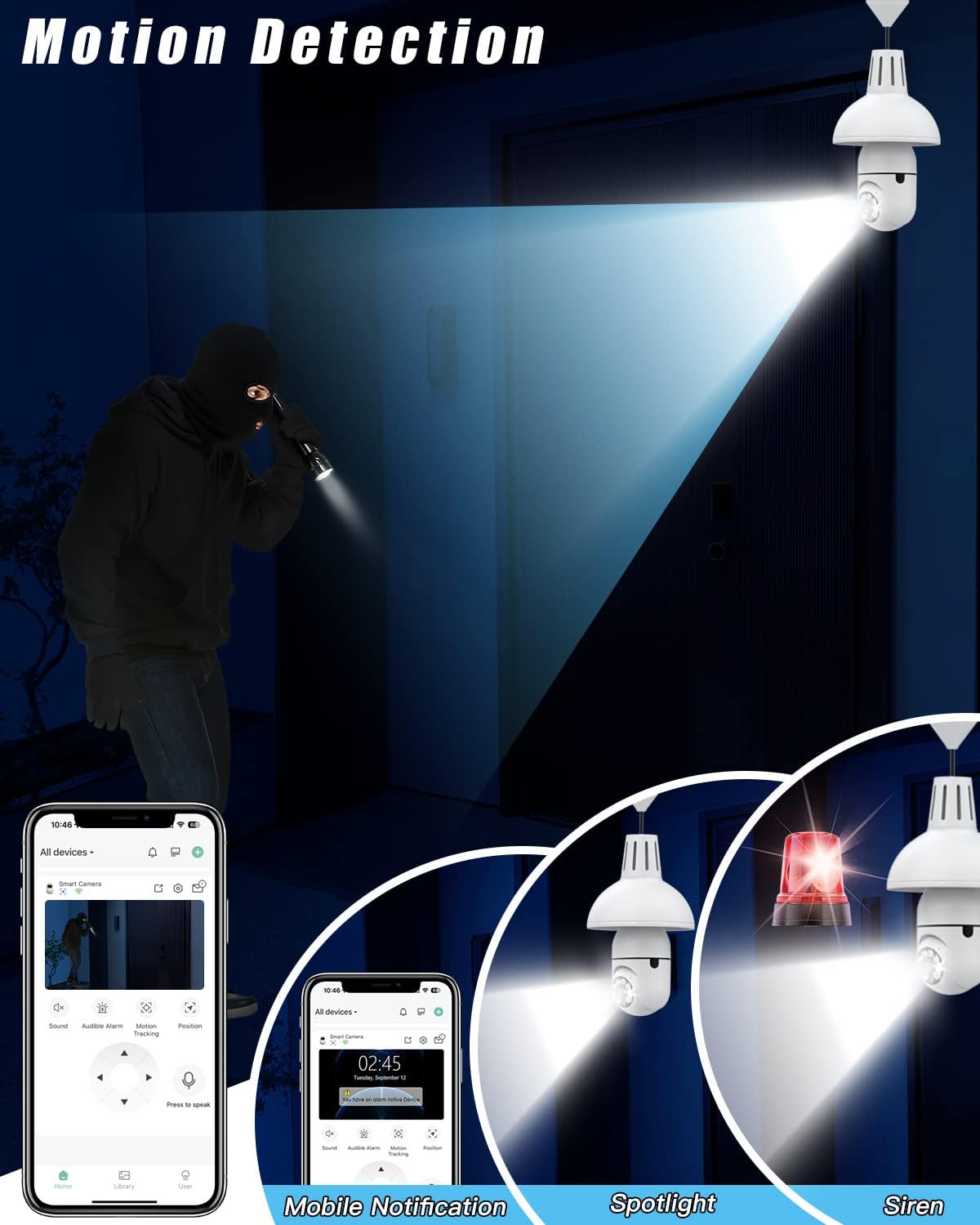
Image: Motion detection triggers mobile notifications, and can activate a spotlight or siren for deterrence.
3. Two-Way Audio
Communicate with individuals near the camera using the built-in microphone and speaker.
- While viewing the live feed, tap the microphone icon in the app to speak. Your voice will be transmitted through the camera's speaker.
- The camera's microphone will capture audio from its surroundings, allowing you to hear what is happening.
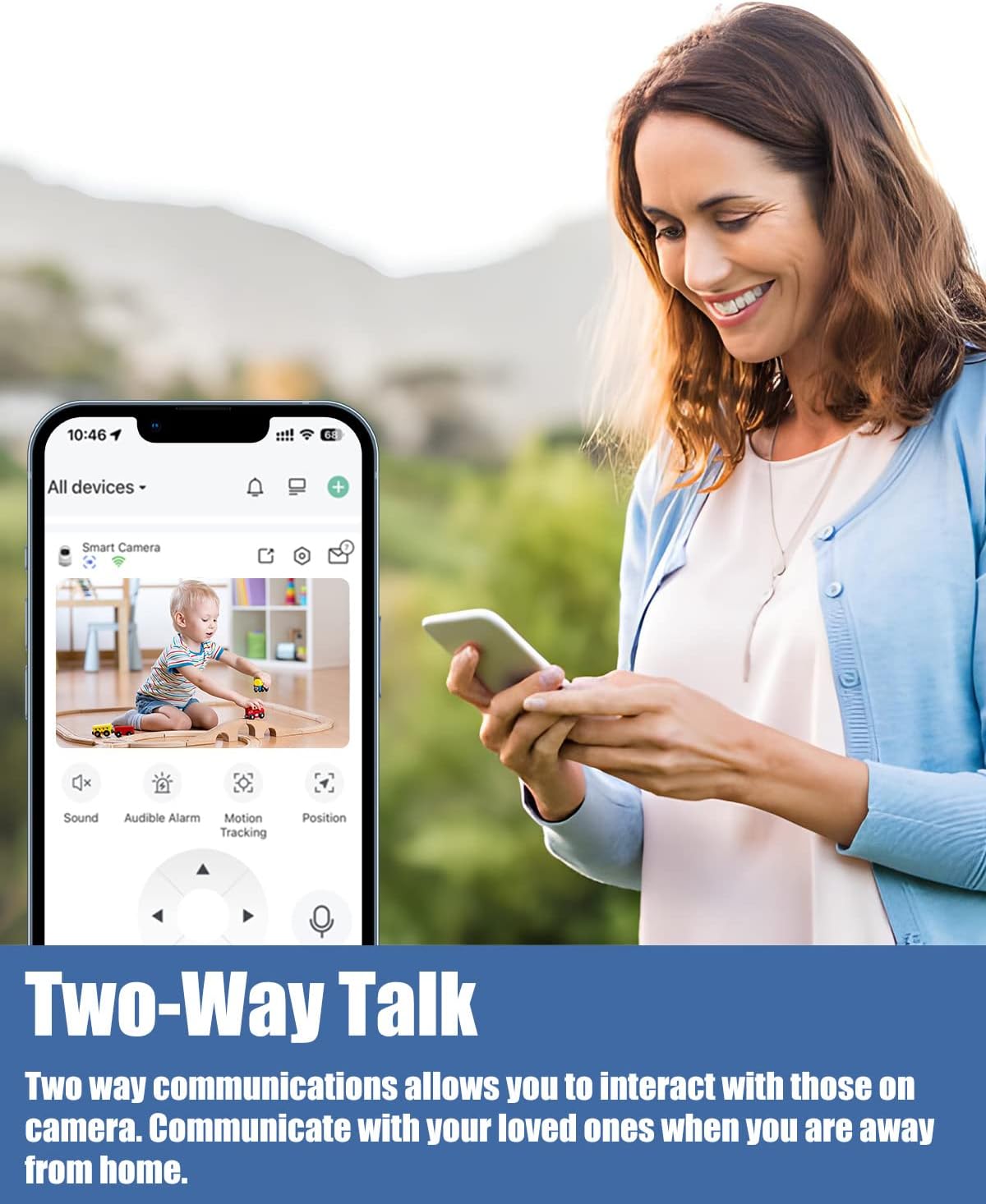
Image: The two-way talk feature allows interaction with people near the camera via the mobile app.
4. Night Vision
The camera provides clear images even in low-light or complete darkness.
- The camera automatically switches to night vision mode when ambient light is insufficient.
- Equipped with infrared LEDs, it captures clear black and white video in dark conditions.
5. Remote Viewing
Access your camera's live feed and recorded footage from anywhere, anytime.
- As long as your camera is connected to Wi-Fi and your mobile device has internet access, you can remotely view your property.
- The app is compatible with iPhone, Android phones, and iPads.
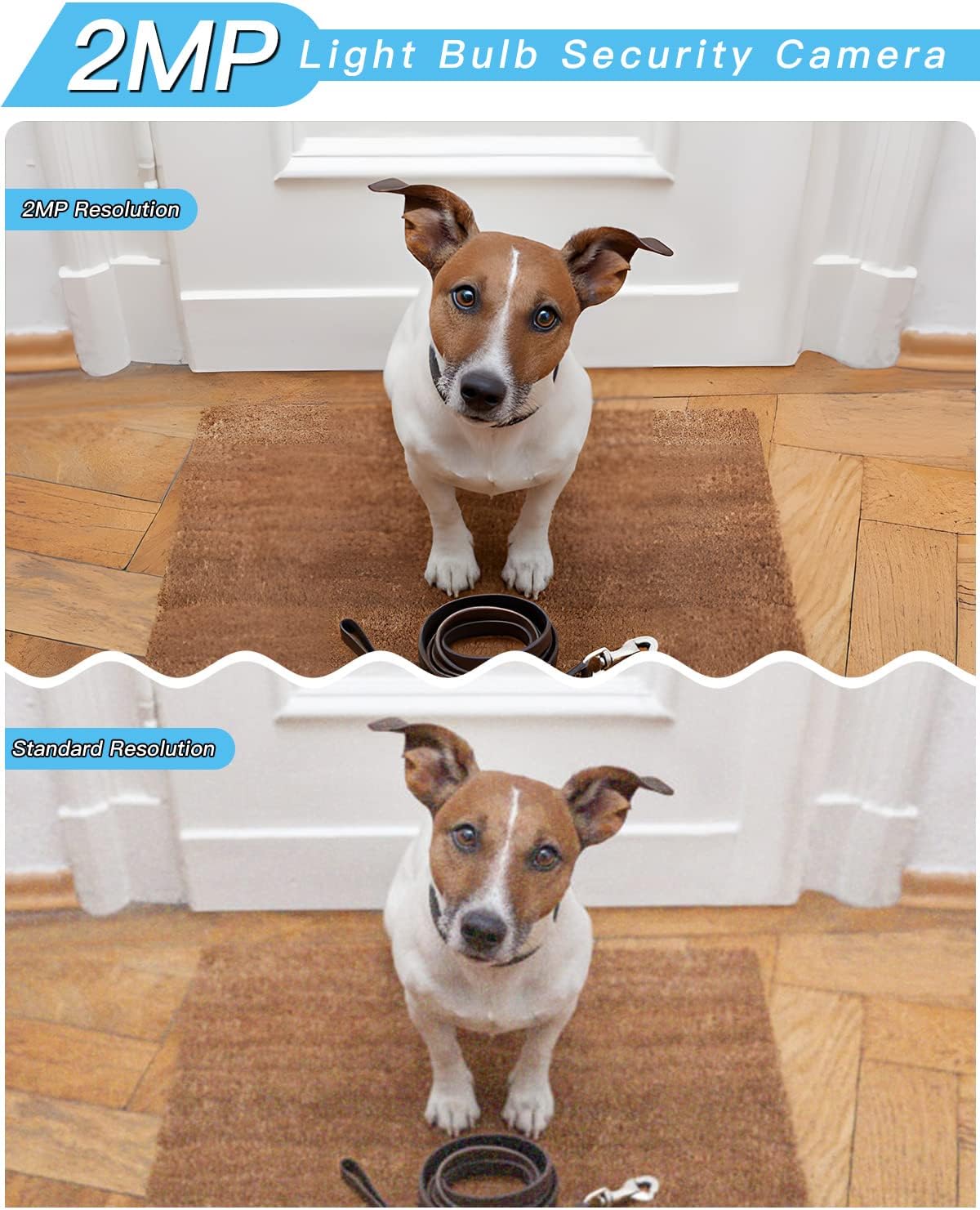
Image: The 2MP resolution provides significantly clearer and more detailed images compared to standard resolution.
Maintenance
- Cleaning: Gently wipe the camera lens and body with a soft, dry cloth to remove dust and smudges. Avoid using harsh chemicals or abrasive materials.
- Firmware Updates: Regularly check the mobile app for available firmware updates. Keeping your camera's firmware up-to-date ensures optimal performance, security, and access to new features.
- Power Cycle: If the camera experiences minor issues, try power cycling it by turning off the light fixture's power for a few seconds, then turning it back on.
Troubleshooting
Camera Not Connecting to Wi-Fi
- Ensure your Wi-Fi network is 2.4GHz. The camera does not support 5GHz networks.
- Verify that your Wi-Fi password is entered correctly in the app.
- Make sure the camera is within range of your Wi-Fi router. Obstacles like thick walls can interfere with the signal.
- Try resetting the camera and repeating the connection process.
Poor Image Quality
- Check if the camera lens is clean and free from dust or smudges.
- Ensure a stable Wi-Fi connection. A weak signal can result in lower video quality.
- In night vision mode, ensure there are no reflective surfaces too close to the camera that could cause glare.
Motion Detection Not Working or Too Sensitive
- Verify that motion detection is enabled in the app settings.
- Adjust the motion detection sensitivity levels within the app. High sensitivity may trigger alerts from minor movements like shadows or insects.
- Ensure the camera's field of view is clear and not obstructed.
Two-Way Audio Issues
- Check your phone's volume and the camera's speaker volume settings in the app.
- Ensure there is no excessive background noise near the camera or your phone that could interfere with communication.
- Verify a stable internet connection for both the camera and your mobile device.
Specifications
| Feature | Detail |
|---|---|
| Brand | UPULTRA |
| Model | B0BWXMDJSQ |
| Connectivity Technology | Wireless (Wi-Fi 2.4GHz) |
| Recommended Uses | Indoor, Outdoor (protected environment) |
| Special Features | Motion Sensor, Night Vision, Two-Way Audio |
| Video Capture Resolution | 1080p Full HD |
| Viewing Angle | 360 degrees (Pan/Tilt) |
| Power Source | Corded Electric (E27 bulb base, 110-240V) |
| Compatible Devices | Smartphone (Android, iPhone) |
| Alert Type | Motion Only |
| Night Vision Type | Night Color (Infrared) |
Warranty and Support
UPULTRA provides lifetime technical support and services for this product. For any questions, issues, or assistance, please contact our customer support team.
Customer Support
If you encounter any problems or have questions regarding your UPULTRA Light Bulb Security Camera, please refer to the contact information provided with your product packaging or visit the official UPULTRA website for support resources.