
1. Product Overview
The SecuFirst REP240 Wi-Fi Repeater is a versatile device designed to extend the range of your existing wireless network, eliminate Wi-Fi dead zones, and provide stable internet access throughout your home or office. It supports a maximum speed of 300 Mbps and operates on the 2.4 GHz frequency band.
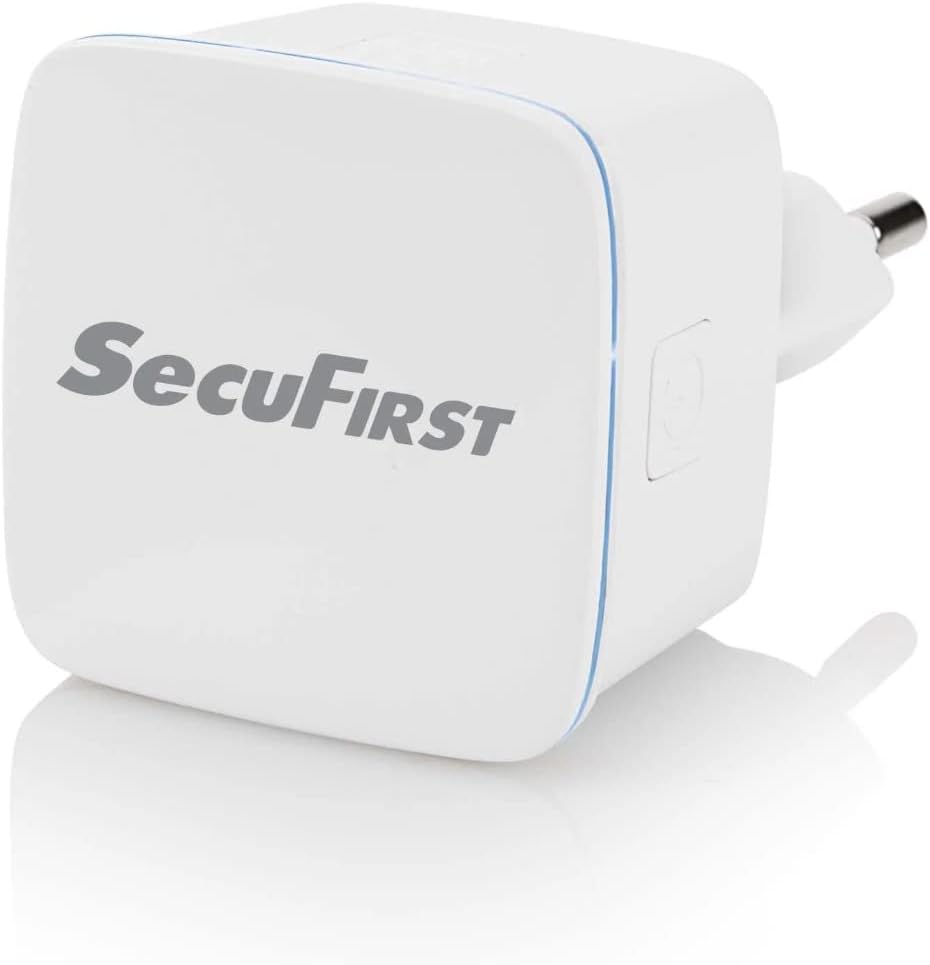
Figure 1.1: Front view of the SecuFirst REP240 Wi-Fi Repeater, showing its compact design.

Figure 1.2: Various angles of the REP240, highlighting its plug and side features.
The REP240 features a compact wall-plug design that avoids obstructing adjacent outlets. It includes a WPS button for quick setup and an Ethernet port for wired connections or Access Point mode.

Figure 1.3: Diagram illustrating the signal and power indicator, WPS/Reset button, ON/OFF button, and RJ45 connection port on the device.

Figure 1.4: Dimensions of the SecuFirst REP240, showing its width (W: 41mm), height (H: 41mm), and depth (D: 27mm).
2. Key Features
- Wi-Fi Signal Booster: Extends the range of your existing wireless network.
- High Speed: Supports data transfer rates up to 300 Mbps.
- 2.4 GHz Compatibility: Works with all devices using the 2.4 GHz network, including smartphones, laptops, tablets, IP cameras, and printers.
- Compact Design: Wall-plug design that does not obstruct adjacent power outlets.
- WPS Button: Enables quick and easy connection to your router.
- Multiple Operating Modes: Functions as a Repeater, Access Point (AP), or Client.
- Ethernet Port: Provides a wired connection option for devices or for AP mode setup.
- Indoor Range: Effective range of up to 50 meters indoors.
3. Setup and Installation
The SecuFirst REP240 offers two primary methods for setup: using the WPS button for quick connection or via an online wizard for manual configuration.
3.1. WPS (Wi-Fi Protected Setup) Method
- Plug the REP240 into a power outlet near your existing Wi-Fi router.
- Wait for the power indicator light on the REP240 to become stable.
- Press the WPS button on your Wi-Fi router.
- Within 2 minutes, press the WPS button on the SecuFirst REP240.
- The indicator light on the REP240 will flash and then turn solid, indicating a successful connection.
- Once connected, you can unplug the REP240 and move it to a location between your router and the area with weak Wi-Fi signal. Ensure the signal indicator on the REP240 shows a good signal strength.
3.2. Online Wizard Method (for routers without WPS or manual setup)
- Plug the REP240 into a power outlet.
- On your computer or mobile device, connect to the Wi-Fi network broadcast by the REP240 (e.g., "SecuFirst_Repeater"). No password is required initially.
- Open a web browser and enter the default IP address (usually
192.168.10.1or check the quick start guide for the exact address). - Follow the on-screen instructions of the setup wizard. You will be prompted to select your existing Wi-Fi network and enter its password.
- Choose your desired operating mode (Repeater, AP, or Client).
- Complete the setup. The REP240 will restart, and its indicator light will confirm the connection.
4. Operating Modes
The SecuFirst REP240 supports three distinct operating modes to cater to various network needs:
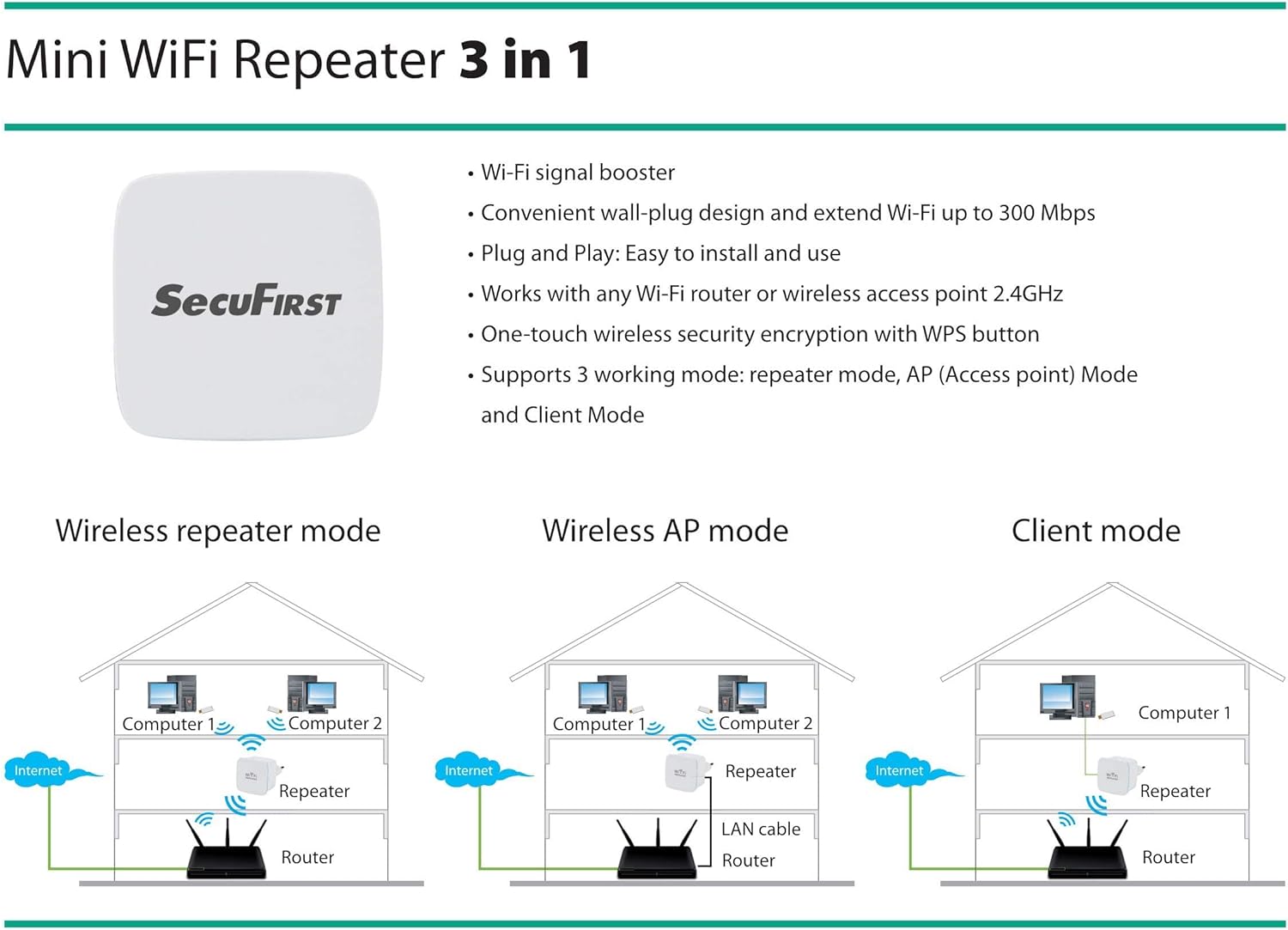
Figure 4.1: Visual representation of the three operating modes: Wireless Repeater mode, Wireless AP mode, and Client mode.
4.1. Repeater Mode (Default)
In Repeater Mode, the REP240 extends the coverage of your existing Wi-Fi network. It receives the wireless signal from your main router and re-broadcasts it, effectively eliminating dead zones and improving signal strength in areas with poor reception. This mode is ideal for expanding your Wi-Fi coverage without running new cables.
4.2. Access Point (AP) Mode
In AP Mode, the REP240 transforms a wired internet connection into a wireless hotspot. You connect the REP240 to your router or modem via an Ethernet cable, and it then creates a new Wi-Fi network. This mode is useful in situations where you have an Ethernet port available but need to provide wireless access, such as in a hotel room or a part of your home with a wired connection but no Wi-Fi.
4.3. Client Mode
Client Mode allows you to connect a wired-only device (e.g., a desktop computer, smart TV, or gaming console) to your wireless network. In this mode, the REP240 connects wirelessly to your main Wi-Fi network and provides an Ethernet port for your wired device. This is beneficial for devices that lack Wi-Fi capabilities but need internet access.
5. Maintenance
To ensure optimal performance and longevity of your SecuFirst REP240 Wi-Fi Repeater, follow these simple maintenance guidelines:
- Keep Clean: Regularly wipe the device with a soft, dry cloth to remove dust. Avoid using liquid cleaners or aerosols.
- Ventilation: Ensure the device is placed in a well-ventilated area and that its ventilation holes are not blocked.
- Environmental Conditions: Avoid exposing the device to extreme temperatures, high humidity, or direct sunlight.
- Power Cycle: If you experience minor performance issues, try unplugging the device from the power outlet for 10-15 seconds and then plugging it back in. This can often resolve temporary glitches.
- Firmware Updates: Periodically check the SecuFirst official website for any available firmware updates. Keeping the firmware updated can improve performance and security.
6. Troubleshooting
If you encounter issues with your SecuFirst REP240, refer to the following common troubleshooting steps:
| Problem | Possible Cause | Solution |
|---|---|---|
| No power/Device not turning on | Power outlet issue, device not properly plugged in. | Ensure the device is securely plugged into a working power outlet. Try a different outlet. |
| Cannot connect to the repeater's Wi-Fi | Incorrect Wi-Fi name/password, repeater not configured. | Ensure you are selecting the correct network name. If newly set up, follow the online wizard instructions. |
| Weak or no internet signal after setup | Repeater placed too far from the main router, interference. | Relocate the repeater closer to your main router. Ensure there are no major obstructions (thick walls, large metal objects) between the repeater and the router. Check the signal indicator on the repeater. |
| WPS connection failed | WPS button not pressed within time limit, router WPS issue. | Ensure both WPS buttons are pressed within 2 minutes. If it continues to fail, use the online wizard method for setup. |
| Slow internet speed | Network congestion, interference, repeater placement. | Try moving the repeater to a different location. Reduce the number of devices connected to the repeater. Check for sources of interference (e.g., microwaves, cordless phones). |
| Forgot repeater's login password | Password lost. | Perform a factory reset by pressing and holding the WPS/Reset button for 5-10 seconds until the lights flash. This will revert the device to its default settings, and you can reconfigure it. |
7. Technical Specifications
| Brand | SecuFirst |
| Model Number | REP240 |
| Wireless Standard | 802.11bgn |
| Data Transfer Rate | 300 Mbps |
| Frequency Band | 2.4 GHz |
| Indoor Range | Up to 50 meters |
| Special Features | Compact design, Access Point function, WPS button |
| Compatible Devices | Devices supporting 2.4 GHz network |
| Included Components | 1 Quick Start Guide, 1 SecuFirst REP240 3-in-1 WiFi Repeater |
| Item Weight | 22 Grams |
8. Warranty and Support
All SecuFirst products, including the REP240 Wi-Fi Repeater, come with a standard two-year manufacturer's warranty from the date of purchase. This warranty covers defects in materials and workmanship under normal use.
For technical support, troubleshooting assistance, or warranty claims, please refer to the contact information provided in your product's packaging or visit the official SecuFirst website. Ensure you have your product model number (REP240) and proof of purchase ready when contacting support.