
UNITOPSCI A3197A4
UNITOPSCI 2G+64G 9 Inch Double Din Android Car Stereo
User Manual
1. Introduction
Thank you for choosing the UNITOPSCI 2G+64G 9 Inch Double Din Android Car Stereo. This advanced head unit is designed to enhance your driving experience with its comprehensive features, including a 9-inch capacitive touch screen, Android 13 operating system, wireless Apple CarPlay, Android Auto, Bluetooth, GPS navigation, mirror link, WiFi, FM radio, USB connectivity, steering wheel control (SWC), and DVR support. This manual provides detailed instructions for installation, operation, maintenance, and troubleshooting to ensure optimal performance and longevity of your device.

Image: The UNITOPSCI 9-inch Android Car Stereo, showcasing its user interface with navigation, music playback, and system settings.
2. What's in the Box
Please verify that all components are present in the package before proceeding with installation.
- 1 x Android Car Stereo
- 1 x Backup Camera
- 1 x GPS Antenna
- 1 x Rear Camera Input Cable
- 1 x RCA Cable
- 1 x Power Cable
- 1 x USB Cable
- 2 x Metal Frame
- 1 x User Manual
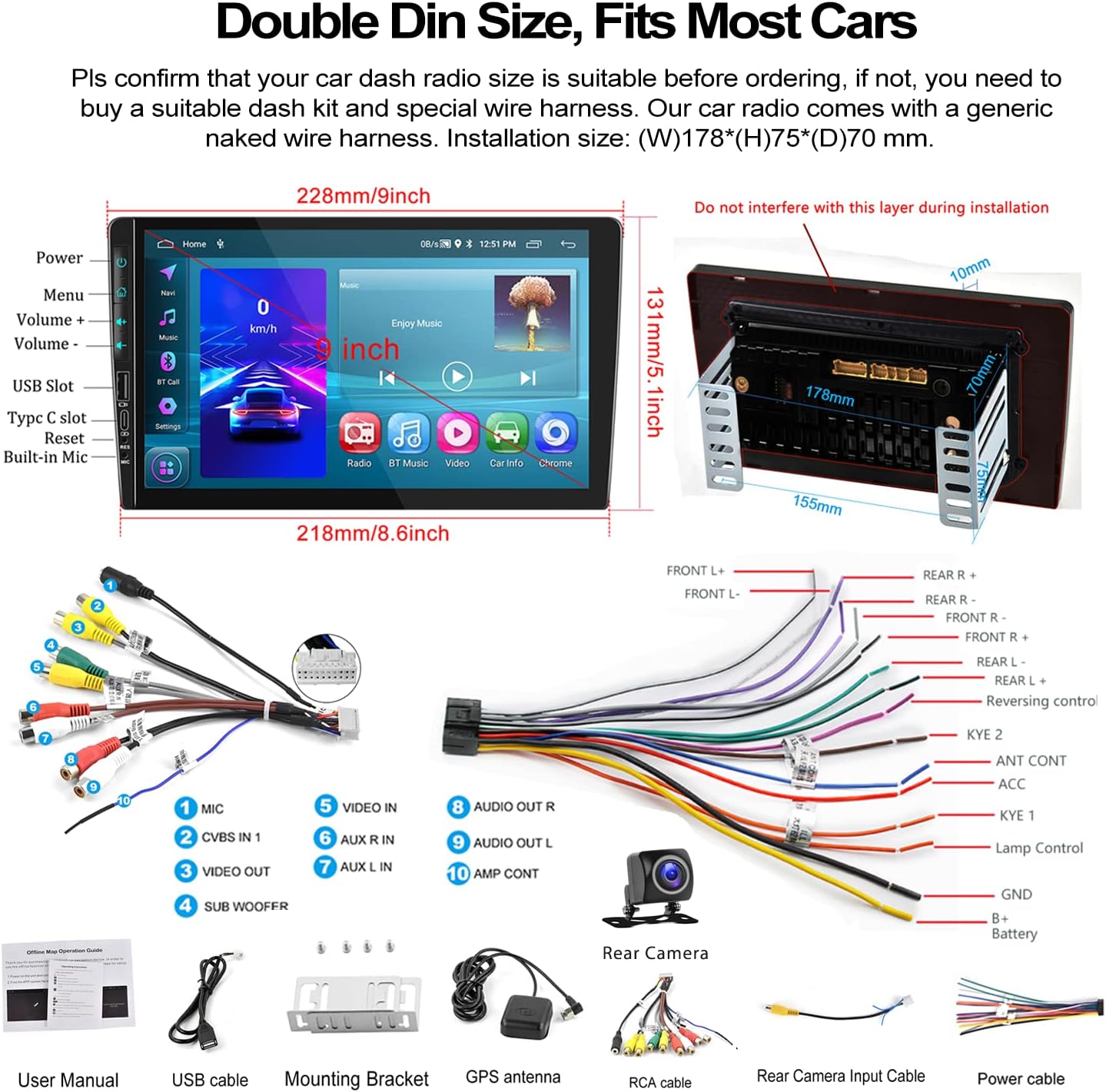
Image: A visual representation of the car stereo's dimensions, along with all the cables and accessories included in the package, such as the power cable, RCA cables, USB cable, GPS antenna, and backup camera.
3. Specifications
| Feature | Description |
|---|---|
| System | Android 13 |
| RAM | 2GB |
| ROM | 64GB |
| Screen Size | 9 Inches |
| Screen Resolution | 1024x600 |
| Power Amplifier Chip | 7388 |
| Radio Chip | 8035 |
| Power Output | 4*45W |
| Bluetooth Version | 4.2 |
| Radio Frequency Band | FM/RDS |
| Working Temperature | -40℃ to 80℃ |
| Installation Size | 7 inch (W), 3.8 inch (H) / 178mm (W) x 97mm (H) |
| Product Dimensions | 1.85 x 7 x 4.02 inches |
| Item Weight | 2.29 pounds |
4. Setup and Installation
Proper installation is crucial for the performance and safety of your car stereo. It is recommended to have the installation performed by a professional if you are unsure about any steps.
4.1 Pre-Installation Check
- Ensure your car's dashboard opening is compatible with the standard double din size (approximately 7 inches wide by 3.8 inches high).
- Disconnect the car battery's negative terminal before starting any wiring.
- Familiarize yourself with the wiring harness provided.
4.2 Wiring Connections
Refer to the wiring diagram provided in the 'What's in the Box' section and the specific rear view wiring diagram below for detailed connections.
- Power Cable: Connect the power cable to your car's power supply according to the diagram.
- RCA Cables: Connect audio and video input/output cables as needed for external devices (e.g., amplifiers, headrest monitors).
- USB Cables: Connect the dual USB interfaces for media playback, charging, or wired Android Auto.
- GPS Antenna: Mount the GPS antenna in a location with a clear view of the sky for optimal signal reception.
- Rear Camera Input Cable: This cable is essential for the backup camera functionality.
4.3 Backup Camera Wiring
The included AHD backup camera requires specific wiring for proper operation:
- Camera Power: The red wire of the backup camera connects to the positive (+) back battery supply (e.g., reverse light power). The black wire connects to the negative (-) battery supply (ground).
- Video Input: The yellow RCA video output from the backup camera connects to the "CAM IN" port on the rear of the car radio.
- Trigger Wire: Locate the wire labeled "BACK" or "REVERSE" on the car radio's wire harness. This wire needs to be connected to the positive power supply of your car's reversing light. This signal tells the head unit to automatically switch to the reversing image when reverse gear is engaged.

Image: A comprehensive wiring diagram for the backup camera, showing how to connect the camera's power, video signal, and the trigger wire to the car stereo and vehicle's reverse light system.
5. Operating Instructions
This section details the various functions and how to operate your UNITOPSCI car stereo.
5.1 Wireless Apple CarPlay & Android Auto
Connect your smartphone for seamless integration of navigation, music, calls, and more.
- Wireless Connection: For both Apple CarPlay and Android Auto, connect your phone via Bluetooth and/or WiFi. Follow the on-screen prompts to establish the connection.
- Wired Connection: Alternatively, connect your Android phone via a USB data cable for wired Android Auto.
- Voice Control: Utilize Siri (for CarPlay) or Google Assistant (for Android Auto) for hands-free operation of functions like navigation, calls, and music.
- Note: The Android Auto function may not work for some Samsung phones. CarPlay supports iOS phones up to version 15.4.

Image: Displays of the car stereo showing Wireless Apple CarPlay, Wireless Android Auto, and Mirror Link in action, highlighting their respective interfaces and connection methods.
5.2 Mirror Link
Mirror Link allows you to display your smartphone's screen directly onto the car stereo's display.
- Android/iOS Compatibility: Supports screen mirroring for both Android and iOS devices.
- Connection: Connect your phone via USB or WiFi as per the instructions on the stereo.

Image: The car stereo screen mirroring a smartphone, demonstrating the Mirror Link feature.
5.3 Bluetooth Hands-Free & FM Radio
Enjoy safe communication and your favorite radio stations.
- Bluetooth Pairing: Enable Bluetooth on your phone and search for the car stereo. Pair the devices to enable hands-free calling and wireless audio streaming.
- Phone Book: The stereo supports automatic download of your phone book for easy access to contacts.
- FM Radio: Tune into your favorite FM stations. The radio features 18 preset stations for quick access to news, sports, and music.

Image: The car stereo's display showing the Bluetooth hands-free calling interface, FM radio tuner, and options for Bluetooth music and phone book access.
5.4 GPS Navigation & WiFi
Navigate with ease and stay connected.
- Offline Maps: The unit comes with built-in offline maps (HERE WE GO). Switch on WiFi to download map data for your region.
- Online Maps: Supports various online navigation apps for real-time traffic and updates.
- WiFi Connectivity: Connect to a WiFi hotspot (e.g., from your phone) to access online features, download apps, and browse the internet.
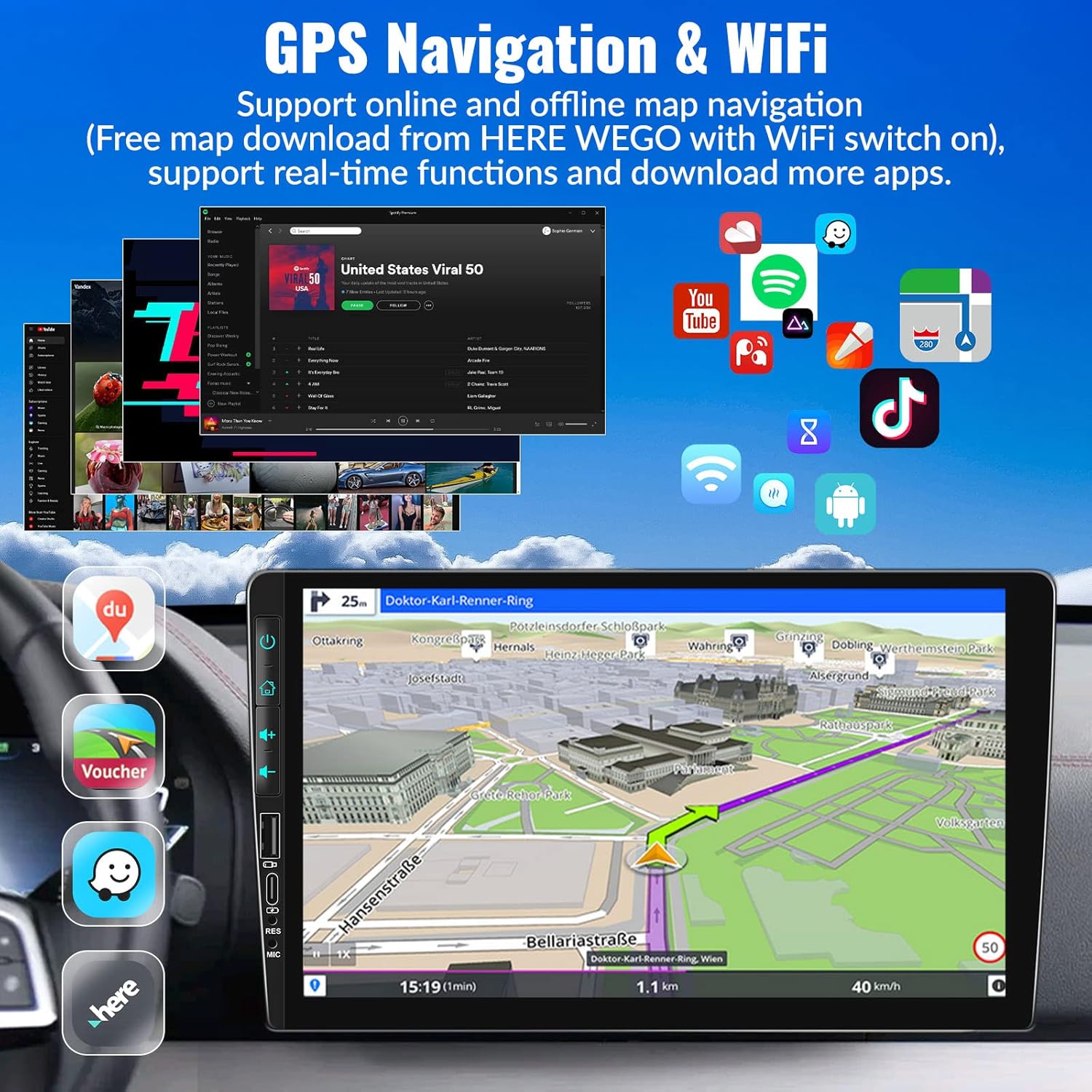
Image: The car stereo's screen showing a GPS navigation map, with various app icons floating around, illustrating the device's WiFi and app capabilities.
5.5 Steering Wheel Control (SWC)
Control your stereo without taking your hands off the wheel.
- Setup: Access the Steering Wheel Control settings in the system menu. Follow the on-screen instructions to map your car's steering wheel buttons to the stereo's functions (e.g., volume up/down, track skip, mode).
- Convenience: Easily switch songs, radio channels, and adjust volume for a safer driving experience.
5.6 EQ Sound Setting
Customize your audio experience.
- Presets: Choose from various preset EQ modes such as Pop, Classic, Rock, Jazz, and more.
- Customization: Adjust individual frequency bands to create your preferred sound profile.

Image: The car stereo screen showing the AHD rear view camera display with parking lines, and a separate image illustrating the steering wheel control setup interface.
5.7 AHD Rear View Camera
Enhance parking safety with the included backup camera.
- Automatic Switch: When properly wired, the stereo will automatically switch to the reversing image on the 9-inch touch screen when you engage reverse gear.
- Features: The camera provides HD image quality, is waterproof, offers night vision, and has a wide-angle view.
5.8 HD Screen & UI Themes
Personalize your stereo's appearance.
- Display: The 1024x600 capacitive touch screen features 2.5D glass and supports HD 1080p video playback.
- UI Themes: Choose from 28 different UI themes to customize the look and feel of your car stereo's interface.

Image: The car stereo's HD screen displaying a vibrant image, alongside a selection of 28 different desktop UI themes for personalization.
5.9 Colorful Lights
Customize the button illumination.
- Options: There are 7 options for button light colors, allowing you to match your car's interior lighting or your personal preference.

Image: The car stereo showcasing its customizable colorful button lights, with a spectrum of 7 color options.
6. Maintenance
To ensure the longevity and optimal performance of your car stereo, follow these maintenance guidelines:
- Cleaning the Screen: Use a soft, lint-free cloth to gently wipe the touch screen. For stubborn smudges, slightly dampen the cloth with water or a screen-safe cleaner. Avoid abrasive materials or harsh chemicals.
- General Cleaning: Keep the unit free from dust and debris. Use a soft brush or compressed air to clean vents and button crevices.
- Temperature Control: Avoid exposing the unit to extreme temperatures (very hot or very cold) for extended periods, as this can affect performance and lifespan.
- Software Updates: Periodically check for software updates from UNITOPSCI to ensure you have the latest features and bug fixes.
- Cable Connections: Ensure all cables are securely connected. Loose connections can lead to intermittent issues.
7. Troubleshooting
If you encounter any issues with your car stereo, refer to the following common problems and solutions:
| Problem | Possible Cause & Solution |
|---|---|
| No Power / Unit Does Not Turn On |
|
| No Sound Output |
|
| Backup Camera Not Displaying Image |
|
| Wireless CarPlay/Android Auto Not Connecting or Laggy |
|
| Steering Wheel Controls Not Working |
|
| Touch Screen Unresponsive or Malfunctioning |
|
If the problem persists after trying these solutions, please contact customer support for further assistance.
8. Warranty and Support
UNITOPSCI is committed to providing high-quality products and satisfactory services.
- Warranty: This product comes with a 1-year warranty from the date of purchase.
- Replacement Service: Enjoy a 12-month replacement service for eligible issues.
- Money Back Guarantee: A 30-day money-back guarantee is offered.
- Lifetime Support: UNITOPSCI provides full-life product support, including after-sales consultation and technical assistance.
- Contact Support: For any product problems or inquiries, please feel free to write to us at UNITOPSCI@126.com. Our team aims for a quick response within 16 hours.

Image: Visual representation of UNITOPSCI's customer support services, including contact information.
Ask a question about this manual
Ask about setup, troubleshooting, compatibility, parts, safety, or missing instructions. Manuals+ will review the question and use this page’s manual context to help answer it.