
1. Overview
The Canon PIXMA MG2522 is a versatile all-in-one color inkjet printer designed for personal and small office use. It combines printing, scanning, and copying functionalities into a single, compact device. This printer is ideal for basic home printing needs, supporting both black and white and color output. Its lightweight design allows for easy placement on a desk, and it features a paper tray capacity of up to 60 sheets of plain paper.

Image 1.1: The Canon PIXMA MG2522 printer in white, accompanied by its essential accessories: two USB cables for connectivity and a small LED light.
2. What's in the Box
Upon unboxing your Canon PIXMA MG2522, ensure all the following components are present:
- Canon PIXMA All-in-One Color Inkjet Printer
- Power Cord
- Setup CD-ROM (for driver installation)
- FINE Cartridges (Black and Color)
- USB Printer Cable
- Documentation and Manuals
3. Setup
Follow these steps to set up your Canon PIXMA MG2522 printer for the first time.
3.1. Unpacking
- Remove the printer from its packaging.
- Remove all protective tapes and packing materials from the exterior and interior of the printer.
- Place the printer on a stable, flat surface.
3.2. Power Connection
- Connect the power cord to the printer's power input.
- Plug the other end of the power cord into a wall outlet.
- Press the POWER button to turn on the printer.
3.3. Ink Cartridge Installation
- Open the printer's top cover to access the cartridge compartment.
- Wait for the print head holder to move to the center.
- Carefully unpackage the Black and Color FINE cartridges.
- Insert each cartridge into its corresponding slot until it clicks into place.
- Close the top cover.
3.4. Paper Loading
- Open the paper support and pull out the paper output tray.
- Gently slide the paper guides to match the width of your paper.
- Load up to 60 sheets of plain paper into the rear tray, print side facing up.

Image 3.1: This view of the printer emphasizes its paper input tray, capable of holding up to 60 sheets of plain paper, and clearly indicates its compatibility with Windows and Mac computers.
4. Operating Instructions
Learn how to use the primary functions of your Canon PIXMA MG2522.
4.1. Printing
- Ensure the printer is powered on and connected to your computer via USB.
- Open the document or image you wish to print on your computer.
- Select 'Print' from the application's menu (e.g., File > Print).
- Choose 'Canon MG2522 series' as your printer.
- Adjust print settings (e.g., paper size, print quality, color/grayscale) as needed.
- Click 'Print' to start the printing process.
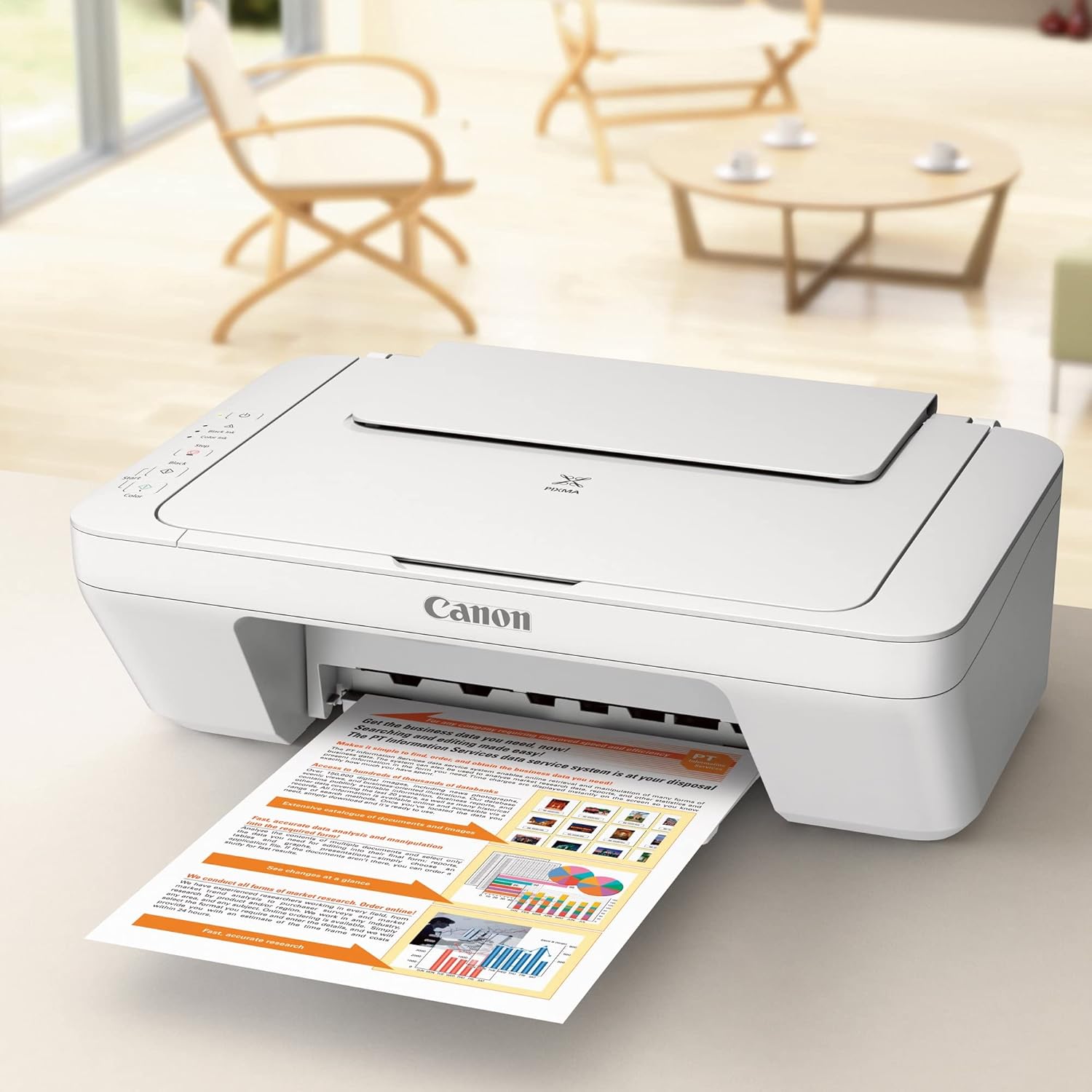
Image 4.1: The printer is shown in operation, with a document being printed and emerging from the output tray, demonstrating its primary function.
4.2. Scanning
- Lift the document cover on the printer.
- Place the document or photo face-down on the scanner glass, aligning it with the arrow mark.
- Close the document cover gently.
- On your computer, open the scanning software (e.g., Canon IJ Scan Utility).
- Select the type of scan (e.g., Photo, Document) and adjust settings as desired.
- Click 'Scan' to begin scanning. The scanned image will be saved to your computer.

Image 4.2: This image shows the printer with its top cover lifted, exposing the flatbed scanner, which is used for scanning documents and photos.
4.3. Copying
- Place the document face-down on the scanner glass.
- Ensure the printer is powered on.
- Press the 'Black' button for a black and white copy or the 'Color' button for a color copy.
- The printer will automatically make a copy of the document.
5. Maintenance
Regular maintenance ensures optimal performance and longevity of your printer.
5.1. Cleaning
- Exterior: Wipe the exterior of the printer with a soft, damp, lint-free cloth. Avoid abrasive cleaners.
- Interior: Periodically clean the inside of the printer to remove dust and paper residue. Refer to the on-screen manual or Canon support website for detailed instructions on internal cleaning procedures.
- Scanner Glass: Use a soft, lint-free cloth lightly dampened with glass cleaner to clean the scanner glass. Do not spray cleaner directly onto the glass.
5.2. Ink Cartridge Replacement
When an ink cartridge runs low or is empty, the printer's indicator light will signal. Replace cartridges as follows:
- Ensure the printer is powered on.
- Open the top cover of the printer. The print head holder will move to the replacement position.
- Press down on the empty ink cartridge to release it, then pull it out.
- Unpack the new Canon FINE cartridge and remove the protective tape.
- Insert the new cartridge firmly into its corresponding slot until it clicks into place.
- Close the top cover. The printer will perform an initialization process.
6. Troubleshooting
This section addresses common issues you might encounter with your printer.
| Problem | Solution |
|---|---|
| Printer is not turning on. | Ensure the power cord is securely connected to both the printer and a working electrical outlet. Try a different outlet. |
| Paper Jam. | Turn off the printer and carefully remove any jammed paper from the paper output slot or the rear tray. Refer to the full manual for detailed jam removal steps. |
| Poor Print Quality (streaks, faded colors). | Check ink levels and replace any empty or low cartridges. Perform a print head cleaning and alignment from the printer's utility software on your computer. |
| Printer not recognized by computer. | Ensure the USB cable is securely connected. Reinstall the printer drivers from the provided CD-ROM or Canon's official website. Restart both the printer and computer. |
| Paper not feeding. | Ensure paper is loaded correctly and not beyond the maximum capacity (60 sheets). Fan the paper stack before loading. Check for any foreign objects in the paper tray. |
7. Specifications
Key technical specifications for the Canon PIXMA MG2522 printer:
| Feature | Detail |
|---|---|
| Product Dimensions | 20"D x 4"W x 15"H |
| Printing Technology | Inkjet |
| Connectivity Technology | USB |
| Printer Output | Color |
| Max Print Speed (Color) | 4 ppm |
| Max Print Speed (Monochrome) | 8 ppm |
| Max Input Sheet Capacity | 60 sheets (plain paper) |
| Supported Paper Size | A4 (210 x 297 mm), A6 (105 x 148 mm) |
| Dual-sided printing | No (manual duplexing required) |
| Item Weight | 7.6 pounds |
| Included Components | Canon PIXMA All-in-One Color Inkjet Printer |
| Manufacturer | Canon |
8. Warranty and Support
Warranty Information: This Canon PIXMA MG2522 printer typically comes with a standard manufacturer's warranty, covering defects in materials and workmanship for a specified period from the date of purchase. Please refer to the warranty card included in your product packaging or visit the official Canon website for detailed warranty terms and conditions specific to your region.
Customer Support: For technical assistance, troubleshooting beyond this manual, or inquiries regarding your product, please contact Canon customer support. You can find contact information, FAQs, drivers, and additional resources on the official Canon support website:


