
Nextep NE-425C
Nextep NE-425C USB Headset with Microphone User Manual
Comprehensive instructions for the setup, operation, and maintenance of your Nextep NE-425C headset.
1. Introduction
Thank you for choosing the Nextep NE-425C Basic USB Headset with Microphone. This manual provides essential information to help you effectively use and maintain your device. Please read these instructions carefully before use.
2. Product Overview
The Nextep NE-425C is a wired, binaural headset designed for communication and music listening. It features an integrated microphone with unidirectional directivity, volume control, and a microphone mute function for convenient use with laptops and desktop computers.
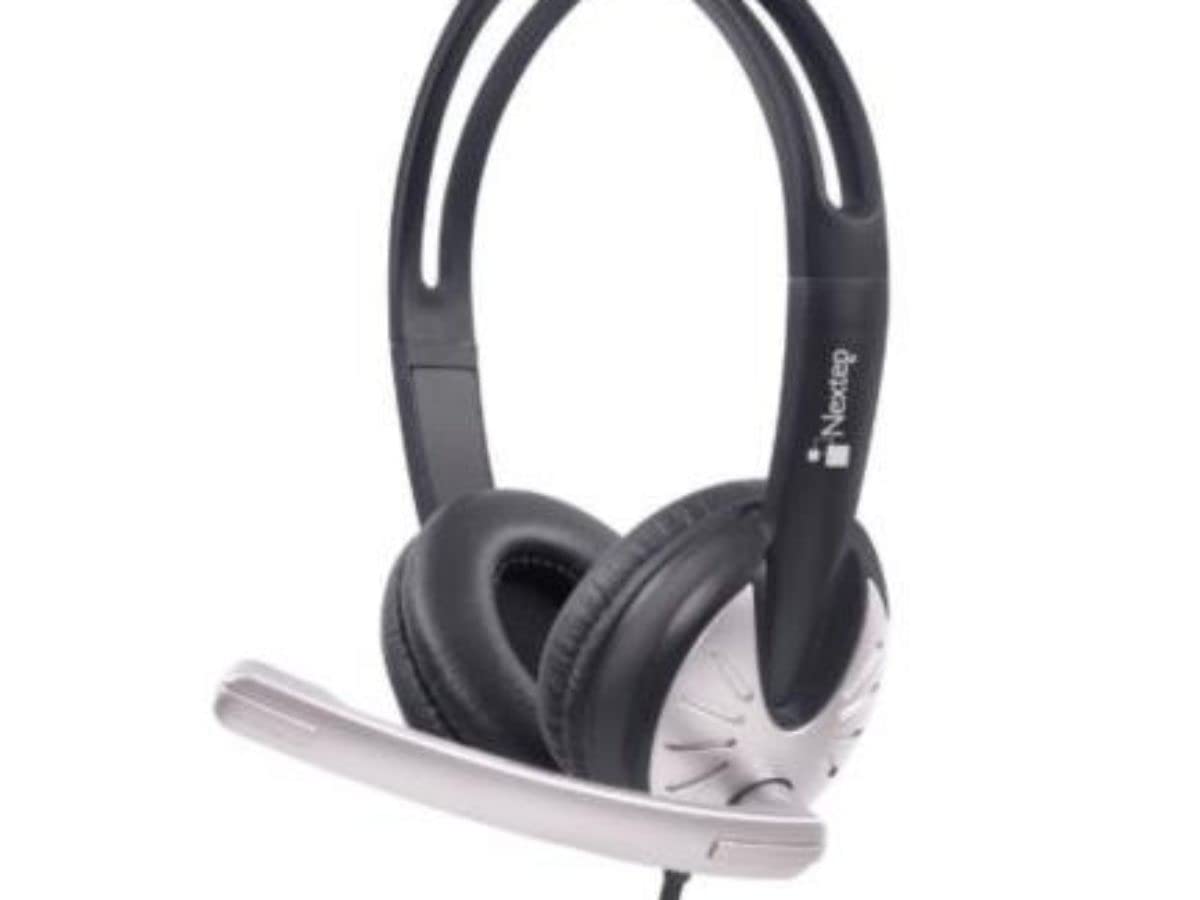
Image 1: Nextep NE-425C USB Headset. This image shows the black and silver over-ear headset with its adjustable microphone boom extended. The Nextep logo is visible on the headband.
Key Features:
- Connectivity: Wired USB connection for reliable performance.
- Audio: Binaural (stereo) sound for immersive listening.
- Microphone: Unidirectional microphone for clear voice capture, with mute function.
- Controls: Integrated volume control for easy audio adjustment.
- Design: Over-ear (supraaural) ear placement, foldable for portability.
- Cable Length: 2.20 meters (approximately 7.2 feet).
3. Setup Instructions
- Connect the Headset: Locate an available USB port on your laptop or desktop computer. Insert the USB connector of the NE-425C headset firmly into the USB port.
- System Recognition: Your operating system (e.g., Windows, macOS) should automatically detect and install the necessary drivers for the headset. This process may take a few moments.
- Verify Audio Settings:
- For Playback: Open your computer's sound settings and ensure the "Nextep NE-425C" or a similar USB audio device is selected as the default playback device.
- For Recording: In the same sound settings, verify that the "Nextep NE-425C Microphone" or similar is selected as the default recording device.
- Adjust Fit: Adjust the headband to comfortably fit your head. Position the microphone boom approximately 1-2 inches from your mouth for optimal voice clarity.
4. Operating the Headset
Volume Control:
The NE-425C headset features an in-line control unit on the cable. Use the volume up (+) and volume down (-) buttons to adjust the listening volume to your preference.
Microphone Mute Function:
To mute the microphone, press the microphone mute button on the in-line control unit. An indicator (if present, refer to the physical device) may show the mute status. Press the button again to unmute the microphone.
Recommended Usage:
This headset is suitable for various applications including online meetings, voice calls, gaming, and listening to music. Its unidirectional microphone is designed to focus on your voice while minimizing background noise.
5. Care and Maintenance
- Cleaning: Use a soft, dry cloth to clean the headset. For ear cushions, a slightly damp cloth can be used, but ensure they are completely dry before use. Do not use harsh chemicals or abrasive cleaners.
- Storage: When not in use, store the headset in a clean, dry place. The foldable design allows for compact storage. Avoid extreme temperatures and direct sunlight.
- Cable Care: Avoid sharply bending or twisting the USB cable. Do not pull the cable to disconnect the headset; always grasp the USB connector.
6. Troubleshooting
| Problem | Possible Solution |
|---|---|
| No sound from headset. |
|
| Microphone is not working. |
|
| Sound quality is poor. |
|
7. Specifications
| Feature | Detail |
|---|---|
| Model Name | NE-425C |
| Brand | Nextep |
| Connectivity Technology | Wired (USB) |
| Headset Type | Binaural, Over-Ear (Supraaural) |
| Microphone Type | Unidirectional |
| Cable Length | 2.20 m |
| Compatible Devices | Laptops, Desktop Computers |
| Special Features | Foldable design, In-line volume control, Microphone mute |
| Dimensions (Package) | 24.1 x 23.2 x 7.9 cm |
| Weight (Package) | 270 g |
8. Warranty and Support
For warranty information or technical support regarding your Nextep NE-425C headset, please refer to the warranty card included with your purchase or visit the official Nextep website. You may also contact Nextep customer service directly for assistance.
Note: Specific warranty terms and conditions may vary by region and retailer. Please retain your proof of purchase for warranty claims.
Ask a question about this manual
Ask about setup, troubleshooting, compatibility, parts, safety, or missing instructions. Manuals+ will review the question and use this page’s manual context to help answer it.