
PROSCAN PELTDV1029
PROSCAN Elite 10.1" Quad Core Tablet/Portable DVD Combo User Manual
Model: PELTDV1029
Introduction
This manual provides comprehensive instructions for the setup, operation, maintenance, and troubleshooting of your PROSCAN Elite 10.1" Quad Core Tablet/Portable DVD Combo. Designed for versatility, this device combines the functionality of an Android 11 tablet with a built-in DVD player, offering entertainment and productivity on the go. Please read this manual thoroughly before using your device to ensure optimal performance and longevity.

Figure 1: Front view of the PROSCAN Elite 10.1" Quad Core Tablet/Portable DVD Combo. This image shows the device with a vibrant display, highlighting its compact and portable design.
Setup
1. Initial Charging
Before first use, fully charge your PROSCAN Elite device. Connect the provided USB Type-C cable to the device's USB-C port and the other end to a compatible USB SV/2A charging adapter. A full charge ensures maximum battery life for initial operation.
2. Powering On/Off
- To power on: Press and hold the power button located on the device's control panel until the screen illuminates.
- To power off: Press and hold the power button until a power-off menu appears, then select "Power off".
3. Inserting a DVD
The device features a built-in DVD player. To insert a disc:
- Gently open the disc tray located on the side of the device.
- Place the DVD, VCD, CD, or MP3 compatible disc onto the spindle with the label side facing up.
- Gently press down on the center of the disc until it clicks into place.
- Close the disc tray securely.

Figure 2: Illustration showing the device in both tablet mode and with the DVD tray open for disc insertion. This highlights the dual functionality of the product.
4. Network and Bluetooth Connection
- Wi-Fi: Navigate to Settings > Network & Internet > Wi-Fi. Select your desired network and enter the password if prompted. The device supports 802.11 b/g/n/a/ac.
- Bluetooth: Navigate to Settings > Connected devices > Bluetooth. Turn on Bluetooth and pair with your desired audio devices or accessories.
Operating Instructions
1. Tablet Operation (Android 11 GO)
The PROSCAN Elite operates on Android 11 GO, providing a user-friendly interface. The multi-touch screen allows for intuitive navigation.
- Navigation: Use gestures like tap, swipe, pinch-to-zoom for interacting with apps and content.
- App Access: Access pre-installed applications or download new ones from the Google Play Store.
- Google Voice Search: Utilize the built-in microphone for voice commands and search.

Figure 3: The 10.1-inch multi-touch screen displaying the Android interface, ready for user interaction.
2. DVD Playback
After inserting a disc, open the "DVD Player" application from the tablet's home screen or app drawer. The device will automatically begin loading and playing the disc. You can control playback (play, pause, skip) using the on-screen controls or physical buttons if available.
- Supported Media: DVD, VCD, CD, MP3 compatible discs.
- Resume Playback: The device is designed to resume DVD playback from where it was last stopped, even after powering off.
3. Using as a Second Monitor
The PROSCAN Elite tablet can function as a second monitor for compatible devices (e.g., laptops) using specific applications like "SpaceDesk Viewer". This feature requires installing the corresponding server software on your primary device and the viewer app on the tablet. Connect the devices via Wi-Fi for extended display functionality.

Figure 4: The PROSCAN Elite tablet displaying content as a secondary screen alongside a laptop, demonstrating its utility for extended workspace.
Maintenance
1. Cleaning
- Use a soft, lint-free cloth to clean the screen and exterior.
- Avoid using harsh chemicals, abrasive cleaners, or aerosol sprays.
- For stubborn smudges on the screen, slightly dampen the cloth with water or a screen-cleaning solution designed for electronics.
2. Battery Care
- To prolong battery life, avoid extreme temperatures.
- Do not leave the device fully discharged for extended periods.
- Use only the provided or recommended charging accessories.
3. Storage
When not in use for extended periods, store the device in a cool, dry place away from direct sunlight and extreme temperatures. Ensure the disc tray is empty before storage.
Troubleshooting
| Problem | Possible Cause | Solution |
|---|---|---|
| Device does not power on. | Low or no battery charge. | Connect to power adapter and charge for at least 30 minutes before attempting to power on again. |
| DVD does not play. | Disc is dirty, scratched, or incompatible format. | Clean the disc with a soft cloth. Check for deep scratches. Ensure the disc format (DVD, VCD, CD, MP3) is supported. Restart the DVD Player app. |
| Touchscreen is unresponsive. | Temporary software glitch or screen protector interference. | Restart the device. Ensure screen is clean and free of debris. If using a screen protector, ensure it is properly applied and not causing issues. |
| Cannot connect to Wi-Fi. | Incorrect password, out of range, or router issue. | Verify Wi-Fi password. Move closer to the Wi-Fi router. Restart your router and the device. |
Specifications
- Model: PELTDV1029
- Screen Display Size: 10.1 Inches
- Screen Resolution: 1280 x 800 pixels (IPS)
- Processor: 2.0GHz Quad-Core MT8167B ARM Cortex-A53
- Operating System: Android 11 GO
- RAM: 2GB DDR SDRAM
- Internal Storage: 32GB (expandable via Micro SD port)
- Media Type: DVD, VCD, CD, MP3 Compatible disc
- Connectivity: Integrated Bluetooth, Wi-Fi (802.11 b/g/n/a/ac)
- Ports: USB Type-C, 3.5mm earphone jack, Micro SD port, HDMI
- Camera: Rear Webcam 2 MP
- Battery: Rechargeable Lithium-Ion battery
- Item Weight: 2.9 pounds
- Color: Black
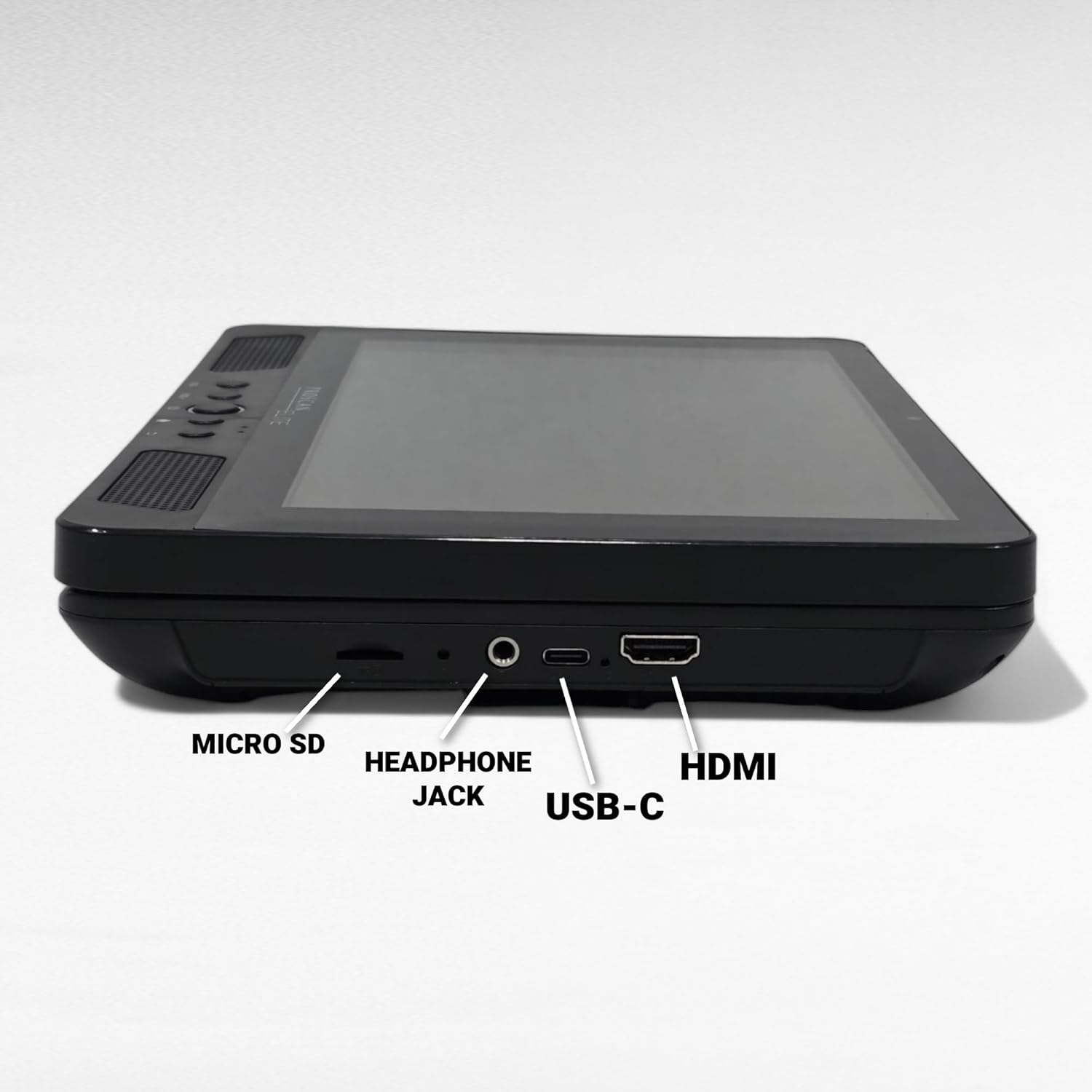
Figure 5: Detailed view of the device's side, highlighting the Micro SD slot, Headphone Jack, USB-C port, and HDMI port for various connectivity options.
Warranty and Support
This product is manufacturer refurbished and comes with a 90-day warranty. For technical support, warranty claims, or further assistance, please contact PROSCAN customer service. Refer to the product packaging or the official PROSCAN website for the most current contact information.
For additional resources and product information, you may visit the PROSCAN Store on Amazon.
Ask a question about this manual
Ask about setup, troubleshooting, compatibility, parts, safety, or missing instructions. Manuals+ will review the question and use this page’s manual context to help answer it.