
1. Introduction
This manual provides comprehensive instructions for the operation and maintenance of your FOXWELL NT1009 Bluetooth Bi-Directional Scan Tool and the FOXWELL NT301 OBD2 Scanner. These tools are designed to assist mechanics, workshops, and car owners in diagnosing and maintaining vehicle systems. Please read this manual thoroughly before operating the devices.
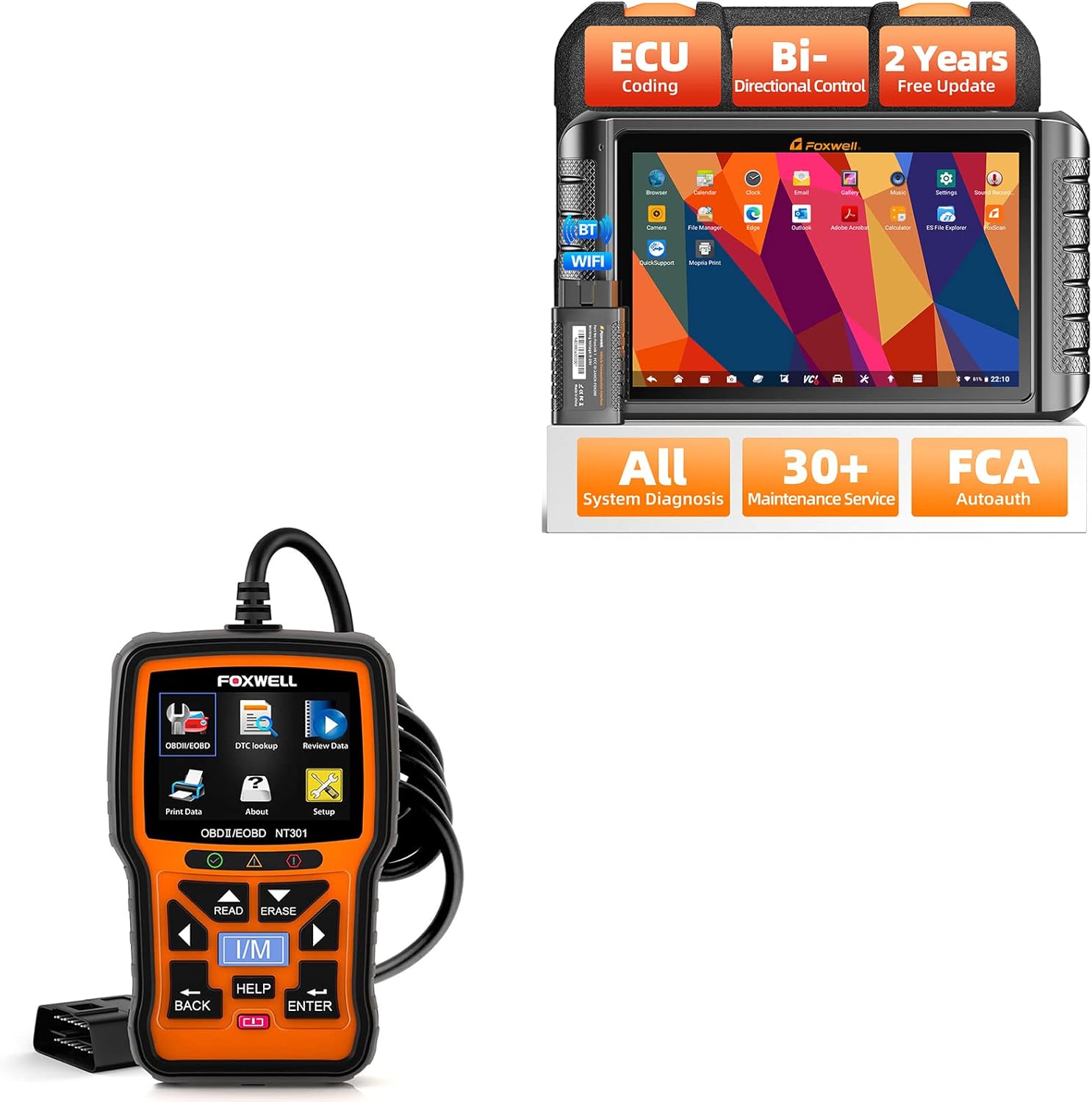
Figure 1.1: The FOXWELL NT1009 diagnostic tablet and the NT301 OBD2 scanner.
2. Product Overview - FOXWELL NT1009
The FOXWELL NT1009 is an advanced diagnostic tablet offering a wide range of functions for comprehensive vehicle analysis and maintenance.
Key Features:
- Wireless Diagnosis: Connects via Bluetooth for flexible operation.
- ECU Coding: Supports advanced control module coding, including offline ECU coding for BMW E/F chassis.
- Bi-directional Control: Capable of commanding vehicle components to perform active tests and pinpoint faults.
- OE-Level All System Diagnosis: Accesses nearly all control modules (Engine, ABS, Airbag, Transmission, TPMS, SAS, etc.) to read/clear DTCs, view live data, and retrieve ECU information.
- 30+ Maintenance Services: Includes common service functions such as Oil Reset, ABS Bleeding, Throttle Relearn, Injector Coding, TPMS Reset, BMS, Power Balance, and more.
- VAG Guided Functions: Provides guided functions for VW, Audi, Skoda, and SEAT vehicles for matching, calibration, and basic settings.
- Brush Hidden Functions: Activates hidden features and disables annoying settings for various car brands (e.g., Audi, BMW, Skoda, SEAT).
- Wide Vehicle Compatibility: Supports over 120 brands and 100,000 car models from 1996 to 2022, including CAN/CAN-FD/KWP/DoIP protocols.
- FCA SGW Bypass: Compatible with Chrysler/Dodge/Jeep/Alfa Romeo/Fiat after 2018 via AutoAuth.
- Hardware Specifications: Features a 10.1-inch screen, Android 9.0, 2GB RAM + 64GB ROM, 8000mAh battery, Bluetooth, Wi-Fi, 500W rear camera, and a 2.0GHz 4-core processor.

Figure 2.1: The FOXWELL NT1009 tablet highlighting its core capabilities.

Figure 2.2: Detailed overview of the NT1009's valuable functions.

Figure 2.3: Hardware specifications of the NT1009 tablet.
3. Product Overview - FOXWELL NT301
The FOXWELL NT301 is a professional OBD2/EOBD diagnostic code reader designed for quick and efficient check engine light diagnostics.
Key Features:
- Read/Clear DTCs: Retrieves and erases diagnostic trouble codes.
- Check Engine Light (CEL) Turn Off: Resets the Malfunction Indicator Lamp (MIL).
- Live Data: Displays real-time sensor data from the vehicle's ECU.
- Emissions Readiness Status: Checks the status of emission-related monitors.
- Retrieve VIN: Automatically retrieves Vehicle Identification Number.
- O2 Sensor Test: Locates bad O2 sensors.
- Reset Monitors: Resets various vehicle monitors.
- OBDII 10 Modes: Supports all 10 modes of OBDII test for a complete diagnosis.

Figure 3.1: The FOXWELL NT301 OBD2 scanner interface.
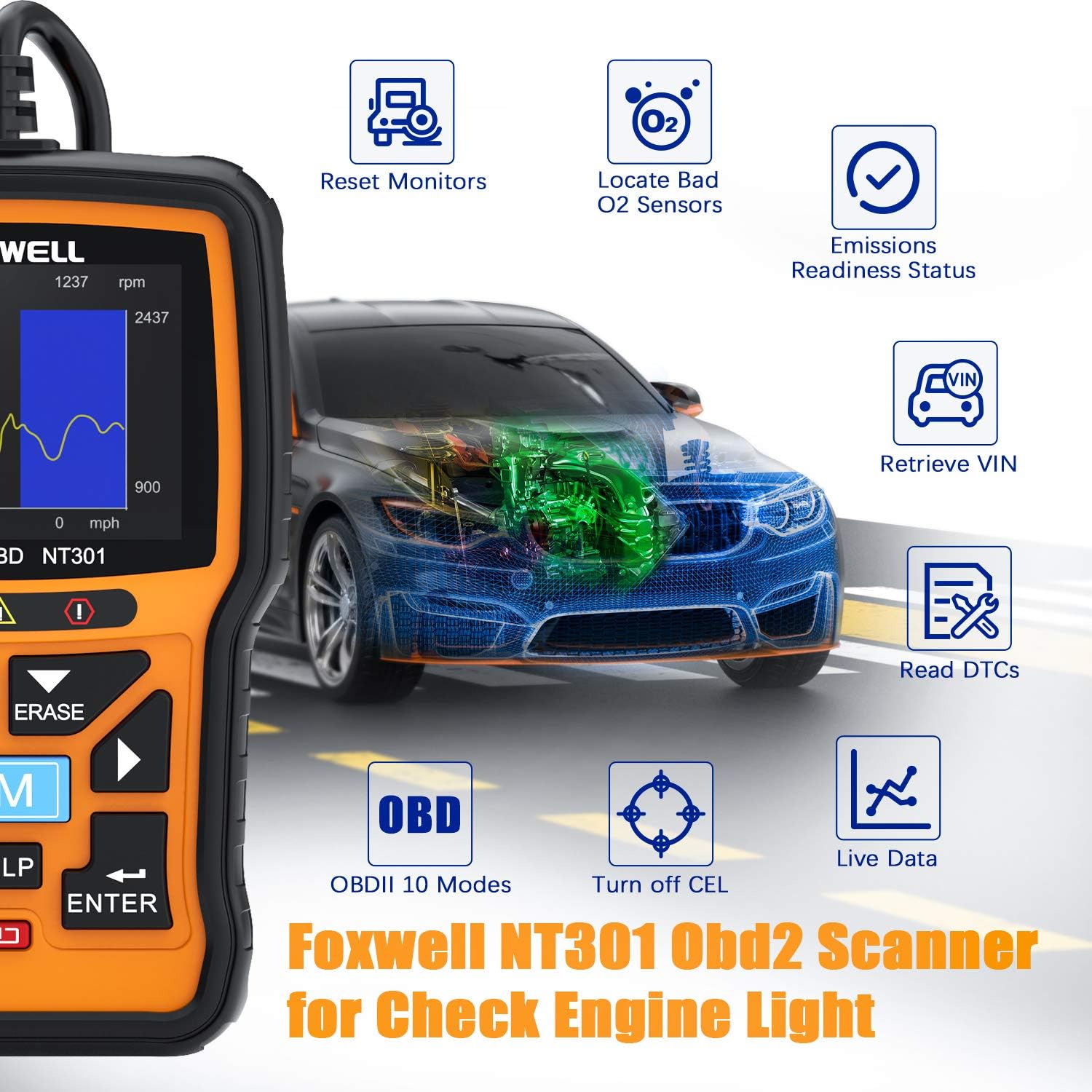
Figure 3.2: Key diagnostic capabilities of the NT301 scanner.
4. Setup Guide
4.1. FOXWELL NT1009 Initial Setup
- Power On: Press and hold the power button to turn on the NT1009 tablet.
- Language Selection: Follow the on-screen prompts to select your preferred language.
- Wi-Fi Connection: Connect the tablet to a stable Wi-Fi network for software updates and online features. Navigate to Settings > Network & Internet > Wi-Fi.
- Software Update: It is highly recommended to update the software to the latest version upon initial setup. Go to the Update application on the main screen and follow the instructions. The NT1009 includes 2 years of free updates.
- Bluetooth Pairing: The diagnostic VCI (Vehicle Communication Interface) connects wirelessly via Bluetooth. Ensure the VCI is plugged into the vehicle's OBDII port and the tablet's Bluetooth is enabled. The tablet should automatically detect and pair with the VCI.
4.2. FOXWELL NT301 Initial Setup
- Connect to Vehicle: Locate the vehicle's 16-pin Data Link Connector (DLC), usually under the dashboard on the driver's side. Plug the NT301's OBDII cable into the DLC.
- Power On: The NT301 will power on automatically once connected to the vehicle's DLC.
- System Check: The device will perform a system check and display the main menu.
5. Operating Instructions
5.1. FOXWELL NT1009 Operation
The NT1009 operates on an Android-based interface, making navigation intuitive.
5.1.1. OE-Level All System Diagnosis
- From the main menu, select Diagnostic.
- Choose the vehicle manufacturer and model. The tool supports auto VIN reading for quick identification.
- Select Auto Scan to perform a comprehensive scan of all available systems (Engine, ABS, Airbag, Transmission, etc.).
- Review the diagnostic report, which will list detected DTCs and system statuses.
- Select a specific system to view live data streams, freeze frame data, or clear DTCs.

Figure 5.1: NT1009 performing a comprehensive system diagnosis.
5.1.2. Bi-directional Control (Active Test)
This function allows you to send commands to vehicle systems to test component functionality.
- After selecting the vehicle and system, navigate to the Active Test or Bi-directional Control menu.
- Select the component you wish to test (e.g., modulate throttle, test fuel pump, operate windows, test horn).
- Follow the on-screen instructions to activate and observe the component's response.
5.1.3. ECU Coding & Hidden Functions
The NT1009 supports advanced ECU coding and activation of hidden features.
- Access the ECU Coding or Special Functions menu for your specific vehicle.
- For ECU Coding (e.g., BMW E/F chassis), select the desired module and follow prompts to match replaced ECUs, recode parts, or activate/deactivate functions.
- For hidden functions, select the relevant option to enable or disable specific vehicle behaviors (e.g., seat belt chime, auto-lock features).
- Caution: Always ensure you understand the implications of ECU coding and hidden function activation before proceeding. Incorrect operations can lead to vehicle malfunctions.

Figure 5.2: NT1009's ECU Coding and Hidden Functions interface.
5.1.4. Maintenance Services (30+ Functions)
The NT1009 provides a wide array of reset, calibration, and relearn functions.
- From the main menu, select Maintenance.
- Choose the required service (e.g., Oil Reset, ABS Bleeding, TPMS Reset, Injector Coding).
- Follow the on-screen instructions, which may include specific vehicle procedures.
- For VAG guided functions, select the appropriate option and follow the step-by-step guidance for matching, calibration, or basic settings.

Figure 5.3: Overview of the 30+ maintenance services available on the NT1009.
5.2. FOXWELL NT301 Operation
The NT301 is designed for straightforward OBDII diagnostics.
- Read Codes: From the main menu, select Read Codes to display current, pending, and permanent Diagnostic Trouble Codes (DTCs).
- Erase Codes: After repairs, select Erase Codes to clear DTCs and turn off the Check Engine Light (CEL). Ensure the ignition is on but the engine is off before erasing codes.
- Live Data: Select Live Data to view real-time sensor data. This can help in identifying intermittent issues.
- I/M Readiness: Use the I/M button to check the readiness status of emission-related monitors. This is useful for pre-smog checks.
- DTC Lookup: Use the DTC Lookup function to get detailed descriptions of generic (P0, P2, P3, B0, C0, U0) and manufacturer-specific (P1, P3, B1, B2, C1, C2, U1, U2) codes.
- Review Data: Access previously recorded data or freeze frame data.
6. Maintenance
- Cleaning: Use a soft, damp cloth to clean the device surfaces. Avoid abrasive cleaners or solvents.
- Storage: Store the diagnostic tools in a dry, cool environment away from direct sunlight and extreme temperatures.
- Software Updates (NT1009): Regularly check for and install software updates via Wi-Fi to ensure optimal performance and expanded vehicle coverage. The NT1009 comes with 2 years of free updates.
- Cable Inspection (NT301): Periodically inspect the OBDII cable for any signs of damage or wear.
7. Troubleshooting
| Problem | Possible Cause | Solution |
|---|---|---|
| NT1009 does not power on. | Low battery; Power button not held long enough; Device malfunction. | Charge the device fully. Press and hold the power button for at least 3-5 seconds. Contact support if issue persists. |
| NT1009 fails to connect via Bluetooth. | VCI not powered; Bluetooth off on tablet; VCI out of range; Interference. | Ensure VCI is plugged into vehicle's OBDII port. Check Bluetooth settings on tablet. Move tablet closer to VCI. Reduce electronic interference. |
| NT301 does not power on when connected. | Vehicle's DLC has no power; Loose connection; Blown fuse in vehicle. | Check vehicle's ignition is on. Ensure secure connection to DLC. Check vehicle's fuse box for blown fuses related to the OBDII port. |
| Cannot read DTCs or connect to ECU. | Incorrect vehicle protocol; Faulty vehicle ECU; Software outdated (NT1009). | Verify vehicle compatibility. Ensure software is updated (NT1009). Try on another vehicle to rule out device issue. |
8. Specifications
FOXWELL NT1009:
- Operating System: Android 9.0
- Processor: 2.0GHz Quad-core
- Memory: 2GB RAM, 64GB ROM
- Display: 10.1-inch LCD touchscreen
- Battery: 8000mAh Lithium-polymer
- Connectivity: Bluetooth, Wi-Fi
- Camera: 500W Rear Camera
- Protocols Supported: CAN, CAN-FD, KWP, DoIP, and more.
- Update: 2 Years Free Update
FOXWELL NT301:
- Display: Backlit LCD
- Connectivity: 16-pin OBDII cable
- Power: 8 to 18 V provided via vehicle battery
- Protocols Supported: All OBDII protocols (CAN, J1850 PWM, J1850 VPW, ISO9141, KWP2000)
9. Warranty and Support
For warranty information, technical support, or service inquiries, please refer to the official FOXWELL website or contact their customer service directly. Keep your purchase receipt as proof of purchase for warranty claims.
Official FOXWELL Store: Visit the FOXWELL Store on Amazon


