
1. Product Overview
The ORICO 5-Port USB 3.0 Hub with SD/TF Card Reader is designed to expand your device's connectivity, offering three USB 3.0 ports and dedicated slots for SD and TF cards. This compact and versatile hub facilitates high-speed data transfer and broad compatibility with various devices and operating systems.

Figure 1: ORICO 5-Port USB 3.0 Hub with SD/TF Card Reader. This image displays the compact design of the hub, highlighting its multiple ports and integrated cable.

Figure 2: ORICO 5-in-1 USB 3.0 Hub. This image illustrates the hub's functionality, showing three USB 3.0 ports, dedicated SD and TF card slots, and its USB-A connector for host device connection.
2. Key Features
- 5Gbps High-Speed Transmission: Provides stable data transfer speeds of up to 5 Gbps, compatible with USB 2.0/1.0. Supports OTG function for mobile devices (requires mobile phone OTG support).
- 5-Port USB Hub: Expands one USB port into three USB-A 3.0 ports (5Gbps, data transfer only, no charging support) and dedicated TF/SD card reader ports. All five ports can operate simultaneously without overheating.
- Humanity Design: Slim and compact, designed to accommodate most flash drive sizes and provide adequate space between ports. Features a blue LED indicator for activity status, which is not disruptive at night.
- Perfect Protection & Durability: Built-in high-performance chip ensures device and data safety. Supports hot-swapping and includes over-current protection on each port to safeguard connected devices and the hub from power surges.
- Wide Compatibility: Reverse compatible with USB 2.0 (480Mbps) and USB 1.1 (12Mbps) devices. Works with PCs, MacBooks, iMacs, Mac minis, XPS, Flash Drives, and other USB-compatible devices.
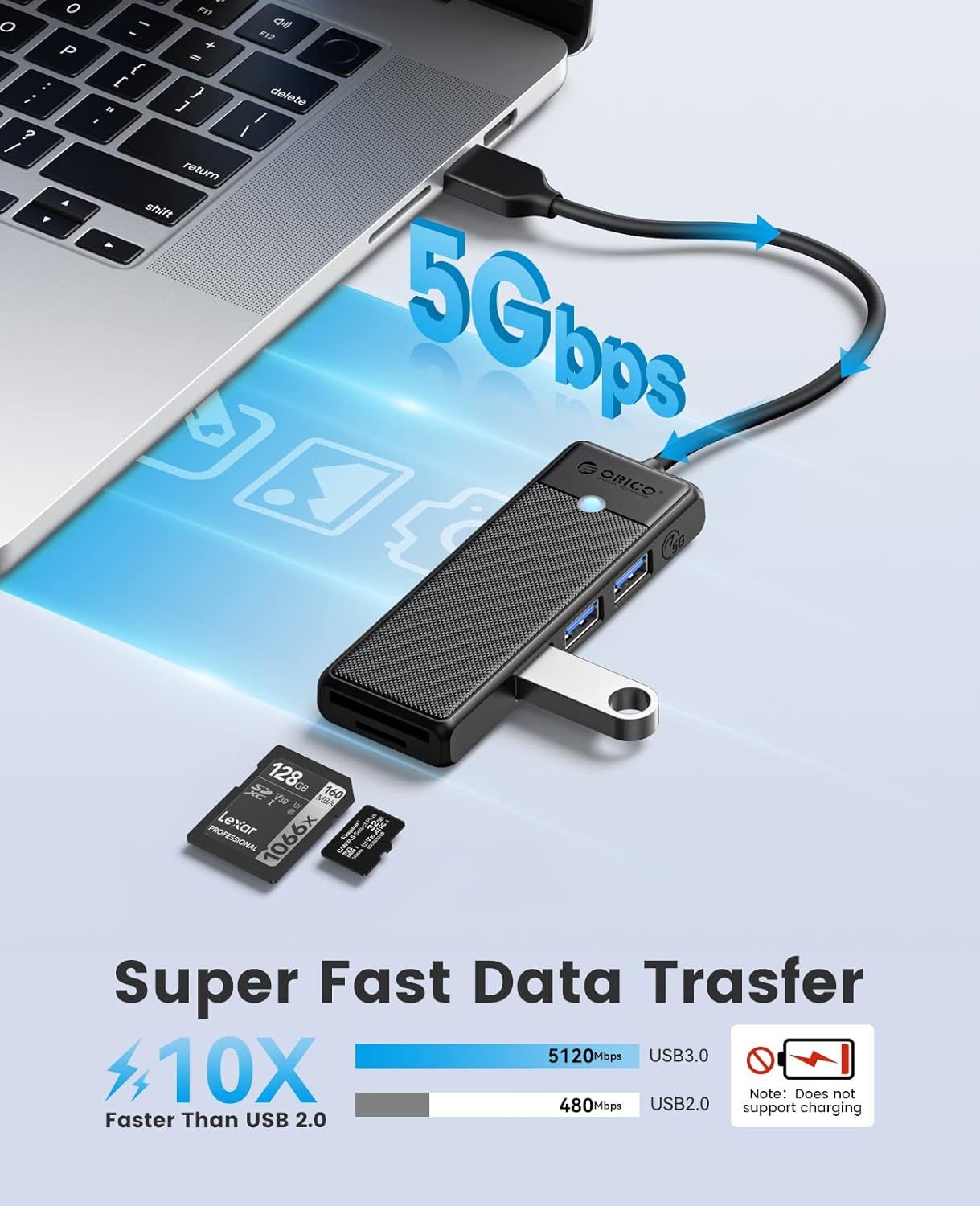
Figure 3: Super Fast Data Transfer. This diagram visually compares the 5Gbps speed of USB 3.0 with the slower 480Mbps of USB 2.0.

Figure 4: Universal SD TF Compatibility. This image demonstrates the hub's ability to read both SD and TF cards, with an SD card partially inserted.

Figure 5: Universal Compatibility. This infographic lists compatible host devices such as PCs, Laptops, PS5/PS4/PS3, Cars, and Phones, along with supported operating systems like Windows, Mac OS, Android, and Linux.
3. Setup Instructions
- Connect to Host Device: Plug the USB-A connector of the ORICO hub into an available USB-A port on your computer, laptop, or compatible device.
- Automatic Recognition: The hub is plug-and-play. Your operating system (Windows, Mac OS, Linux, Android) should automatically detect and install the necessary drivers. No manual driver installation is typically required.
- LED Indicator: A blue LED light on the hub will illuminate, indicating that the device is powered on and ready for use.

Figure 6: Plug & Play Connection. This image shows the ORICO USB hub connected to a laptop, with its blue LED indicator lit, signifying active connection.
4. Operating Instructions
- Using USB 3.0 Ports: Insert your USB devices (e.g., flash drives, external hard drives, keyboards, mice, printers) into any of the three blue USB 3.0 ports. Data transfer will occur at up to 5Gbps. Note that these ports do not support device charging.
- Using SD/TF Card Reader: Insert your SD card into the SD slot or your TF (Micro SD) card into the TF slot. Ensure the card is inserted correctly. The card will appear as a removable drive on your computer, allowing you to access and transfer files. Both card slots can be used simultaneously.
- OTG Functionality: If your mobile phone supports OTG (On-The-Go) function, you can connect the hub to your phone to access USB devices or memory cards directly.
Video 1: ORICO USB Hub with SD/TF Card Reader. This video demonstrates the practical use of the ORICO USB hub, showing how to connect various devices and utilize the SD/TF card reader for data transfer.
5. Maintenance
- Cleaning: Use a soft, dry cloth to clean the exterior of the hub. Avoid using liquid cleaners or solvents.
- Storage: Store the hub in a cool, dry place away from direct sunlight and extreme temperatures. When not in use, disconnect it from your device.
- Cable Care: Avoid bending or twisting the integrated cable excessively to prevent internal damage.
6. Troubleshooting
- Device Not Recognized:
- Ensure the hub is securely plugged into your host device's USB port.
- Try connecting the hub to a different USB port on your device.
- Restart your computer or host device.
- Verify that the connected peripheral device is functioning correctly when plugged directly into your host device.
- Slow Transfer Speeds:
- Ensure both the hub and your connected device support USB 3.0 for optimal speeds. Connecting a USB 2.0 device to a USB 3.0 port will result in USB 2.0 speeds.
- Avoid connecting too many high-bandwidth devices simultaneously, as this can affect overall performance.
- Overheating: The hub is designed to operate without overheating even during prolonged use with multiple devices. If you experience unusual heat, disconnect the hub immediately and contact support.
7. Specifications
| Feature | Detail |
|---|---|
| Model Number | USB-A-015-Black |
| Product Dimensions | 3.86 x 1.34 x 0.47 inches |
| Item Weight | 1.41 ounces |
| Hardware Interface | USB Type A |
| USB Ports | 3 x USB 3.0 (5Gbps) |
| Card Reader Slots | 1 x SD, 1 x TF (Micro SD) |
| Data Transfer Speed | Up to 5Gbps (USB 3.0) |
| Compatibility | Windows, Mac OS, Android, Linux, PCs, Laptops, Smartphones, Tablets, Gaming Consoles |
| Special Features | Data Transfer, High Speed, Over-current Protection, Hot-swapping, LED Indicator |
8. Warranty and Support
ORICO products are designed for reliability and performance. This product comes with a standard manufacturer's warranty. For detailed warranty information, technical support, or service inquiries, please refer to the official ORICO website or contact their customer service directly. Keep your purchase receipt for warranty claims.
For further assistance, please visit the ORICO Store on Amazon.


