
1. Introduction
This manual provides essential information for setting up, operating, maintaining, and troubleshooting your HP 15 Laptop. This device is equipped with an Intel Core i5 processor, 16GB RAM, and a 512GB SSD, running on Windows 11 Home. Please read this manual thoroughly to ensure proper use and to maximize the lifespan of your laptop.
2. Package Contents
Verify that all items are present in the box:
- HP 15 Laptop
- 45W AC Adapter with Power Cord
- User Manual (this document)
- 1 Year Warranty information

3. Product Features
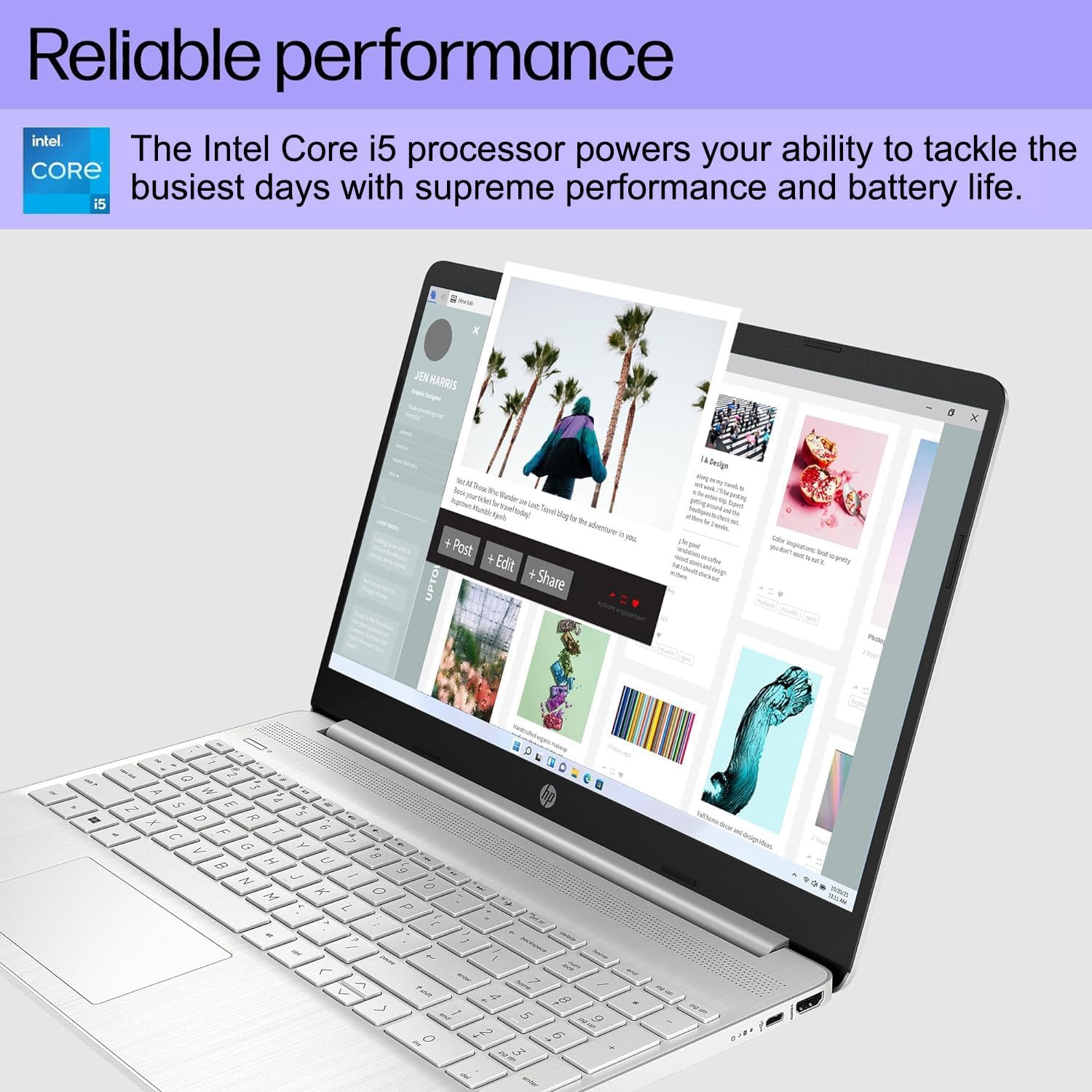
- Reliable Performance: Equipped with an Intel Core i5-1135G7 Processor, 16GB DDR4 RAM, and a 512GB PCIe NVMe M.2 SSD for efficient operation and fast storage.
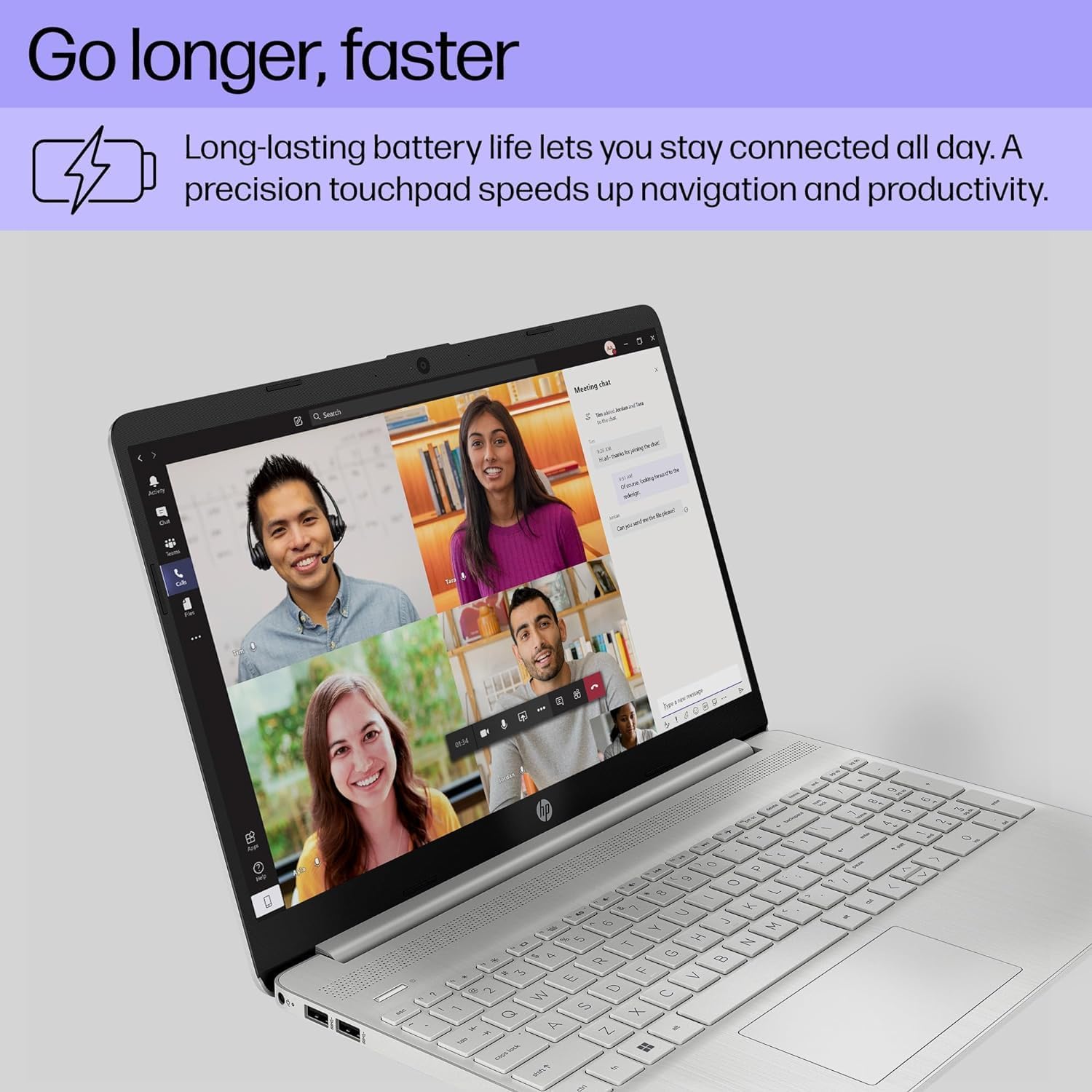
- Extended Battery Life: Designed for up to 10 hours of battery life, allowing for prolonged use without frequent recharging.
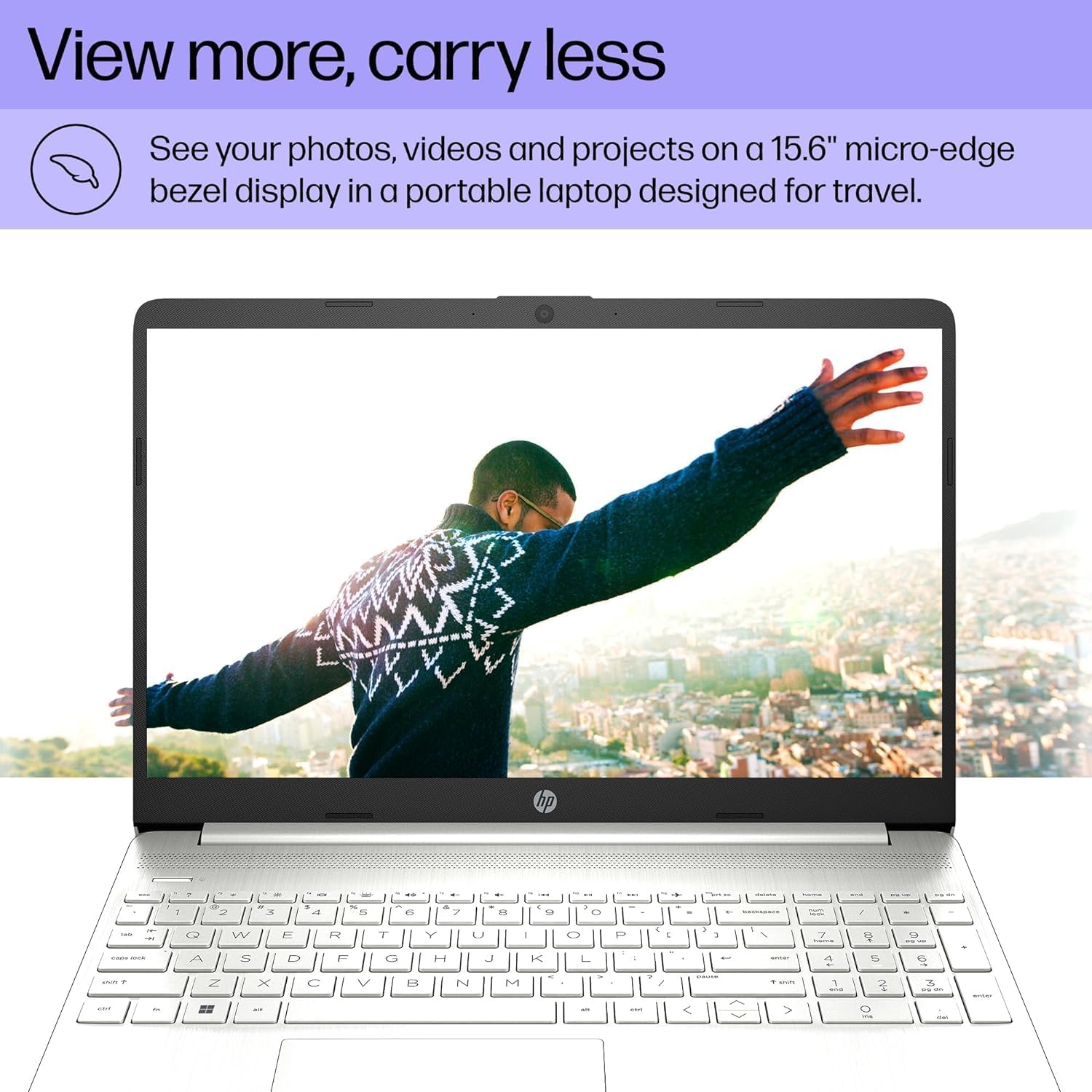
- Clear Display: Features a 15.6" FHD (1920 x 1080) IPS micro-edge anti-glare BrightView Display with Intel Iris Xe graphics. Supports external monitors via HDMI at 4K (3840x2160) @60Hz.
- Integrated Webcam: HD webcam with advanced noise reduction software and dual array digital microphone for clear video calls. Includes a physical privacy shutter.
- Versatile Connectivity: Includes USB 3.2 Type-C 5Gbps ports, USB 3.1 Type-A 5Gbps ports, HDMI 1.4b, SD media card reader, and an Audio combo jack.
- Wireless Capabilities: Supports Wi-Fi 5 (802.11ac) and Bluetooth 5 for reliable wireless connections.
- Operating System: Pre-installed with Windows 11 Home 64-bit, featuring AI-powered Copilot for enhanced productivity.

4. Setup Guide
4.1 Initial Power On
- Connect Power: Plug the AC adapter into the laptop's power port and then into a wall outlet.
- Open Laptop: Carefully open the laptop lid.
- Power On: Press the power button, usually located on the top right of the keyboard.
- Initial Windows Setup: Follow the on-screen instructions to complete the Windows 11 Home setup, including language, region, network connection, and user account creation.
4.2 Connecting Peripherals
Use the available ports to connect external devices:
- USB Devices: Connect mice, keyboards, external drives, or printers to the USB Type-A or USB Type-C ports.
- External Display: Use an HDMI cable to connect to an external monitor or TV.
- Audio Devices: Plug headphones or external speakers into the audio combo jack.
- SD Cards: Insert SD media cards into the multi-format SD media card reader.
5. Operating Instructions
5.1 Basic Navigation
- Touchpad: Use the integrated touchpad for cursor control. Tap to click, use two fingers to scroll, and pinch to zoom.
- Keyboard: The laptop features a full-size keyboard with a numeric keypad. Function keys (F1-F12) provide quick access to system settings when pressed with the Fn key.
- Windows 11: Familiarize yourself with the Windows 11 interface, including the Start Menu, Taskbar, and Action Center.
5.2 Using the Webcam
The integrated HD webcam is suitable for video calls and online meetings. Ensure the privacy shutter (if present) is open before use. Access webcam settings through Windows settings or your video conferencing application.
6. Maintenance
6.1 Cleaning
- Screen: Use a soft, lint-free cloth slightly dampened with water or a screen cleaner. Avoid harsh chemicals.
- Keyboard and Chassis: Use a soft cloth to wipe surfaces. For dust, use compressed air.
- Ports: Keep ports free of dust and debris to ensure proper connectivity.
6.2 Software Updates
Regularly check for and install Windows updates and driver updates to ensure optimal performance and security. Go to Settings > Windows Update.
6.3 Battery Care
- Avoid extreme temperatures.
- Do not fully discharge the battery frequently.
- For long-term storage, charge the battery to about 50-70%.
7. Troubleshooting
| Problem | Possible Cause | Solution |
|---|---|---|
| Laptop does not power on. | No power, discharged battery, hardware issue. | Ensure AC adapter is securely connected and outlet is working. Charge battery for at least 30 minutes. If issue persists, contact support. |
| Screen is blank. | Sleep mode, display settings, external monitor connected. | Press any key or move the mouse to wake from sleep. Press Fn + F4 (or equivalent display toggle key) to cycle display outputs. Disconnect external monitors. |
| Wi-Fi not connecting. | Wi-Fi disabled, incorrect password, router issue. | Check Wi-Fi settings in Windows to ensure it's enabled. Verify Wi-Fi password. Restart your router and modem. |
| Laptop runs slowly. | Too many programs open, low disk space, malware. | Close unnecessary applications. Free up disk space. Run a virus scan. Check for and install system updates. |
8. Specifications
| Feature | Detail |
|---|---|
| Brand | ist computers |
| Model Name | HP 15 Laptop |
| Screen Size | 15.6 Inches |
| Color | Silver |
| CPU Model | Intel Core i5-1135G7 (11th Gen) |
| Processor Speed | 2.4 GHz (up to 4.2 GHz) |
| RAM Memory Installed Size | 16 GB DDR4 (3200 MHz) |
| Hard Disk Size | 512 GB SSD (PCIe NVMe M.2) |
| Operating System | Windows 11 Home 64-bit |
| Graphics Coprocessor | Intel Iris Xe Graphics (Integrated) |
| Display Resolution | 1920x1080 Pixels (FHD) |
| Refresh Rate | 60 Hz |
| Wireless Connectivity | Wi-Fi 5 (802.11ac), Bluetooth 5 |
| USB Ports | 1x USB 3.2 Type-C, 2x USB 3.1 Type-A |
| HDMI Ports | 1x HDMI 1.4b |
| Other Ports | SD Media Card Reader, Audio Combo Jack |
| Webcam | HD Webcam (0.9 MP Front Photo Sensor Resolution) |
| Battery Life (Average) | 10 Hours |
| Item Weight | 3.8 Pounds |
| Dimensions (L x W x Thickness) | 14.11"L x 9.53"W x 0.71"Th |

9. Warranty and Support
Your HP 15 Laptop comes with a 1-year limited warranty from the manufacturer on remaining components. Additionally, the upgraded Memory/SSD components are covered by a three-year warranty from Issaquah Highlands Tech.
For technical support or warranty claims, please refer to the contact information provided with your purchase documentation or visit the manufacturer's official support website.


