
ALLIMITY QYSY-GCBLTV70A-C35
ALLIMITY Replacement Remote Control Instruction Manual
Model: QYSY-GCBLTV70A-C35
Introduction
This manual provides instructions for the ALLIMITY QYSY-GCBLTV70A-C35 replacement remote control. This remote is designed to function as a direct replacement for various Grandin and Saba TV models without requiring any programming. Please read this manual carefully to ensure proper use and to troubleshoot common issues.
Setup Instructions
1. Battery Installation
The remote control requires two AAA alkaline batteries (not included). Follow these steps to install them:
- Locate the battery compartment on the back of the remote control.
- Slide the battery compartment cover downwards to open it.
- Insert two new AAA alkaline batteries, ensuring the positive (+) and negative (-) terminals align correctly with the markings inside the compartment. Incorrect polarity will prevent the remote from functioning.
- Close the battery compartment cover by sliding it back into place until it clicks securely.

Image: Rear view of the remote control with the battery cover removed, illustrating the correct insertion of two AAA batteries.
2. Initial Use
This remote control is pre-programmed and does not require any additional setup or coding. Once the batteries are correctly installed, it is ready for immediate use with compatible TV models.
Important: Only use new alkaline batteries. Do not use rechargeable batteries or mix old and new batteries.
Operating Instructions
The ALLIMITY replacement remote control is designed to replicate the functions of your original remote. Point the remote directly at your TV's infrared sensor for optimal performance.
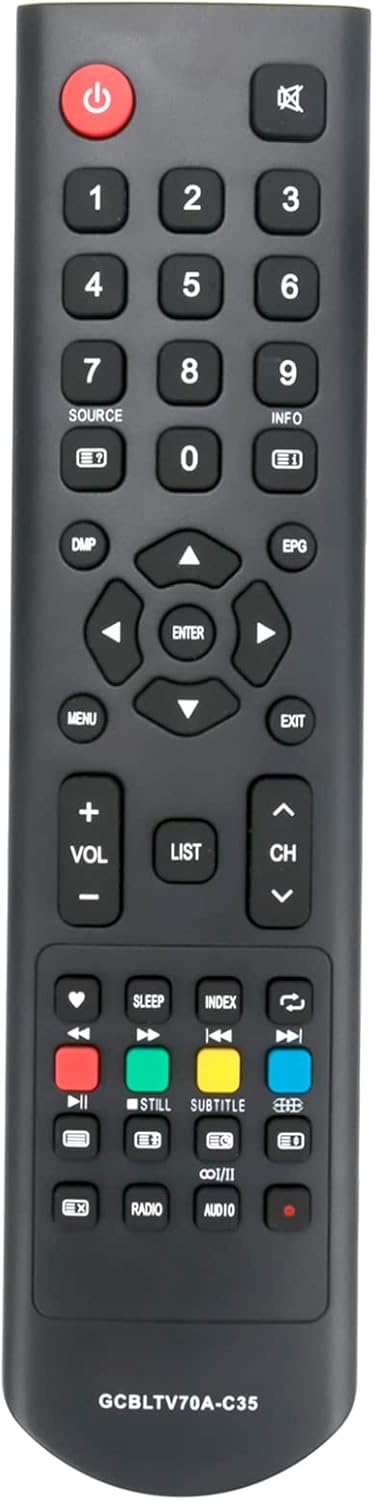
Image: Front view of the remote control, highlighting the button layout.
Button Functions Overview:
- Power (●): Turns the TV on or off.
- Mute (🔇): Mutes or unmutes the TV sound.
- Number Buttons (0-9): Directly select channels.
- SOURCE: Cycles through input sources (HDMI, AV, etc.).
- INFO: Displays current channel information.
- DMP: Accesses digital media player functions.
- EPG: Electronic Program Guide.
- Directional Arrows (▲ ▼ ◄ ►): Navigate menus and options.
- ENTER: Confirms selections.
- MENU: Opens the main TV menu.
- EXIT: Exits current menu or function.
- VOL (+/-): Adjusts volume up or down.
- CH (▲/▼): Changes channels up or down.
- LIST: Displays a list of channels.
- Color Buttons (Red, Green, Yellow, Blue): Access specific functions within menus or applications, as indicated on your TV screen.
- Playback Controls (Play, Pause, Stop, Rewind, Fast Forward, Previous, Next): Control media playback.
- SLEEP: Sets a sleep timer.
- INDEX: Accesses index functions.
- STILL: Pauses live TV or video.
- SUBTITLE: Toggles subtitles.
- CC/I/II: Closed Captioning/Audio Language selection.
- RADIO: Switches to radio mode (if supported by TV).
- AUDIO: Selects audio tracks.
Maintenance
Cleaning the Remote Control
To clean the remote control, gently wipe its surface with a soft, dry cloth. For stubborn dirt, slightly dampen the cloth with water. Avoid using harsh chemicals, abrasive cleaners, or excessive moisture, as these can damage the remote.
Battery Care
- Always use new AAA alkaline batteries.
- Do not mix old and new batteries, or different types of batteries.
- Remove batteries if the remote control will not be used for an extended period to prevent leakage.
- Dispose of used batteries responsibly according to local regulations.
Troubleshooting
If you experience issues with your remote control, please refer to the following troubleshooting steps:
Issue 1: Remote Control Not Responding
- Check Batteries: Ensure two new AAA alkaline batteries are correctly installed with the correct polarity (+ and -).
- Reset Remote: Remove the batteries from the remote control. Press each button on the remote for at least 3 to 5 seconds to discharge any residual power. This also helps check if any buttons are stuck.
- Reinsert Batteries: Insert the new AAA alkaline batteries back into the remote control, ensuring correct polarity.
Issue 2: Remote Control Not Working or Responding to TV
- Clear Obstructions: Ensure there are no objects blocking the line of sight between the remote control and your TV's infrared (IR) sensor.
- Clean IR Sensor: Verify that the IR sensor area on your TV is clean. Dust can sometimes affect the sensor's connection.
- Point Correctly: Always point the remote control directly towards the TV's IR sensor.
- Power Cycle TV: Unplug the TV's power cord from the electrical outlet, wait for approximately 10 seconds, then plug it back in to restart the TV. After the TV has restarted, try using the remote control again.
- Verify Compatibility: Confirm that your TV model is listed as compatible with this remote control. Refer to the "Compatible TV Models" section.
Specifications
| Brand | ALLIMITY |
| Model Number | QYSY-GCBLTV70A-C35-QYSY |
| Color | Black |
| Connectivity Technology | Infrared (IR) |
| Special Feature | No programming required |
| Number of Buttons | 25 |
| Maximum Range | 10 Meters |
| Power Source | 2 x AAA Alkaline Batteries (not included) |
| Compatible TV Models |
|
Warranty and Support
Information regarding product warranty and specific support contacts is not provided in this manual. Please refer to your purchase documentation or contact the seller for details on warranty coverage and customer support.
Related documentsQYSY-GCBLTV70A-C35

Ask a question about this manual
Ask about setup, troubleshooting, compatibility, parts, safety, or missing instructions. Manuals+ will review the question and use this page’s manual context to help answer it.