
VIHELM B0BW71K88Q
VIHELM All-in-1 HDD Docking Station User Manual
Model: B0BW71K88Q
1. Introduction
Thank you for purchasing the VIHELM All-in-1 HDD Docking Station. This versatile device provides a convenient solution for accessing 2.5-inch and 3.5-inch SATA and IDE hard disk drives, along with multiple memory card formats, via USB 2.0 or USB 3.0. It features high-speed data transfer, a one-touch backup function, and hot-swappable capabilities for ease of use.
Package Contents
- VIHELM All-in-1 HDD Docking Station
- USB Cable (USB 2.0/3.0 compatible)
- AC Power Adapter
- User Manual (this document)
- Software CD (for One-Touch Backup function)
2. Product Overview
Familiarize yourself with the various components and interfaces of your docking station.

Figure 2.1: Front view of the docking station, showing the main HDD slots and front panel interfaces.

Figure 2.2: Rear view of the docking station, highlighting the Power On/Off switch, DC Power input, E-SATA port, and USB port.
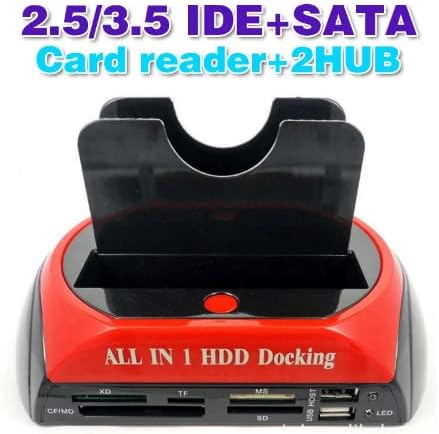
Figure 2.3: Detailed front view, illustrating the CF/MD, XD, TF, MS, SD card slots, and two USB HOST ports with an LED indicator.

Figure 2.4: Top-down view, indicating the 2.5-inch IDE HDD, 3.5-inch IDE HDD, and 2.5/3.5-inch SATA slots, along with the SATA HDD Power Port.
Key Features
- Supports 2.5" and 3.5" SATA I/II and IDE hard disk drives (up to 4TB).
- High-speed data transfer via USB 2.0 (up to 480 Mb/s) and USB 3.0 (up to 5 Gb/s).
- Integrated 5-slot card reader supporting CF, SD, XD, MS, and TF (Micro SD) memory cards.
- Two USB HOST ports for connecting additional USB devices.
- One-Touch Backup (OTB) function for easy data synchronization (USB port only).
- Plug and Play, hot-swappable design.
- Power LED indicator for operational status.
- Offline hard disk cloning capability.
3. Setup Guide
3.1 Connecting the Docking Station
- Ensure the docking station's power switch (located at the rear) is in the OFF position.
- Connect the AC Power Adapter to the DC Power input port on the rear of the docking station.
- Plug the AC Power Adapter into a standard electrical outlet.
- Connect the USB cable from the docking station's USB port (rear) to an available USB port on your computer. For optimal performance, use a USB 3.0 port if available.
- Flip the power switch on the rear of the docking station to the ON position. The power LED indicator on the front will illuminate.
3.2 Installing a Hard Drive
The docking station supports both SATA and IDE hard drives. Ensure the drive is properly aligned before insertion.
For SATA Hard Drives (2.5" or 3.5")
- Gently slide the SATA hard drive into the designated 2.5"/3.5" SATA slot on top of the docking station, ensuring the SATA data and power connectors align with the docking station's connectors.
- Push down firmly until the drive is securely seated.
For IDE Hard Drives (2.5" or 3.5")
Note: The docking station does NOT support Western Digital (WD) IDE HDDs.
- Identify the correct IDE slot for your drive size (2.5" or 3.5" IDE HDD).
- For 3.5" IDE HDDs, connect the IDE power cable (if required by the drive, not included) to the drive and the SATA HDD Power Port on the docking station.
- Carefully align the IDE pins of your hard drive with the corresponding pins in the docking station's IDE slot.
- Gently push the hard drive down until it is securely connected. Avoid bending the pins.
4. Operating Instructions
4.1 Data Transfer
Once a hard drive is installed and the docking station is connected to your computer, the drive should appear as a removable disk in your operating system (e.g., 'My Computer' on Windows, 'Finder' on macOS). You can then drag and drop files, copy, paste, or perform any standard file operations as you would with any other external storage device.
The docking station supports both FAT32 and NTFS file systems.
4.2 One-Touch Backup (OTB) Function
The One-Touch Backup (OTB) function allows for quick data synchronization. This feature is supported only when connected via the USB port.
- Install the OTB software from the provided CD onto your computer.
- Configure the backup settings within the OTB software (e.g., source folders, destination on the docked HDD).
- To initiate a backup, press the "Ghost" button (One-Touch Backup button) on the docking station.
Important Notes for OTB:
- OTB is applied to the USB port only and is not available for other ports (e.g., eSATA).
- When operating the PC clone software, you must be logged in as an administrator. Guest or unauthorized accounts cannot use this function.
- If your operating system is Windows 98/ME, the file backup function does not support the external HD button operation; you must use the software interface instead.
4.3 Card Reader Functionality
Insert your memory card into the corresponding slot on the front of the docking station. The card will appear as a removable drive on your computer, allowing you to access its contents.
- CF Slot: Supports CF I/II, Extreme CF, Extreme III CF, Ultra II CF, HS CF, MD.
- XD Slot: Supports XD Memory.
- TF Slot: Supports TF Memory (Micro SD).
- MS Slot: Supports MS, MS DUO, MS PRO, MS PRO DUO, MS MagicGate, MS MagicGate PRO, MS MagicGate PRO DUO, Extreme MS PRO, Extreme III MS PRO, Ultra II MS PRO, HS MS MagicGate PRO, HS MS MagicGate PRO DUO, MS ROM, MS Select.
- SD Slot: Supports SD, Mini SD, Extreme SD, Extreme III SD, Ultra II SD, MMC 1/2/4.0, RS MMC, HS RS MMC.
4.4 USB HOST Ports
The two USB HOST ports on the front of the docking station function as a USB 2.0 hub, allowing you to connect additional USB devices such as flash drives, keyboards, or mice.
5. Maintenance and Care
- Keep the docking station clean by wiping it with a soft, dry cloth. Avoid using liquid cleaners or solvents.
- Ensure proper ventilation around the device to prevent overheating, especially during prolonged use.
- Avoid dropping or subjecting the device to strong impacts.
- Store the docking station in a cool, dry place when not in use.
- Always safely eject hard drives and memory cards from your operating system before physically removing them from the docking station to prevent data corruption.
6. Troubleshooting
- Device not recognized: Ensure all cables (power and USB) are securely connected. Try a different USB port on your computer. Verify the docking station's power switch is ON.
- Hard drive not appearing: Ensure the hard drive is properly seated in its slot. Check if the hard drive is formatted and partitioned. If it's a new drive, it may need to be initialized and formatted via Disk Management (Windows) or Disk Utility (macOS).
- Slow data transfer: Ensure you are connected to a USB 3.0 port on your computer for optimal speeds. Check the condition of your USB cable.
- OTB function not working: Ensure the OTB software is installed and you are logged in as an administrator. Confirm the docking station is connected via USB.
- "Bad sector" warning: If a hard disk has bad sectors, it can prevent proper operation of backup or restore functions. It is recommended to confirm the drive's health in advance.
- No support for WD IDE HDD: As stated in the product specifications, Western Digital IDE hard drives are not supported by this docking station.
- Windows 8 compatibility: The product notes indicate "No support Windows 8". Users with Windows 8 may experience compatibility issues.
7. Technical Specifications
| Feature | Specification |
|---|---|
| Brand | VIHELM |
| Model | B0BW71K88Q |
| Hardware Interface | USB 3.0, USB 2.0, e-SATA, IDE, SATA |
| Compatible HDD Types | 2.5"/3.5" SATA HDD, 2.5"/3.5" IDE HDD (Excluding WD IDE HDDs) |
| Max Storage Capacity | 4 TB |
| Compatible Devices | Desktop Computers |
| Max Supported Devices | 1 (HDD/SSD) |
| Card Reader Slots | CF, SD, XD, MS, TF (Micro SD) |
| Supported OS | Windows 98/98SE/ME/2000/XP/VISTA, Mac OS 9.X or higher (Note: No support for Windows 8) |
| Power Input | 100-240V, 50/60Hz, 1A |
| Output Power | 12.0V 2000mA, 5.0V 3500mA |
| Docking Station Dimensions | Approx. 18 x 11 x 10.2 cm (7.09 x 4.33 x 4.02 inches) |
| USB Cable Length | Approx. 72 cm (28.35 inches) |
| Power Cable Length | Approx. 108 cm (42.52 inches) |
| AC Adapter Size | Approx. 11.8 x 5 x 3.3 cm (4.65 x 1.97 x 1.3 inches) |
| AC Adapter Cable Length | Approx. 94 cm (37 inches) |
| Adapter Plug Type | US Plug |
8. Warranty and Support
This product comes with a standard manufacturer's warranty. For specific warranty terms and conditions, please refer to the documentation provided with your purchase or contact VIHELM customer support directly.
If you encounter any issues or have questions not covered in this manual, please contact your retailer or the manufacturer for assistance. Please have your product model (B0BW71K88Q) and purchase information ready when seeking support.
Ask a question about this manual
Ask about setup, troubleshooting, compatibility, parts, safety, or missing instructions. Manuals+ will review the question and use this page’s manual context to help answer it.